






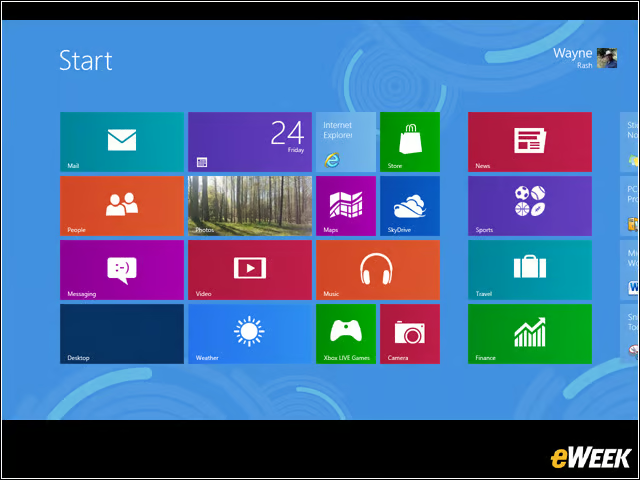


The Windows 8 Tile Interface
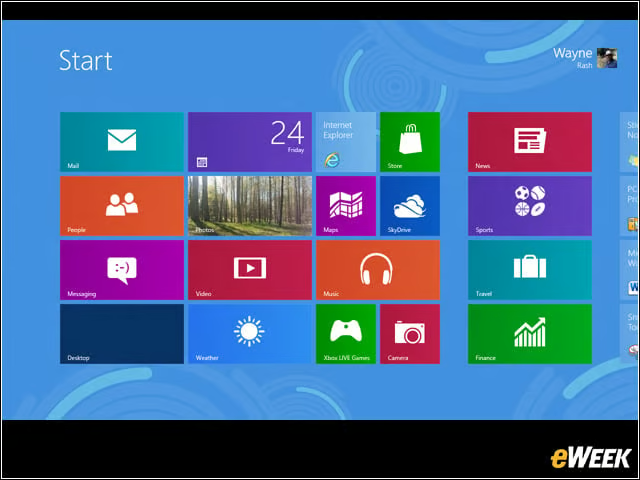
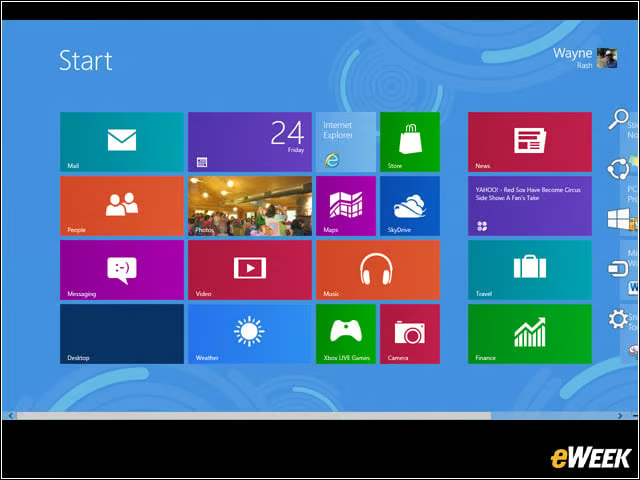
This is the famous (or infamous) tile interface that you’ve heard about. It looks and works just like the user interface on the Windows Phone. You’ll notice partial tiles on the right side of the screen. If you scroll the screen that way, you’ll see tiles for individual applications. You’ll see more of these if you install Windows 8 on a machine that was already running Windows 7 and had some applications installed. Note the tile in the lower left corner named “Desktop.” That’s one way to get to the Windows desktop.
Scrolling the Tiled Interface
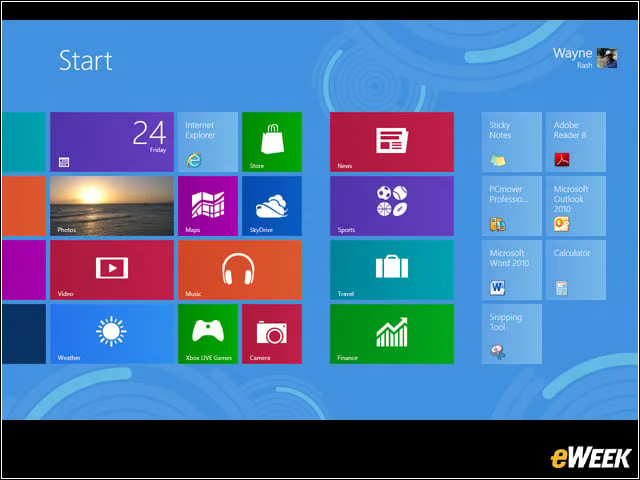
This is what you see when you scroll the tiled interface (formerly the Metro screen) to the right. The applications you see in the smaller tiles were already on the computer when Windows 8 was installed.
How to Shift to the Windows Desktop
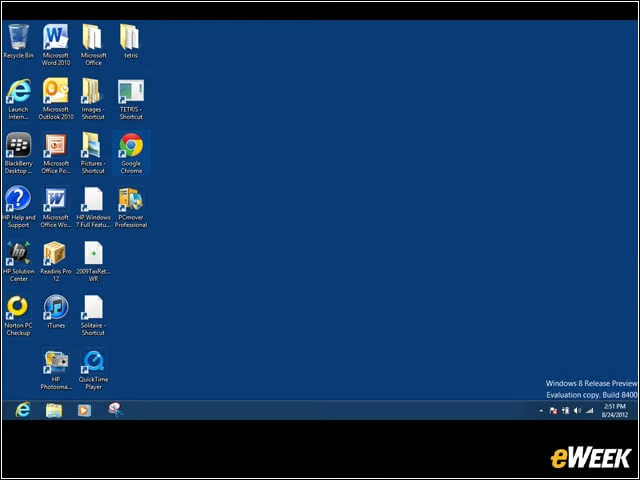
You can get here by selecting the “Desktop” tile in the tiled interface or you can press or you can open the Search bar and type the word “desktop.” It looks just like the Windows 7 desktop, and it works the same way with a few exceptions. You’ll note that the start button in the lower left corner is missing. You can still access the start menu functions by hovering your mouse pointer over the lower right corner of the desktop. If you hover the mouse pointer over the lower left corner, you’ll see a tiny image of the tiled interface. Click and you’re there. Hover over the upper left corner, and you’ll be presented with a vertical bar showing all running applications—even windows that aren’t open on your desktop. This makes switching between applications really easy.
Accessing the Start Menu
You can access the start menu in either the Windows desktop or the tiled interface in the same way—by hovering your mouse pointer over the lower right corner of the screen. That brings up an icon bar superimposed over whatever is on the screen. The icons reveal their function as you move your mouse over them. They are, starting from the bottom, Settings, Devices, Start (the tiled interface), Share and Search.
Ready Access to Search
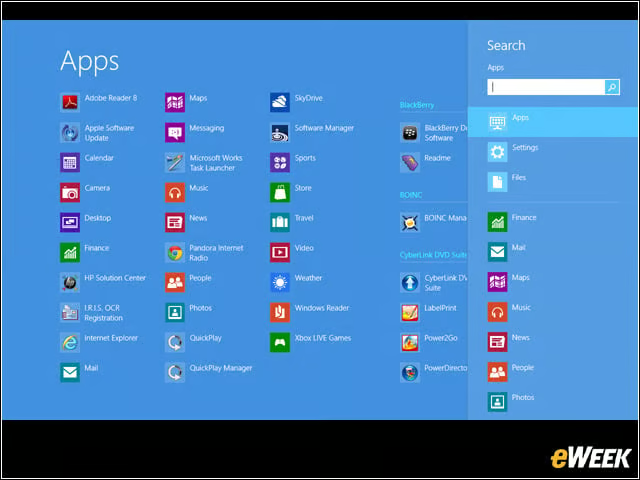
The icon in the start menu that you’ll use most often is probably Search. When you select it, you get this screen, with the familiar search bar at the upper left. Note that this version of the search bar will find apps. There’s a Files icon to let you search files. On the left are the icons for everything that’s installed on your computer.
Viewing Applications Icons
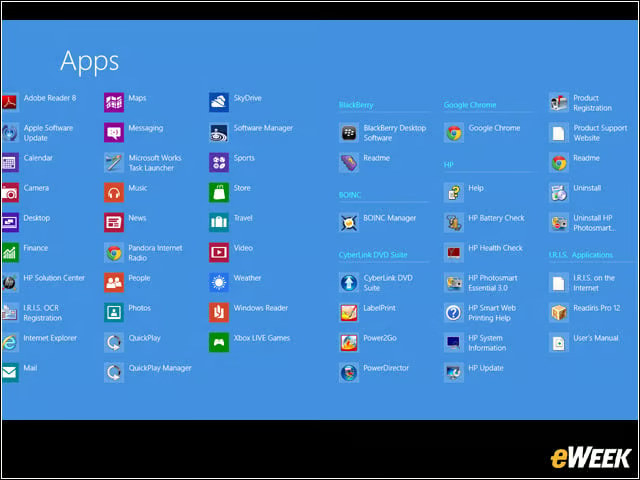
If you want to see just the application icons, click outside the search windows and you’ll see them all. Depending on how many icons you have, you may need to scroll to the right to see all of them.
Rotating Tile Content
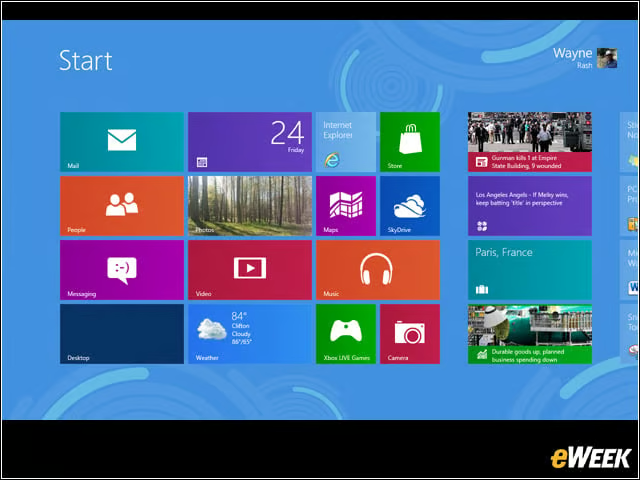
Once you start using the tiled interface, some of the tiles will become active as you can see here. These tiles will usually rotate through varying content, depending on what they’re showing.
Wide-Ranging Photo Access
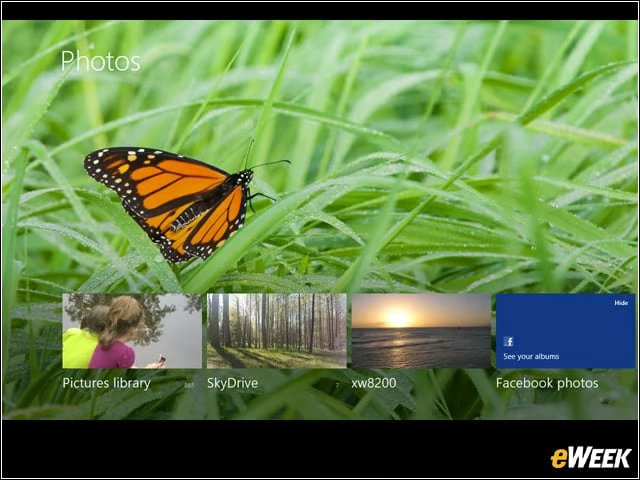
If you select the photo tile on the start screen, you get the photo page. Note that Windows 8 will draw photos from anything it can find, including other computers. Note the photo over the “xw8200” caption. This is the photo directory on another computer, which Windows 8 found and displayed. This is a potential security risk, depending on what you keep on your computers, so you need to check how your firewalls are set and how you share your directories.
Minimizing the Start Screen
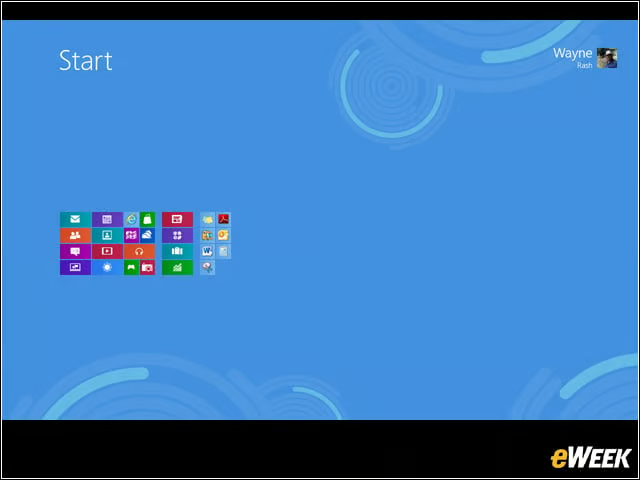
Over time there’s a high likelihood that you’ll accumulate a lot of tiles on the start screen. Rather than continuing to scroll around the screen, you can also minimize the entire start screen to see the whole thing at once, and make finding things easier.
Accessing Bing News
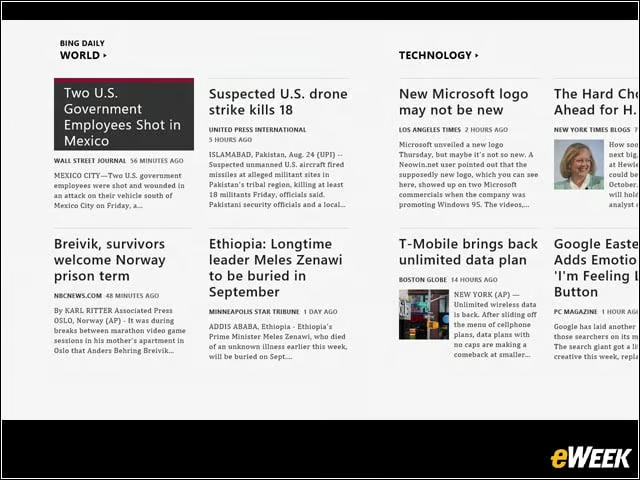
Microsoft provides a number of apps with Windows 8 and all you have to do to use them is click on the appropriate tile. Here’s what happens when you click on the News tile, and invoke Bing News. There are also apps for sports, weather, travel, etc.