

Building a Virtualized Testbed on the Cheap - Part IV: ESXi Installation on a USB Flash Drive - Virtualization - News & Reviews - eWeek.com | eWeek

Building a Virtualized Testbed on the Cheap – Part IV: ESXi Installation on a USB Flash Drive
Building a Virtualized Testbed on the Cheap – Part IV: ESXi Installation on a USB Flash Drive
Verfasst von
Andrew Garcia
Andrew Garcia
Mar 9, 2009
1 minute read
eWeek Inhalte und Produktempfehlungen sind redaktionell unabhängig. Wir können Geld verdienen, wenn Sie auf Links zu unseren Partnern klicken. Mehr erfahren


Building a Virtualized Testbed on the Cheap – Part IV: ESXi Installation on a USB Flash Drive

Building a Virtualized Testbed on the Cheap – Part IV: ESXi Installation on a USB Flash Drive

by Andrew Garcia


Download and License ESX
2

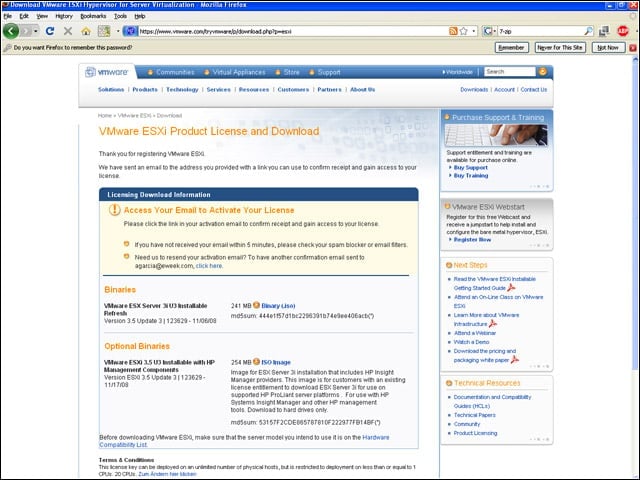
The ESXi installer is freely downloadable from www.vmware.com. Users indicate the maximum number of physical hosts on which ESXi will be installed (up to 999), and then VMware will e-mail registration information. Upon receipt of the e-mail, click on the Activate button to get a link to the download of the standard ISO image.


Extracting from the ISO
3

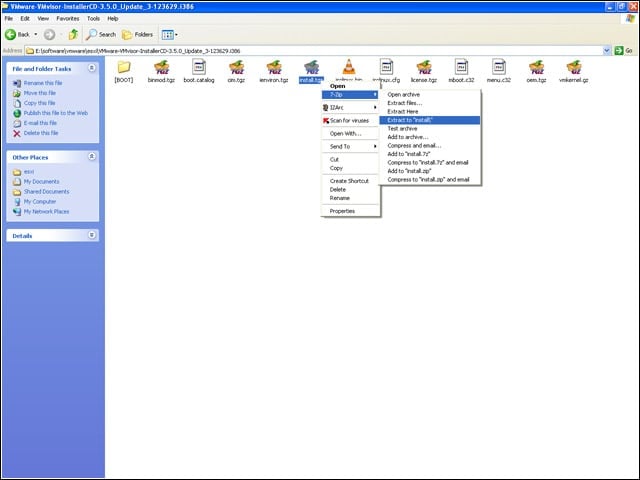
Using 7-Zip (free from www.7-zip.org), extract all files from the ESXi ISO image. Within that data, find and uncompress install.tgz, then uncompress install.tar found therein as well.


Extract ESXi Image
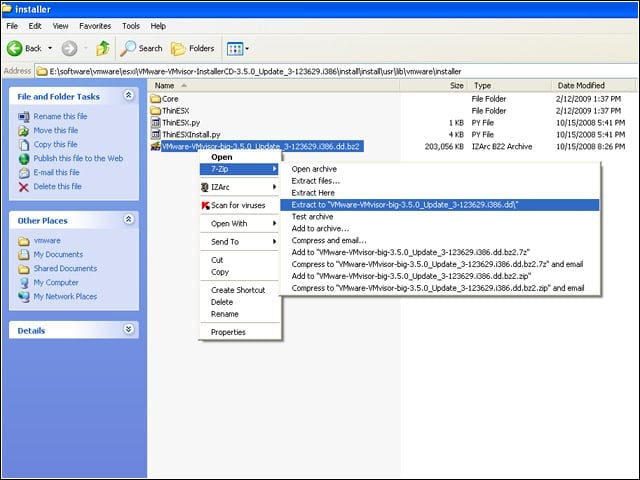
4

From there, navigate to the /usr/lib/vmware/installer folder and then uncompress the file VMWare-VMvisor-big-3.5.0_Update_3-123629.i386.dd. Note: The version number will likely differ with a different version of ESXi. This will free up the ESXi image, called VMware-VMvisor-big-3.5.0_Update_3-123629.i386.dd.


Advertisement

Create USB Boot Drive

5

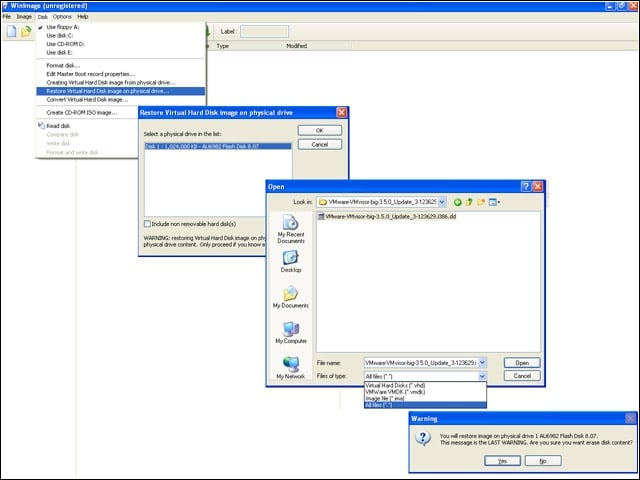
Using WinImage (free 30-day trial at www.winimage.com), blast the image onto a 1GB USB stick. From the WinImage Disk menu, select Restore Virtual Hard Disk Image on Physical drive, select the USB stick to use, then find the .dd file extracted previously.


Formatting the Drive
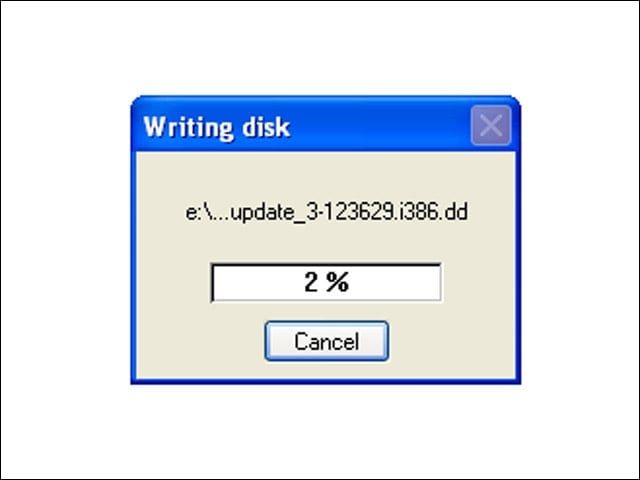
6

It takes 4 to 5 minutes to copy ESXi to the USB stick. Once complete, this screen disappears and there will be no on-screen indication whether the transfer was successful. Move the USB stick to the virtualization host and boot the machine.


No Title

eWeek Logo

eWeek has the latest technology news and analysis, buying guides, and product reviews for IT professionals and technology buyers. The site's focus is on innovative solutions and covering in-depth technical content. eWeek stays on the cutting edge of technology news and IT trends through interviews and expert analysis. Gain insight from top innovators and thought leaders in the fields of IT, business, enterprise software, startups, and more.

Eigentum von TechnologyAdvice. © 2026 TechnologyAdvice. Alle Rechte vorbehalten

Werbetreibenden-Offenlegung: Einige der auf dieser Website erscheinenden Produkte stammen von Unternehmen, von denen TechnologyAdvice eine Vergütung erhält. Diese Vergütung kann beeinflussen, wie und wo Produkte auf dieser Website erscheinen, einschließlich beispielsweise der Reihenfolge, in der sie erscheinen. TechnologyAdvice schließt nicht alle Unternehmen oder alle auf dem Marktplatz verfügbaren Produkttypen ein.