








Google Docs Tips to Make Presentations, Spreadsheets Shine
by Clint Boulton
Improved Commenting
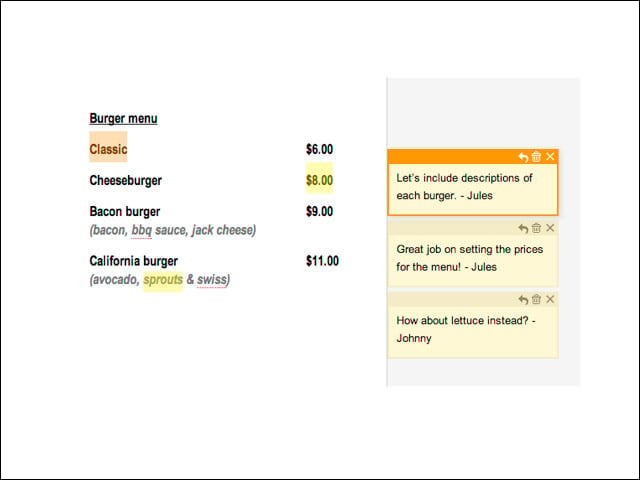
Comments in Google Docs let users make suggestions about the text in a document without modifying the document. Click on a comment and the text it’s referring to is highlighted. However, comments, while linked to document text, live outside the margins of the editing space, making for a less cluttered document.
Hide or Show Comments
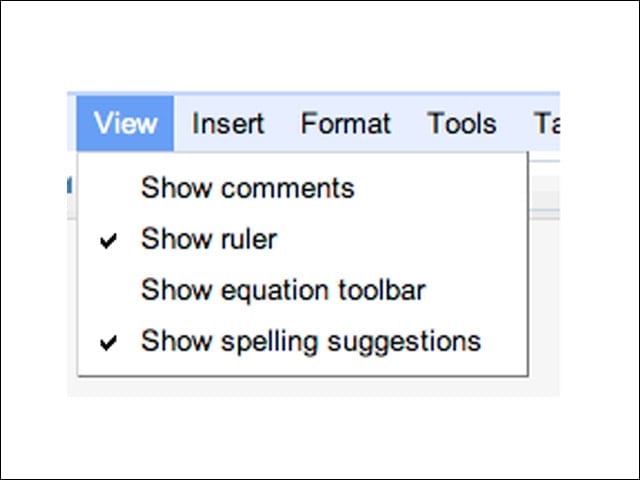
You can choose to show or hide all comments in the Show Comments item of the view menu shown here. You can also hide a comment by clicking the X button atop the comment. Delete comments by clicking the trash can icon above them.
Embed Docs in Google Sites
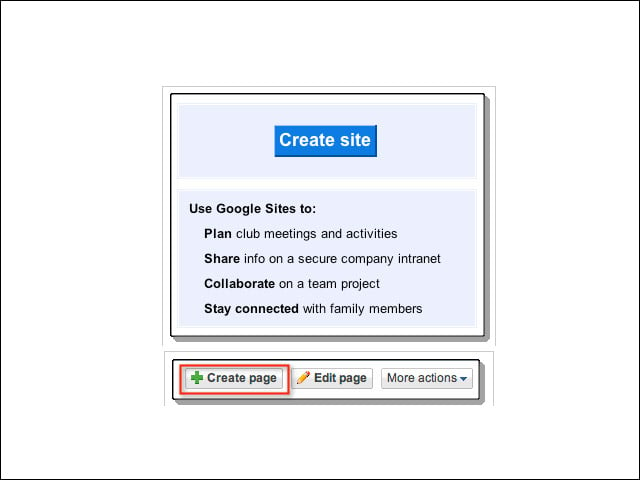
Docs users may embed any Google document, spreadsheet or presentation in a Google Site using the Insert menu. In one example, a Googler describes how to create a Google Site to use in planning a wedding.
Creating a Title
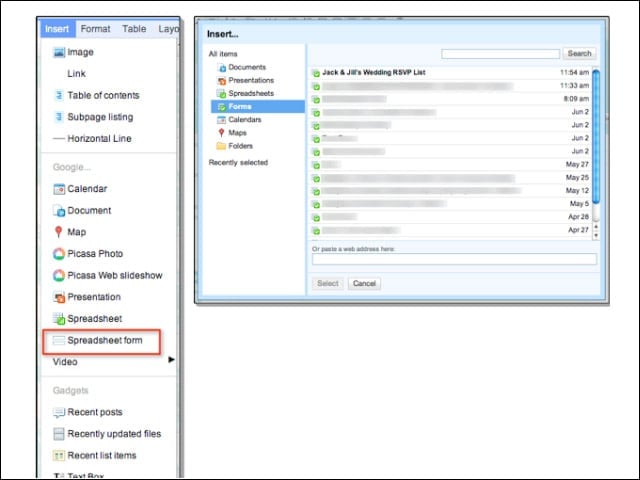
The Google representative adds a title to the page and goes to the Insert menu and selects Spreadsheet Form. Then she chooses the RSVP form to embed on this page of her site.
Guest RSVP
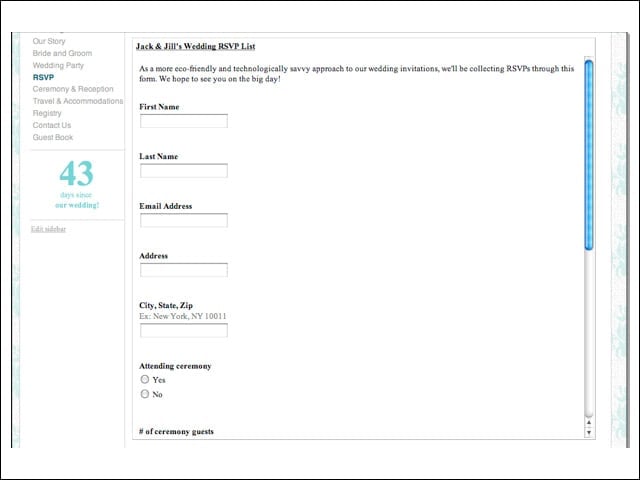
Voila! Guests can visit the Website by clicking a link, and RSVP to the wedding.
Drawings Editor
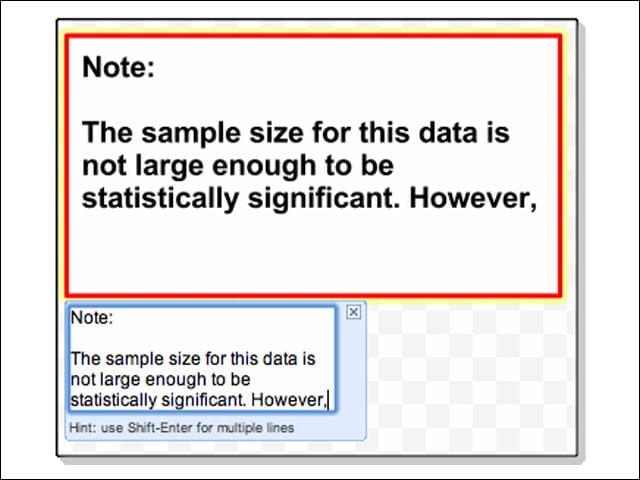
One of the key attractions of the refurbished Google Docs is the drawings editor, which people can use to add art to presentations. Add text by double-clicking shapes like this.
Add Color
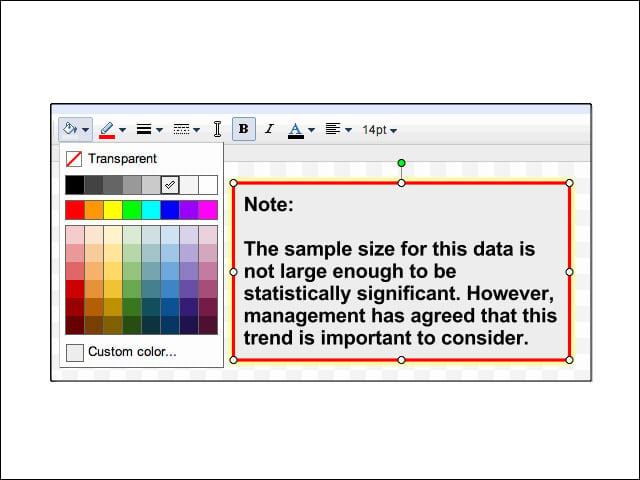
The formatting palette lets users add color to their drawings.
Add Charts
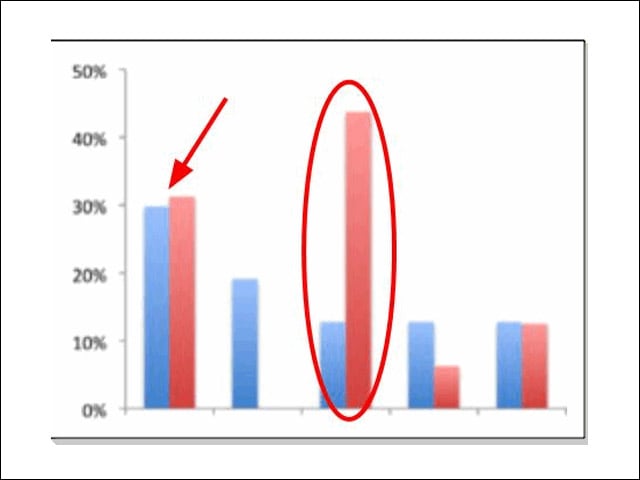
Click Insert, then Image to add a chart, screenshot or some other image to illustrate a point. Then use the arrow line or a shape to highlight it.
Copy Time
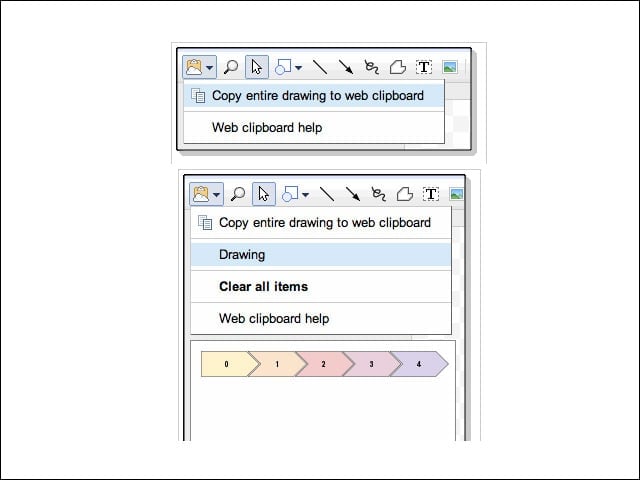
To copy the drawing onto a presentation slide, go to the Web clipboard and select Copy. Once the drawing is on the clipboard, go to the presentation and select the slide on which to put it. Click on the Web clipboard icon and select the drawing.
Advanced Sorting in Spreadsheets
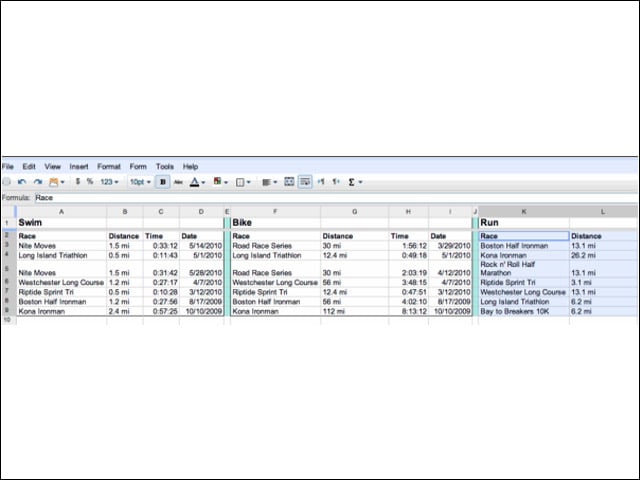
New sorting capabilities in Google Spreadsheets let users sort a small selection of cells without affecting the rest of the spreadsheet. Here, a Googler sorted the selection about running, leaving the biking and swimming sections unchanged.
More Sorting
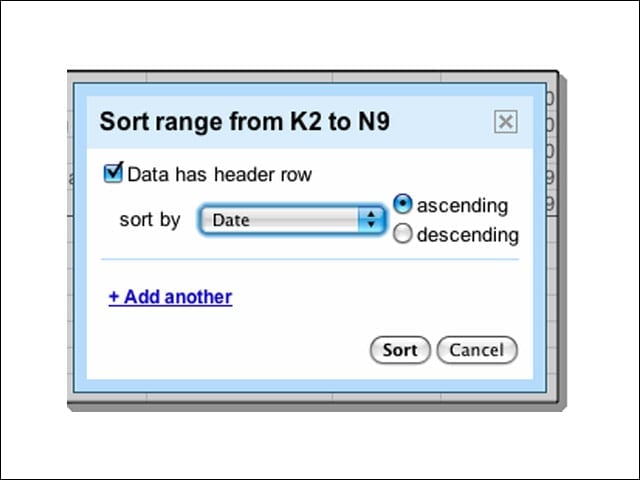
This triathlete went to the Tools menu and selected Sort to sort running races by date.
The Sorting Results
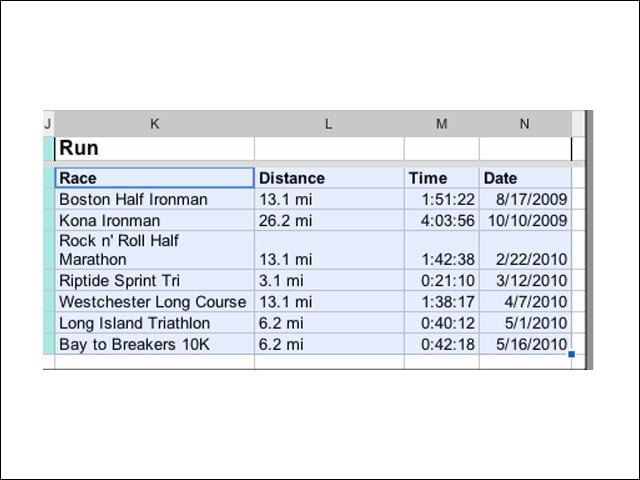
Here are the results of that sorting. The new sort feature also lets users set more than one sorting rule for any selection of cells by clicking the +Add Another button.
Sort Them All
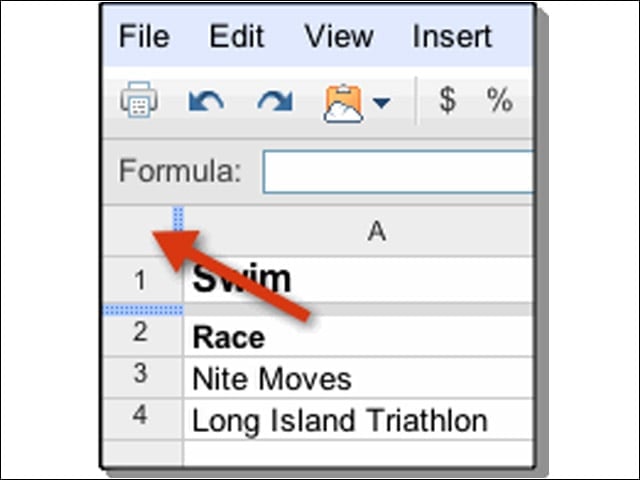
Click the square in the upper left corner of a spreadsheet to select all cells in the spreadsheet. Add sorting rules before doing so, if you choose.