







Taking the Official Google Chrome Tour
by Clint Boulton
Chrome Tour Intro
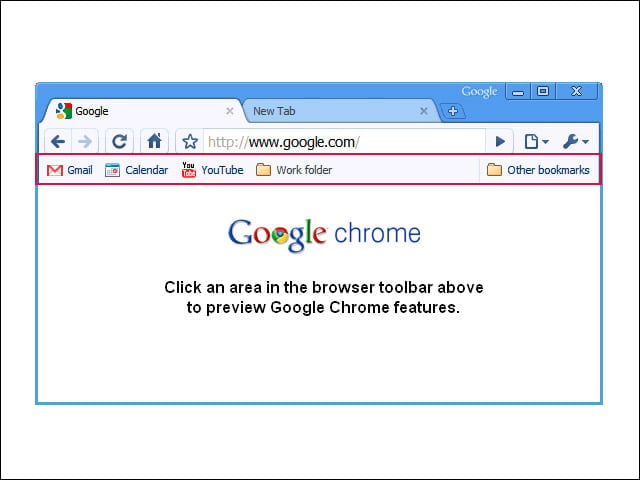
This guide walks you through the main features of Google Chrome. Clicking on a region gets you an explanation for each feature.
Browse the Web Using Tabs
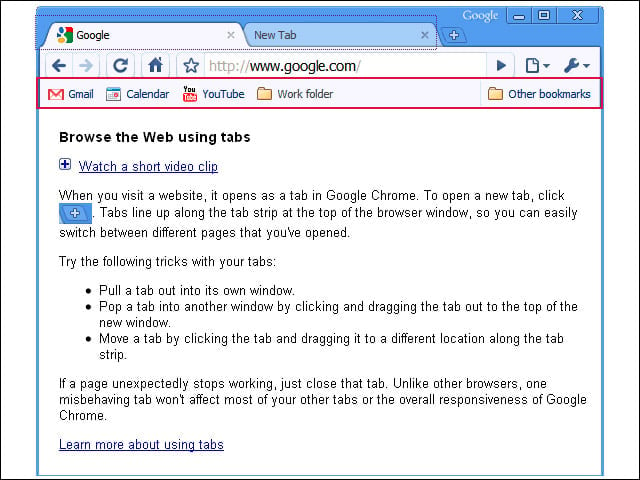
When you visit a site, it opens as a tab in Google Chrome.
Opening New Tabs
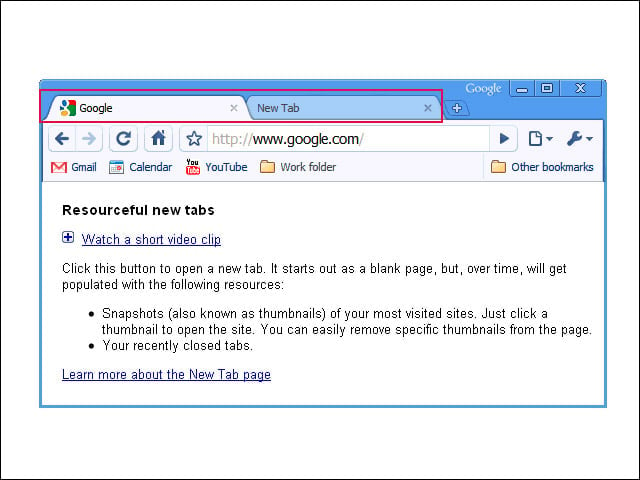
Click the New Tab button to open a new tab. It starts out as a blank page, but gets enriched with more Web surfing.
Revisiting Web Pages
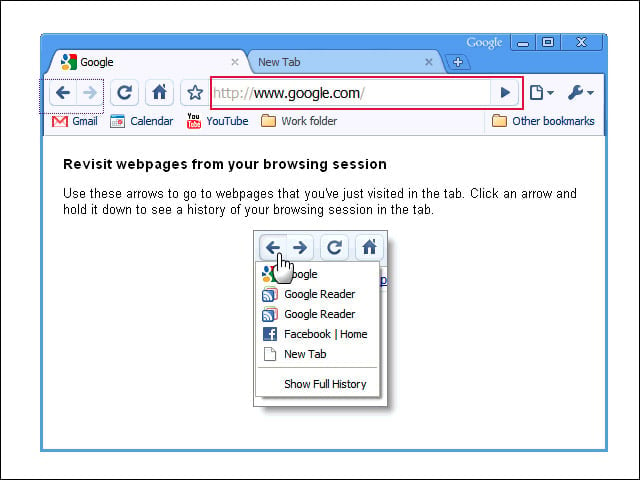
Use these arrows to go to Web pages you’ve just visited in the tab. Click an arrow and hold it down to see a history of your browsing session in the tab. Very efficient.
How to Refresh
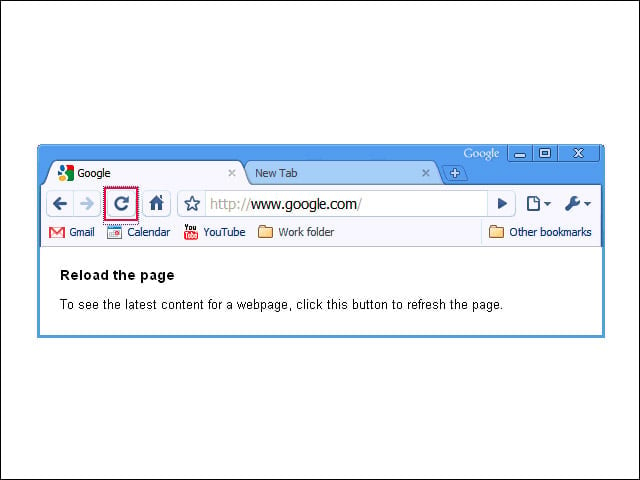
Easy, just click this button to reload your Web page.
Chrome Home
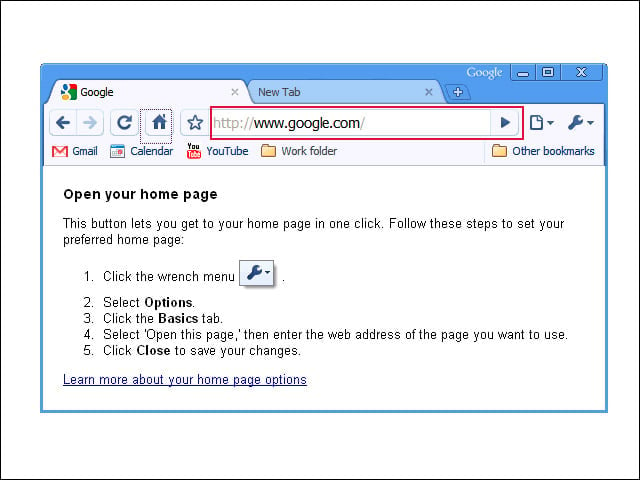
This button lets you get to your home page in one click.
Bookmark Those Pages
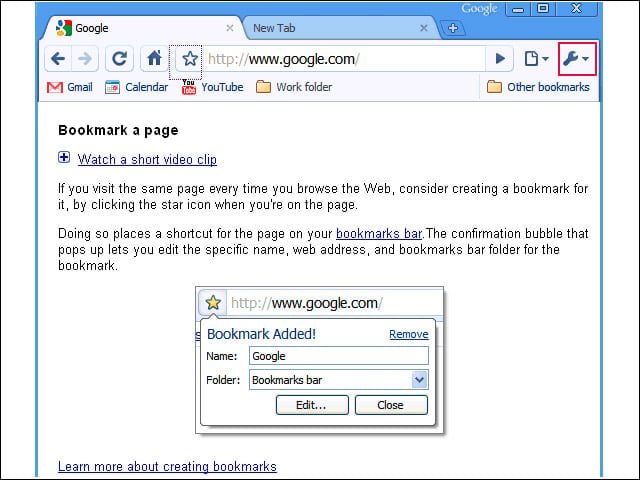
We all know how important bookmarks are to help us find Web pages we want to return to. Chrome’s bookmark button is right next to the search box.
Search Bar and Address Bar Are the Same
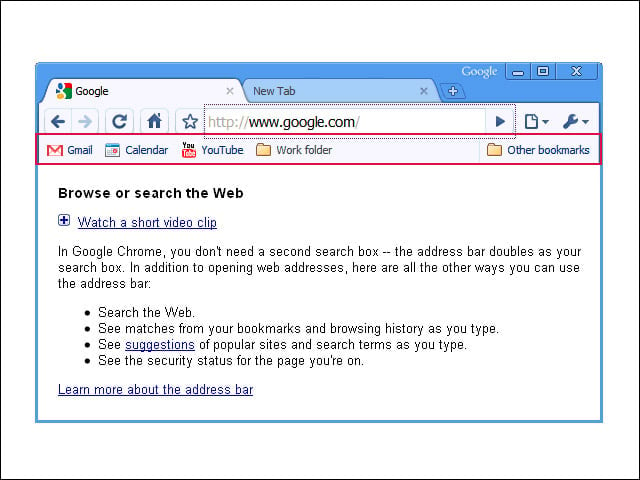
Search the Web, and enjoy suggestions with this Swiss-army navigation box.
Page Menu
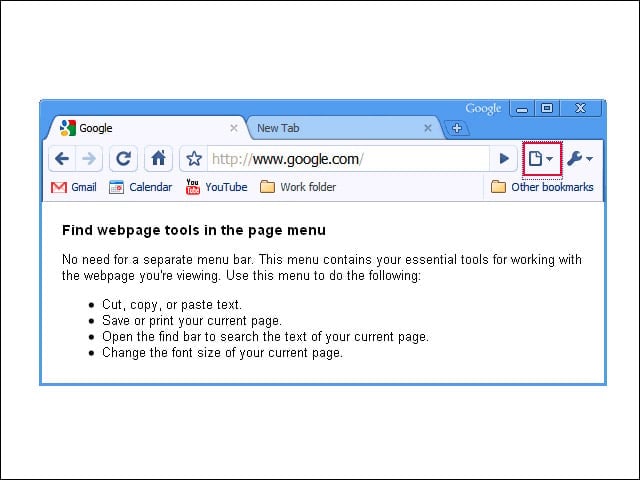
This tool bar lets users cut, copy, paste and more in Chrome.
Digging into the Tool Box
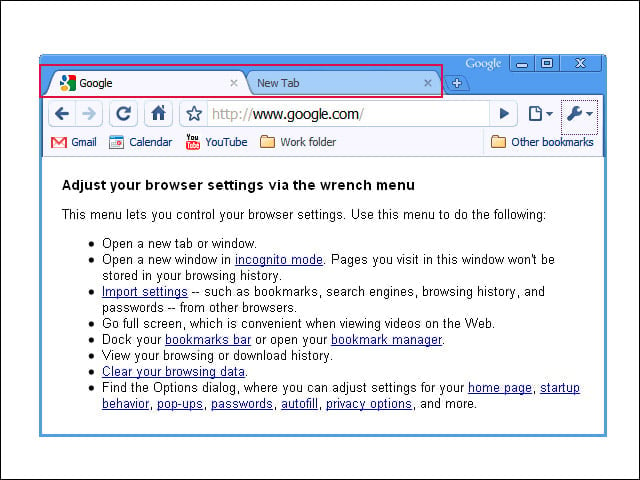
A tool menu helps you manage Web pages in Chrome. Open a new tab or window, import bookmarks and, importantly, open a new window in incognito mode, so that pages you visit won’t be stored in your browsing history.
Bookmarks Bar
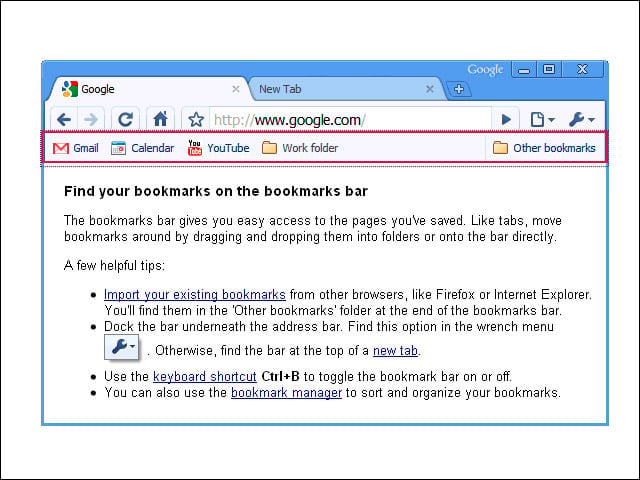
This gives you easy access to the pages you’ve saved and lets you drag and drop bookmarks into folders or onto the bar directly.
Customize Chrome
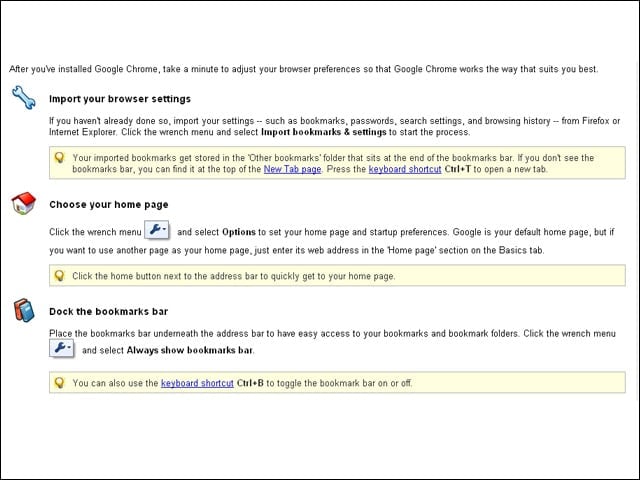
Now that you’ve learned the features, it’s time to set up Chrome to your liking. This page tells you how.
Test Drive
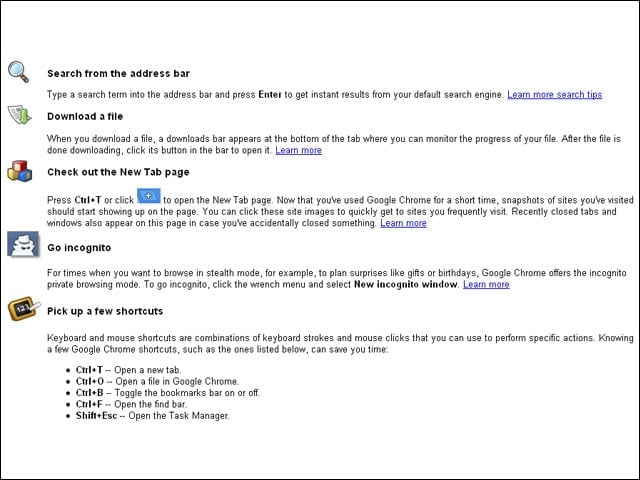
Here are a few mini-tasks you can do to test Google Chrome.
Advanced Chrome Tips
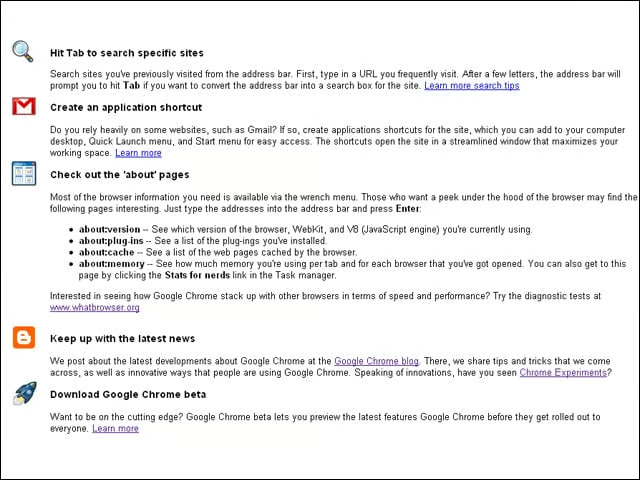
Think you’ve mastered Chrome? Here are a few more tips you may not be aware of.