






Turning Off the New Feature
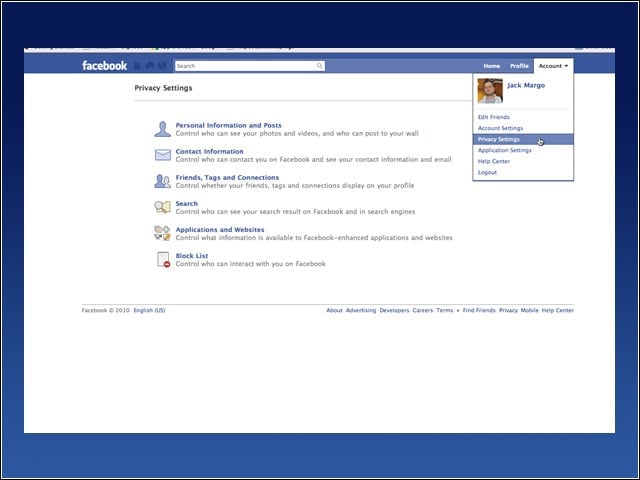
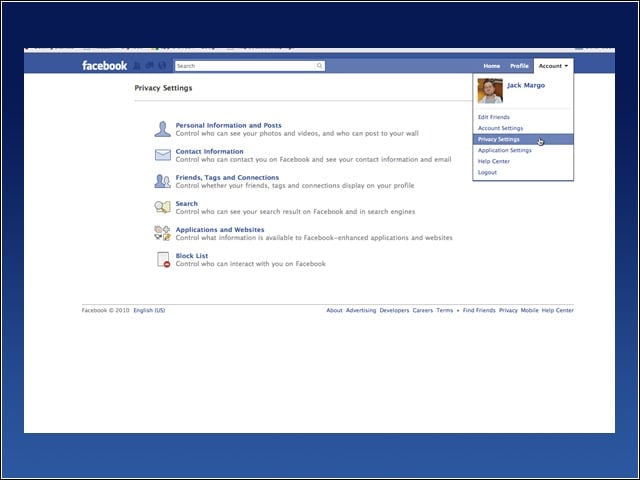
First, log into Facebook. In the menu on the right hand side, click on Account. From that drop-down menu that appears, select “Privacy Settings.” You will then land on a page with a few choices. From there, click on “Applications and Websites” to adjust the settings.
Facebooks Privacy Landing Page
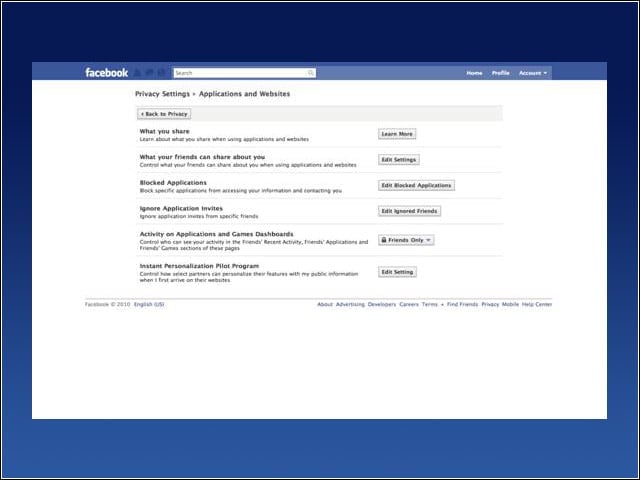
Now you’ll be on the privacy landing page. Click on the “Edit Setting” button for the last item on the list, Instant Personalization Pilot Program.
Turning Off Facebook Instant Personalization
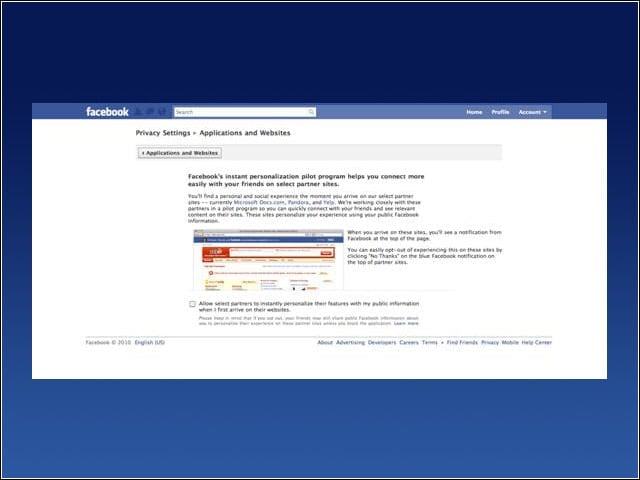
Unclick the box that says, “Allow select partners to instantly personalize their features with my public information when I first arrive on their Websites.” That is now turned off. However, notice the part about how if your friends don’t uncheck this box some of your information you share may still go public to other Websites. That’s why you need to tell your friends to also do this. However, let’s stop some more of your private information from being shared to the wrong people inside and outside Facebook.
Locking Down Your Privacy
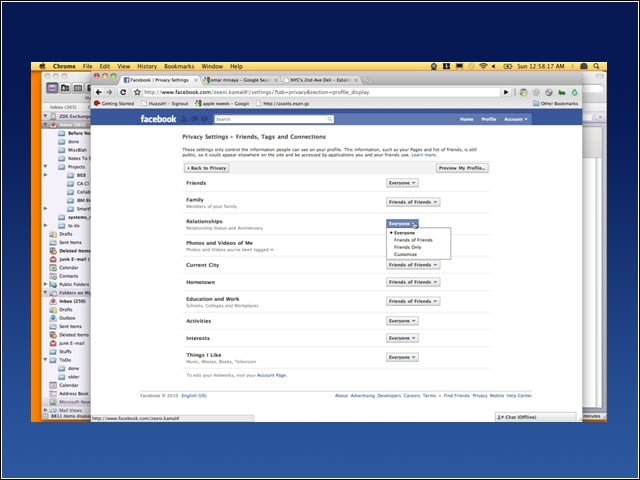
Facebook has four privacy settings: Everyone, Friends of Friends, Friends-Only and Customize. In the order listed, this is from the least private to most private. Unless you want it shown to everyone, including people and places outside Facebook, you should crank down the privacy on everything to just your friends or special lists of people using Customize. Click on the Friends, Tags and Connections list from the privacy main page. (To use the menu, go to Account->Privacy Settings if you got lost and then click on the Friends, Tags and Connections link.)
Removing Your Facebook Data from the Public Search Results
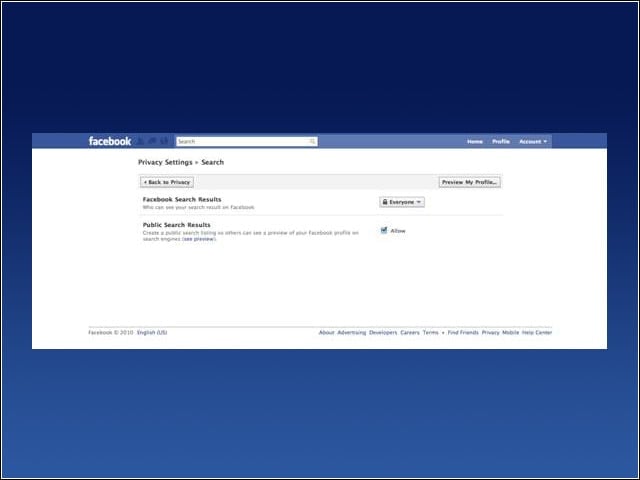
Now, go back to the privacy main page and click on Search. Uncheck the box for “Public Search Results.” If you want people to find you on Facebook, you can leave the Facebook Search Results set to everyone, though anyone you really want to talk to be a friend of a friend, and you can use that setting.
How to Customize Privacy on Your Facebook Profile
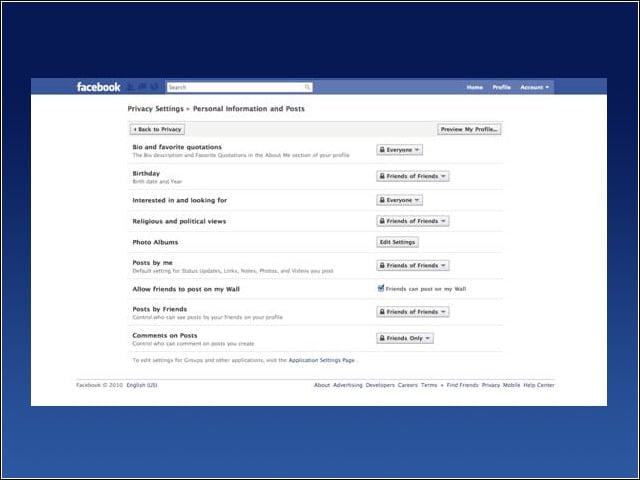
Now, go back to the privacy main page, click on the “Personal Information and Posts” and set those privacy drop downs to Friends or Friends of Friends or, again, customize the list of people that can see your information.
Finishing Up
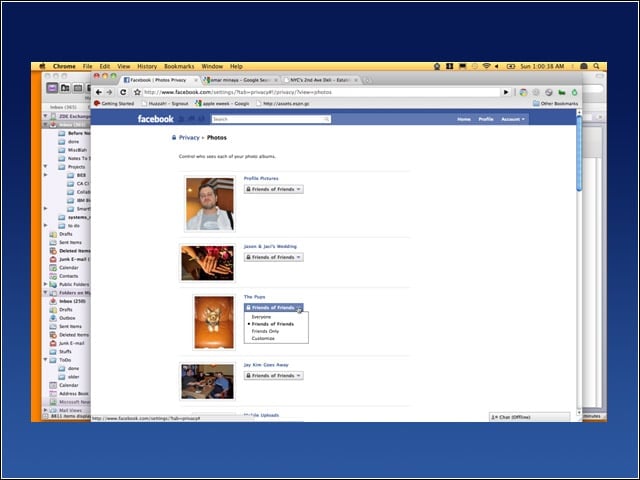
Last, if you like to put up photos, but don’t want all your photos posted over the Internet or on other sites, you can change that as well. Go to the Privacy main page, Click on “Personal Information and Posts,” and then click on the Edit Settings button next to Photo Albums. Go through the list of photo albums you have and—the same way you did before—change the permission settings to just your Friends or the other choices that are listed there. Remember, it’s a crazy world out there. It’s best to be safe, especially if you have children on Facebook.