






- eWEEK Labs Shows You How to Install Apps on Ubuntu Linux
- Software Repositories Are Your Friends
- Canonical-Supported Applications
- Community-Maintained Applications
- Proprietary Drivers
- Restricted Software
- Choose Update Server
- Third-Party Repositories
- Update Options
- Authentication
- Software Statistics
- Synaptic: Changelog
- Synaptic: Force Version
- Synaptic: Configure with Debconf
- Synaptic: History
- Dont Fear the CLI
- Ubuntu Personal Package Archives
- Other Third-Party Repositories
- Keep Your Eyes Peeled for .debs
- GDebi Package Installer
- The Quick and the Dirty
- Learn to Package
- Windows Apps with Wine
- Windows Applications with Virtualization
- Update Manager
eWEEK Labs Shows You How to Install Apps on Ubuntu Linux
by Jason Brooks
Software Repositories Are Your Friends
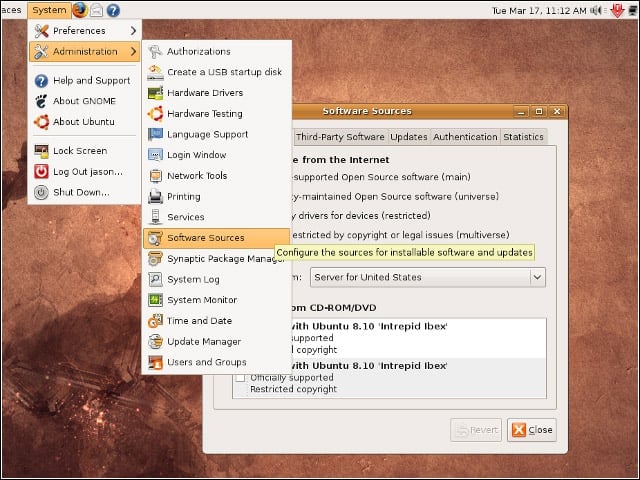
One of the handiest characteristics of today’s typical Linux-based operating system is easy access to software applications through networked repositories. In Ubuntu, our software sources tour begins here.
Canonical-Supported Applications
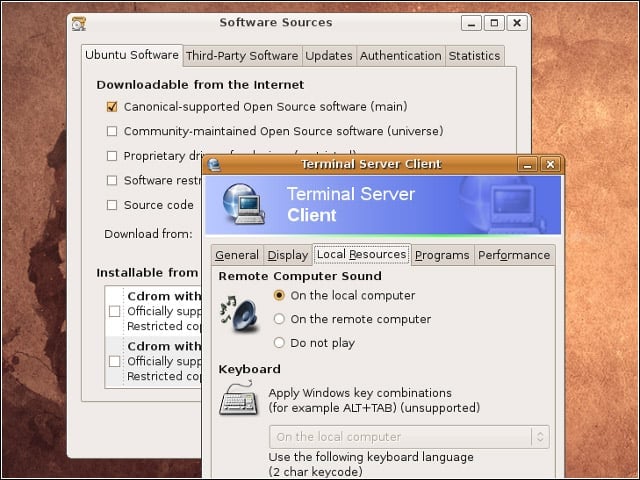
Ubuntu’s Software Sources tool breaks out applications into a handful of classes, beginning with those applications that Ubuntu’s sponsor company, Canonical, explicitly supports. The operating system’s Terminal Server client is one such application.
Community-Maintained Applications
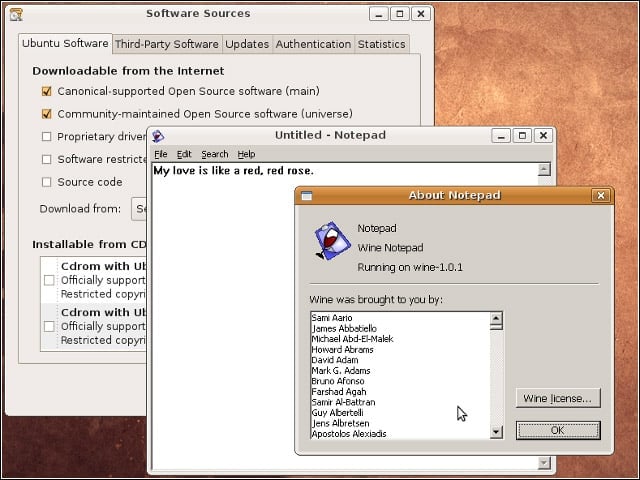
One of the real strengths of Ubuntu is that it carves out an official space for community-supported applications in addition to those backed by paid support. Ubuntu’s stable of ready-to-install, community-maintained applications includes Wine, an open-source compatibility layer for running some Windows applications.
Proprietary Drivers
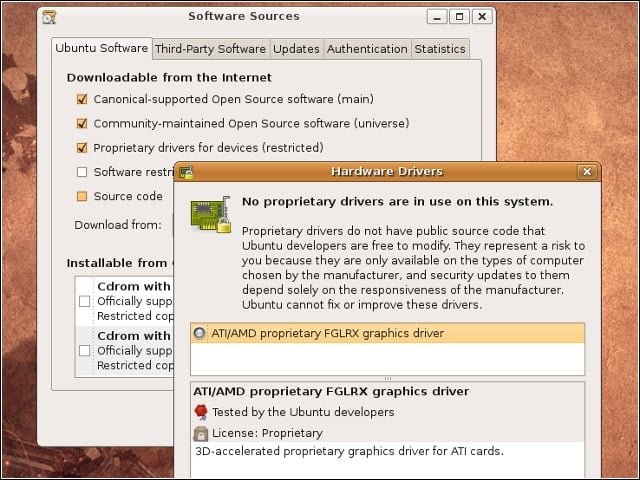
The quest for hardware drivers with licensing that’s open enough to allow for bundling with Linux distributions has come a long way, but drivers that can’t be bundled with Ubuntu are made available through a proprietary drivers repository.
Restricted Software
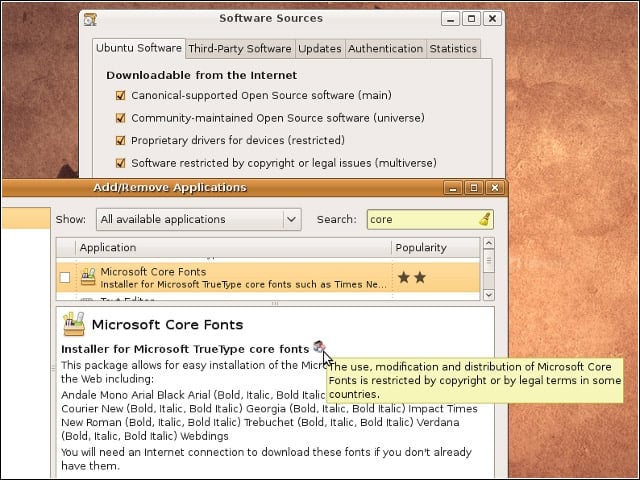
Another class of software available through Ubuntu’s repositories consists of applications that, like the proprietary drivers, have license encumbrances that prevent bundling. Microsoft’s freely downloadable (but not redistributable) Core Fonts fall into this category.
Choose Update Server
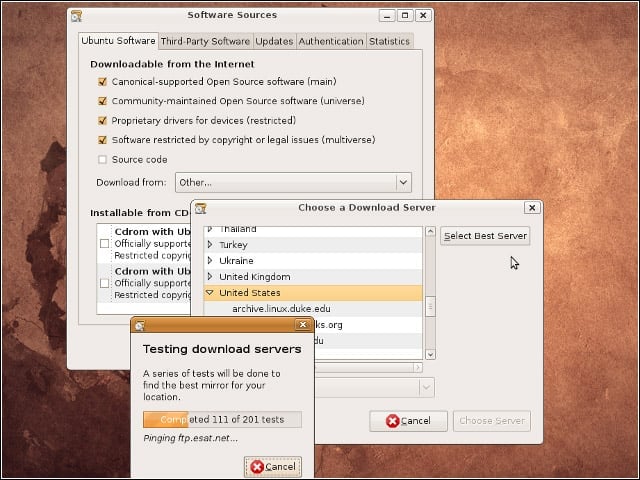
The Ubuntu project benefits from a large number of mirror sites for its software repositories. The operating system’s Software Sources tool includes a facility for locating a nearby mirror and a utility for suggesting a viable mirror based on a performance test.
Third-Party Repositories
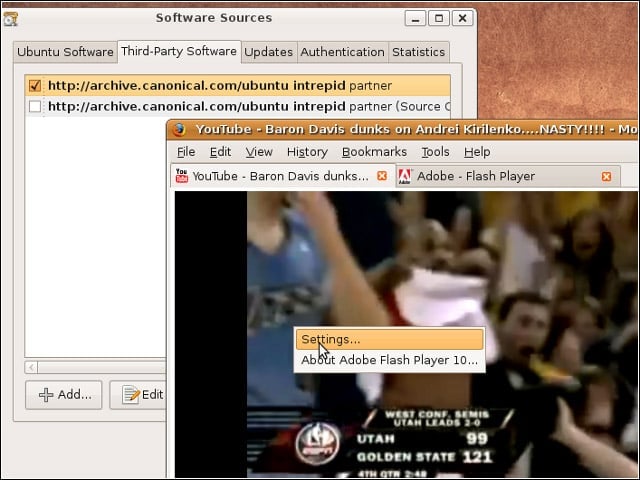
In addition to the default Ubuntu repositories, you can configure additional software sources. On a fresh Ubuntu installation, the only preconfigured third-party repository is a sparsely populated Canonical “partner” repository that contains Adobe’s Flash Reader for Linux.
Update Options
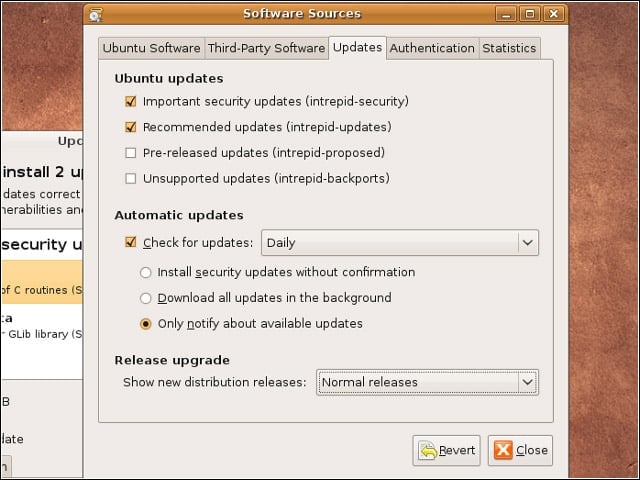
The Software Sources tool also breaks out updates into a handful of classes, high-priority security updates, suggested updates such as bug fixes, early-access prerelease updates and application version updates that have been “backported” to stable Ubuntu versions.
Authentication
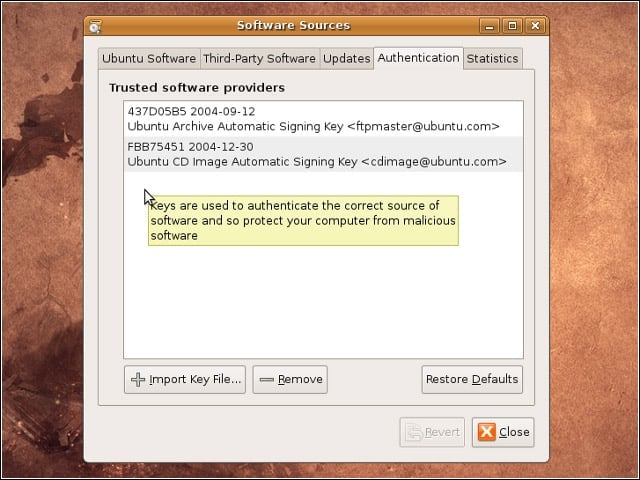
Ubuntu packages are digitally signed, which provides the assurance that the packages you install come from where you think they come from. Importantly, signed packages aren’t inherently more safe-you must decide whom to trust.
Software Statistics
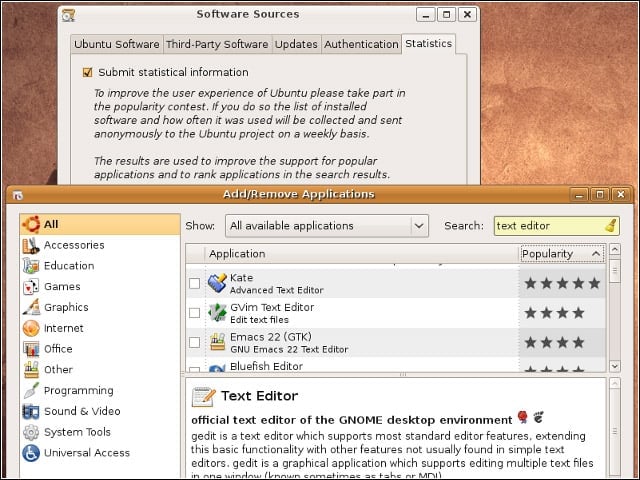
If you choose, you can submit to the project anonymous information about which packages you’ve installed, through which the Ubuntu team can get an idea of the relative popularity of the applications. I sometimes sort applications by popularity in the system’s Add/Remove Applications tool to find software suggestions.
Synaptic: Changelog
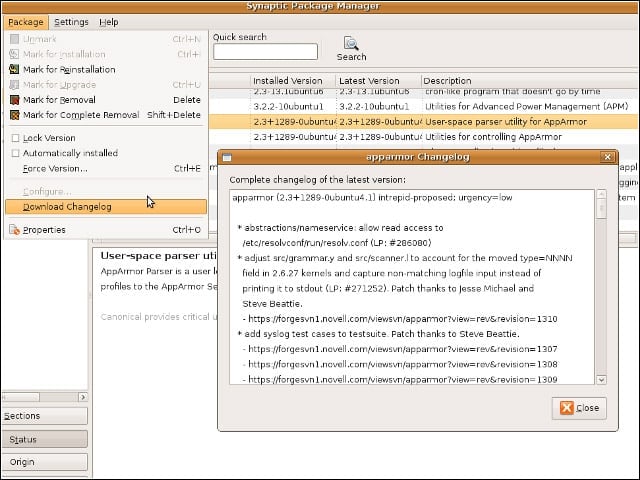
While the Add/Remove Applications tool works fairly well, I turn to Ubuntu’s Synaptic for many of my software management needs. Here I’m using Synaptic to fetch the changelog for a package I’ve installed.
Synaptic: Force Version
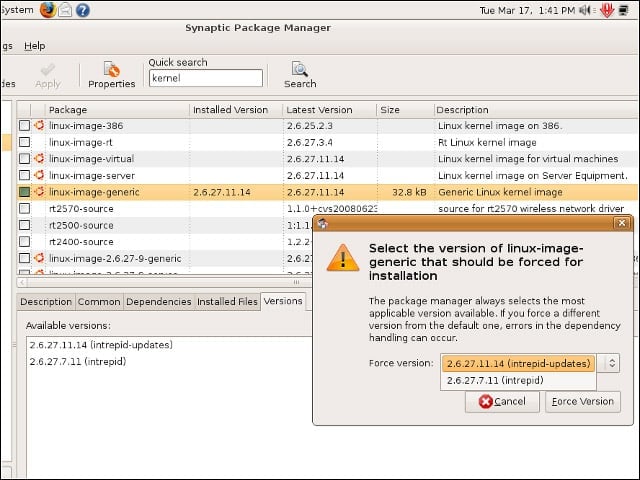
You can use Synaptic to register a preference for installing packages based on highest-available version number or membership in a particular repository group. If you need to override these defaults for a particular package, Synaptic also allows you to force a particular version.
Synaptic: Configure with Debconf
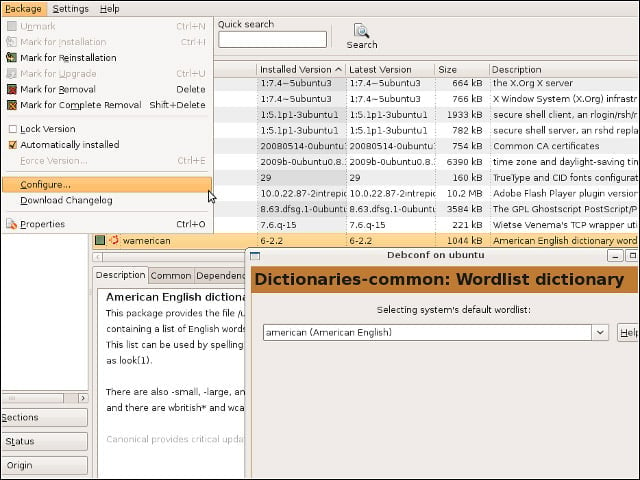
One of niceties of Debian-based Linux distributions, such as Ubuntu, is the presence of configuration applets bundled with certain packages. Synaptic will give you a list of the packages that are configurable in this way, as well as launch the Debconf tool on command.
Synaptic: History
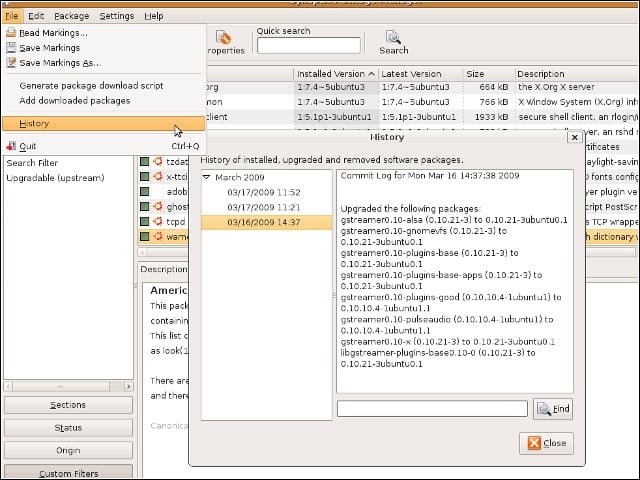
Another Synaptic feature that comes in handy is its installation history browser. What I’d prefer to see here, though, is support for installation rollback, a la rPath’s Conary or Sun Microsystems’ OpenSolaris IPS (Image Packaging System).
Dont Fear the CLI
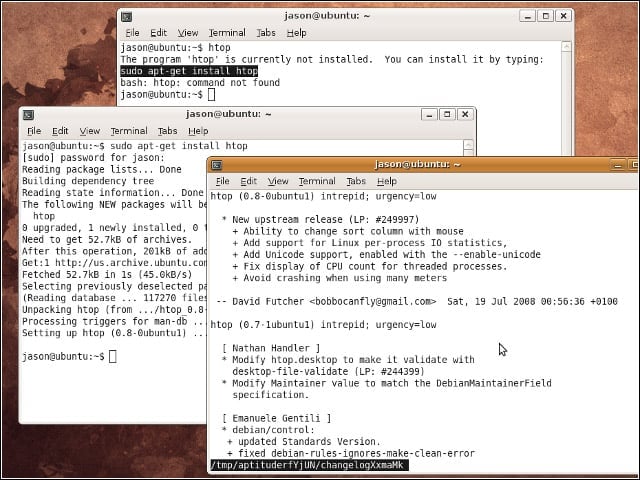
Despite what you may have heard, gazing upon a Linux command line, even on a desktop, will not turn you to stone. In fact, the command line can sometimes make life easy. For instance, type in the name of an application that’s not installed and Ubuntu will tell you the one-line command needed to install that application.
Ubuntu Personal Package Archives
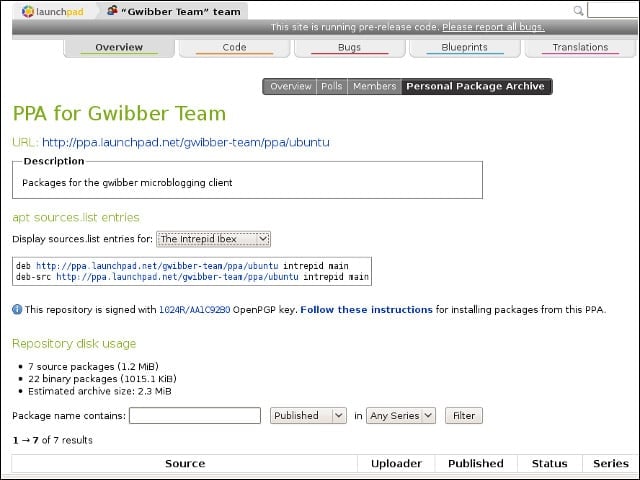
For open-source software packages that aren’t part of Ubuntu’s official community-maintained repository, the project provides a personal package building and hosting service that anyone can use to create and host Ubuntu software packages. I’ve used PPAs to install the latest OpenOffice.org and Mozilla Prism releases in advance of their inclusion in an official Ubuntu release.
Other Third-Party Repositories
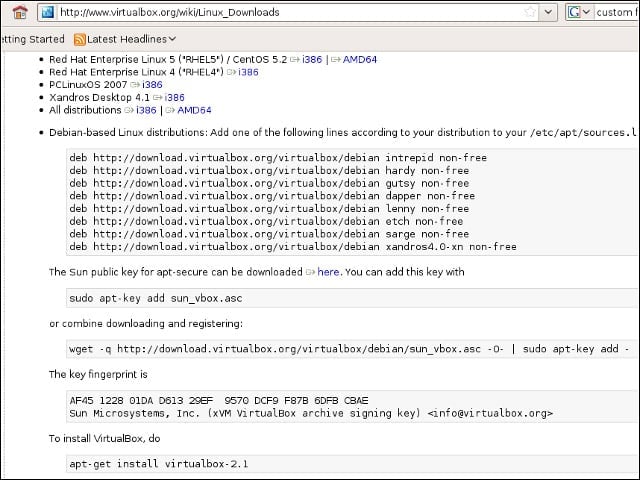
Certain application developers offer up their own Ubuntu repositories for distributing their wares. Sun’s xVM VirtualBox division maintains such a repository, complete with package signing, which makes it easy for me to keep my VirtualBox installations up-to-date.
Keep Your Eyes Peeled for .debs
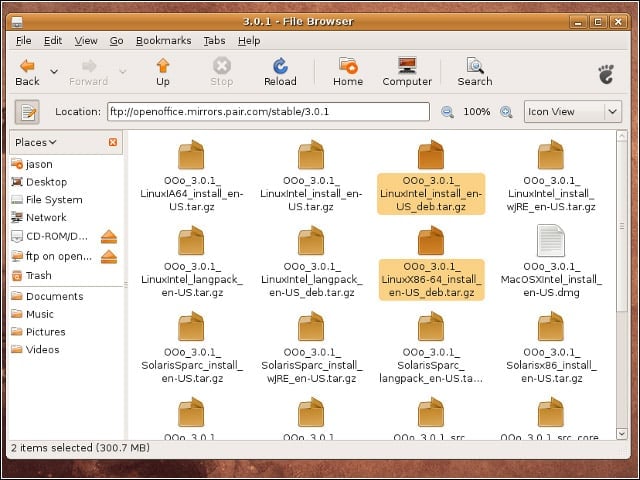
When a software provider you’re interested in doesn’t offer a repository, chances are good that the provider will still offer packages in Ubuntu format that carry a *.deb file extension. The OpenOffice.org project has made its productivity suite available in .deb form for a while now, but to find the correct flavor of OpenOffice.org, you must dig for the archive with .deb in its name.
GDebi Package Installer
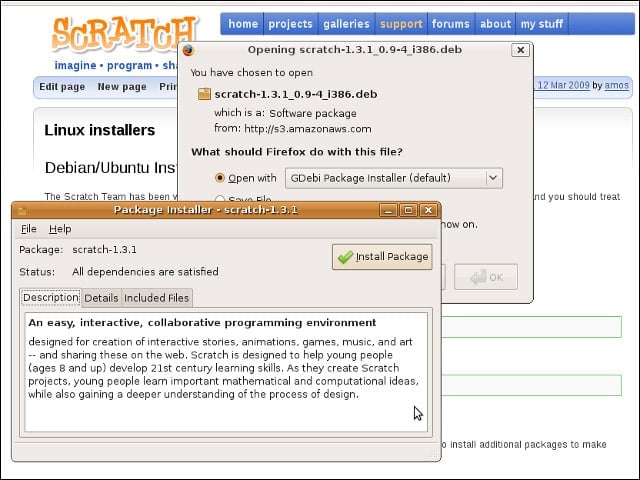
Once you’ve tracked down an Ubuntu package to install, you can do so by clicking on the package and opening it with the system’s GDebi Package Installer. The installer will sort out any dependency issues for you and pull any needed packages down from your configured repositories.
The Quick and the Dirty
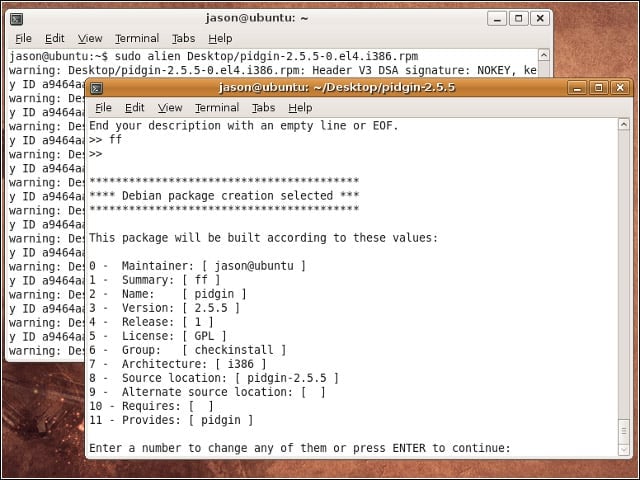
When there’s no Ubuntu package available for the application you want to install, but the source is available, you can build a quick and dirty package with Checkinstall. By swapping in Checkinstall for the third step in the typical “configure; make; make install” process, you can create a package to track through your regular software management tools. The tool called Alien works a similar trick with RPM (RedHat Package Manager) packages.
Learn to Package
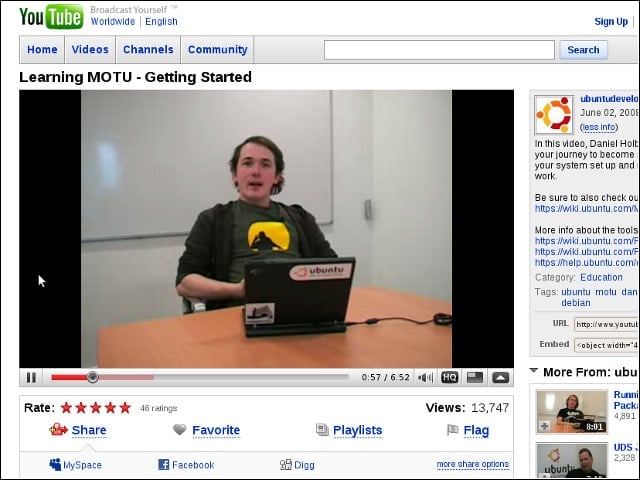
If you’re interested in learning how to create your own Ubuntu packages, the project offers an assortment of handy how-to materials, including a series of tutorial videos on YouTube.
Windows Apps with Wine
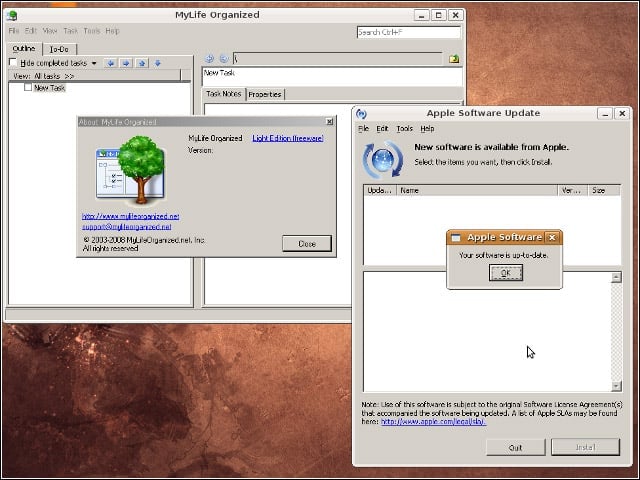
Wine, the open-source project intended to allow Windows applications to run on Linux and other non-Windows systems, has come a long way over the years, and works well with certain applications, such as those listed in the project’s compatibility database. In many other cases, expect the unexpected-Apple’s Safari browser won’t run under Wine, for instance, but Apple’s software update tool will.
Windows Applications with Virtualization
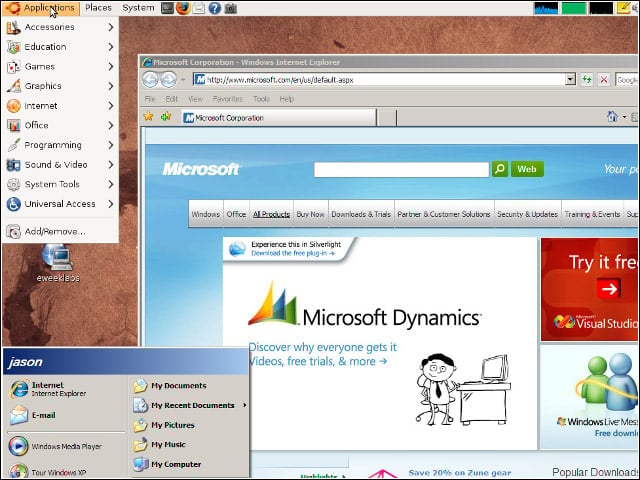
If you’re out to run Windows applications on Ubuntu (or most other non-Windows platforms), your surest bet is virtualization software. Most desktop-based virtualization applications, such as Sun’s VirtualBox, allow Windows applications to appear to run natively.
Update Manager
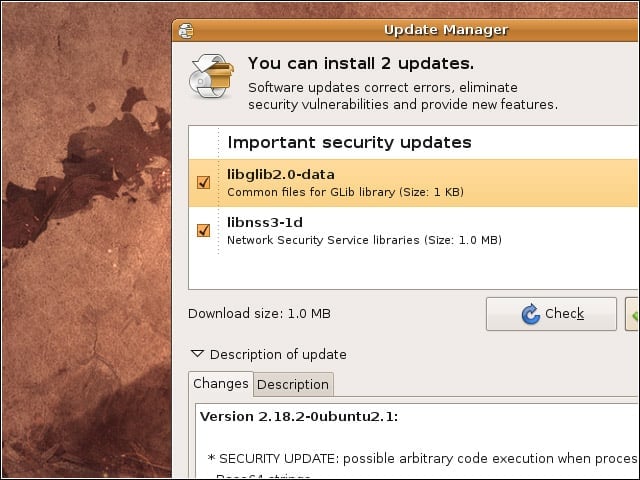
One of the best things about sticking to software packages backed by a networked repository is the unified application patching goodness that flows from this discipline. When security, bug-fix or version updates become available, Ubuntu will offer to install them.