







Labs Gallery: Citrix XenServer 5.5 Makes Advances in No-Cost Server Virtualization Space
by Cameron Sturdevant
Add a New Server
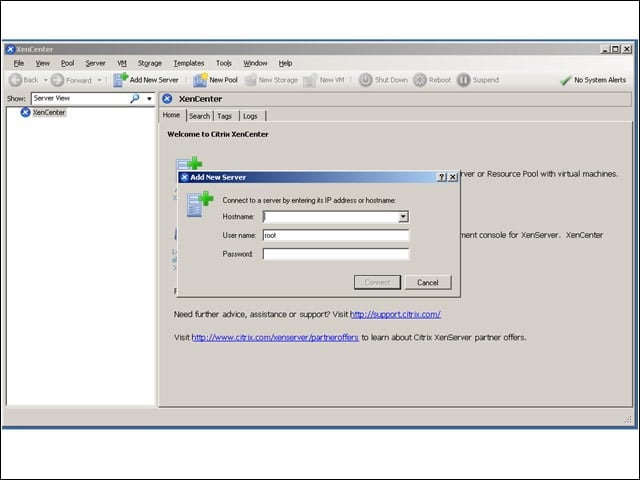
XenCenter is the Windows-based management interface for Citrix XenServer 5.5. Here, I’m connecting for the first time to the three physical host systems on which I’ve installed XenServer.
Small-Shop Security Approach
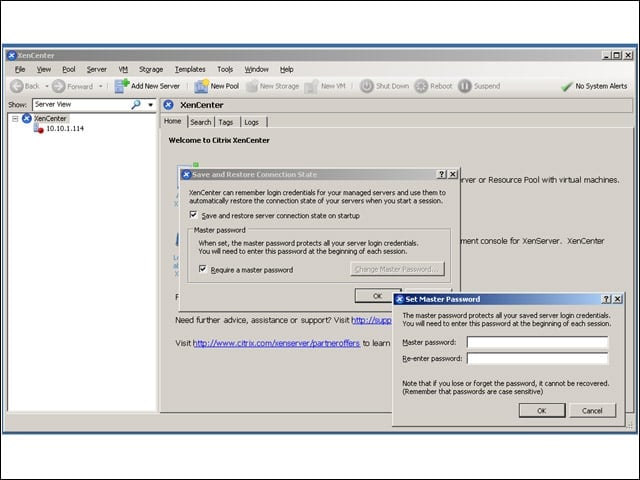
Here, I’m setting the master password that manages access credentials for all my XenServer 5.5 physical hosts. This is a convenient feature, no doubt, but it also indicates the extent to which granular management access should be refined.
Get in the Pool
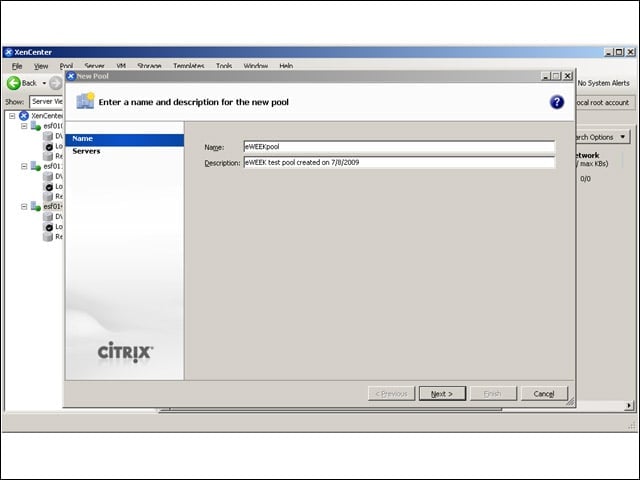
In the left background you can see that I’ve successfully added the three physical hosts running XenServer. In the foreground you see the first step in the simple process of creating a resource pool, which allows me to share resources among virtual machines created in this management domain. My physical systems were nearly perfectly matched in terms of processor type (all Intel Xeon 5500 family processors) with identical amounts of RAM. This made it easy to create the resource pool. Mismatched processors will foil attempts to create pools.
Deep End of the Pool
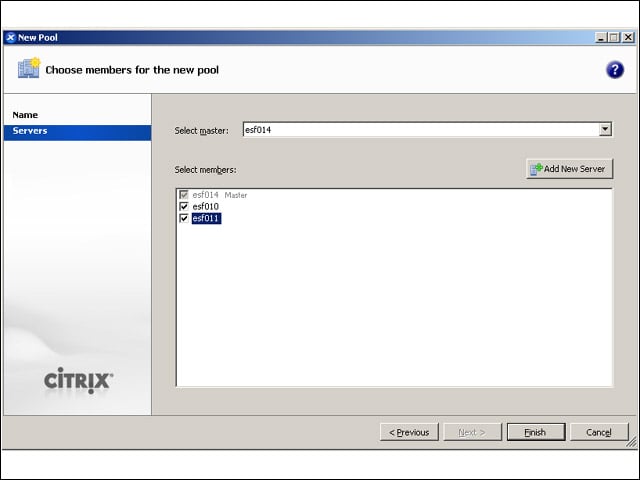
Each pool has a master along with member servers. The XenCenter management tool gets all its information from the master.
Storage Options
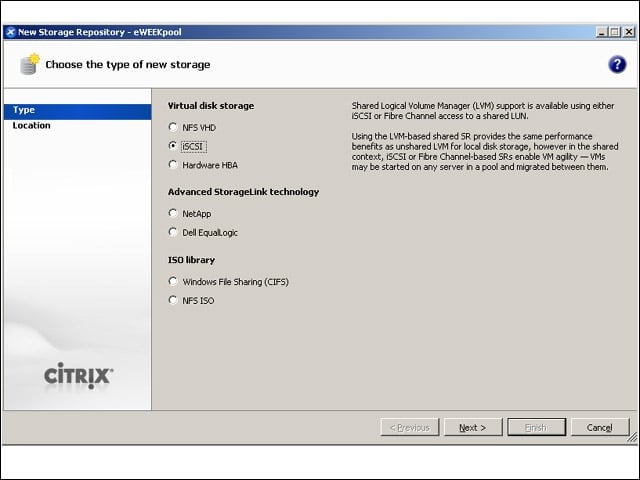
I used OpenFiler to create an iSCSI storage area for my XenServer implementation. Here, you see some of the other storage options available.
AD Authentication
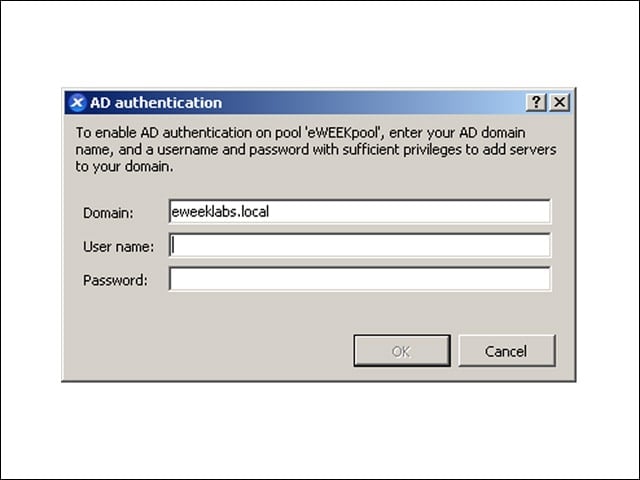
It was easy to integrate my resource pool into my Microsoft Active Directory infrastructure to manage administrative user credentials.
eWEEKpool in Labs Domain
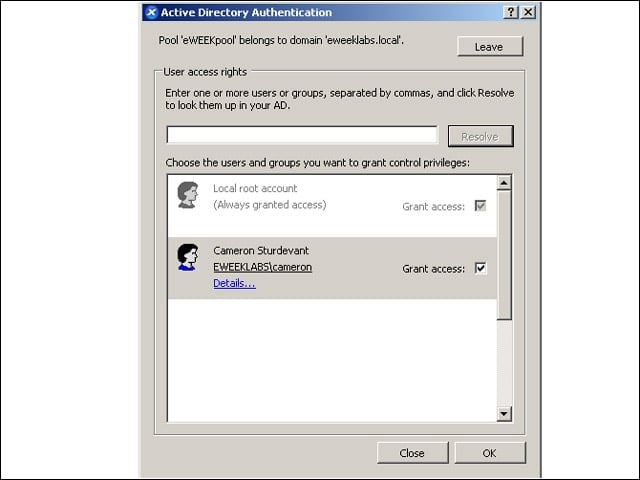
I’ve been granted access rights to manage the resource pool “eWEEKpool.”
Server View
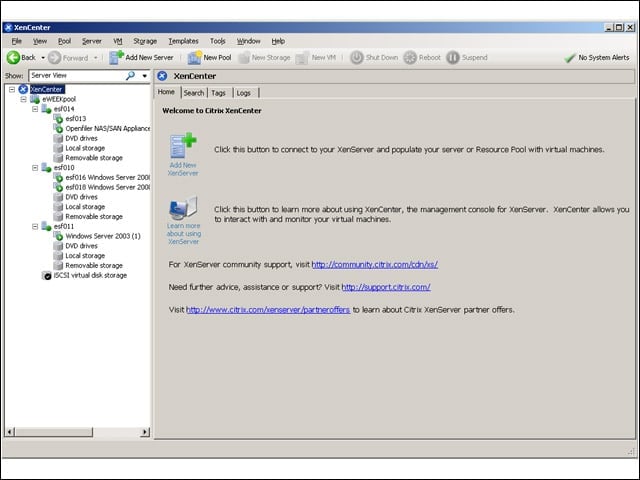
Notice in the upper left that this is the Server View. Resources including virtual machines and storage are grouped according to the physical host system on which they are running. In the next screen, you’ll see what this looks like in the new Folder View.
Folder View
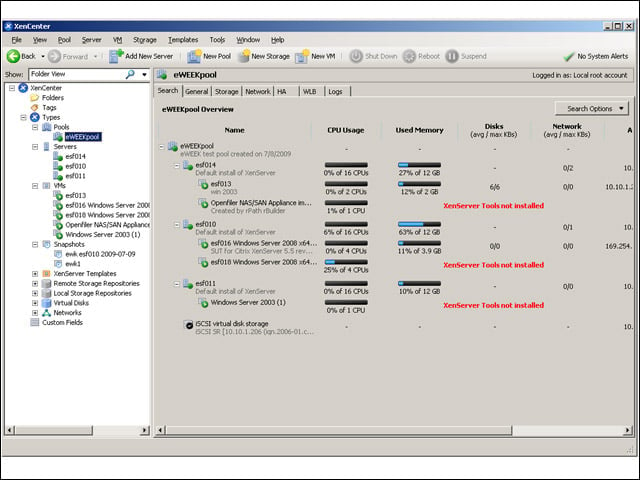
You can now see resources arranged by type, so that all the physical servers are together, as are the virtual machines and storage. Incidentally, to the right are real-time performance graphs along with a couple of warnings that XenServer tools have not yet been installed on several virtual machines.
