




10 Tips for Using Google Chrome
by Clint Boulton
Dang! I Didnt Mean to Close That Tab
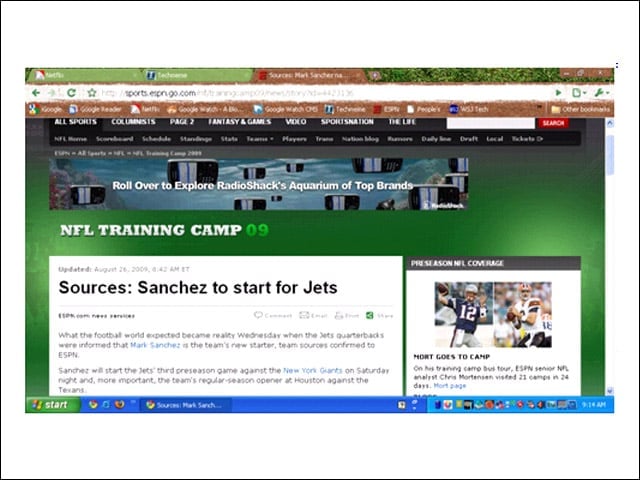
We’ve all done it: closed a browser tab before we meant to. Chrome makes it easy for users to restore tabs. Check out this ESPN.com story on Jets quarterback Mark Sanchez.
Restore Your Tab from Recent Activities
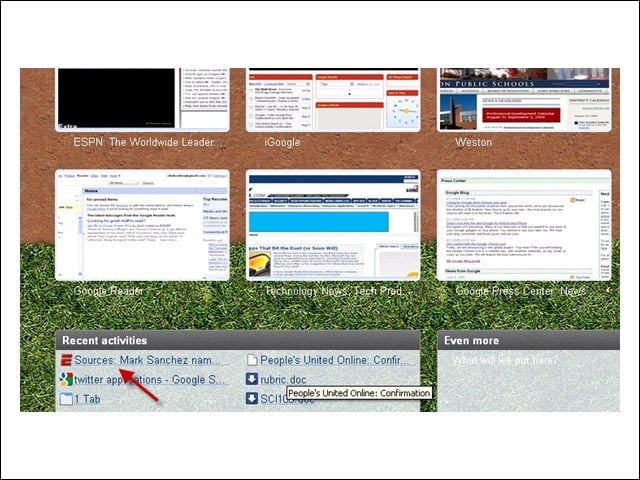
The ESPN.com tab is accidentally closed, but have no fear. Just click the New Tab button, and you’ll see a box for recent activities at the bottom of your screen. In this slide, the arrow points to the last story that appeared in recent activities before it closed. I clicked on that to reopen that story in the new tab.
This Works for Closed Browser Windows, Too
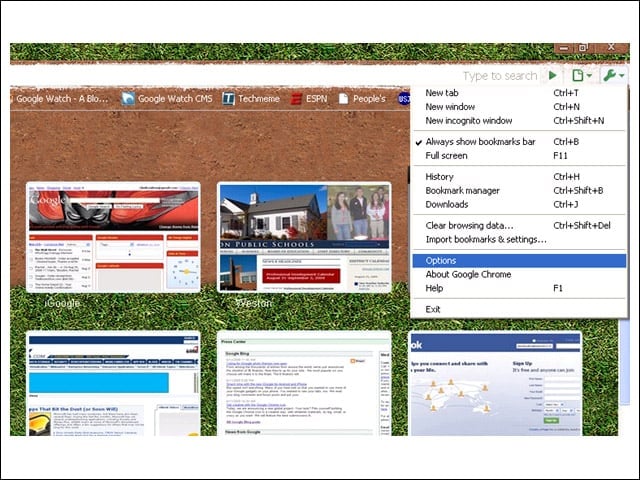
To restore the browsing sessions, click the tools menu icon in the top right of Chrome and select “options.”
Restoring a Session
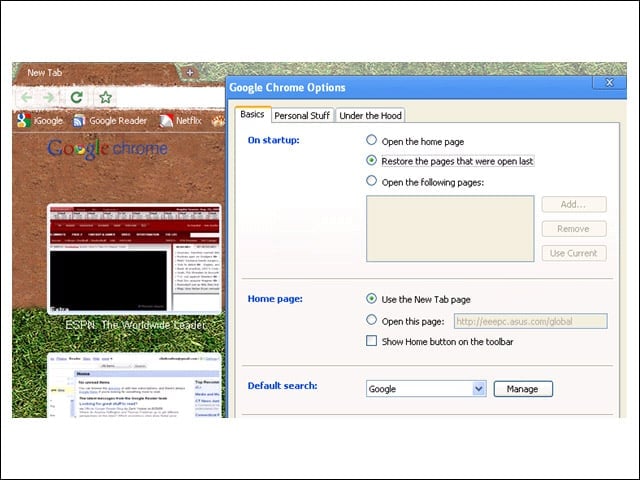
Select “restore the pages that were open last” to return to the previous browsing session. Close the browser using the exit menu icon, launch the browser again. and all of the tabs return in one shot.
Application Shortcuts
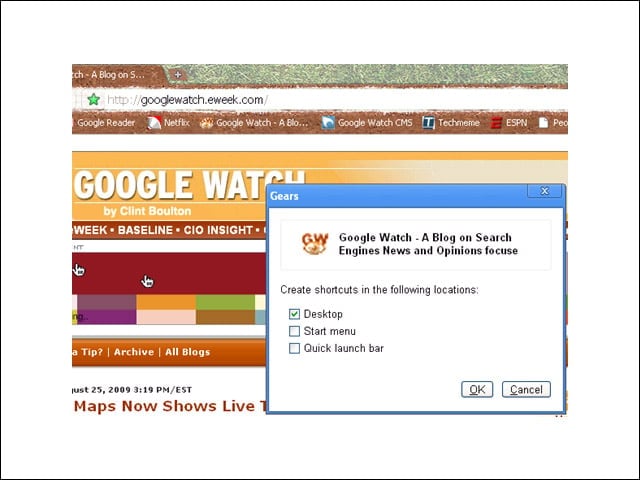
You can also create shortcuts to applications and save them on your desktop. Click the page menu and select “create application shortcuts.” Choose to put a shortcut for an app on your Desktop, Start menu or Quick launch bar.
Chrome Dynamic Tabs
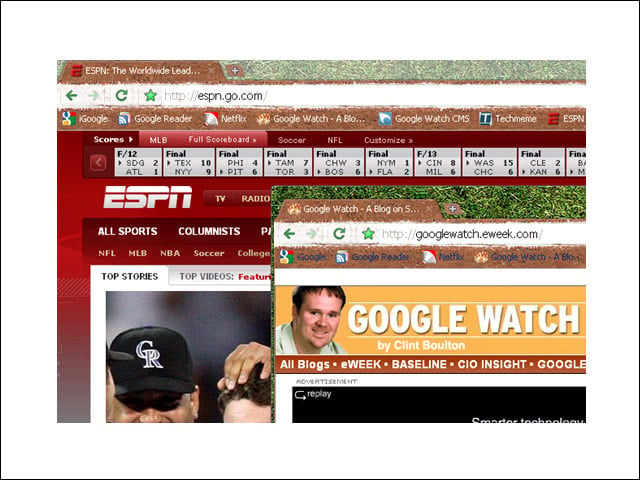
Want to move tabs around and even drop them into a new window? Point the cursor on a tab, click and drag it left to right at the top to change the order of your tabs, or drag it to pull a tab into its own window.
Crash Control
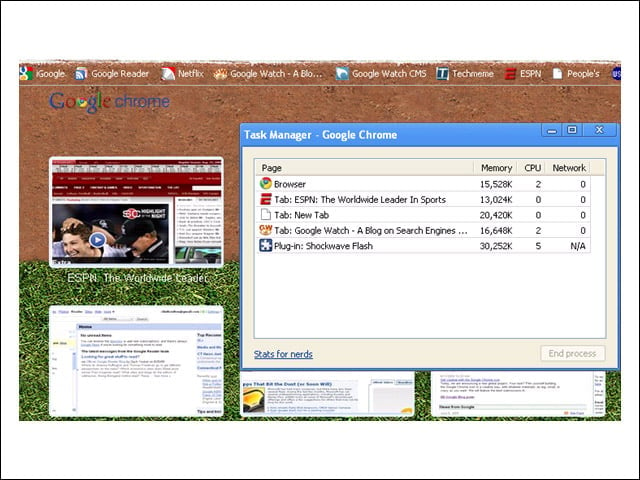
Concerned that your Web pages are burning up your processors? Right-click the top of the Chrome window and select Task Manager to see memory use per tab and close tabs.
Go Incognito!
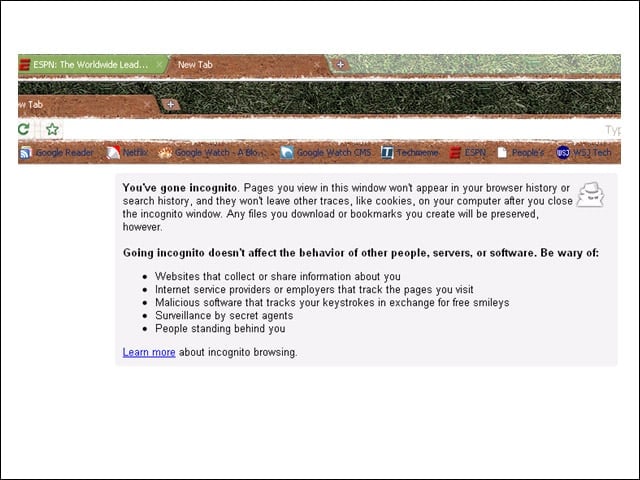
One of the most talked-about features from Chrome, Incognito lets users search the Web without letting the Web pages you visit appear in your browsing or search history. No cookies will be left behind, but files or downloads will remain.
Opening Links in New Tabs
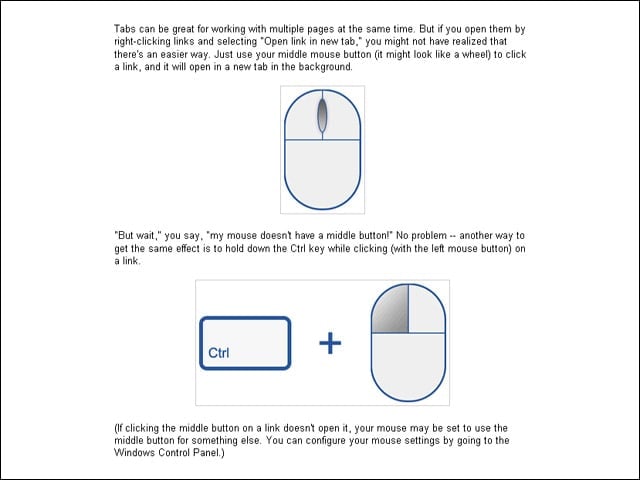
This slide tells it all: Use your middle mouse button to click a link, and it will open in a new tab in the background.
Quick Site Searches with the Omnibox
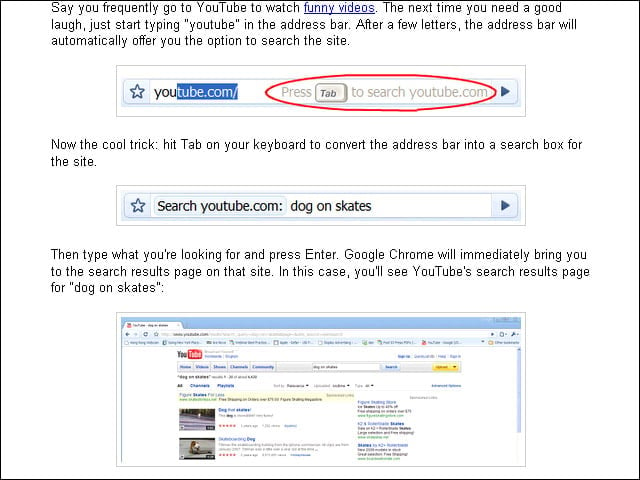
This slide tells you how to use the Chrome “Omnibox” address bar to search sites that you’ve previously visited.