




Facebook Homepage Redesign Puts Search Front and Center
by Clint Boulton
Zuckerberg Celebrates Facebooks Sixth Birthday
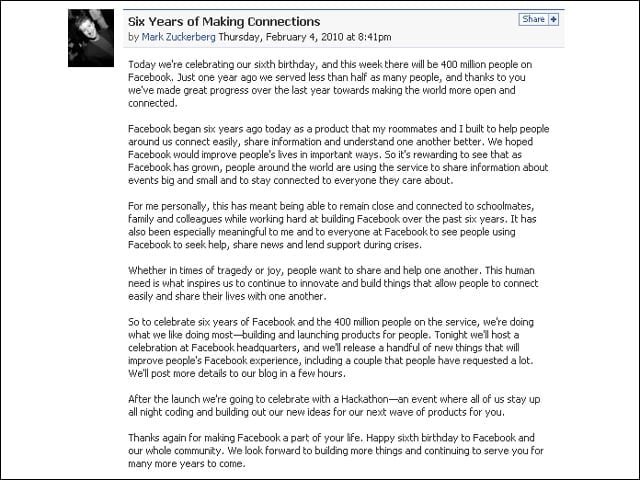
To celebrate its sixth birthday, Facebook CEO Mark Zuckerberg touts the social network’s 400 million users and promises changes to the homepage.
Current Facebook Homepage
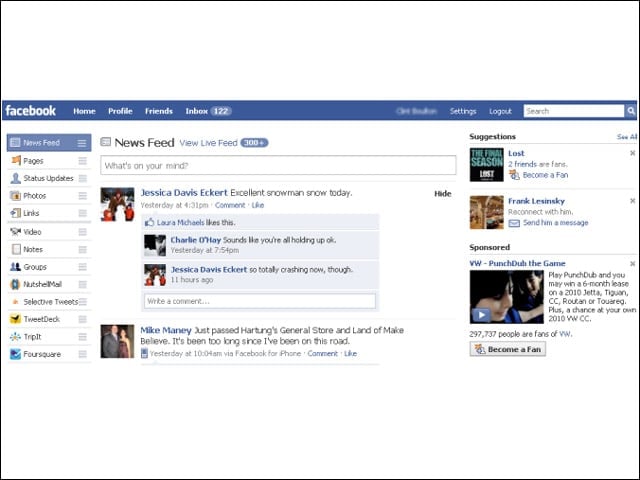
For those of you who aren’t already switched over to the redesign, take a long look at the current look of the homepage. The News Feed, Photos, Pages, Status Updates and other options live on the left. The News Feed commands the middle menu, with search almost an afterthought at the top right-hand corner, sitting atop ads.
New Facebook Top News
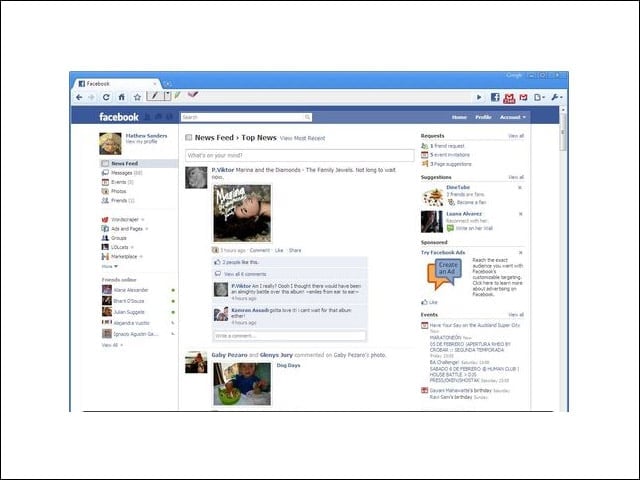
This is what the new Top News section looks like. Mathew Sanders took the pic. Note how the search toolbar, which has been improved to surface friends users interact with most frequently, has been moved to the top menu above the News Feed.
The New Alert Icon
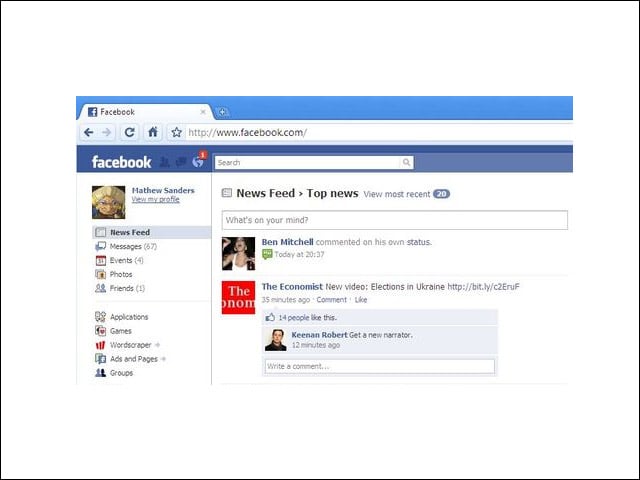
When you receive a Facebook notification, you’ll see a red bubble appear in the left-hand corner near the search bar, which is now in the top menu.
New Pull-down Menu
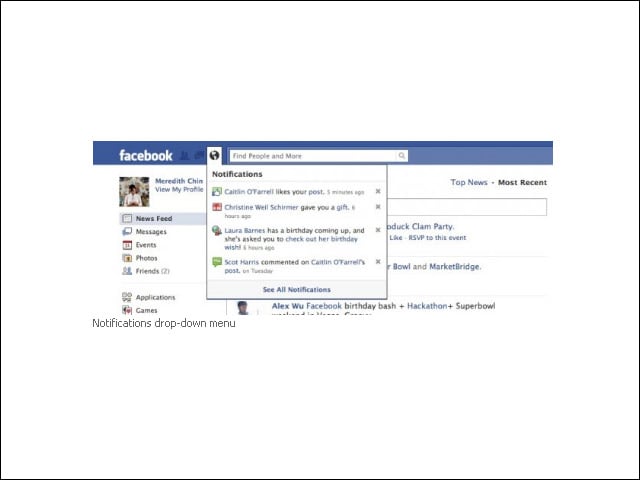
When you click on the icon, you’ll see a drop-down menu with your most recent notifications.
Birthdays
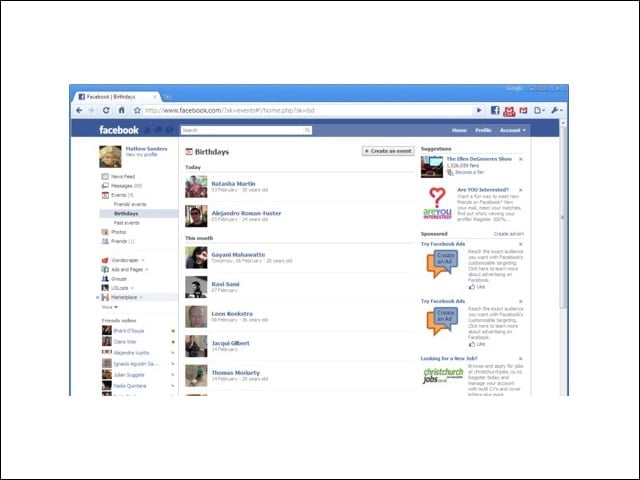
What the new birthday section looks like.
New Groups
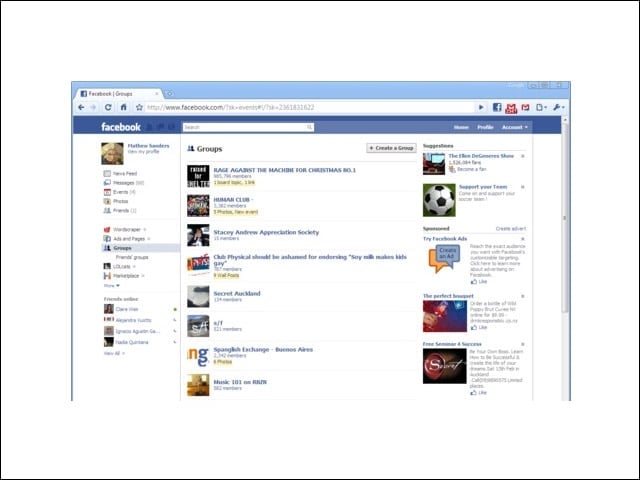
The image shows how the Groups section looks in the new Facebook redesign (thanks again to Sanders).
Games Dashboard
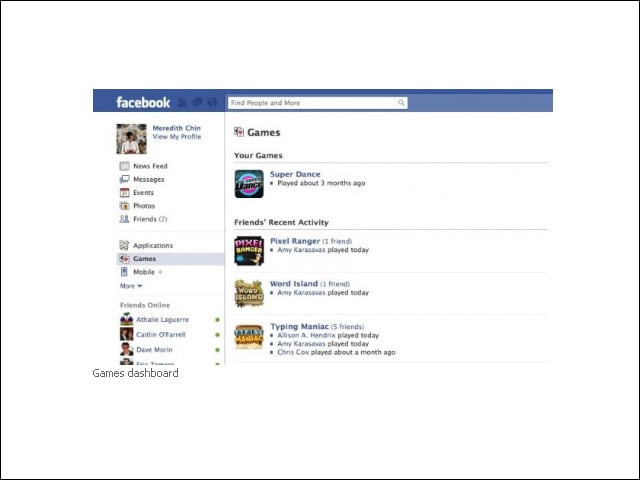
Users will find personalized updates from applications in the Applications and Games dashboards, where news items will appear alongside applications in the dashboards.
New Photo Dashboard
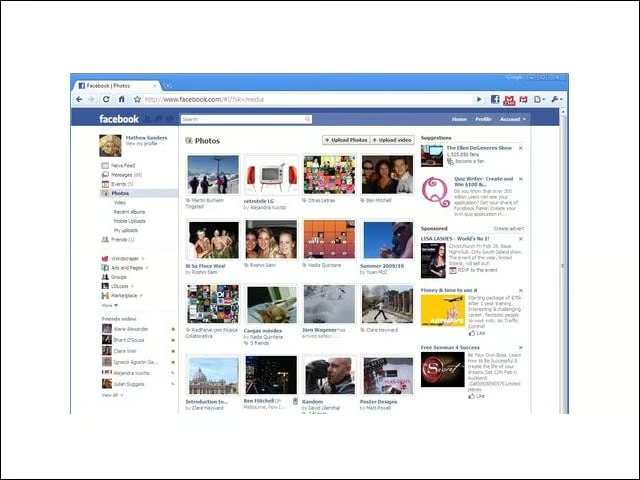
Facebook’s revamped homepage also boasts a new photo dashboard (pic by Sanders), where users may browse recent photos of their friends.
New Photo Uploader
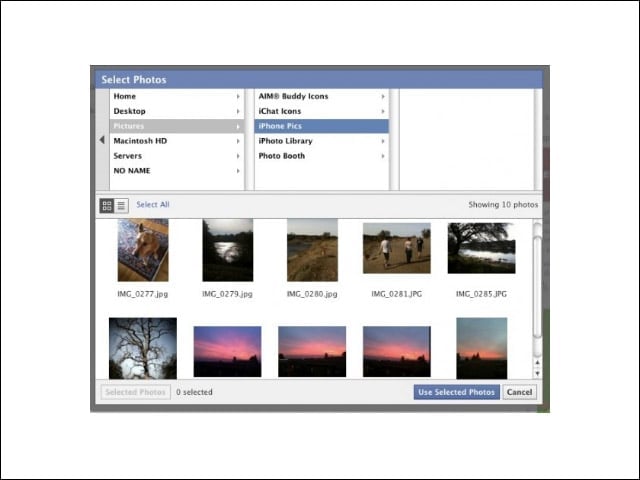
The company also fortified its photo uploader, making it easier to use and faster. Once users install a new plug-in, they will see a photo browser appear in a dialog box on their screen. Choose the photos you’d like to upload and click the “Use Selected Photos” button when you’re ready to upload.