




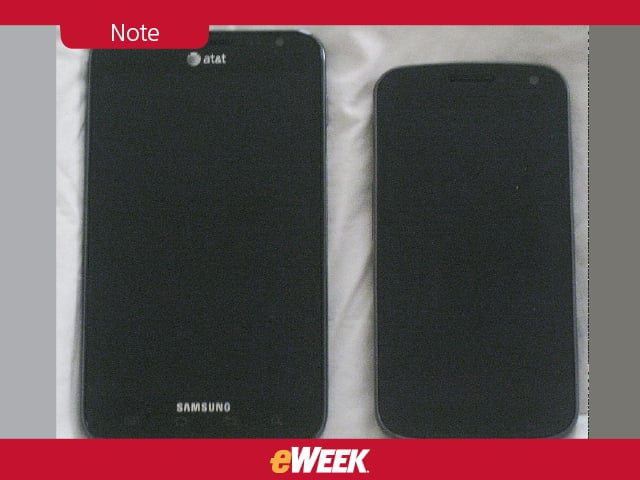
Note
At left, the Note lays next to the smaller, but not small, Samsung Galaxy Nexus, the first Android 4.0, or Ice Cream Sandwich, handset.
Camera
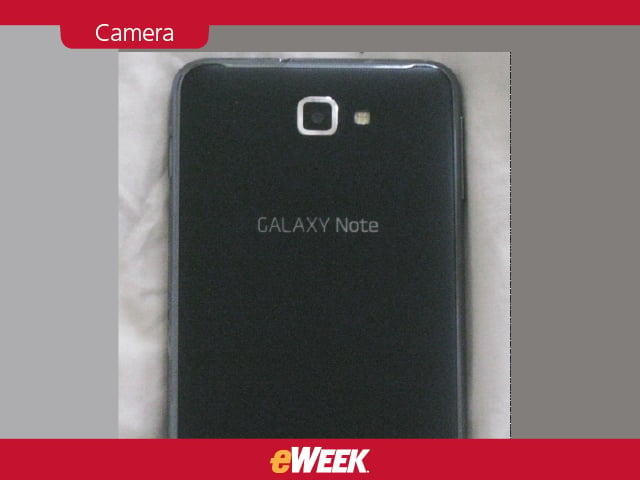
The camera is a rich, lag-less 8-megapixel delight, paired with a 2-megapixel front shutter for video chats. The black back is soft, yet textured for a better grip. That’s a big deal for a bigger-than-usual phone. The Note weighs 6.3 ounces, which is light for a tablet but bulky for a phone at a time when most handsets weigh around 5 ounces or less.
Side

At 0.38 inches through the middle, the Note was pleasantly thin. It’s also 5.8-inches long and more than 3.2-inches wide, which means only large hands will fit around the phone.
Powering Up
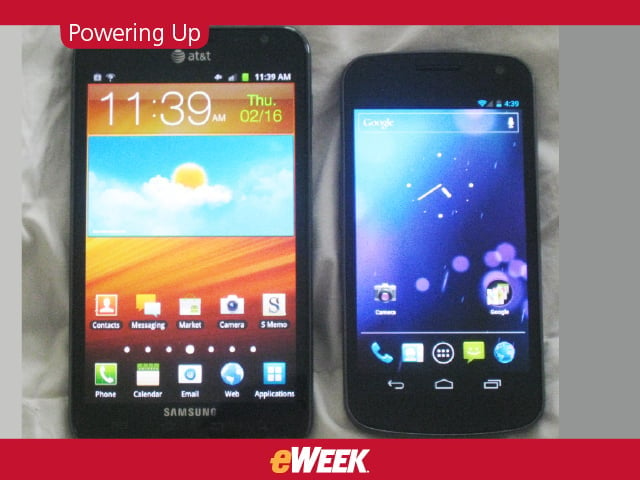
The display, as you can see here, is a gorgeous HD Super AMOLED screen with a 1,280 by 800 pixel resolution. We show the phone again next to the Galaxy Nexus, also of HD Super AMOLED quality, for perspective on display size. It’s less than an inch bigger, but it looks and feels bigger than that, we believe.
Keyboard
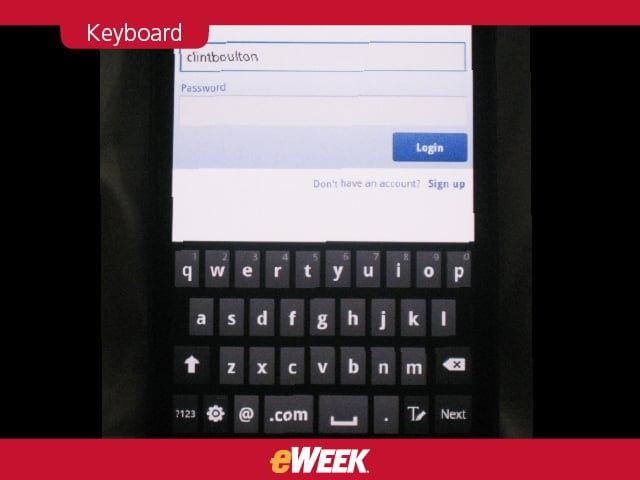
A nice, roomy keyboard enables easy typing. This allows for fewer mistakes than one usually encounters with smaller phones.

Facebook for Android looks and works great on the Note, too.
Navigation, Anyone?

One of the Note’s 7 customizable home screens is dedicate to location, including Google Maps and Maps Navigation and Google Latitude.
Qik Lite

Samsung included Qik Lite to enable easy, fast video calls with the Note and its 2-megapixel front camera.
Apps

Between the 4G LTE power and the 1.5GHz dual-core chip, apps downloaded and installed at a rapid clip-in 4 to 8 seconds flat.
S Pen
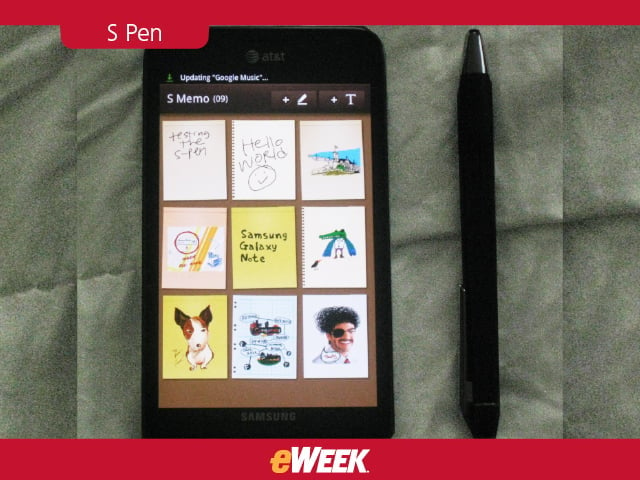
The Note’s S Pen looks and feels more like a real pen than anything HTC or Motorola has built to date.
Memo

The phone has an S Memo app that lets users “capture” pictures, voice recordings, typed text, handwritten notes and convert it all into a memo for sharing on Facebook and other social sites. You can also use this pen to launch apps.
Note Taking
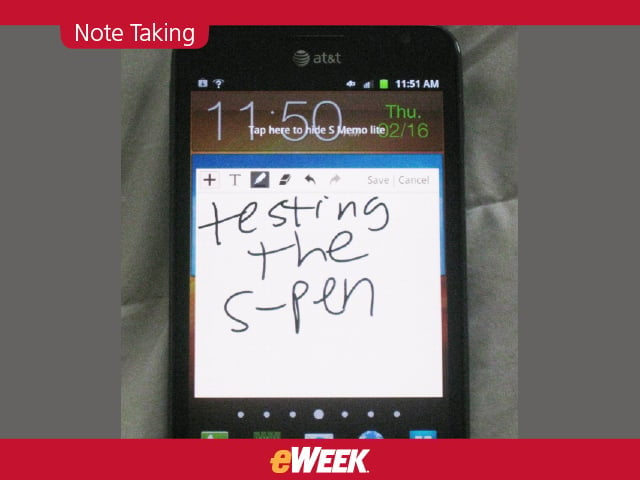
What’s also cool is you needn’t tap the S Memo app icon to start taking notes. Just double tap on any home screen and hold down the S Pen button to bring up a mini version of the S Memo. Scribble, draw or write away!
Settings
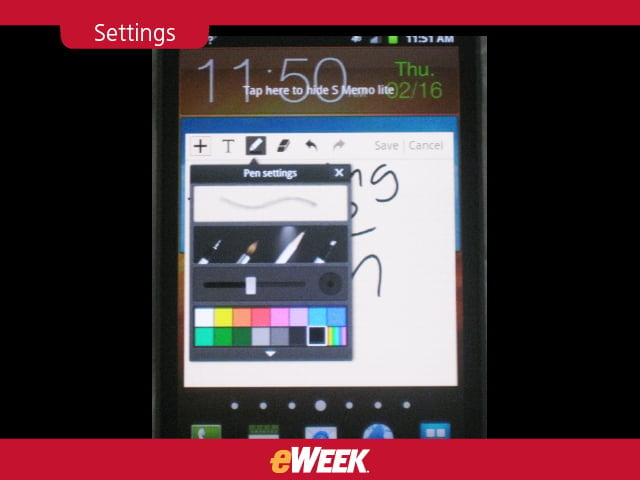
You can also adjust the writing implement type from pen to pencil or marker or brush, and dictate thickness of the digital ink.
Crayon
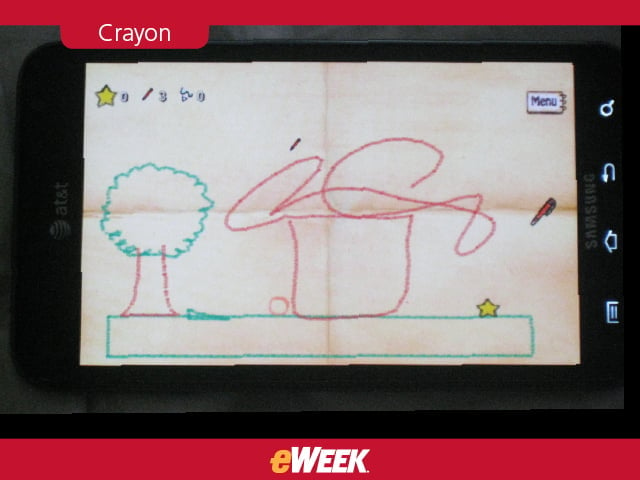
A drawing game app called Crayon Physics Deluxe lets users have fun with the S Pen on the Note.