




eWEEK Labs Walk-through: Windows 7
by eWEEK Labs
No Title
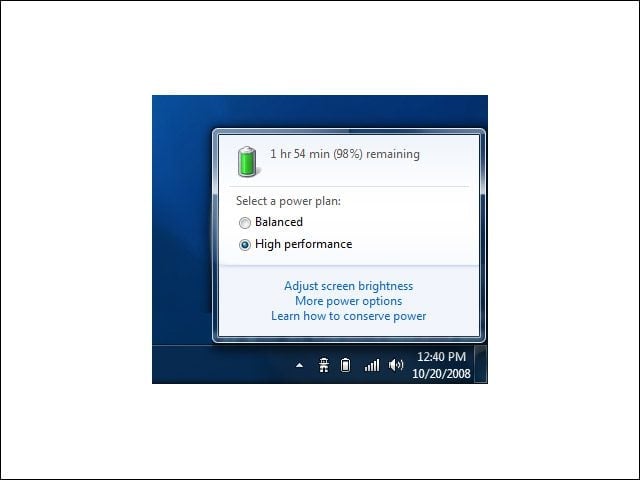
Microsoft is touting longer battery life for Seven, as compared to Vista.
No Title
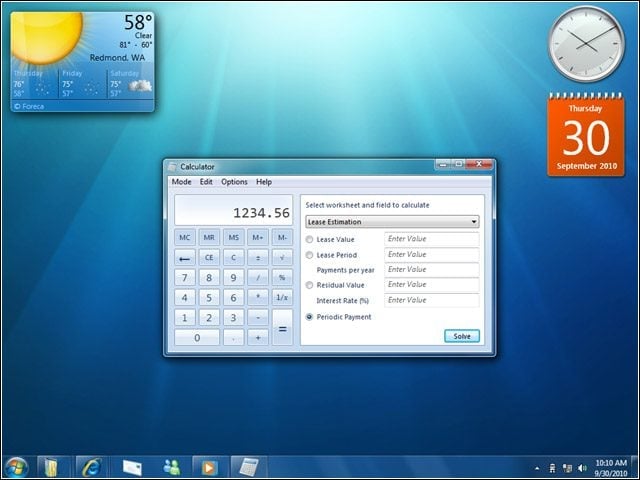
Windows 7 sports various desktop-homed “gadgets,” such as this desktop calculator.
No Title
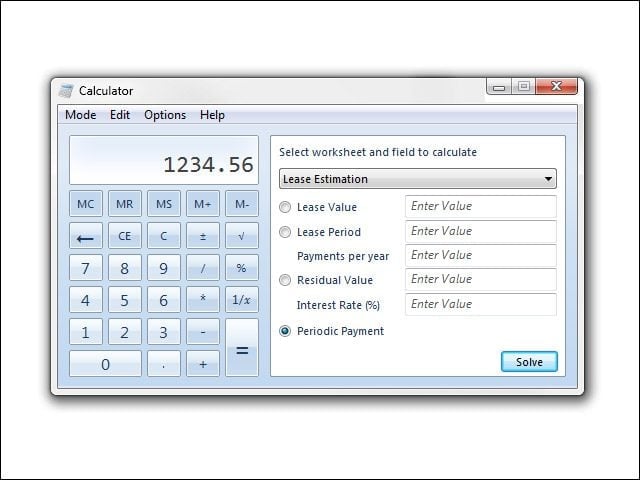
The regular, nongadget calculator is still available and now comes with some handy built-in formulas, for tasks such as lease and gas mileage estimation.
No Title
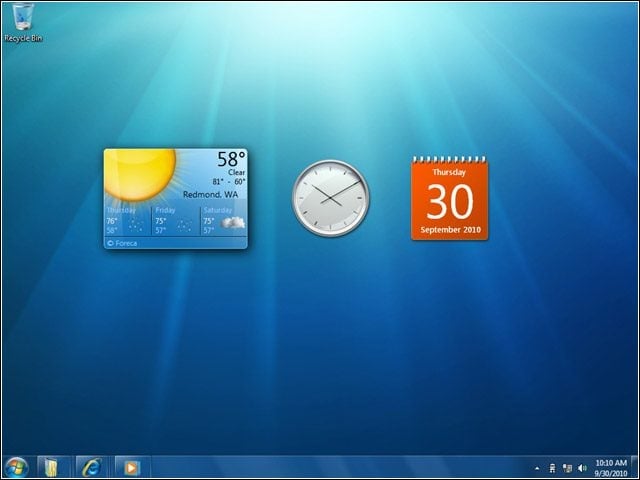
Desktop gadgets in Seven do not rely on the screen real estate-intensive Sidebar, as they did with Vista.
No Title
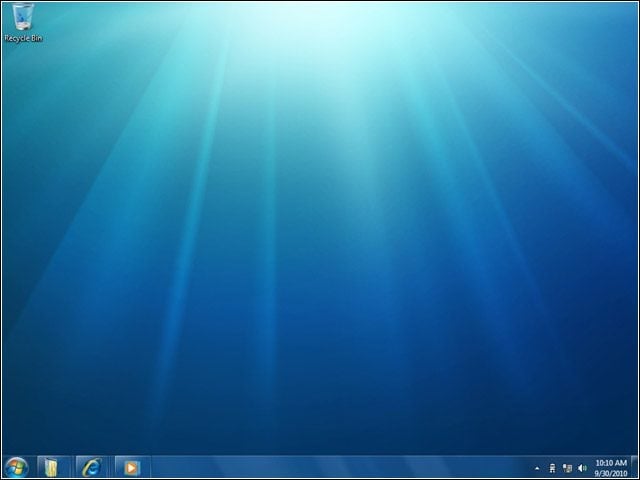
Microsoft has set out to provide a cleaner desktop with Seven. For one thing, newly installed applications do not add visible system tray items —these are instead hidden behind a menu until a user chooses to bring them to the fore.
No Title
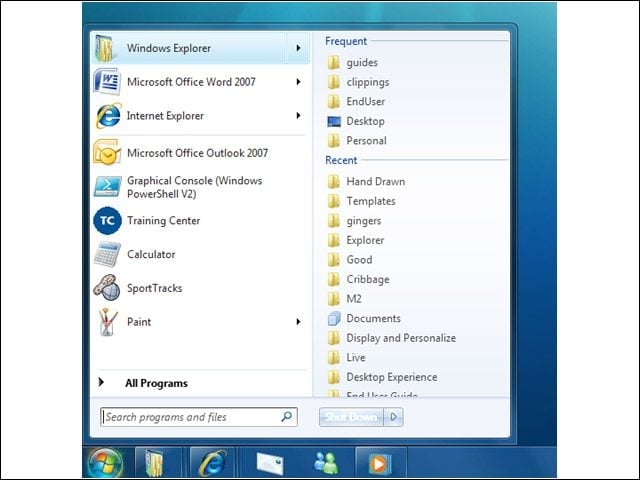
Windows 7 will ship with a new Start menu, which is intended to behave more intelligently than the menus that come with Windows Vista and XP. The new menu, pictured here, did not ship with the PDC bits we received.
No Title
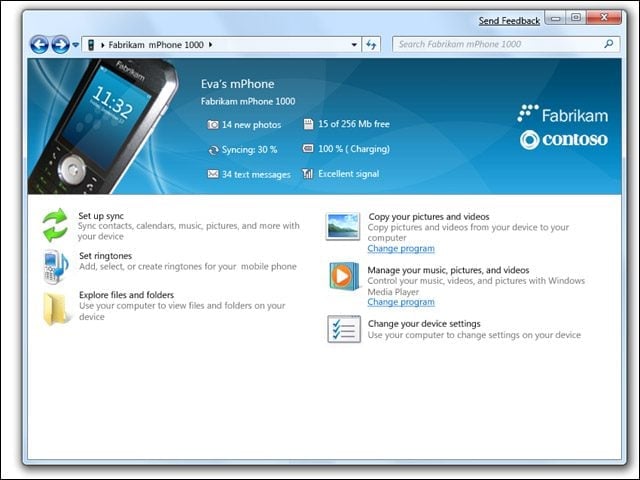
Windows 7 will ship with a new “device stage,” which provides device makers with sort of a landing ground to provide information and options related to their hardware.
No Title
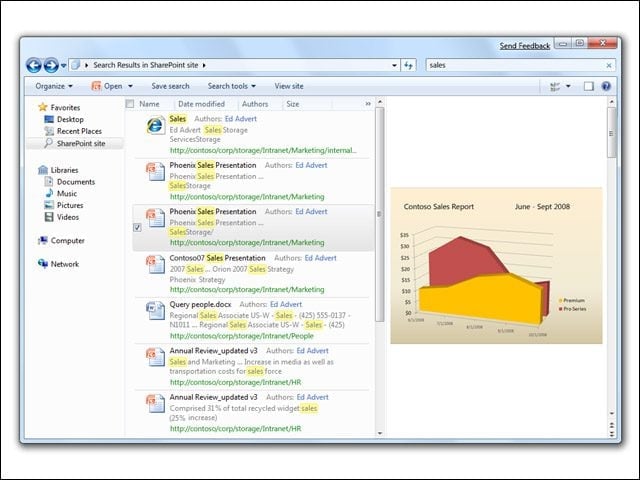
Windows 7 will allow administrators to place additional search sources, such as those for SharePoint sites, to users’ search dialogs.
No Title
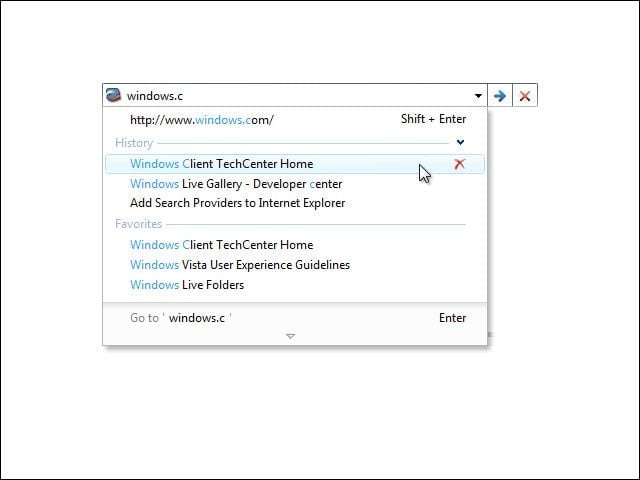
Taking a page from Firefox 3, Internet Explorer 8 will have its own implementation of the AwesomeBar.
No Title
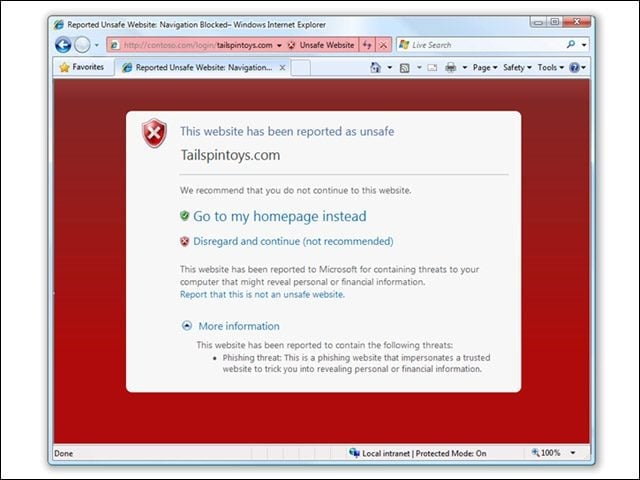
IE 8 will warn users of Web sites that have been reported as unsafe.
No Title
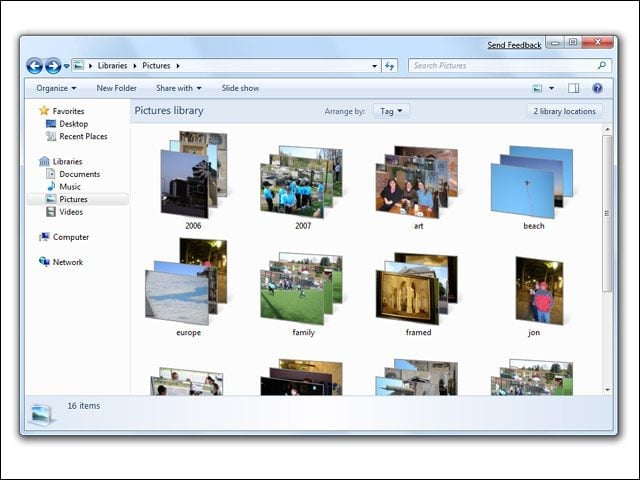
Windows 7 introduces the concept of “Libraries,” which are collections of files presented together, even though they may reside in different locations on one’s machine.
No Title
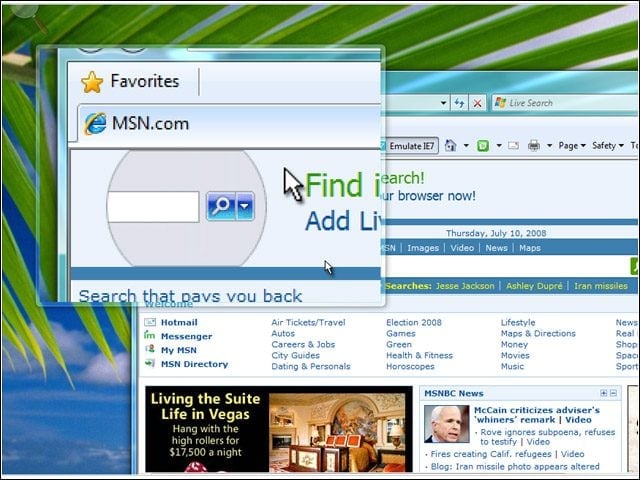
Windows 7 will ship with a magnifier application as part of its accessibility feature set.
No Title
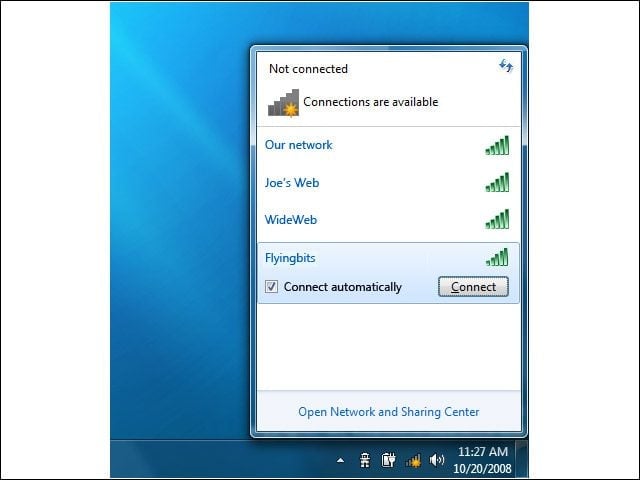
The network connect dialog in Windows 7 is simple and effective, but we still miss the right-click status accessibility offered in Windows XP.
No Title
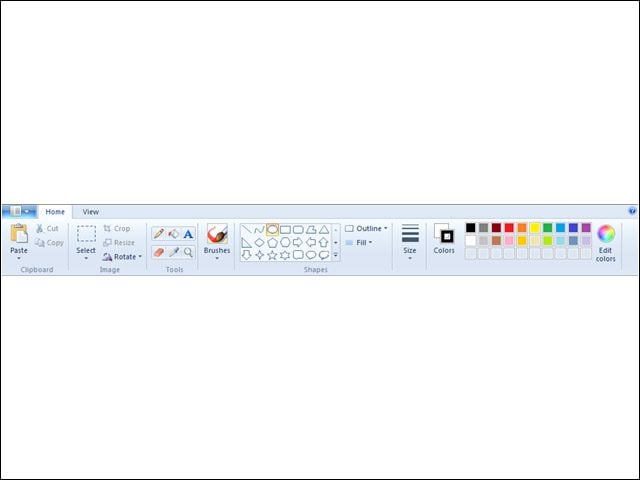
The venerable Windows Paint application gets an Office 2007-style overhaul in Windows 7, complete with an interface ribbon.
No Title
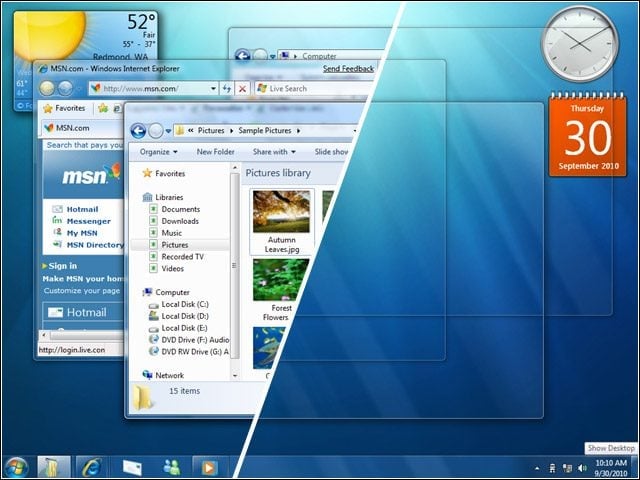
In Windows 7, there’s a small button at the right end of the task bar that turns all open Windows transparent to offer a “peek” at the desktop.
No Title
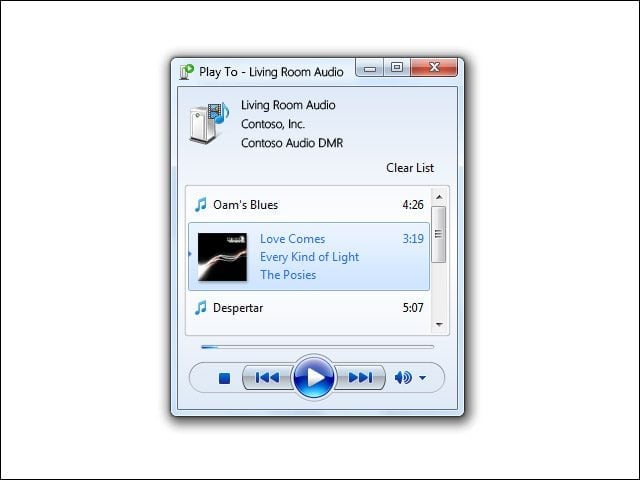
Windows 7’s media player does a good job piping music from local or networked locations to external audio devices.
No Title
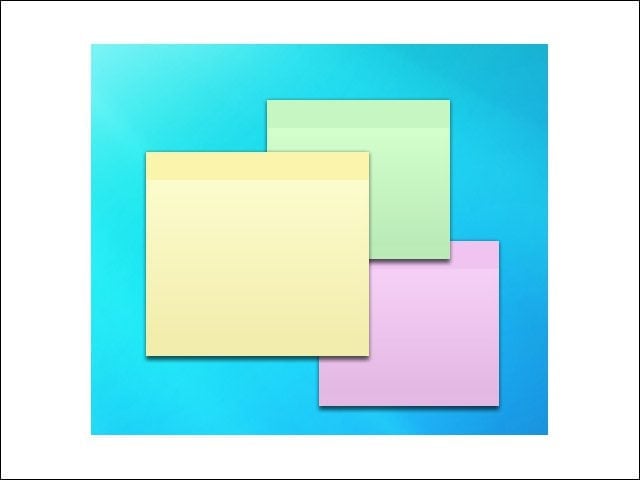
It doesn’t quite match up to GNOME’s Tomboy, but Windows 7 offers a handy sticky notes application.
No Title
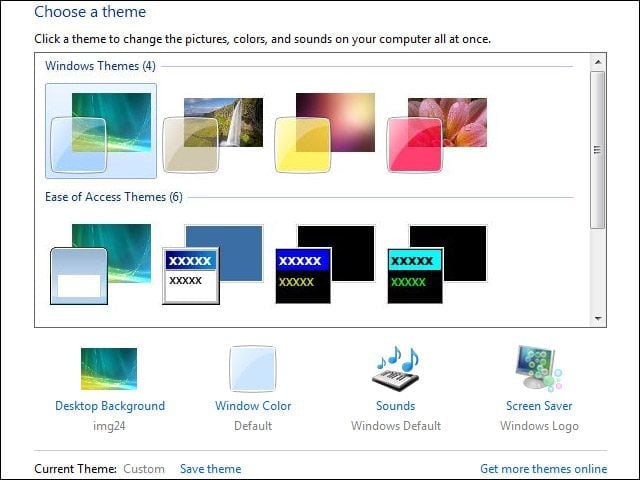
Windows 7 offers users more control over the look of their desktops than did previous versions of Windows.
No Title
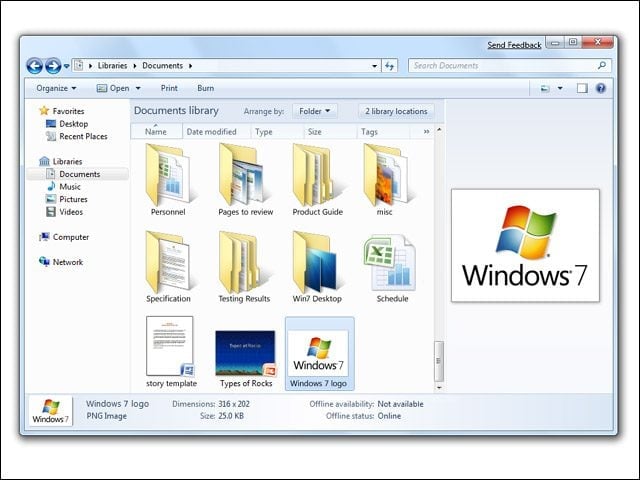
Windows 7’s Explorer file manager bears a strong resemblance to the one that shipped with Vista.
No Title
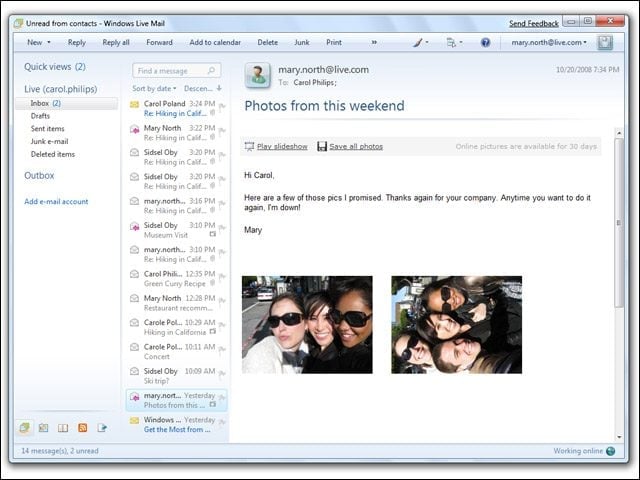
Outlook Express may be gone, but it lives on in an awfully Outlook-like Windows Live Mail application.
No Title
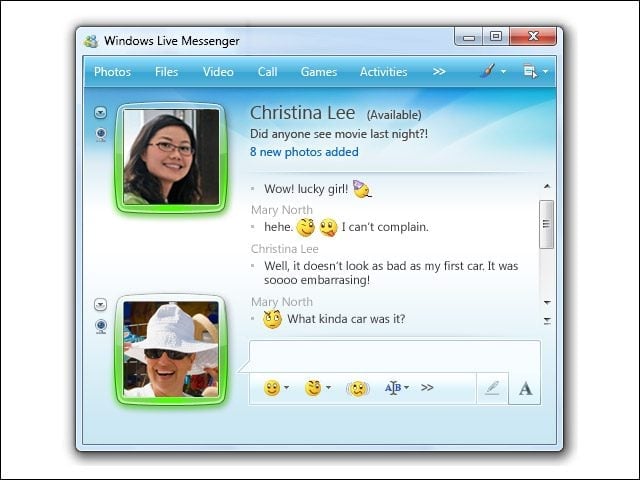
In Windows 7, Live Messenger may prove a bit too amusing to fiddle with.