





How to Lock Down Windows 10’s Privacy Settings
Windows 10 has received plenty of praise, but there are also privacy concerns. By changing these settings, Windows 10 users will gain a lot more privacy.
Establish Boundaries With Cortana
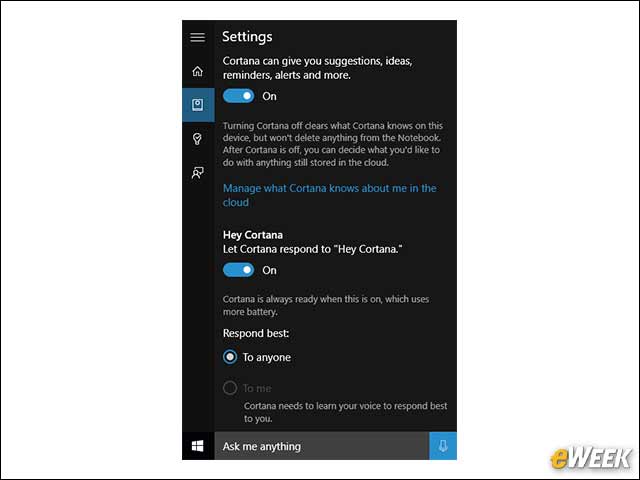
Cortana gets smarter and more helpful as you give her more to do. Despite her charming albeit artificial personality, not everyone is comfortable with software that can potentially get to know more about them than a spouse or significant other. To rein in Cortana, click the built-in search bar (right next to the Start Menu icon) > Settings (three horizontal lines or “hamburger”) > Notebook > Settings
Keeping a Lid on Edge’s Browser Activity
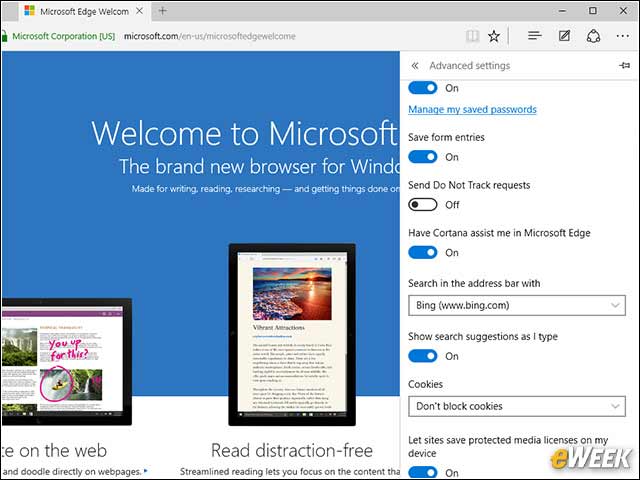
Edge is a fast, user-friendly browser. It’s also cozy with Microsoft’s cloud to help fine-tune Cortana. To switch this option on and off, head to Settings (or the ellipsis symbol in the upper right) > Advanced Settings > Have Cortana assist me in Microsoft Edge.
Change the Default Browser
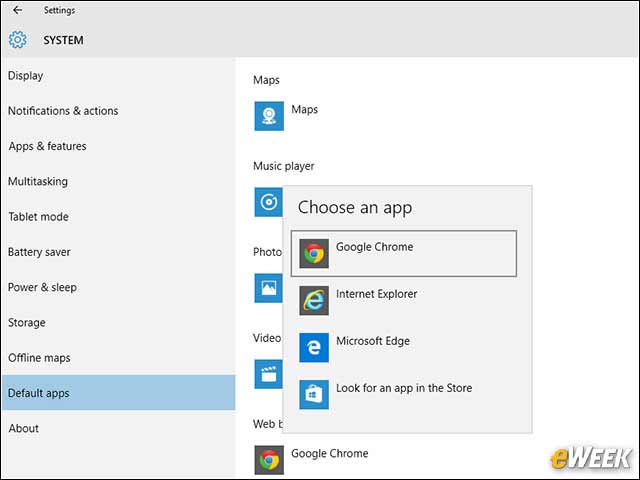
Edge is nice for a default Windows browser, but Chrome and Firefox users may be dismayed to find that their browser is no longer the default. To set a default browser, click the Settings icon in the Start menu and then head to Settings > Default Apps > Web browser.
Manage Your Advertising Preferences
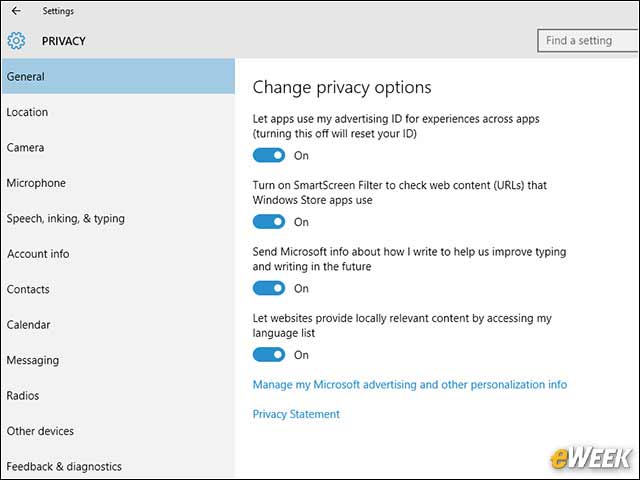
Don’t want your virtual window shopping sessions to come back and haunt you? Users can visit Settings > Privacy > General to switch off their advertising ID.
Take Back Your Bandwidth
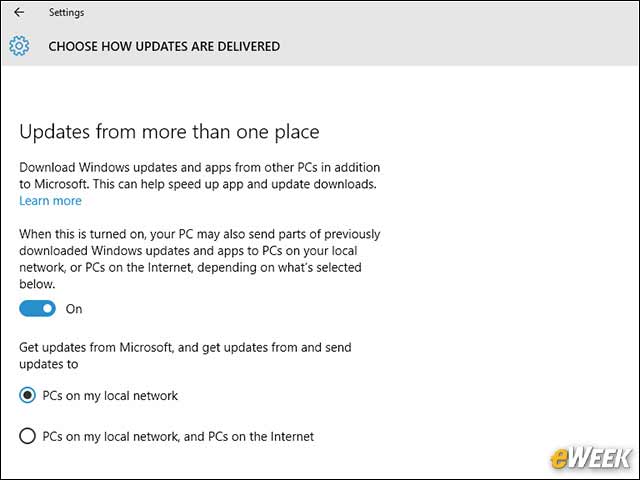
Windows 10 uses BitTorrent-like peer-to-peer (P2P) technology to distribute updates to users over the Internet. If the prospect of using your bandwidth to update your neighbor’s machine unnerves you, go to Settings > Update & Security > Windows Update > Advanced options > Choose How Updates Are Delivered and toggle the option to Off. If you’re OK with sharing updates over a local network, leave it on and select the first radio button (PCs on my local network).
Disabling Wi-Fi Sense
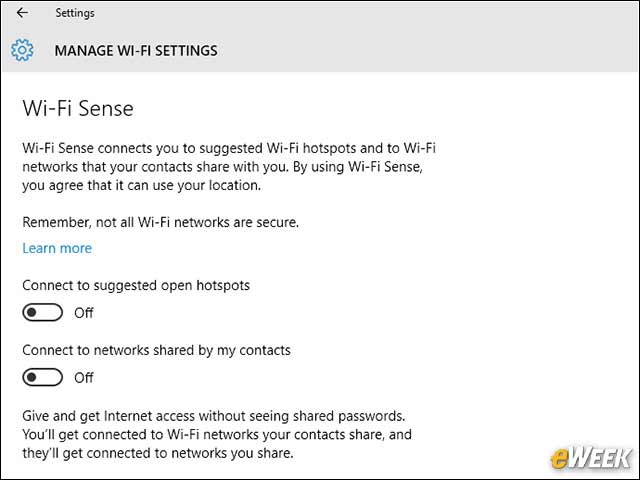
Few Windows 10 features have caused quite a stir as Wi-Fi Sense. Meant to help users share access to WiFi access points and quickly connect to the Internet, Wi-Fi Sense came under fire because of fears that network passwords were being traded over social networks willy-nilly. Rather, Microsoft encrypts the information—meaning that users never see a network key—and security manages the service, according to its FAQ. Also, users must opt-in before sharing a WiFi access point with a friend. Still, if you’d rather not deal with it, you can turn Wi-Fi Sense off by going to Settings > Network and Internet > Manage Wi-Fi Settings.
Keep Your Location Private
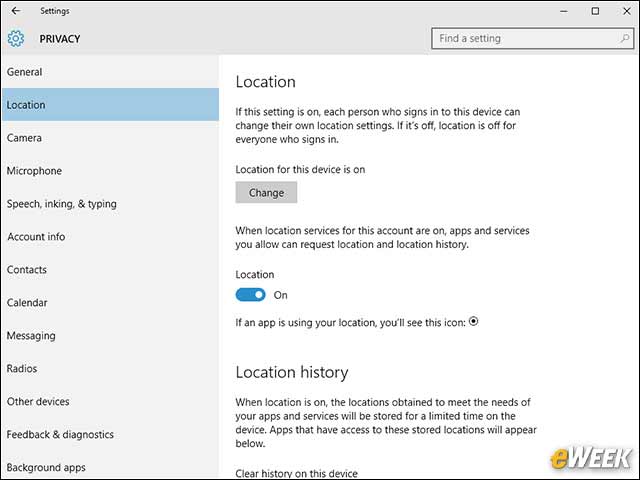
Smartphone and tablet users may be accustomed to managing their location settings. Now its Windows users’ turn. To turn off location tracking or manage which apps are allowed to know where you are, go to Settings > Privacy > Location.
Keep Out Prying Eyes (and Ears)
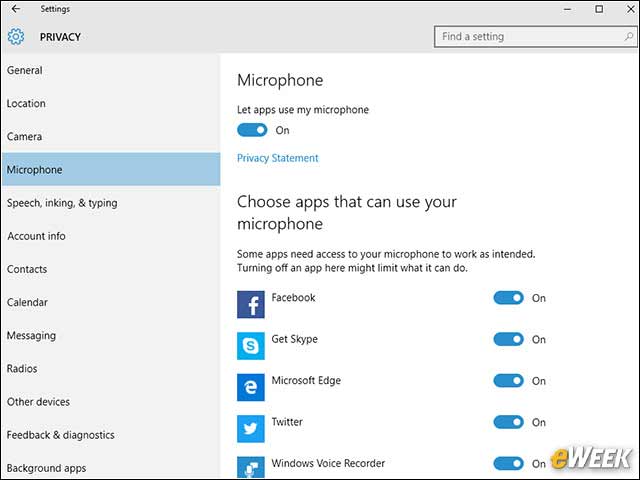
Many apps will request access to the camera and microphone, which Windows 10 grants by default. Go to Settings > Privacy > Camera (or Microphone) to turn the option off or manage it on a per-app basis.