Building a Virtualized Testbed on the Cheap – Part IV: ESXi Installation on a USB Flash Drive

執筆者
Andrew Garcia
Andrew Garcia
Published: Mar 9, 2009
Updated: Feb 2, 2021
1 minute read
Building a Virtualized Testbed on the Cheap – Part IV: ESXi Installation on a USB Flash Drive
eWeek のコンテンツおよび製品のおすすめは、編集上の独立性を保っています。パートナーへのリンクをクリックすると、当社が報酬を得る場合があります。 詳細を見る


Building a Virtualized Testbed on the Cheap – Part IV: ESXi Installation on a USB Flash Drive

Building a Virtualized Testbed on the Cheap – Part IV: ESXi Installation on a USB Flash Drive

by Andrew Garcia


Download and License ESX
2

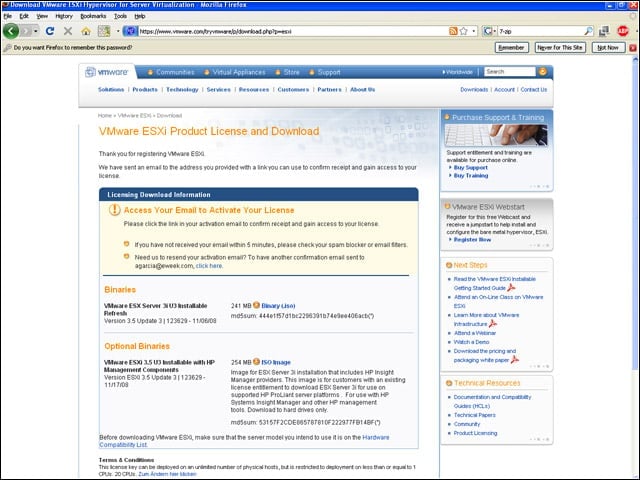
The ESXi installer is freely downloadable from www.vmware.com. Users indicate the maximum number of physical hosts on which ESXi will be installed (up to 999), and then VMware will e-mail registration information. Upon receipt of the e-mail, click on the Activate button to get a link to the download of the standard ISO image.


Extracting from the ISO
3

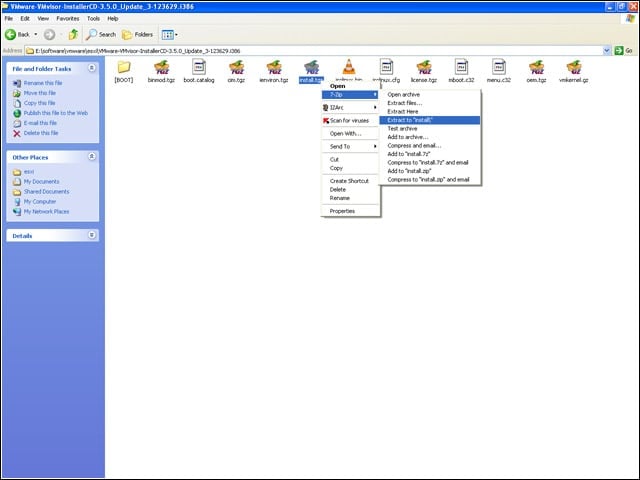
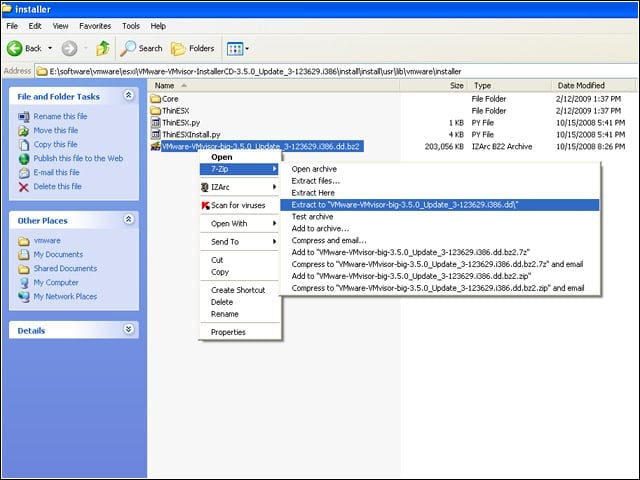
Using 7-Zip (free from www.7-zip.org), extract all files from the ESXi ISO image. Within that data, find and uncompress install.tgz, then uncompress install.tar found therein as well.


Extract ESXi Image
4

From there, navigate to the /usr/lib/vmware/installer folder and then uncompress the file VMWare-VMvisor-big-3.5.0_Update_3-123629.i386.dd. Note: The version number will likely differ with a different version of ESXi. This will free up the ESXi image, called VMware-VMvisor-big-3.5.0_Update_3-123629.i386.dd.


Advertisement

Create USB Boot Drive

5

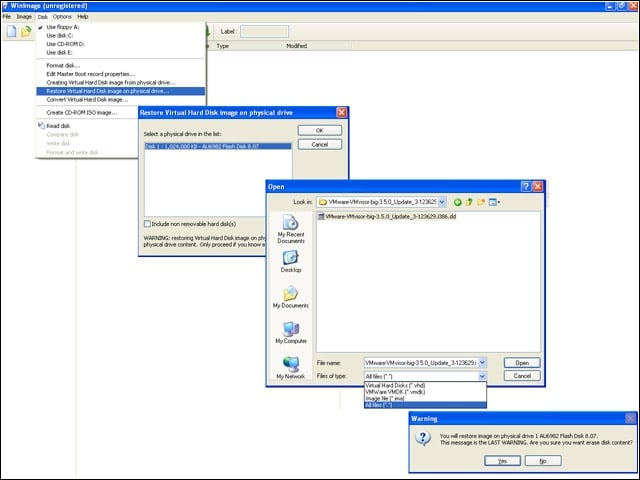
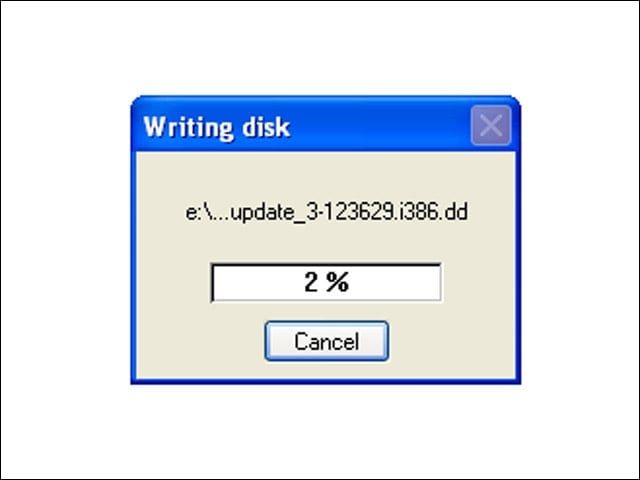
Using WinImage (free 30-day trial at www.winimage.com), blast the image onto a 1GB USB stick. From the WinImage Disk menu, select Restore Virtual Hard Disk Image on Physical drive, select the USB stick to use, then find the .dd file extracted previously.


Formatting the Drive
6

It takes 4 to 5 minutes to copy ESXi to the USB stick. Once complete, this screen disappears and there will be no on-screen indication whether the transfer was successful. Move the USB stick to the virtualization host and boot the machine.


No Title

Andrew Garcia

Andrew Garcia

Content Writer

Andrew cut his teeth as a systems administrator at the University of California, learning the ins and outs of server migration, Windows desktop management, Unix and Novell administration. After a tour of duty as a team leader for PC Magazine's Labs, Andrew turned to system integration - providing network, server, and desktop consulting services for small businesses throughout the Bay Area. With eWEEK Labs since 2003, Andrew concentrates on wireless networking technologies while moonlighting with Microsoft Windows, mobile devices and management, and unified communications. He produces product reviews, technology analysis and opinion pieces for eWEEK.com, eWEEK magazine, and the Labs' Release Notes blog. Follow Andrew on Twitter at andrewrgarcia, or reach him by email at agarcia@eweek.com.

eWeek Logo

eWeek has the latest technology news and analysis, buying guides, and product reviews for IT professionals and technology buyers. The site's focus is on innovative solutions and covering in-depth technical content. eWeek stays on the cutting edge of technology news and IT trends through interviews and expert analysis. Gain insight from top innovators and thought leaders in the fields of IT, business, enterprise software, startups, and more.

TechnologyAdvice が所有・運営しています。 © 2026 TechnologyAdvice. 無断転載を禁じます

広告主に関する開示:このサイトに掲載されている製品の一部は、TechnologyAdvice が報酬を受け取っている企業のものです。この報酬は、製品がこのサイトのどこにどのように表示されるか(表示される順序など)に影響する場合があります。TechnologyAdvice は、市場で入手可能なすべての企業やすべての種類の製品を掲載しているわけではありません。