





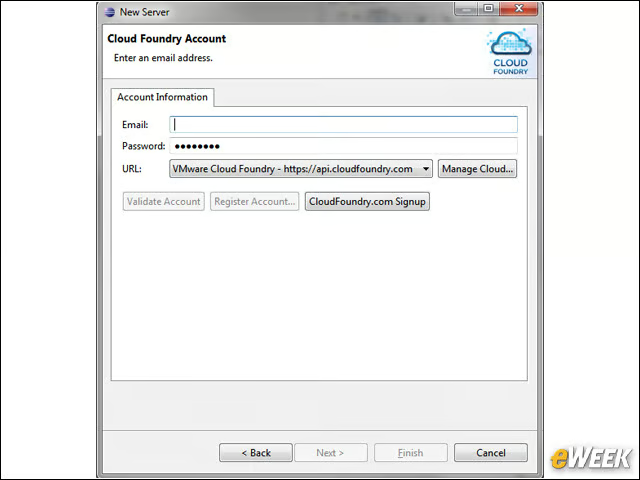
Signing On
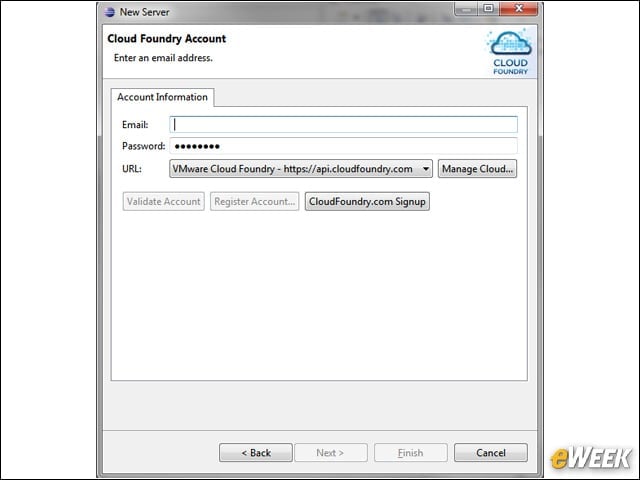
From within Eclipse, I was able to sign into the server with our email address and the password provided to me when I registered with CloudFoundry.com.
Changing the Password
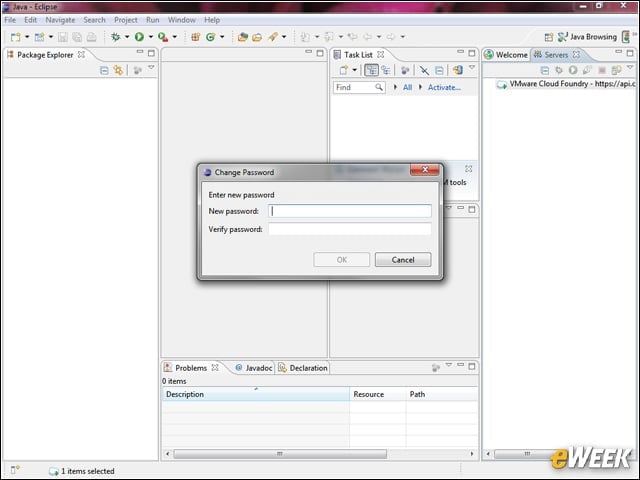
The first password was assigned to us by CloudFoundry.com, and I was required to change it the first time I signed in. I was able to change it right within Eclipse.
Creating a Java Dynamic Web App
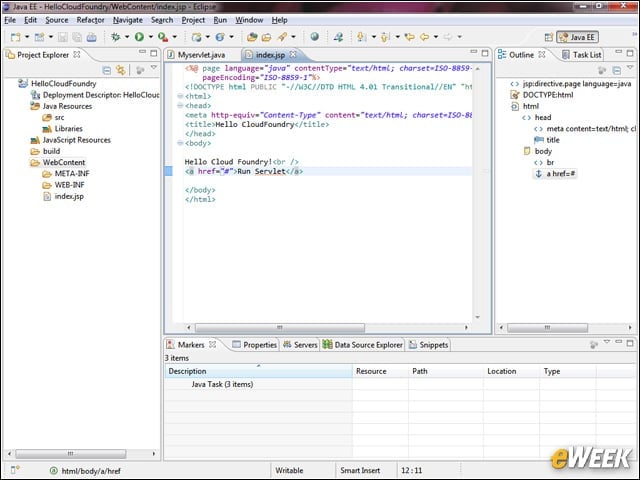
Using the Java EE features of Eclipse, I created a simple Java Dynamic Web application consisting of a Java Server Page (JSP) and a servlet. Here you can see the JSP page.
Navigating VMWare Cloud Foundry
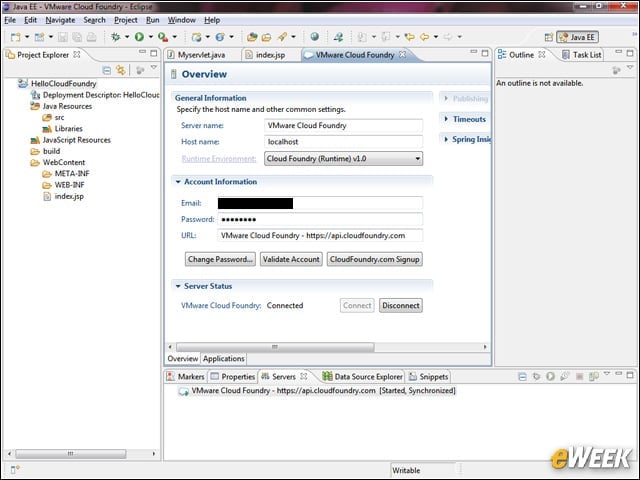
When I double-clicked the VMWare Cloud Foundry entry in the Server window the Overview window opened and showed me details about my account. At the bottom is an Applications tab.
Application Detail
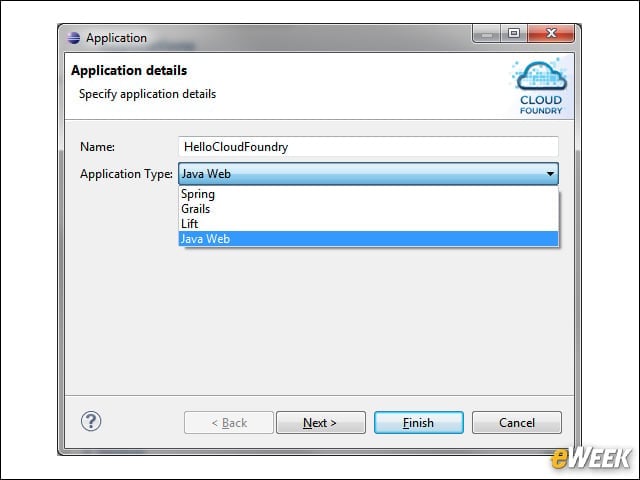
After I dragged my application onto the Applications window, an Application Details window appeared. I provided an internal name and type for my application.
Deployed Applications
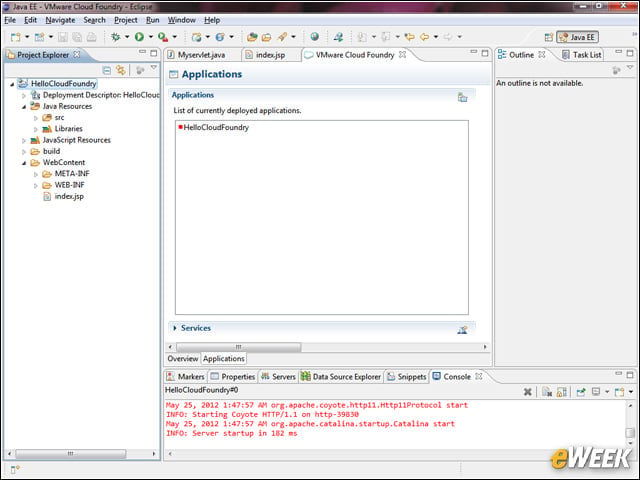
The Applications page shows all the currently deployed applications. In my case, the list consisted of the one application I had just deployed. At the bottom of screen is the console output from the Web server.
More Options
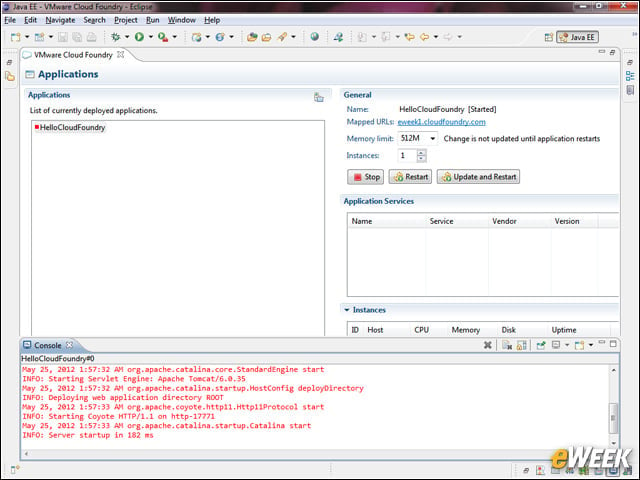
When I maximized the Applications window, I could see additional options, including a button to update and restart. Later, I made a correction and clicked Update and Restart to redeploy the application.
Remote Systems
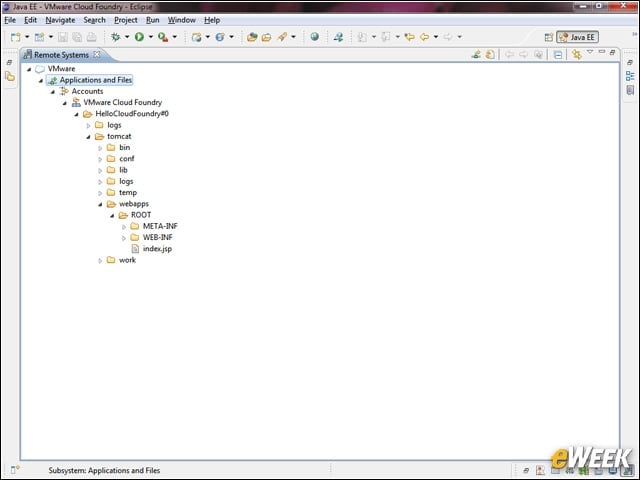
The Remote Systems window let me drill down into my file system on the remote server.
Accessing Eclipse
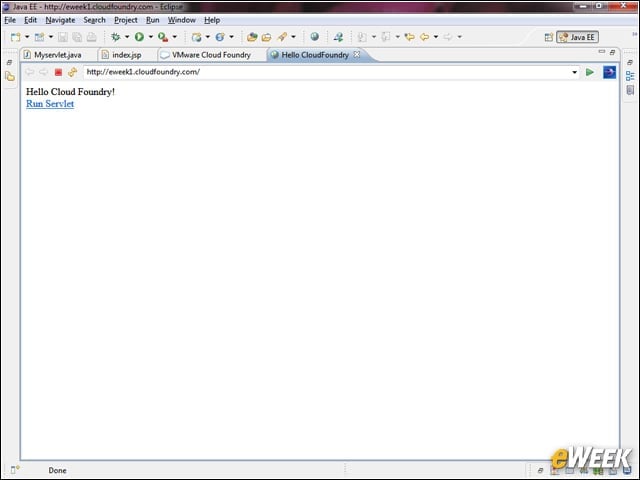
I clicked the address of my application in the Applications window and a browser opened inside Eclipse showing us our page.
Opening the Same Page in Chrome Browser
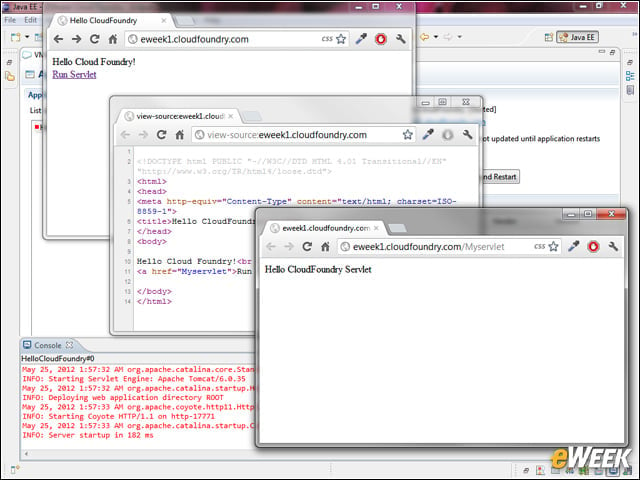
I put the same URL into our Chrome browser and saw my page. I also looked at the source and saw the changes I had made. Clicking on the link opened my servlet, demonstrating that everything worked.