







- 20 Steps to Printer Security
- 20 Steps to Printer Security – 1. Overwrite the Hard Disk at End of Life
- 20 Steps to Printer Security – 2. Overwrite Data Immediately
- 20 Steps to Printer Security – 3. Encrypt the Drive
- 20 Steps to Printer Security – 4. Encrypt It — Really
- 20 Steps to Printer Security – 5. Print from Memory
- 20 Steps to Printer Security – 6. Secure Print, with Passwords
- 20 Steps to Printer Security – 7. Securer Print, with Cards
- 20 Steps to Printer Security – 8. Securer Print 2: Biometrics
- 20 Steps to Printer Security – 9. Securest Print
- 20 Steps to Printer Security – 10. Secure Everything Else
- 20 Steps to Printer Security – 11. Timeout the User
- 20 Steps to Printer Security – 12. Turn Off the Reprint Command
- 20 Steps to Printer Security – 13. Timeout on Secure Print Jobs
- 20 Steps to Printer Security – 14. Scan Encryption
- 20 Steps to Printer Security – 15. Unauthorized Copy Control
- 20 Steps to Printer Security – 16. Secure Mailbox Print
- 20 Steps to Printer Security – 17. E-mail and Fax Destinations
- 20 Steps to Printer Security – 18. Who Sent the E-mail
- 20 Steps to Printer Security – 19. Tracking and Activity Logs
- 20 Steps to Printer Security – 20. Virus Protection
- 20 Steps to Printer Security – See More Slideshows Like This One
20 Steps to Printer Security
Printers, particularly multi-function printers, are more and more a security concern, partly because of government regulations (for health information, for example) and partly because most companies simply want to keep data private. Printers can compromis
20 Steps to Printer Security – 1. Overwrite the Hard Disk at End of Life
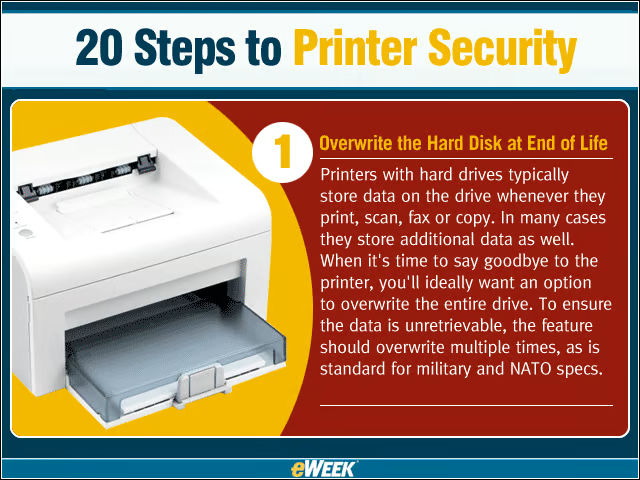
Printers with hard drives typically store data on the drive whenever they print, scan, fax or copy. In many cases they store additional data as well. When its time to say goodbye to the printer, youll ideally want an option to overwrite the entire drive
20 Steps to Printer Security – 2. Overwrite Data Immediately
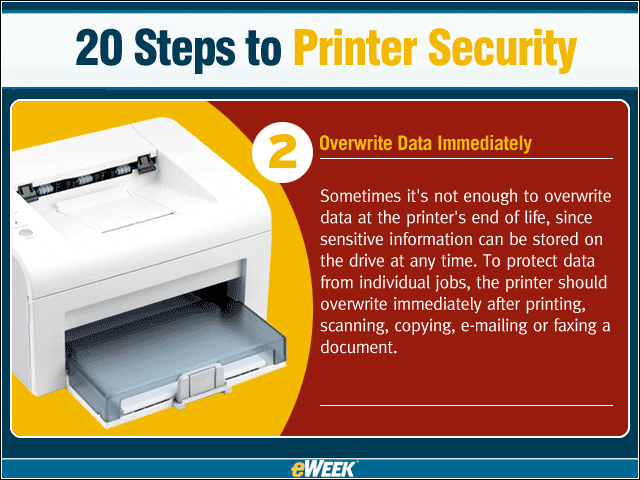
Sometimes its not enough to overwrite data at the printers end of life, since sensitive information can be stored on the drive at any time. To protect data from individual jobs, the printer should overwrite immediately after printing, scanning, copying,
20 Steps to Printer Security – 3. Encrypt the Drive
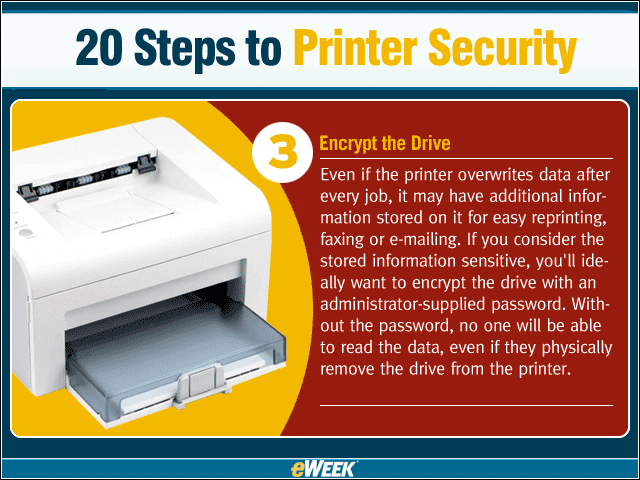
Even if the printer overwrites data after every job, it may have additional information stored on it for easy reprinting, faxing or e-mailing. If you consider the stored information sensitive, youll ideally want to encrypt the drive with an administrator
20 Steps to Printer Security – 4. Encrypt It — Really
All encryption schemes are not equal. If youre concerned enough to encrypt the drive, make sure the printer offers an appropriate level of encryption security. Some encryption schemes (like the ones on Microsoft Word documents) are easy to break with off
20 Steps to Printer Security – 5. Print from Memory
Some printers let you bypass the hard disk and specify to print entirely from RAM (random access memory). This may slow some print jobs down significantly, but because these jobs never go to the hard disk, theres no data left on the hard disk to worry a
20 Steps to Printer Security – 6. Secure Print, with Passwords
Probably the most common security feature for printers, secure printing lets you send a job to the printer then go to the printer and enter a password to print it. Unless you walk away at that point, this avoids the possibility of leaving sen
20 Steps to Printer Security – 7. Securer Print, with Cards
Security experts generally agree that smart cards offer better security than passwords, which often get written down someplace where others can read them. You might want to consider printers that control their secure-print feature with a smar
20 Steps to Printer Security – 8. Securer Print 2: Biometrics
Another alternative to passwords is biometric devices, which often mean a fingerprint reader. However, fingerprints can be faked, and many people are uncomfortable at having their fingerprints stored. At least one company — Konica Minolta —
20 Steps to Printer Security – 9. Securest Print
Requiring a password, card or biometric authentication are all good ideas, but you can get even better security with two, or even three levels of authentication: Something you know (the password), something you have (a card) and something you
20 Steps to Printer Security – 10. Secure Everything Else
For MFPs, consider the need for user authentication for other functions besides printing. Scanning, e-mailing, copying and faxing are all potential paths for sensitive information to go astray.
20 Steps to Printer Security – 11. Timeout the User
On those occasions when someone prints a secure job or copies a document and then walks away without remembering to log out, you dont want someone else reprinting the document. Look for a timeout feature, with a setting the administrator can
20 Steps to Printer Security – 12. Turn Off the Reprint Command
An even surer way to protect against someone reprinting files is to turn off the printers reprint command, if you can, or get a printer that doesnt include a reprint feature.
20 Steps to Printer Security – 13. Timeout on Secure Print Jobs
You can safely bet that someone will occasionally print with secure print, get sidetracked and forget to actually print. For those times, you may want a feature that will delete unprinted secure print jobs after a designated time period.
20 Steps to Printer Security – 14. Scan Encryption
MFPs may deliver scanned documents for internal use to an internal FTP site, directly to a designated PC or by sending them as e-mail attachments. To protect sensitive information in any of these cases, look for a feature that scans and sends
20 Steps to Printer Security – 15. Unauthorized Copy Control
Some printers will let you add a hidden security watermark on printed documents. The watermark doesnt show on the original, but will show up if the document is copied. This can help to discourage unauthorized copying, simply by making clear
20 Steps to Printer Security – 16. Secure Mailbox Print
Some MFPs let users store print jobs or scanned documents they need repeatedly in whats usually called a mailbox on the printers hard drive. Consider whether you want to require a password or other user authentication before storing a file in
20 Steps to Printer Security – 17. E-mail and Fax Destinations
For MFPs that can scan and e-mail, being able to both define a list of destination addresses for a user to choose from and prevent users from adding an address from the front panel ensures that information can go only to a controlled list of
20 Steps to Printer Security – 18. Who Sent the E-mail
When sending an e-mail from an MFPs front panel, some MFPs will automatically enter the e-mail address for the user whos logged in at the MFP and prevent the user from changing the address. This stops users from sending e-mail that seems to
20 Steps to Printer Security – 19. Tracking and Activity Logs
Account tracking features, complete with logs that show each job, automatically document who printed, scanned, faxed, copied or e-mailed what and when. Usually, this kind of information is used for internal billing or the like, but it can als
20 Steps to Printer Security – 20. Virus Protection
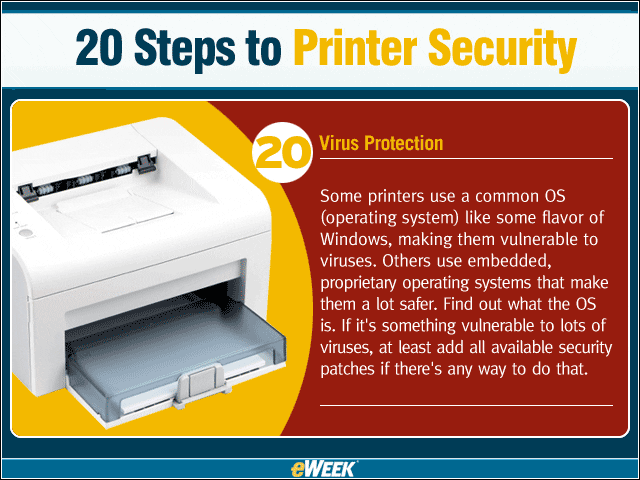
Some printers use a common OS (operating system) like some flavor of Windows, making them vulnerable to viruses. Others use embedded, proprietary operating systems that make them a lot safer. Find out what the OS is. If its something vulnerabl
20 Steps to Printer Security – See More Slideshows Like This One

- Channel Products of the Year
- 20 Printer Features that Should Be Standard