







- Building a Virtualized Testbed on the Cheap – Part III: OpenFiler Configuration
- OpenFiler Web Configuration
- Update OpenFiler
- Update Packages
- Change Password
- iSCSI Services
- Network Access
- Granular Network Access
- Create Volume
- Create Volume Group
- Shares
- Filesystem Volume
- Configure iSCSI Volume
- Add iSCSI Target
- More iSCSI Targets
- LUN Mapping
- ACL the Easy Way
- ACL the Hard and More Secure Way
- CHAP Configuration
- No Title
Building a Virtualized Testbed on the Cheap – Part III: OpenFiler Configuration
by Andrew Garcia
OpenFiler Web Configuration
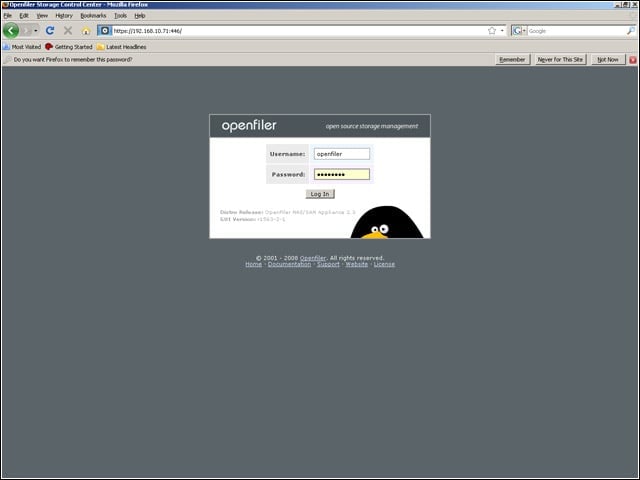
To access the OpenFiler Web configuration page, from your management workstation, surf to https://openfileripaddress:446. By default, the log-in = openfiler and the password = password.
Update OpenFiler
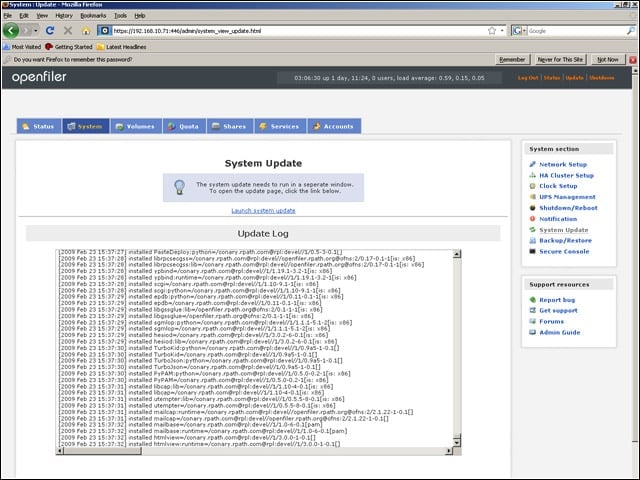
To update OpenFiler, press Update in the top right corner. When the System Update screen appears, click Launch System Update to start RPath’s Conary updater.
Update Packages
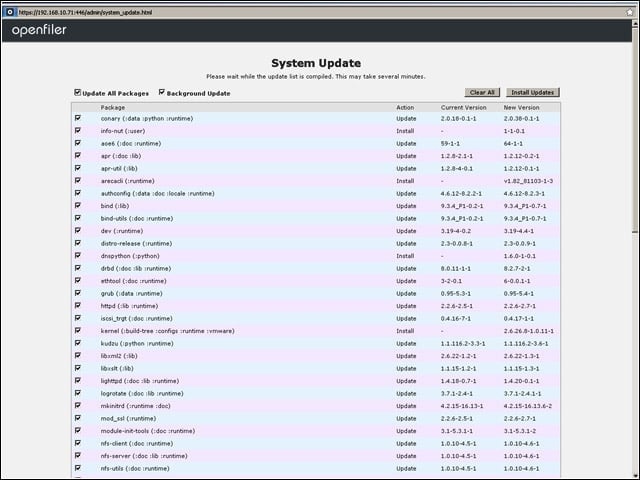
It takes a few minutes for Conary to find all available packages. I updated all packages at once, which automatically runs updater in the background. Check the update log on prior screen for a status report.
Change Password
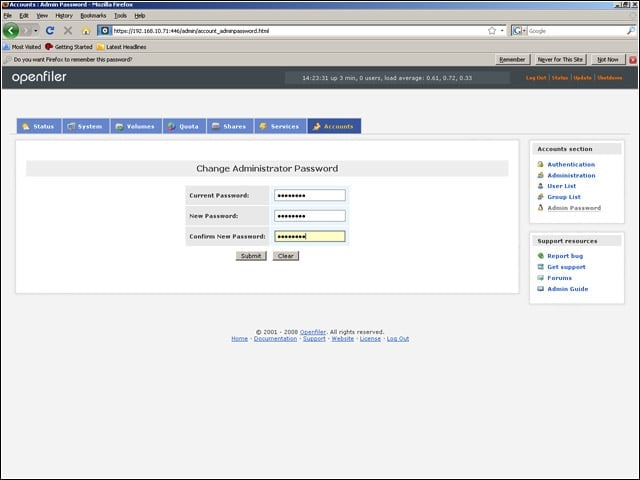
Users should change the default OpenFiler credentials. To change the password, click Accounts, then Admin Password.
iSCSI Services
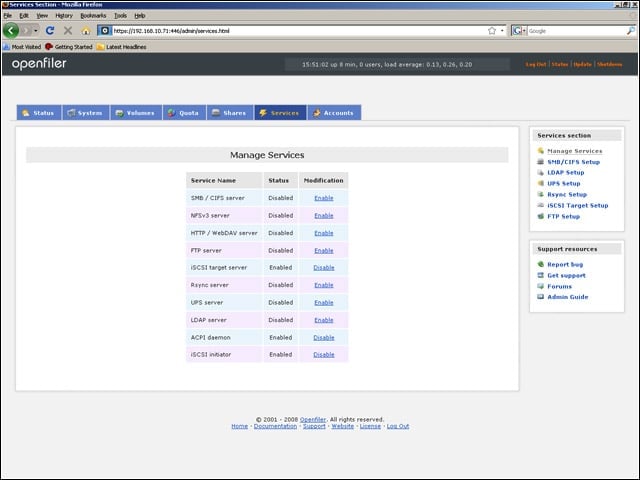
To enable iSCSI on OpenFiler, click Service. Make sure both iSCSI Target Server and iSCSI Initiator are enabled, as the latter is disabled by default.
Network Access
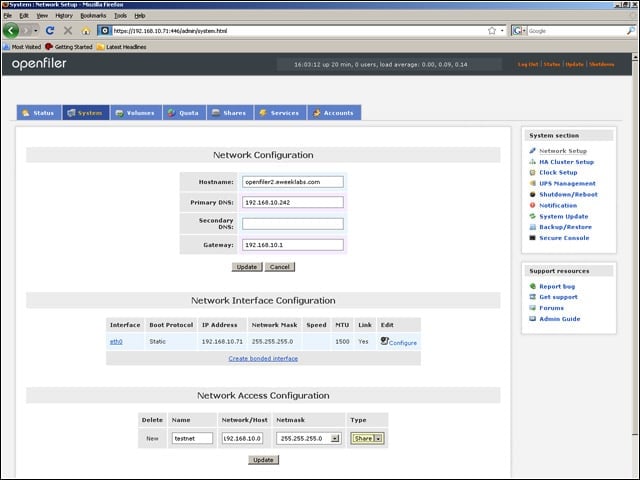
To configure network objects to which you will later grant access, click System. Under Network Access Configuration, create network object for the entire subnet. For example, 192.168.10.0/255.255.255.0.
Granular Network Access
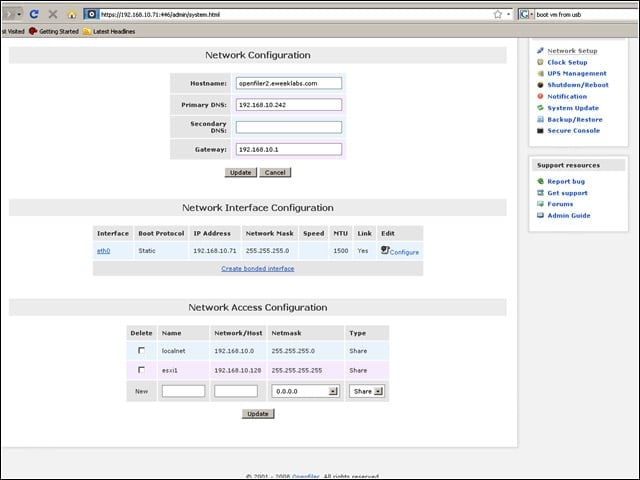
For more specific access control, you should also create objects for each ESXi server that will connect to OpenFiler. For example, 192.168.10.120/255.255.255.255.
Create Volume
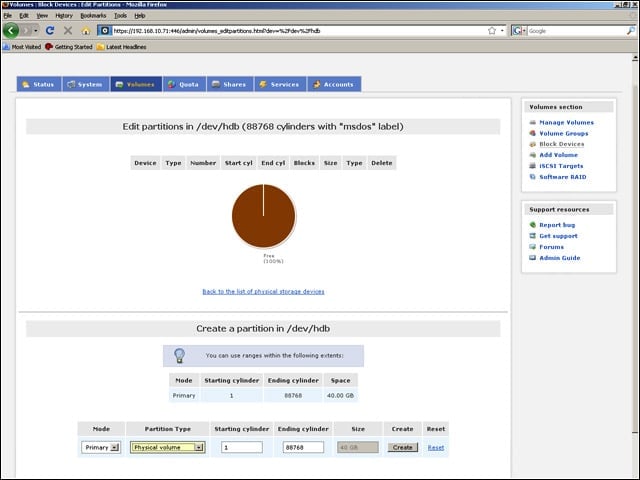
To begin creating the iSCSI share, click Volumes, then Create New Physical Volumes. Select the array left free earlier (/dev/hdb – not shown). As seen here, change Partition Type to Physical Volume and ensure all cylinders will be used. Click Create to complete this step.
Create Volume Group
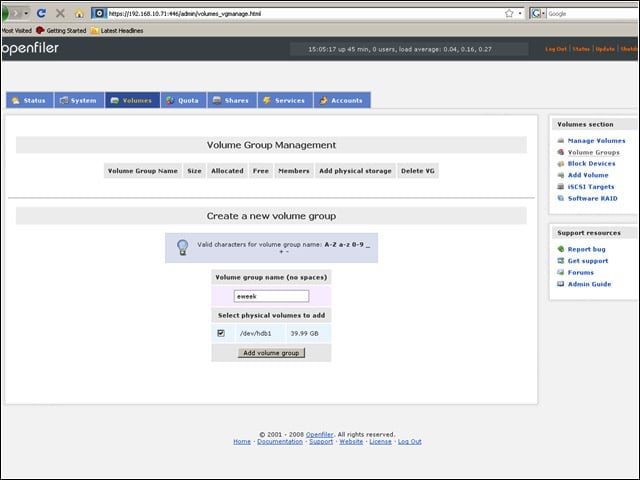
Click Volume Groups. Name the new Volume Group, then add the volume just created to the group. Click Add Volume Group.
Shares
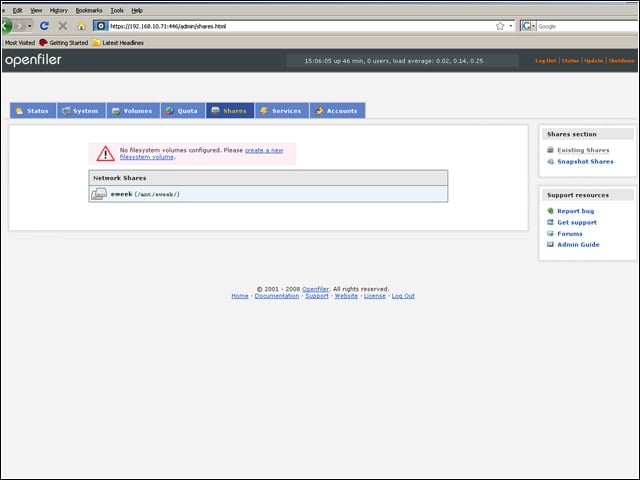
Click Shares, then click Create New Filesystem Volume.
Filesystem Volume
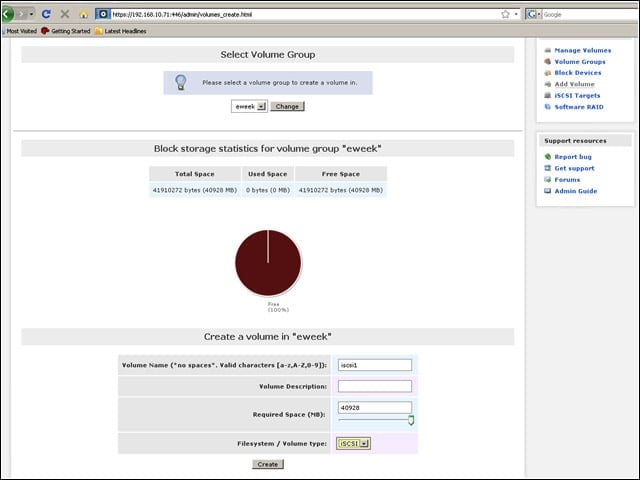
Name the volume, slide the Required Space bar to the right to use all available storage now, then change the Filesystem/Volume type to iSCSI.
Configure iSCSI Volume
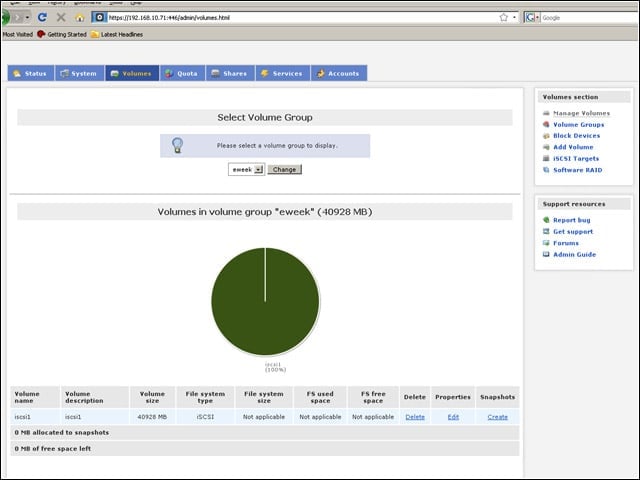
To begin configuring the iSCSI share, click Volumes, then click iSCSI Targets.
Add iSCSI Target
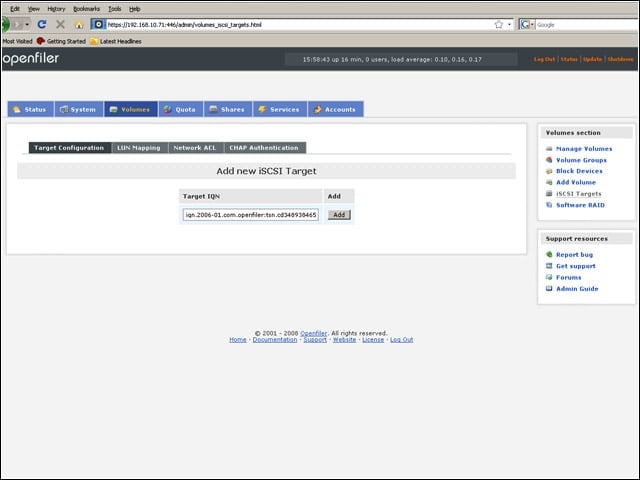
Click Add, to create an iSCSI target to which ESXi will connect. Note that OpenFiler automatically generates an IQN identifier for the target, which you may want to note it for future reference.
More iSCSI Targets
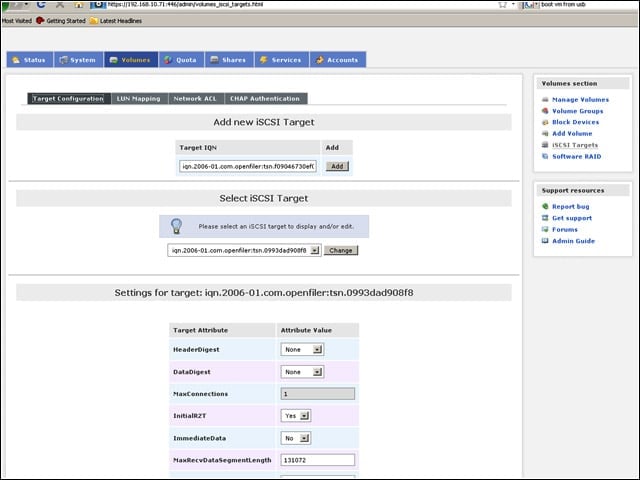
If needed, you can create multiple iSCSI targets on a single machine, each with its own configuration and security settings.
LUN Mapping
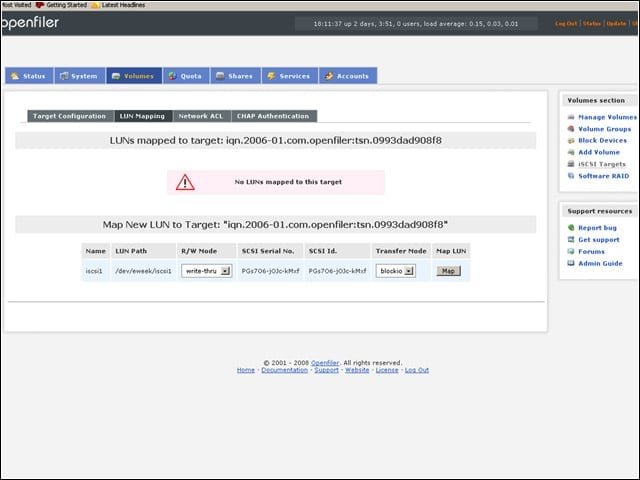
Map your filesystem volume to the iSCSI target. Leave the default R/W Mode and Transfer Mode settings.
ACL the Easy Way
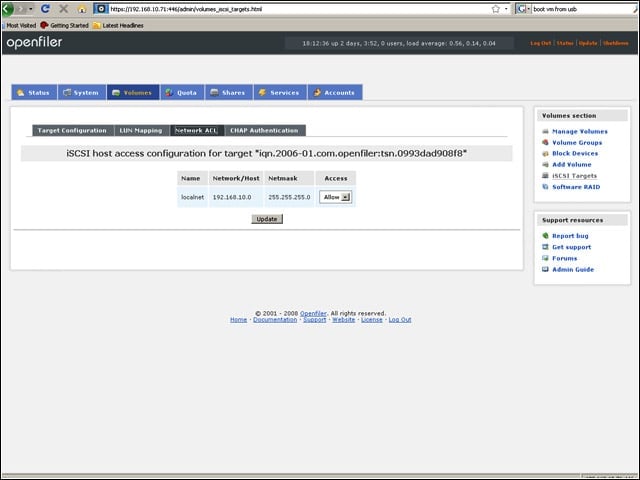
Harkening back to earlier network object configurations in OpenFiler, the easy way is to allow all hosts on the subnet to access the iSCSI target.
ACL the Hard and More Secure Way
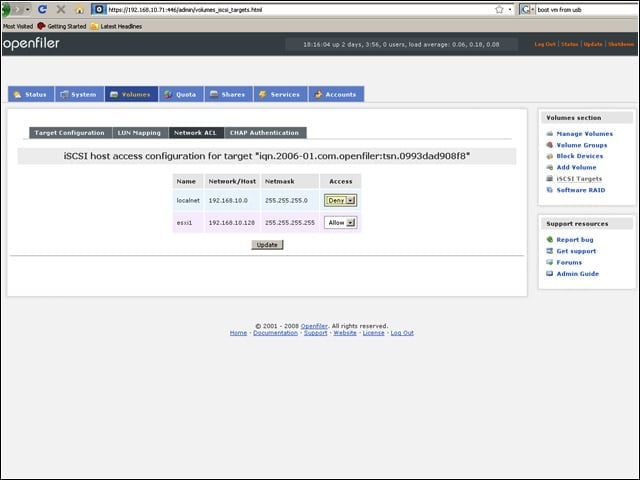
Or, to be a little more secure, you can enable access only to the ESXi server, while denying access to the rest of the subnet.
CHAP Configuration
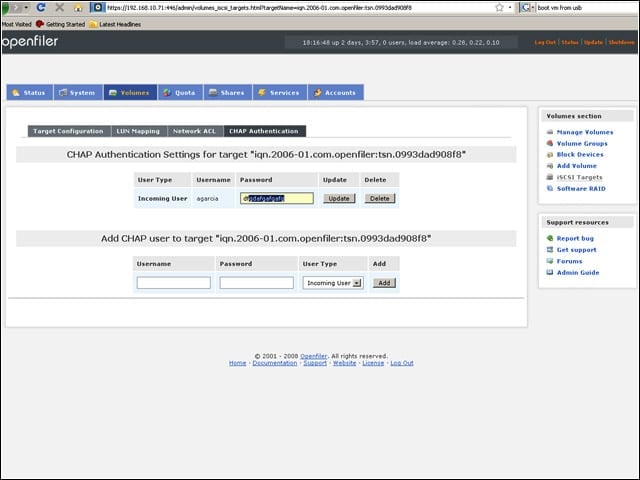
To secure authentication between OpenFiler and ESXi, click CHAP Authentication. Add a username and password and leave user type as incoming user. If you leave this blank, which you may want to do at first to ease configuration, make sure to skip CHAP configuration in the ESXi Configuration instructions below.
