





Mastering Googles Gmail Priority Inbox: Nine Tips to Get Up to Speed

by Clint Boulton
Priority Inbox
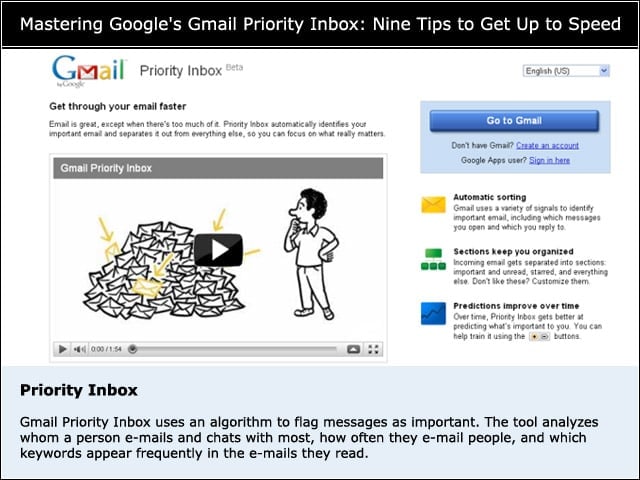
Gmail Priority Inbox uses an algorithm to flag messages as important. The tool analyzes whom a person e-mails and chats with most, how often they e-mail people, and which keywords appear frequently in the e-mails they read. See a demo here.
The Sections
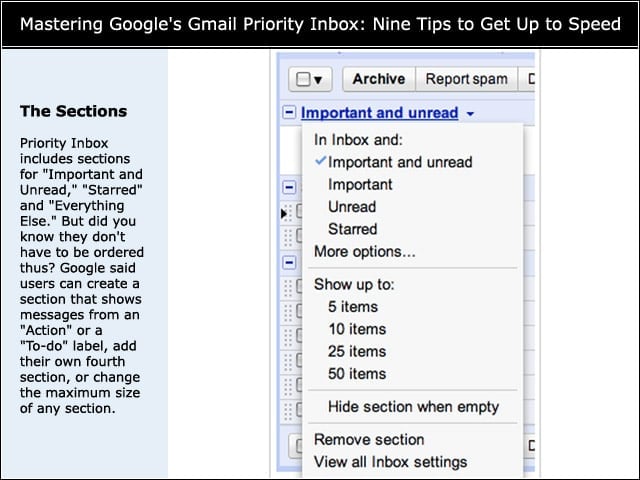
Priority Inbox includes sections for “Important and Unread,” “Starred” and “Everything Else.” But did you know they don’t have to be ordered thus? Google said users can create a section that shows messages from an “Action” or a “To-do” label, add their own fourth section, or change the maximum size of any section.
Change Settings
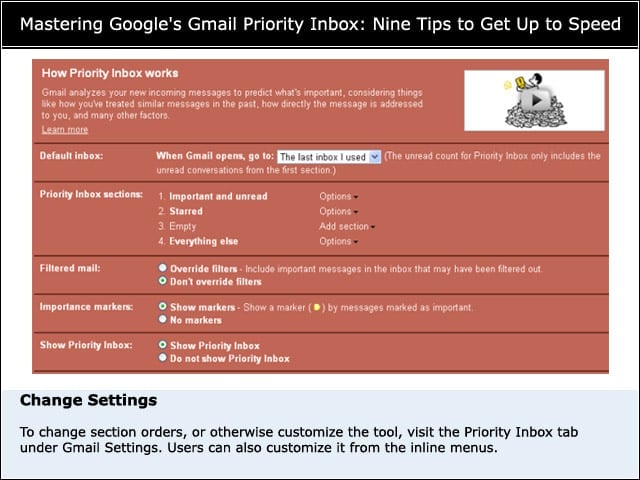
To change section orders, or otherwise customize the tool, visit the Priority Inbox tab under Gmail Settings. Users can also customize it from the inline menus.
How to Override Filters
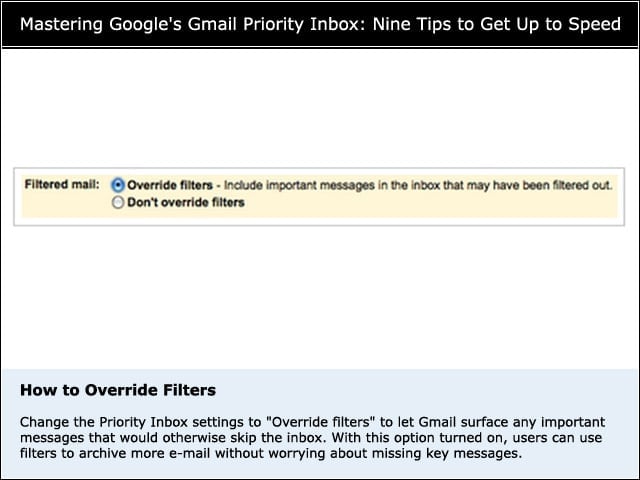
Change the Priority Inbox settings to “Override filters” to let Gmail surface any important messages that would otherwise skip the inbox. With this option turned on, users can use filters to archive more e-mail without worrying about missing key messages.
Training the Priority Inbox
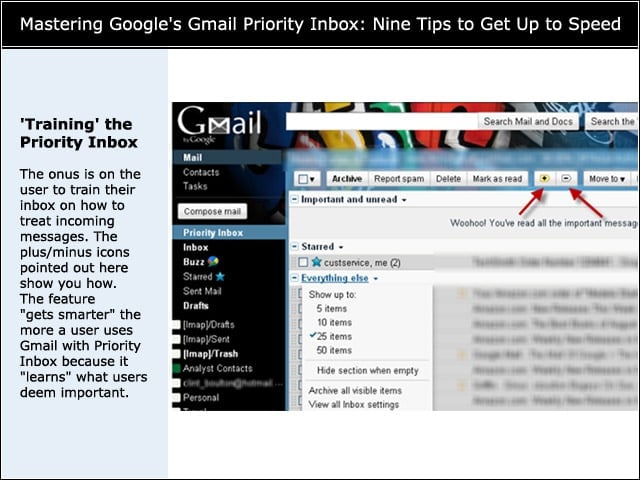
The onus is on the user to train their inbox on how to treat incoming messages. The plus/minus icons pointed out here show you how. The feature “gets smarter” the more a user uses Gmail with Priority Inbox because it “learns” what users deem important.
Priority Inbox Filters
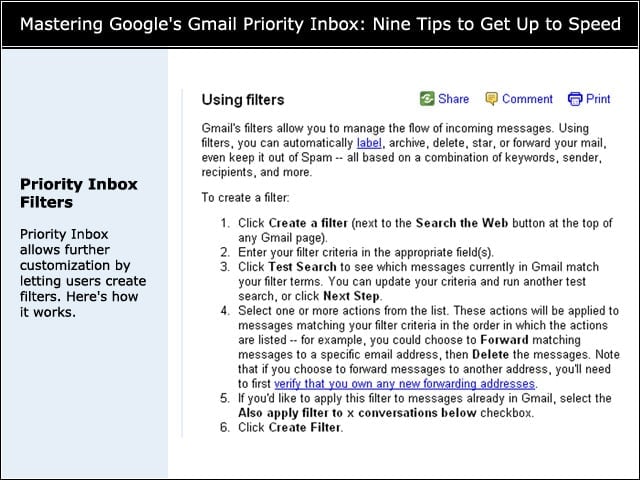
Priority Inbox allows further customization by letting users create filters. Here’s how it works.
Archiving Everything Else
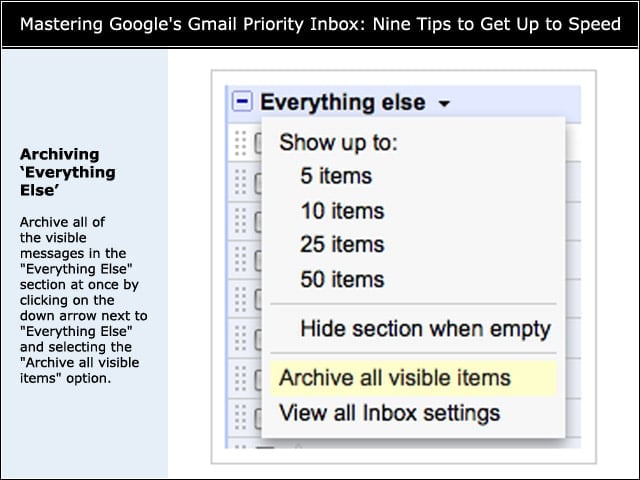
Archive all of the visible messages in the “Everything Else” section at once by clicking on the down arrow next to “Everything Else” and selecting the “Archive all visible items” option.
Tips Summary
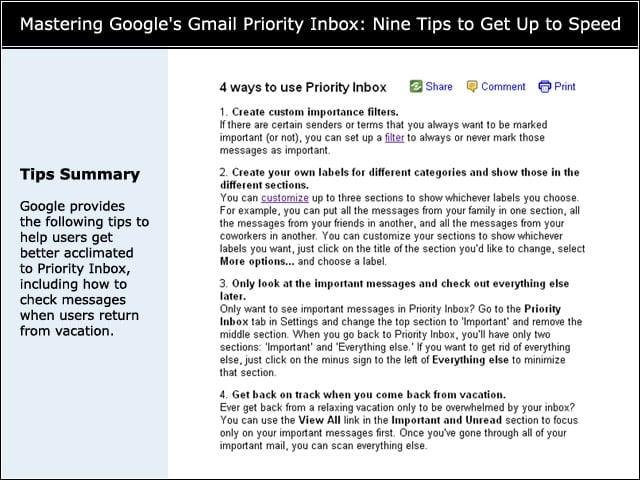
Google provides the following tips to help users get better acclimated to Priority Inbox, including how to check messages when users return from vacation.
Final Advice
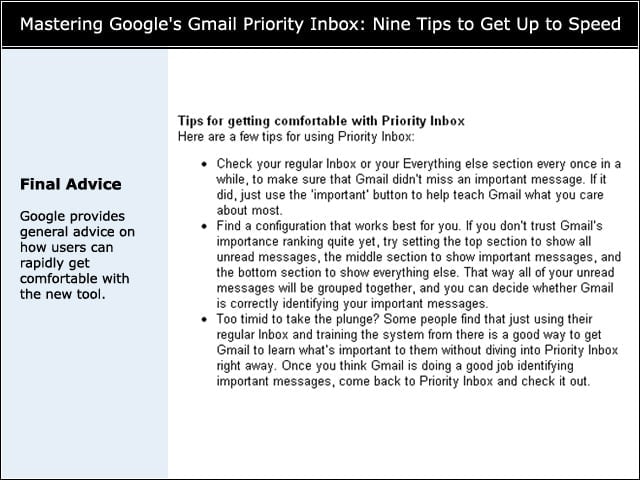
Google provides general advice on how users can rapidly get comfortable with the new tool.