








Laplink Switch and Sync Useful but Lacking

by P. J. Connolly
Choose Job Type
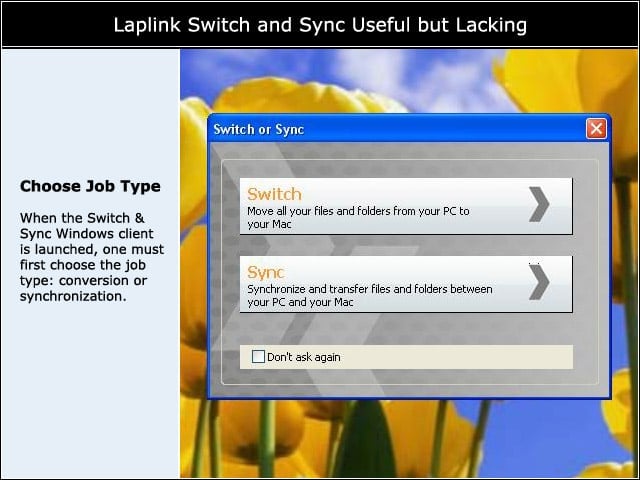
When the Switch & Sync Windows client is launched, one must first choose the job type: conversion or synchronization.
Configure the Mac Host
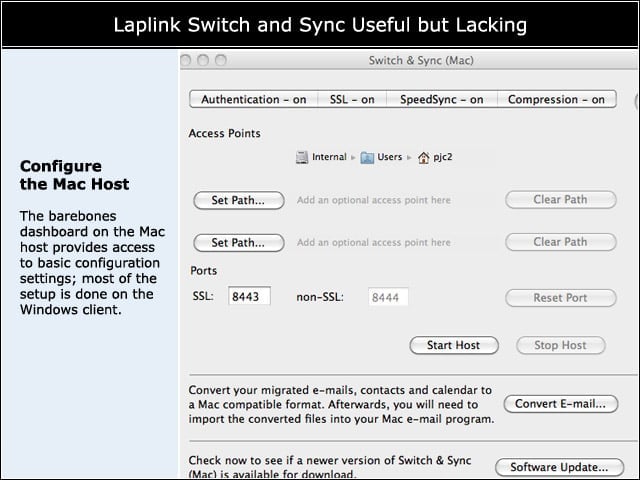
The barebones dashboard on the Mac host provides access to basic configuration settings; most of the setup is done on the Windows client.
Place Files Where Needed
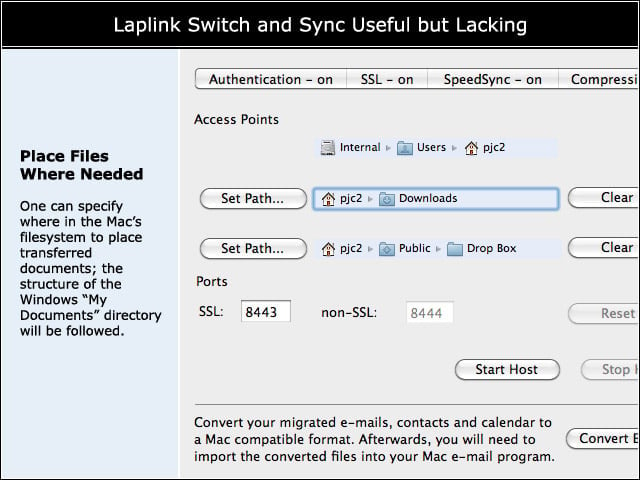
One can specify where in the Macs filesystem to place transferred documents; the structure of the Windows “My Documents” directory will be followed.
Configure the Windows Client
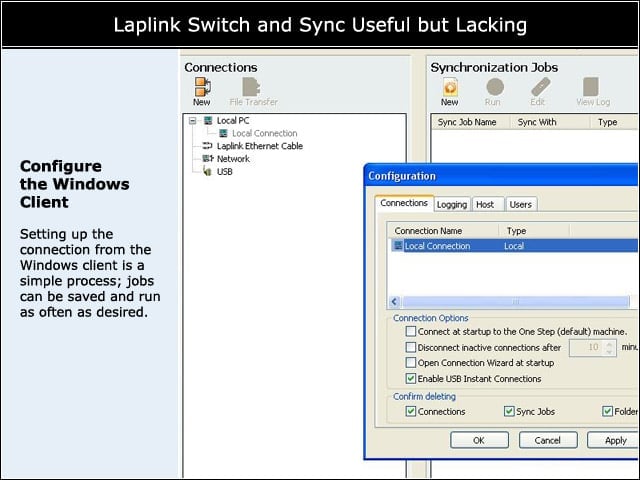
Setting up the connection from the Windows client is a simple process; jobs can be saved and run as often as desired.
File Conflicts Identified
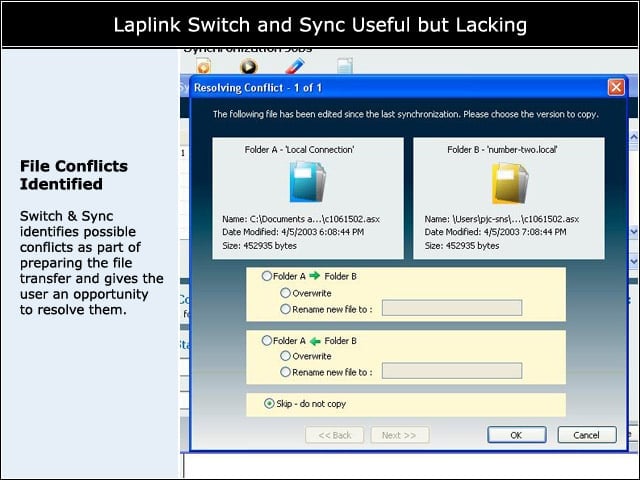
Switch & Sync identifies possible conflicts as part of preparing the file transfer and gives the user an opportunity to resolve them.
Authentication Features
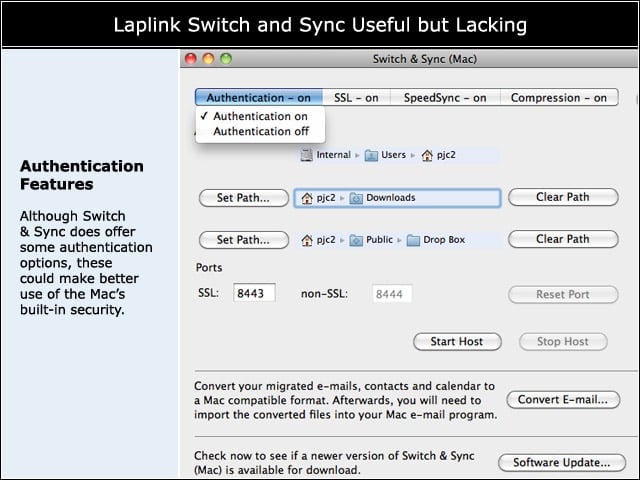
Although Switch & Sync does offer some authentication options, these could make better use of the Macs built-in security.
Transfer in Progress
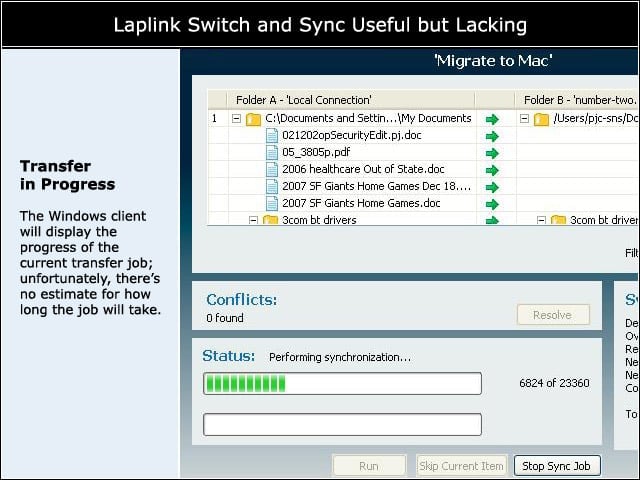
The Windows client will display the progress of the current transfer job; unfortunately, theres no estimate for how long the job will take.
Migration Complete
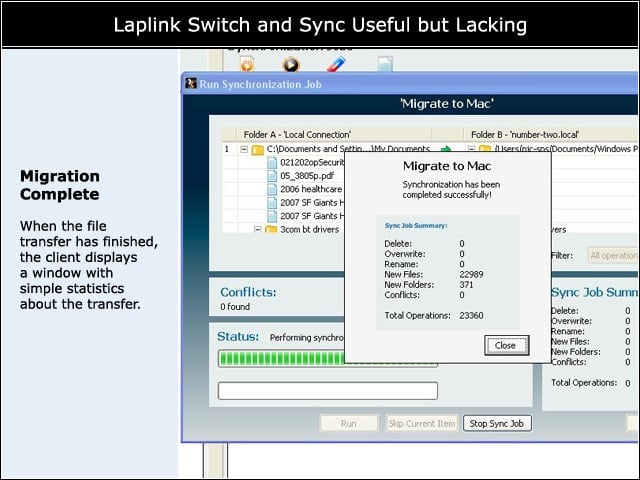
When the file transfer has finished, the client displays a window with simple statistics about the transfer.
Mail Migration Built-in
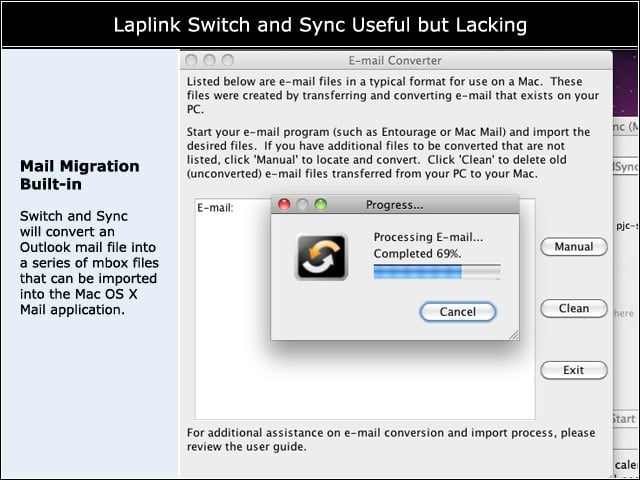
Switch and Sync will convert an Outlook mail file into a series of mbox files that can be imported into the Mac OS X Mail application.