





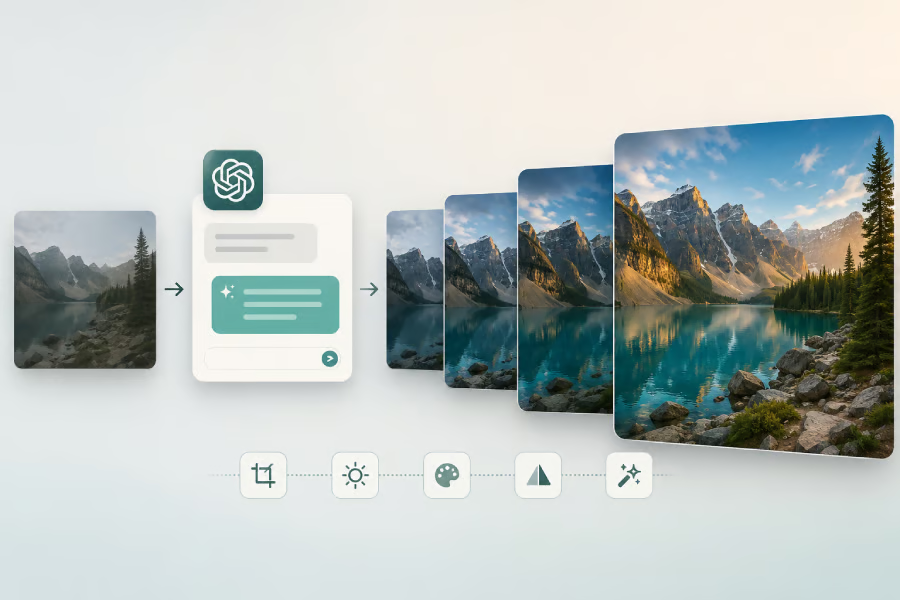


I had a blog post that needed a header image, and I figured I'd knock it out in two minutes with ChatGPT. Forty-five minutes later, I was still sitting there, regenerating the same image over and over, watching it give me a different version of the same problem each time.
That's the moment I stopped treating it like a vending machine where you put in a prompt and a perfect image comes out. I started treating it like a tool I actually had to learn. So I spent the next couple of weeks testing this tool, generating, editing, failing, adjusting, failing again.
What I landed on was eight things that genuinely changed how I work with images in ChatGPT. None of this is about secret hacks or magic words. It's about understanding what the tool is actually doing on the back end and working with it rather than against it.
Here's everything I found, in the order I'd recommend tackling them.
- Describe the image like you're talking to someone who can't see it
- Don't cram every detail into one prompt
- Tell it how the image should be made, not just what's in it
- Use the selection tool instead of regenerating the whole image
- Remove unwanted objects or people
- Apply a style
- Reverse-engineer a look you like
- Treat it like you're giving feedback to a designer, not accepting or rejecting
- What I'd tell anyone starting from scratch
Describe the image like you're talking to someone who can't see it
This sounds obvious, but it took me longer than I'd like to admit to actually do it properly. My early prompts were short and vague, things like "a woman at her desk working." The images that came back were fine, but generic. They could've been stock photos from any site.
What changed things was describing the scene the way I'd describe it to a friend over the phone who has zero visual reference. I started naming hair color, the setting, the lighting, what's on the desk, what the person is wearing.
If I had a specific picture in my head, I would put it into words rather than assume ChatGPT would guess my intent. If I didn't have a clear picture, I noticed the results were a coin toss, which made sense once I thought about it. The AI has nothing to go on beyond what you give it.
Example prompt I used:
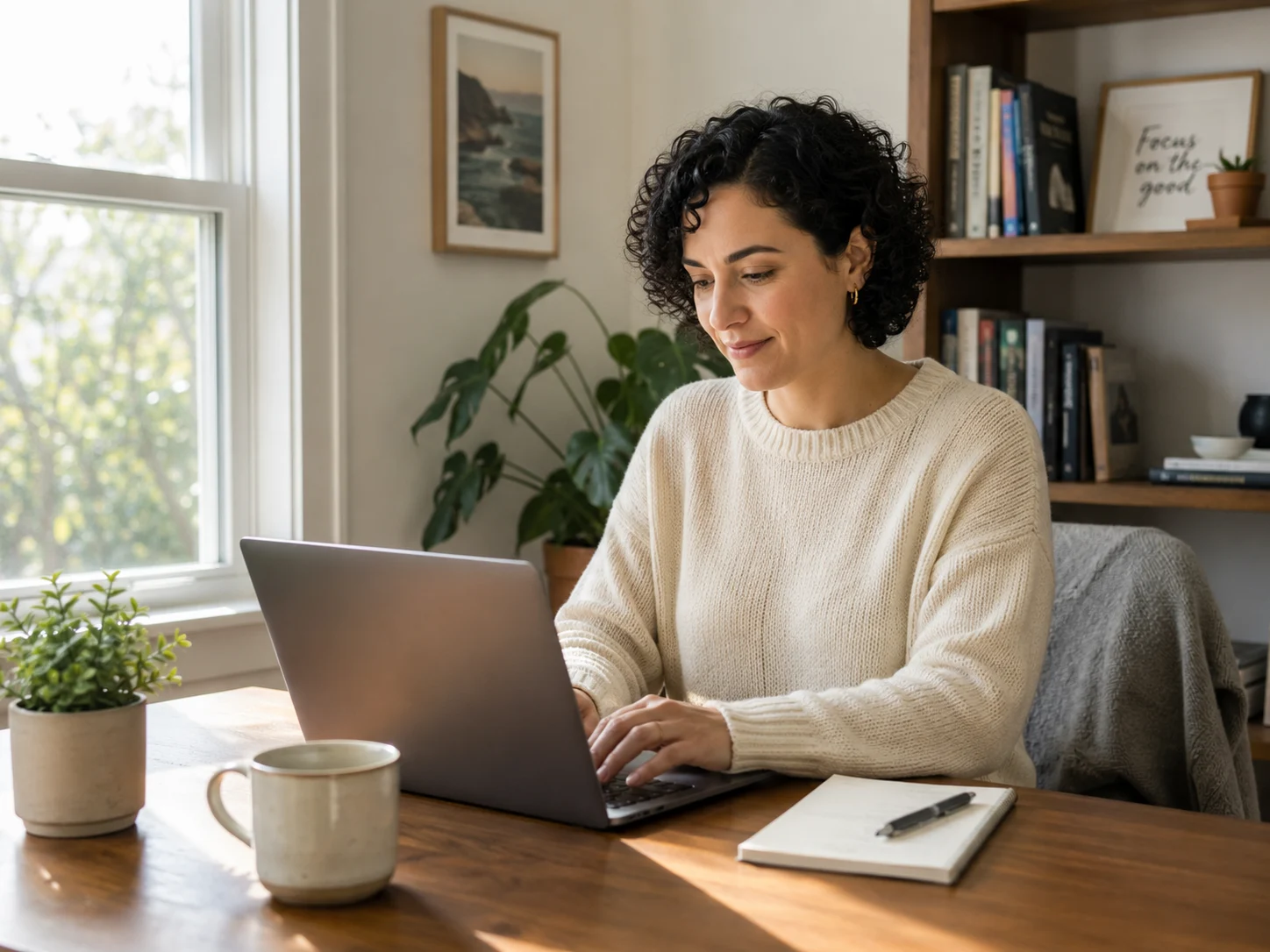
"A woman in her early thirties with short curly black hair, sitting at a wooden desk in a sunlit home office. She's wearing a cream sweater and typing on a laptop. There's a small potted plant and a coffee mug on the desk. Natural daylight coming from a window on the left."
Don't cram every detail into one prompt
After I got better at describing things, I overcorrected. I started writing prompts that ran five or six sentences long, trying to control every single element. That backfired more often than it helped. The longer and more layered the prompt got, the more likely ChatGPT was to lose track of something, usually a small detail buried in the middle of the paragraph.
I found a better balance by including only the details that actually mattered to me and letting the AI make reasonable choices for everything else. If the background color wasn't important, I left it out instead of specifying it. That gave the model room to fill gaps sensibly instead of trying to satisfy ten competing instructions at once.
Example prompt I used:
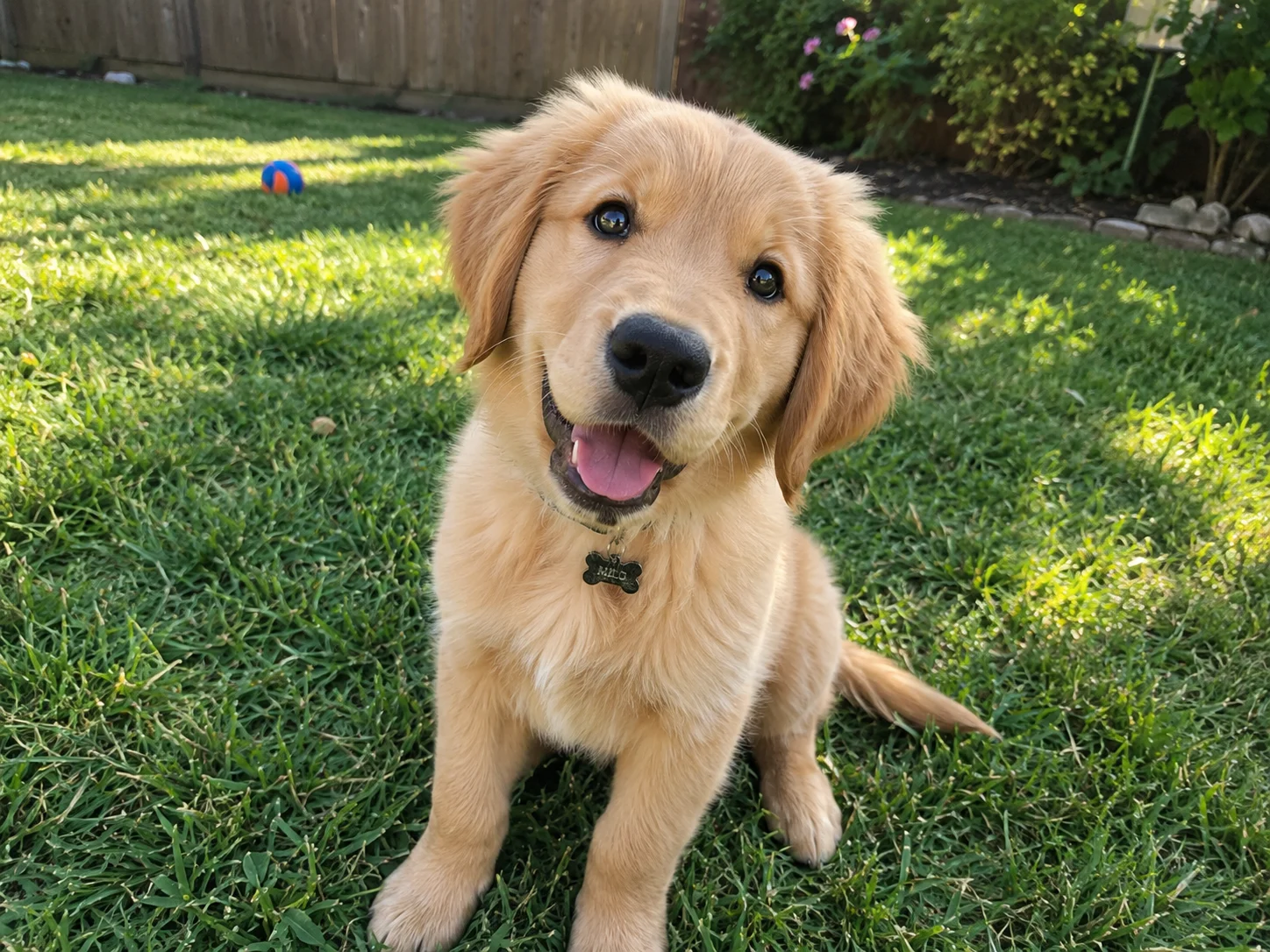
"A golden retriever puppy sitting in a grassy backyard, looking up at the camera. Bright afternoon light, candid and playful feel."
Tell it how the image should be made, not just what's in it
I used to only describe the subject of the image. I never said anything about the format, the mood, or the technical feel of the shot. Once I started adding that layer, my results got noticeably more consistent.
Now I always think through a few questions before I write the prompt. Should this be a wide shot or a square one? Does it need to look like a photograph or more like an illustration? Should the lighting feel warm or cool? Should the colors be muted or vivid? Spelling this out gave ChatGPT a much clearer brief to work from, rather than leaving the "how" entirely to chance.
Example prompt I used:
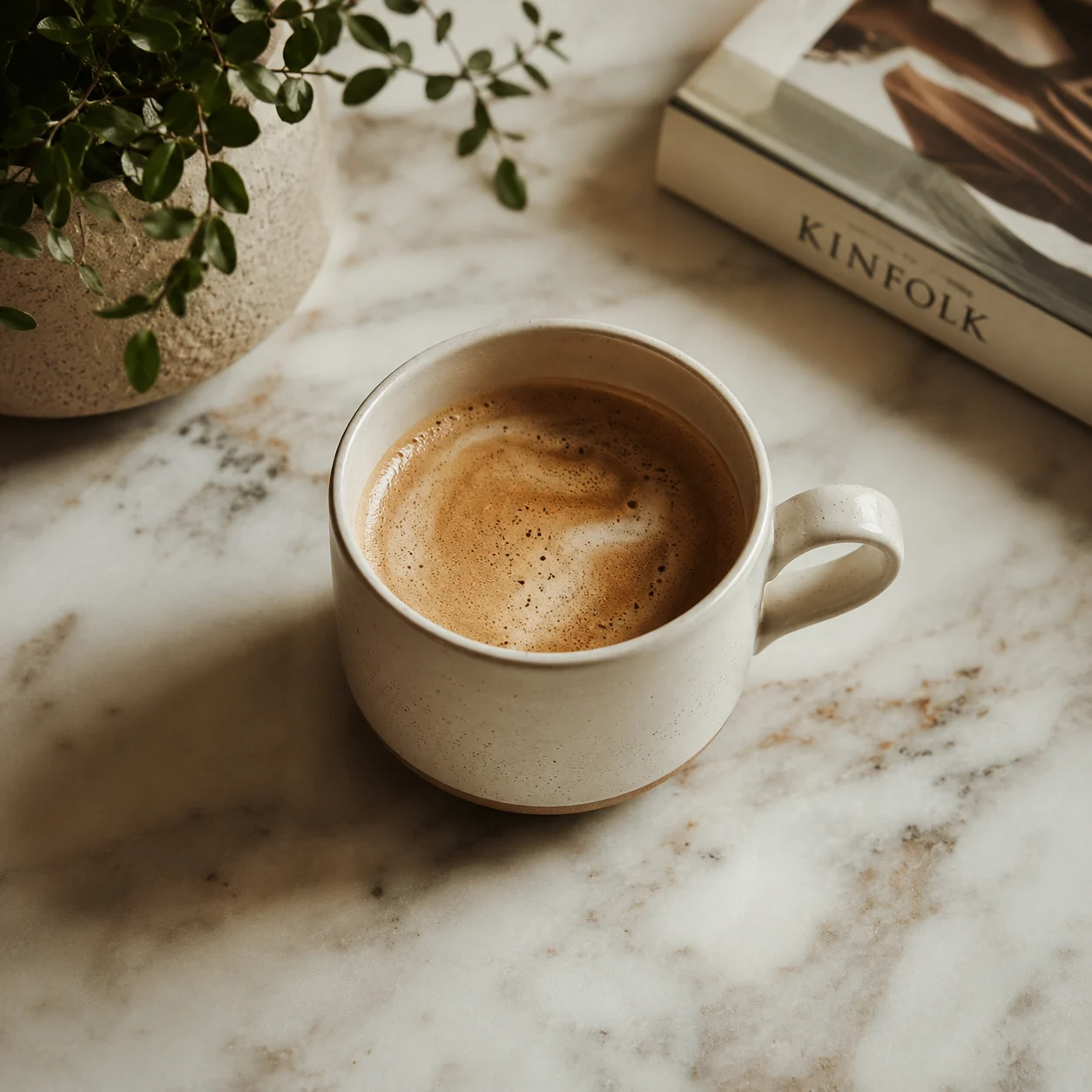
"A cup of coffee on a marble countertop, shot from a slight overhead angle. Square format, soft natural light, muted warm tones, looks like a lifestyle magazine photo rather than a studio shot."
Use the selection tool instead of regenerating the whole image
For a while, every time something was slightly off, I'd just ask for a brand-new version of the whole image.
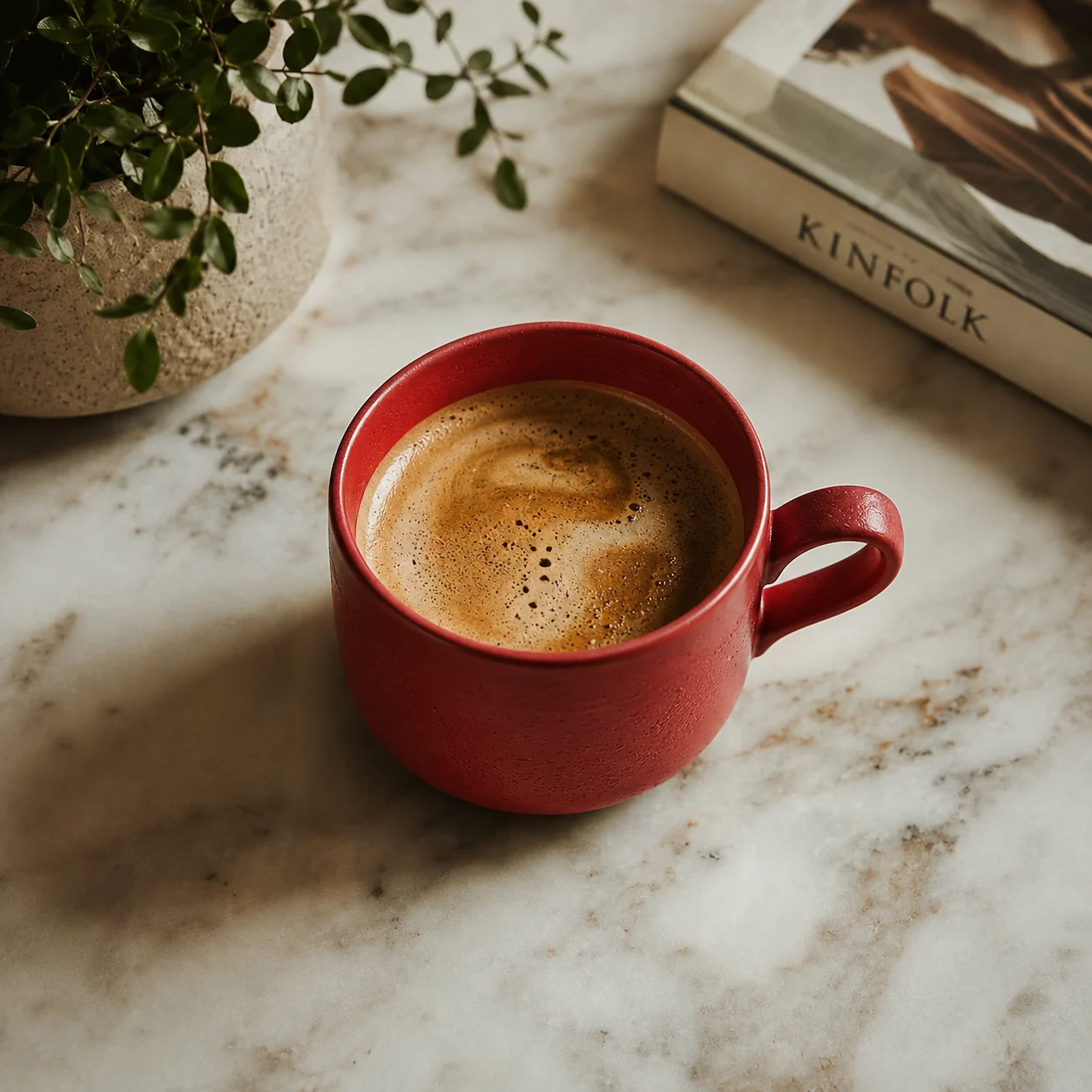
Once I started clicking into the generated image and using the brush-style selection tool, editing became much more precise. You paint over the specific area you want changed, then describe exactly what should happen there, instead of leaving it to chance whether the rest of the image survives the edit.
I now use this constantly for things like swapping out clothing color or changing a background detail without touching anything else in the frame.
Example prompt I used after selecting just the coffee in an image:
"Change the coffee mug to red. Keep everything else the same, just change the color."
Remove unwanted objects or people
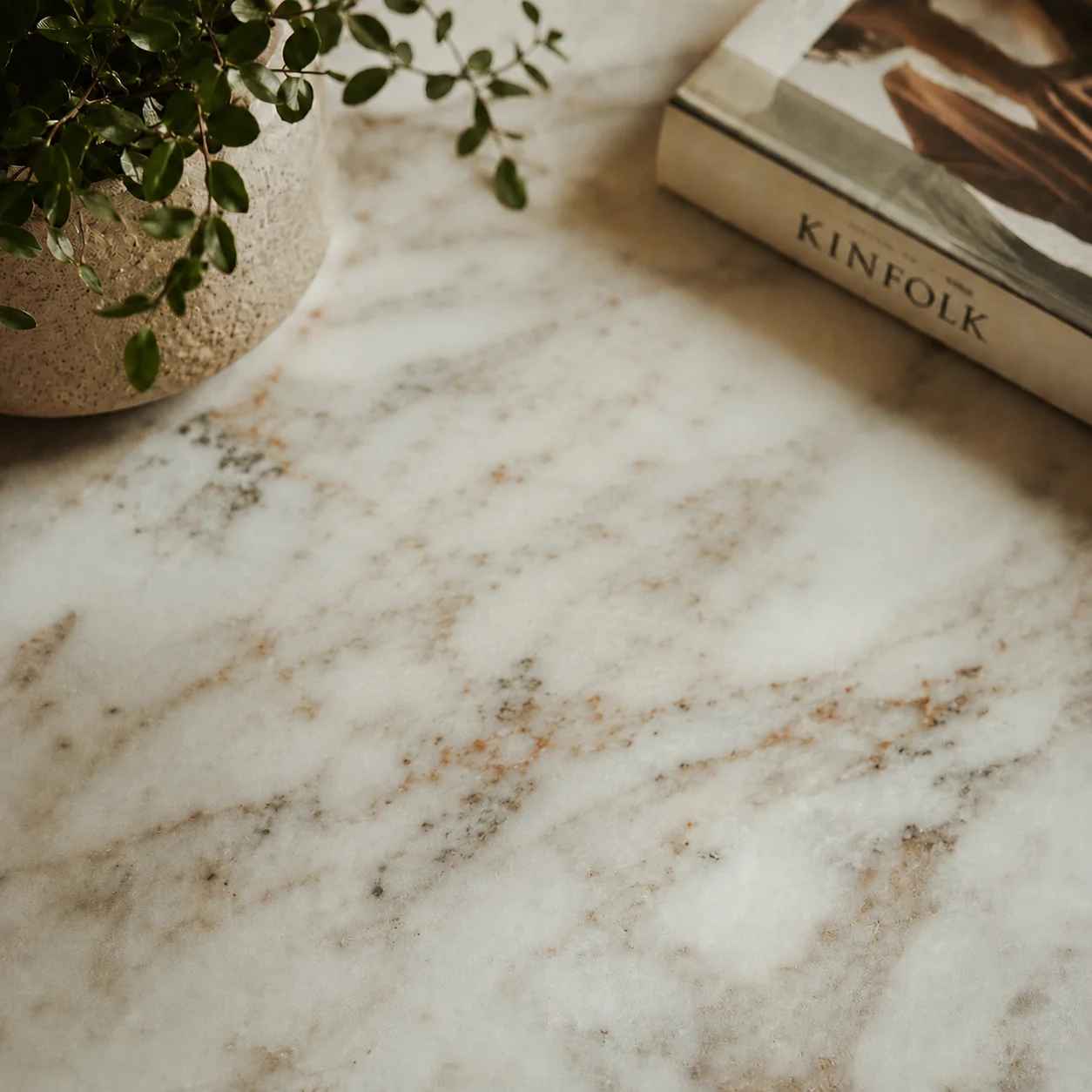
Some of my most useful edits weren't about adding anything at all; they were about taking things out. A stray person in the background of a shot, an object cluttering a table, a logo I didn't have rights to use. I tested removing all of these using the same selection tool from tip four, and it handled clean removals better than I expected, especially when the area around the object was simple.
The results were strongest when the background was straightforward, such as a plain wall or an open table surface. When the background was busy or had a lot of texture, I sometimes had to ask for a second pass to smooth out the edges where the object had been.
Example prompt I used after selecting a stray object on a table:
"Remove this object (coffee mug) completely and fill in the area to match the rest of the table surface naturally."
For a deeper walkthrough, see my guide to Gemini AI prompts for removing unwanted objects and people from photos.
Apply a style
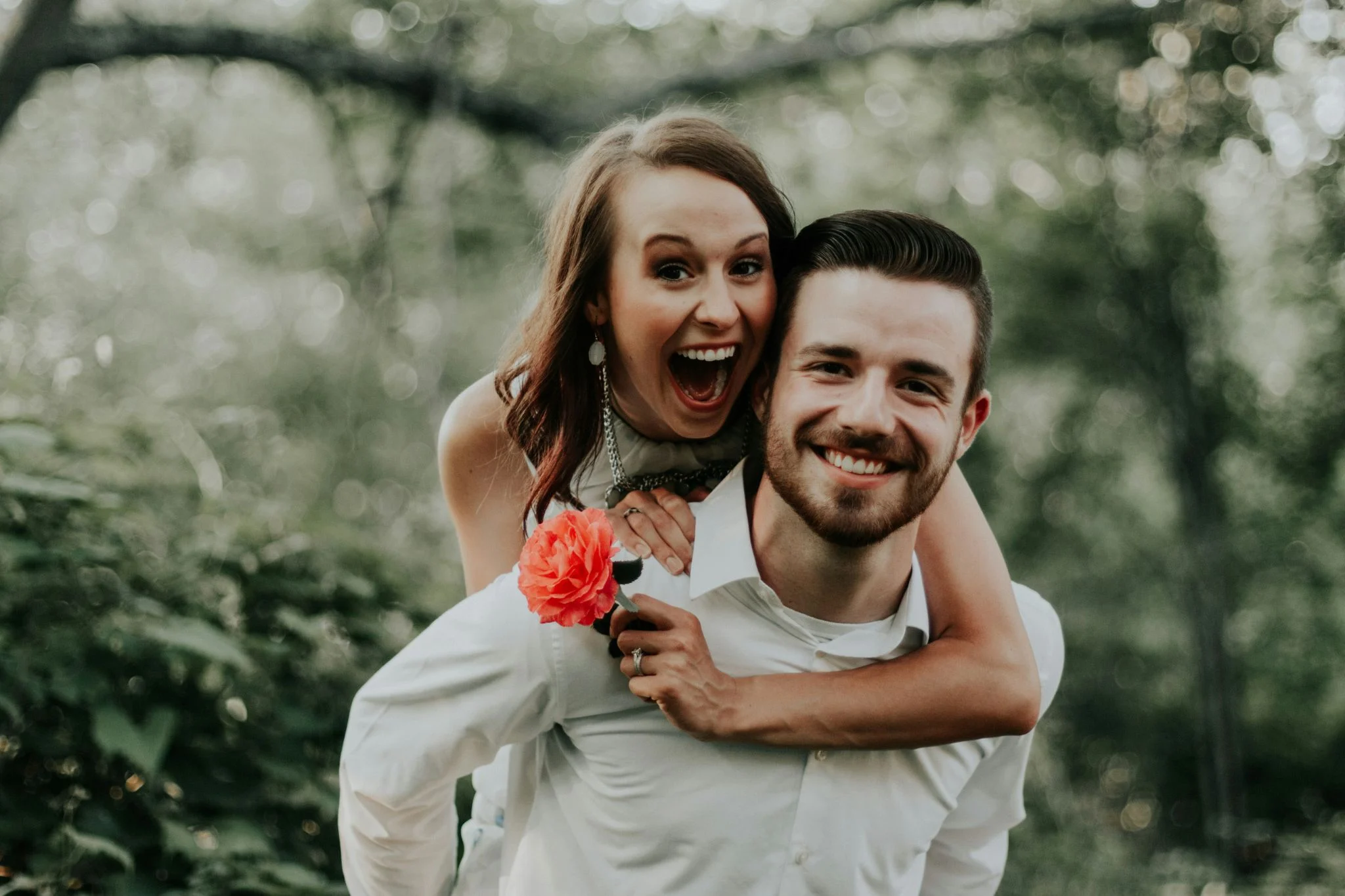
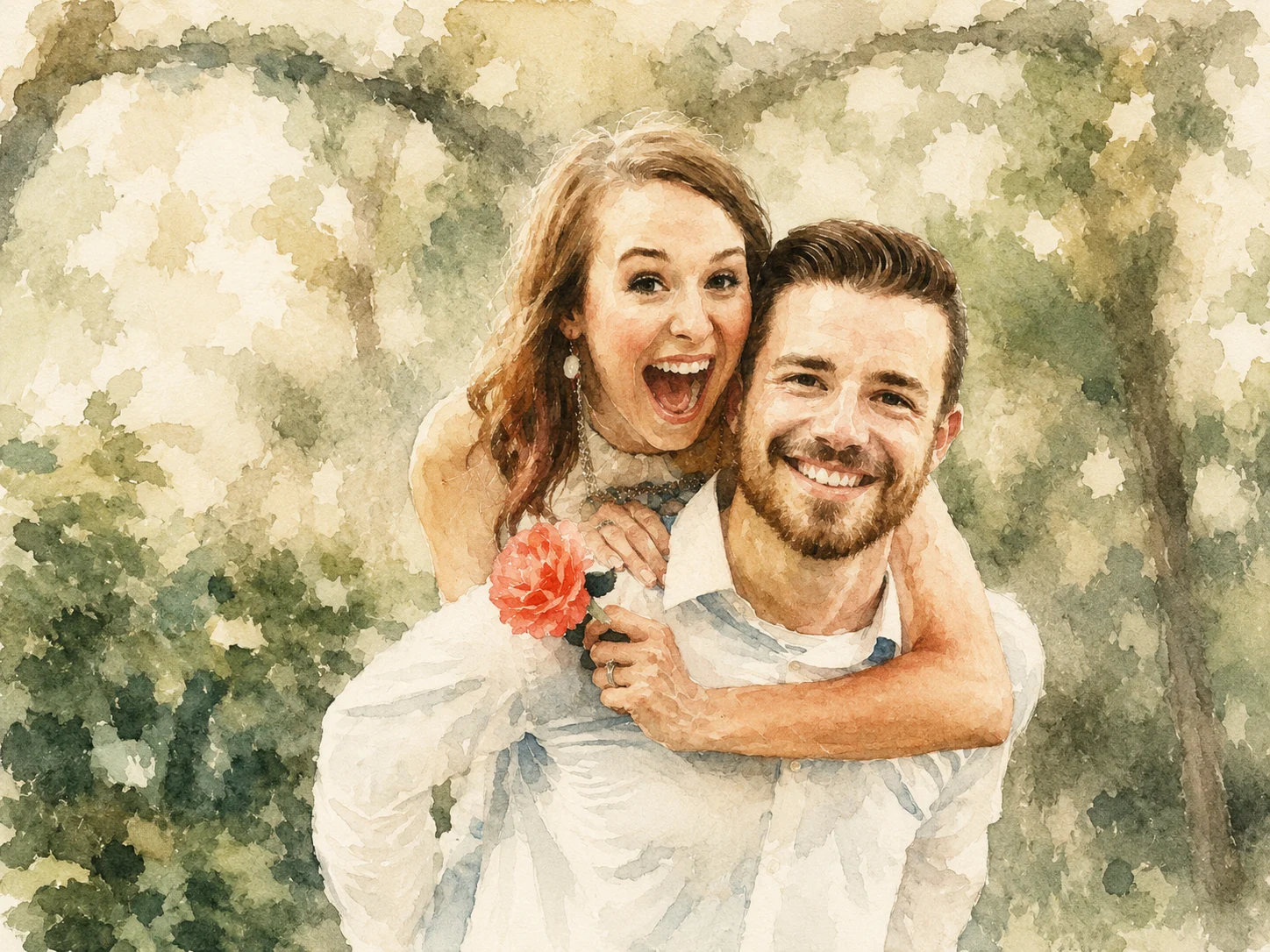
Turning a photo into something that looks like a painting or a particular artistic style is one of the things ChatGPT is genuinely good at. I tested this with a few stock photos, asking for a watercolor look on one and an old-fashioned painted portrait feel on another, and the results held up well.
Example prompt I used:
"Turn this photo into a soft watercolor painting, with visible brush texture and a muted, slightly faded color palette."
Reverse-engineer a look you like
If I came across an image with a look I wanted to recreate, instead of guessing at the prompt that might have made it, I uploaded the reference image in a fresh chat and asked ChatGPT to break down what made it look that way, things like the lighting, the composition, and the color palette.
I'd take that description and bring it into the chat where my own image lived, then ask for the same treatment. It turned a vague "I want it to look like this" into something I could actually direct, instead of randomly trying prompt after prompt and hoping I'd stumble onto the right combination of words.
Example prompt I used:
"Look at this image and describe the lighting style, color palette, and overall composition in detail, so I can apply the same look to a different photo."
Treat it like you're giving feedback to a designer, not accepting or rejecting
The biggest shift in my results didn't come from any single trick. It came from changing how I responded to a result I wasn't fully happy with. Early on, I'd either accept an image that was just okay or throw it out and start completely over. Neither approach got me where I wanted to go.
What worked better was giving specific, small notes, the same way you'd talk to a designer reviewing a draft. Asking it to soften the lighting a touch, increase the contrast slightly, or make the subject stand out more from the background. Each round of feedback moved the image closer to what I actually wanted, instead of starting from zero every single time.
Example prompt I used on a result that was close but not quite there:
"This is close. Soften the lighting slightly so it feels less harsh, and increase the contrast a little so the subject pops more against the background."
What I'd tell anyone starting from scratch
If there's one thing I took away from all of this, it's that the quality of your results has very little to do with luck and a lot to do with how clearly you communicate what you want and how willing you are to refine instead of restart. ChatGPT isn't reading your mind. It's working from exactly what you give it, and the more deliberate you are with that input, the more consistently good the output gets.
I still don't get it right every time. Some prompts still send me down the wrong path, and I still hit the occasional edit that changes more than I asked for. But going from regenerate and hope to actually directing the process made a real difference in how usable my images became, and how little time I spent fighting the tool to get there.
Also read: These AI photo-editing prompts can help make ChatGPT, Gemini, Qwen, and Meta AI images look more realistic.