







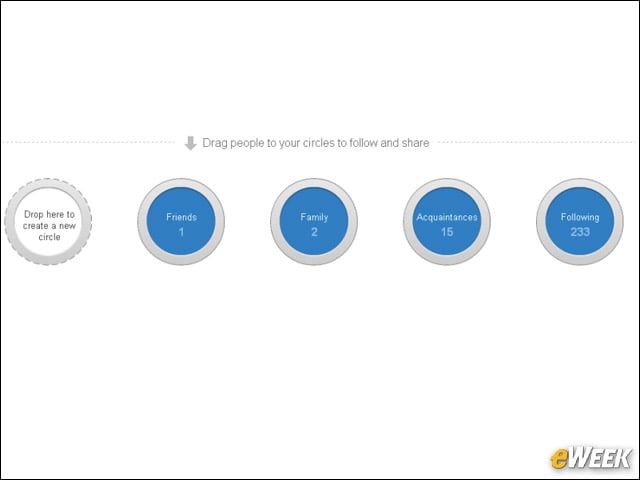
Think About Your Circles
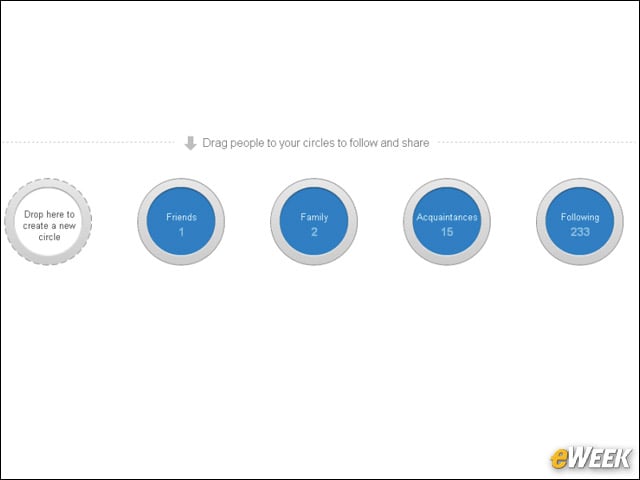
Google+ starts with the premise that you can add anyone you want, bucketing people in friends, family, following, acquaintances or custom Circles. Do what eWEEK didn’t do: create custom Circles early. We made the mistake of putting everyone we didn’t know into the following section, similar to the way we did it on Twitter. With Twitter, we had no choice; Twitter Lists weren’t added until later, and it took hours to lump people into different loops. Circles is the default mode of contact classification, and it’s excellent for letting people create Groups out of the gate. If you take advantage of this functionality when you start working with Google+ by separating, say, colleagues from the “acquaintances” or “friends” Circles, you’ll save yourself lots of time.
Learn How to Send
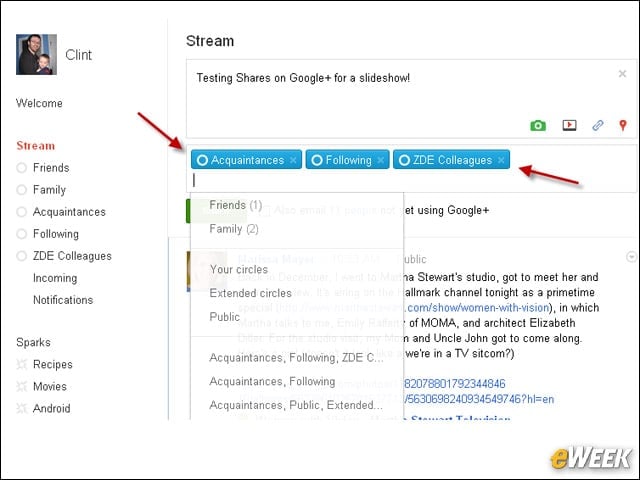
You may not want to share pictures from your New Year’s Eve Party with your colleagues. So before you click the “share” button, be clear about what Circles you want to share with. When you’re creating something to share, by default Google+ will suggest Circles with which to share content. Click the x in the blue box next to those Circles to designate who you dont want to share the selected content with. You’ll save yourself grief later.
Post Often
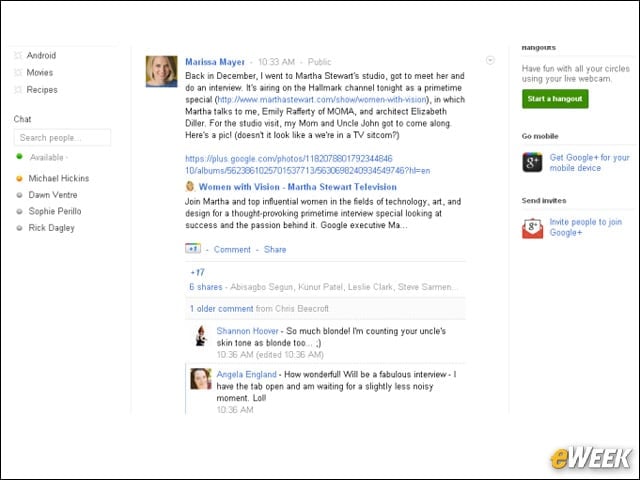
That adage “you can’t win if you don’t play” applies when it comes to using this new social network. Google+ can be a huge social-media marketing and communications tool. If you don’t share and follow people, especially in the early going, people won’t share with or follow you. The other clich??« for that is you get out of Google+ what you put in.
Use Sparks
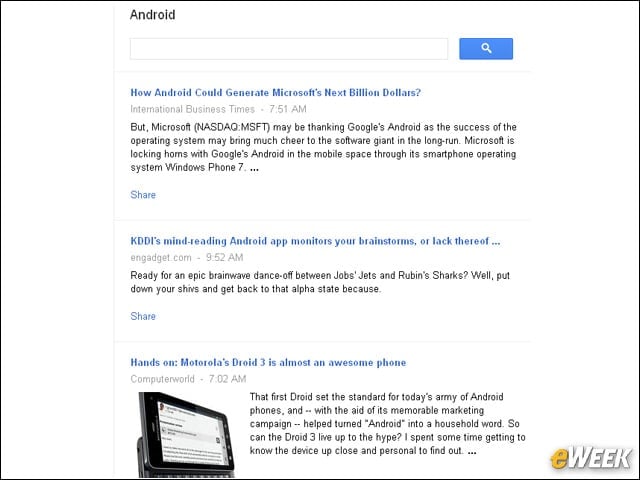
Are you interested in reading about specific topics online? Compose your list of Google+ Sparks news feeds. Google suggests some, such as Android, movies and soccer. But you really need to customize these yourself by entering a topic in the Sparks search box, then clicking the “add interest” button to set up the feed. The stream will be steady.
Start a Hangout
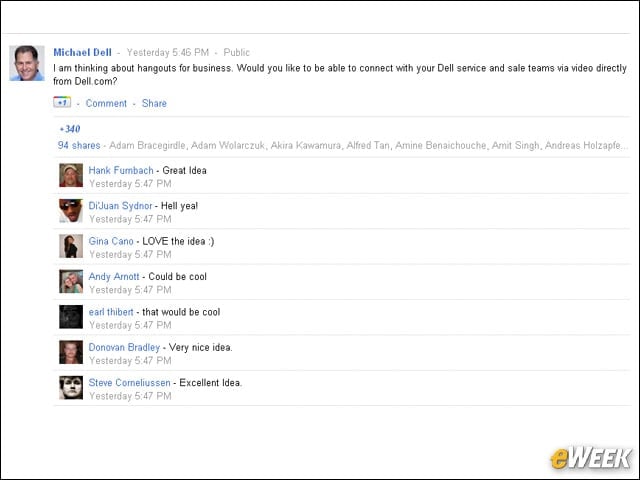
Google Hangouts is a group video chat that lets up to 10 users meet online, whether it is for some banter with friends or a serious business discussion. It requires a Webcam on your computer and the Google Voice and Video Plug-in, but once set up, it’s super-easy to create Hangout sessions, where users can also chat via instant messaging, watch YouTube videos and mute their microphone, among other controls. Hangouts has gained enough attention that Dell CEO Michael Dell is entertaining the notion of Hangouts for business, asking his followers on Google+: “Would you like to be able to connect with your Dell service and sales teams via video directly from Dell.com?” Early indications are the response was super-positive.
Hashtags to Target Content
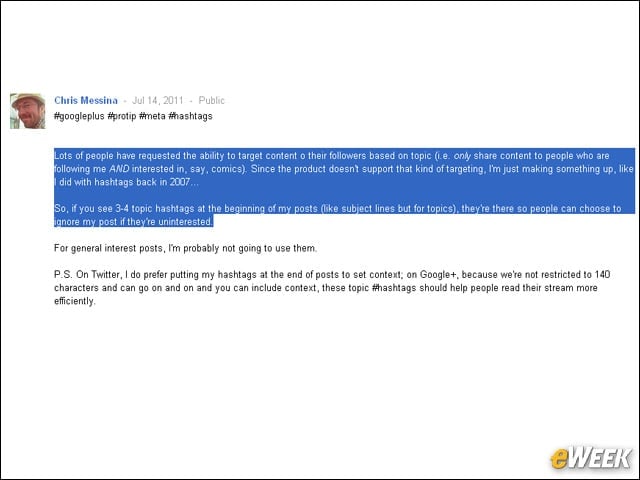
Yes, you can use Hashtags “#” for Google+, according to Google social guru Chris Messina, who noted July 14: “Lots of people have requested the ability to target content to their followers based on topic (i.e. only share content with people who are following me and interested in, say, comics). Since the product doesn’t support that kind of targeting, I’m just making something up, like I did with hashtags back in 2007… So, if you see 3-4 topic hashtags at the beginning of my posts (like subject lines but for topics), they’re there so people can choose to ignore my post if they’re uninterested.” Google is working on a more elegant solution for the future.
Google+ Mobile
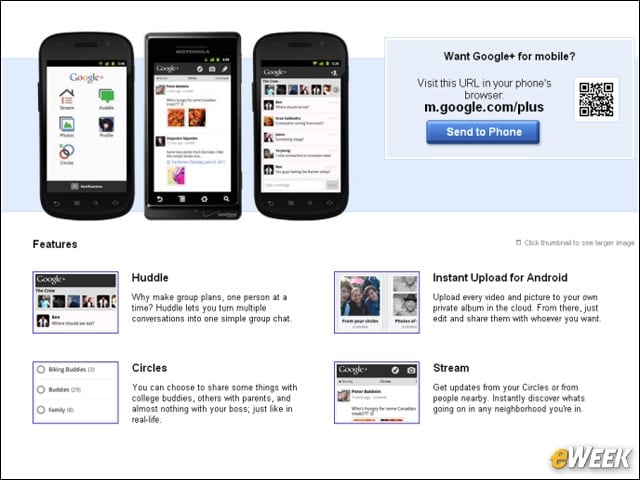
Do yourself a favor and download the Google+ Mobile application to your Android phone. It’s unconscionable for users not to be able to access their Google+ content while on the go, and Google has built a good one, albeit a little cramped on the screen. Huddles is a group messaging chat functionality a la Beluga, but the real plus here (pardon the pun) is the inclusion of Instant Upload, which sucks in photos stored on a user’s phone to the Google+ network. This is opt-in. Unfortunately, the only native plus application is for Android 2.1 smartphones and later versions. Sorry, iPhone users.
Use Tools like…
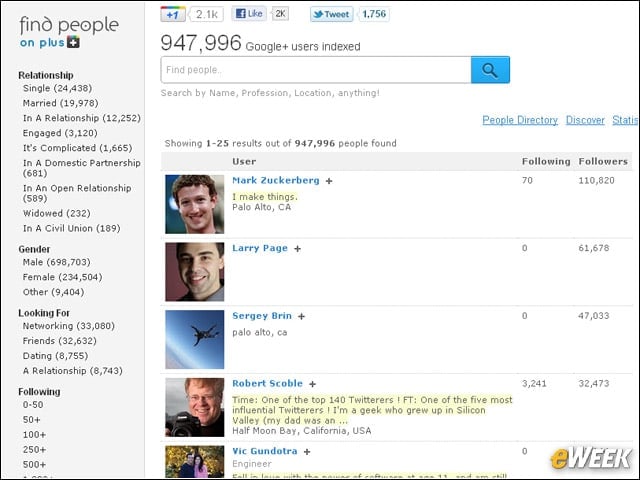
Findpeopleonplus.com is a nice little people-search tool to help users see who’s on Google+, and decide whether or not to follow them. You’ll see metrics such as how many followers + users have, the percentages of men and women + users, and other stats.
Google+ Search
Until Google builds its own Google+ search tool, try Gplussearch.com to search any and all public Google+ content.
Read this Mashable Guide
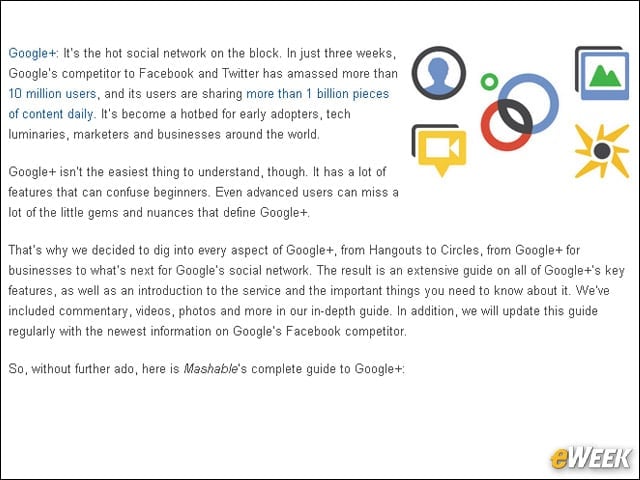
Mashable’s Ben Parr has the definitive Google+ user guide. Read it all! It won’t change your life, but it may help you manage your Google+ social life.