






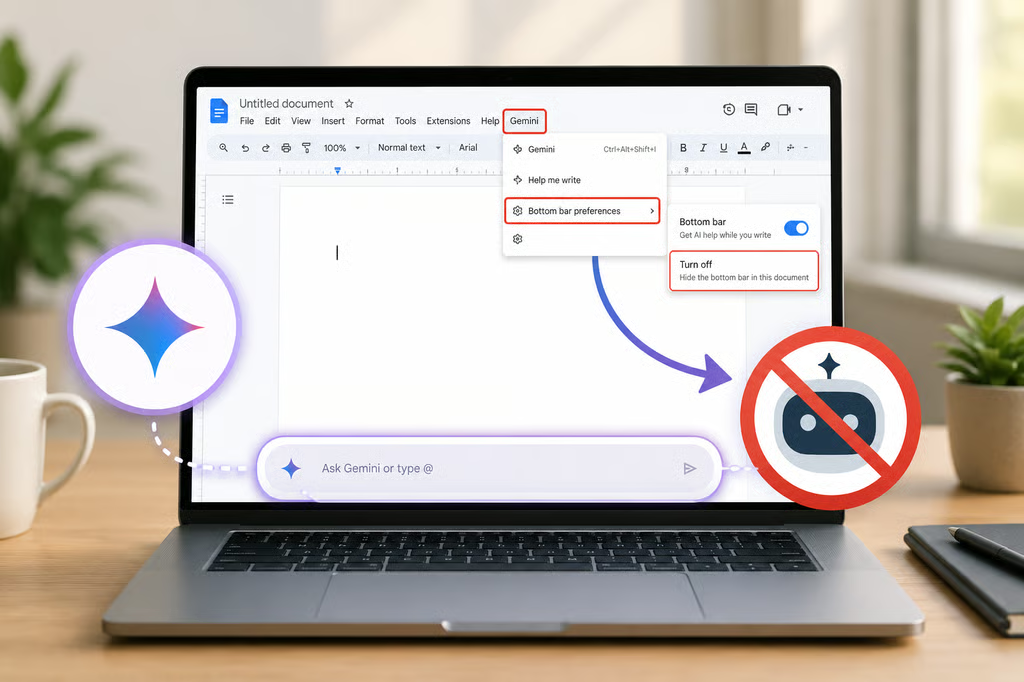


The AI race has reached an unexpected milestone: users are searching for ways to turn it off.
As Google pushes Gemini deeper into Docs, some users are doing the opposite of what the company likely hoped for: looking for settings that make the AI disappear.
While Google positions the feature as a productivity boost, not everyone wants the so-called AI co-author hovering over every draft. That growing tension is what makes a simple "how to disable Gemini" guide noteworthy. It reflects a broader shift taking shape across the software industry, where the conversation is no longer just about adding AI features, but about how much control users have over them.
Saying goodbye to Gemini in Google Docs
If you use Google Docs often, you’ve probably noticed Gemini in two places.
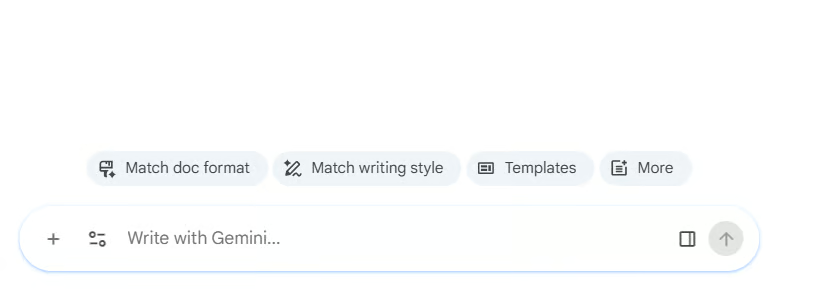
The first is the Gemini icon at the top right, which is also available in the Google Docs mobile app. The second is the bottom bar, which is what frustrates some users because it sits at the bottom of the document and can be easy to trigger by accident.
Follow these steps to turn it off:
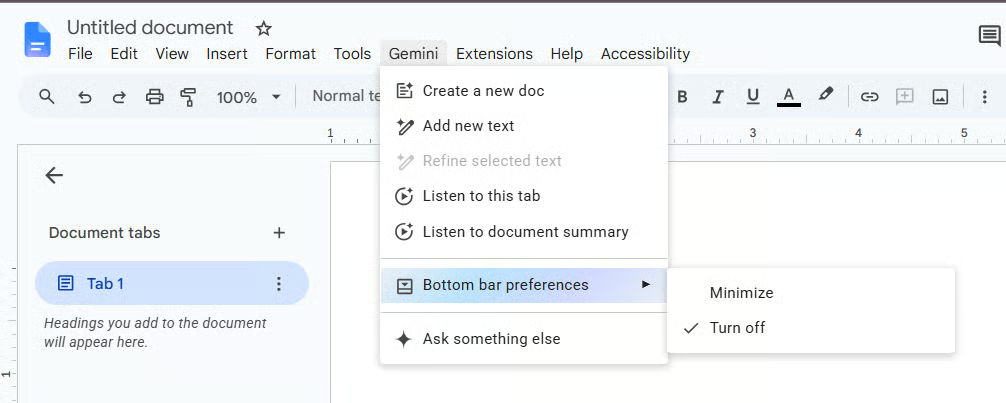
- Go to the top menu of your Google Doc, where you see File, Edit, View, and Insert.
- Click Gemini.
- In the drop-down menu, click Bottom bar preferences.
- In the next menu, click Turn off.
- Refresh Google Docs to apply the change. It should apply to Google Docs documents you open going forward.
It is worth noting that this does not turn off the Gemini side panel. Although that one is less annoying, you can turn it off from your Google Workspace. Follow these steps to do that:
- Open Gmail.
- Select See all settings.
- Scroll to Manage Workspace smart feature settings.
- Toggle off the relevant Google Workspace smart features option, then click Save.
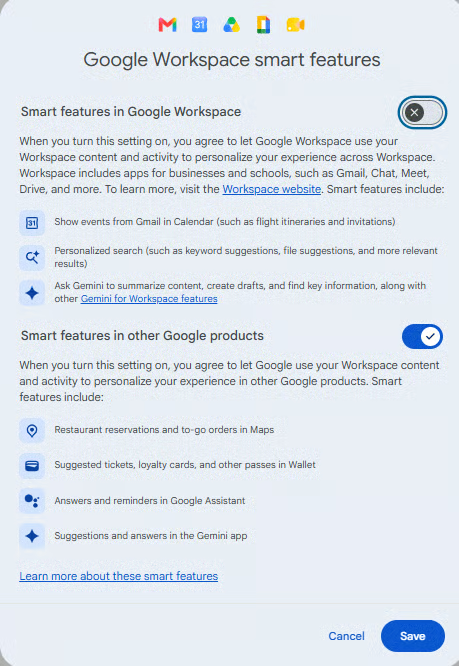
After doing that, the next time you click the Gemini icon at the top right of your screen, a pop-up will appear asking you to turn back on the feature.
Also, this feature is only available for Google subscribers, so users on the free Gmail plan may never have to bother about it.
Users want AI, but on their terms
Google’s Gemini integrations in Workspace reflect a broader trend across the technology industry, where AI features are rapidly becoming a default part of everyday software. Google Docs is just one example of a growing list of products that now place AI assistance directly in front of users.
Yet the appeal of productivity tools has long been their ability to be less annoying and more useful. As companies race to make AI more visible, some users seem to remind them that sometimes the best feature is the one you can choose not to see.
Also read: Google’s AI push is changing how people find information online, raising new questions about what happens when search becomes more conversational.