








- Managing the c3000
- Managing the c3000 – Checking the Cisco Switch
- Managing the c3000 – Switch Status
- Managing the c3000 – Insight Remote Management
- Managing the c3000 – Keeping Up with Storage
- Managing the c3000 – Storage Status
- Managing the c3000 – Configuring Storage
- Managing the c3000 – Storage Management Application
- Managing the c3000 – Disk Quick Look
- Managing the c3000 – Tape Blade Status
- Managing the c3000 – See More Slideshows Like This One
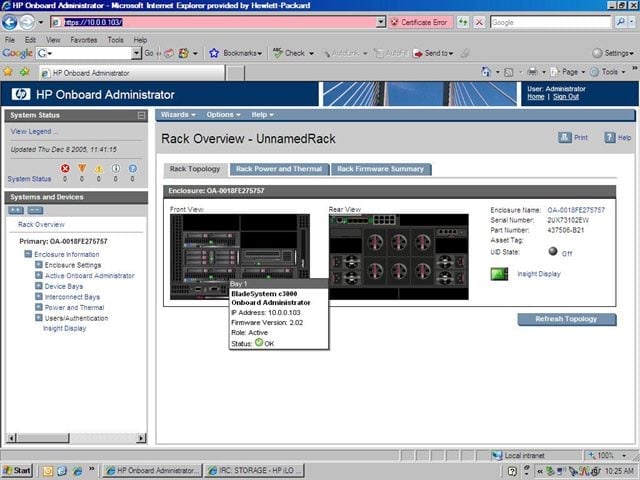
Managing the c3000
On logging in to the management application, the first thing the user sees are images of the front and back of the chassis as its configured. Rolling the mouse pointer over an image gets a pop-up window with basic information.
Managing the c3000 – Checking the Cisco Switch

One of the available blades for the c3000 is a Cisco Catalyst switch. Note that the switch gives address information for both Ethernet and iSCSI.
Managing the c3000 – Switch Status

Clicking on the image of the Catalyst switch on the rear view of the blade chassis gives a screen with its status. Passing the mouse pointer over the image will also produce a pop-up window that shows the basic status.
Managing the c3000 – Insight Remote Management

Clicking on the location of the Insight Manager screen in the front view of the blade chassis (at the bottom center of the top image) shows the screen for the manager. This is the same thing a user would see if he or she actually popped out the screen and
Managing the c3000 – Keeping Up with Storage

Storage plays a significant role in the c3000 blade series. Here, the management application for the All-in-One SB600c storage blade displays its initial status.
Managing the c3000 – Storage Status

If the user clicks on the Status tab, the storage manager shows a detailed status report of the SB600c AIO storage server. Here it shows that everything is working properly, that the device is drawing 100 watts and that it’s paired with another device.
Managing the c3000 – Configuring Storage

The c3000 SB600c AIO storage server’s disk array can be viewed and configured with the Array Configuration Utility. Here it’s showing the current configuration.
Managing the c3000 – Storage Management Application

The All-in-One Storage Management application gives the user control over most aspects of configuring and running the SB600c AIO device. Many of the more complex functions are controlled by wizards that take most of the difficulty out of the process and b
Managing the c3000 – Disk Quick Look

Clicking on the Status link in the SB600c AIO Management screen gives the user a look at how things are doing on the volumes being used for storage. Here it shows a lot of free space, which is to be expected as nothing’s actually been put there yet.
Managing the c3000 – Tape Blade Status

In addition to keeping track of disk storage, the c3000 includes a management application for the HP Ultrium 448c Tape Blade. Here, it shows that everything is running normally, and that the operating and ambient temperatures are well within limits.
Managing the c3000 – See More Slideshows Like This One

- ShadowProtect Provides Ghost-Like Images for Windows
- eWEE