







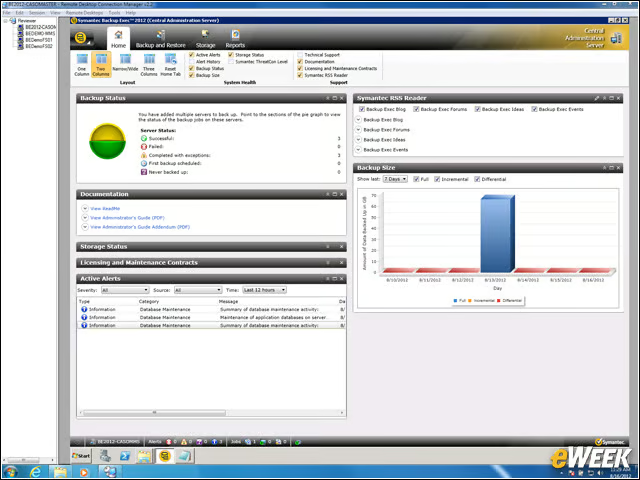
Backup Exec Home Screen
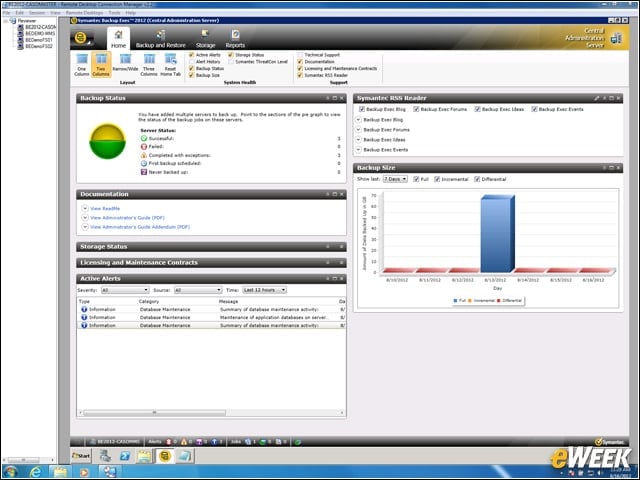
Backup Executive offers a new GUI that is fully customizable. Using graphical gadgets, administrators can populate the home screen as they see fit to create an at-a-glance dashboard.
Customized Home Screen
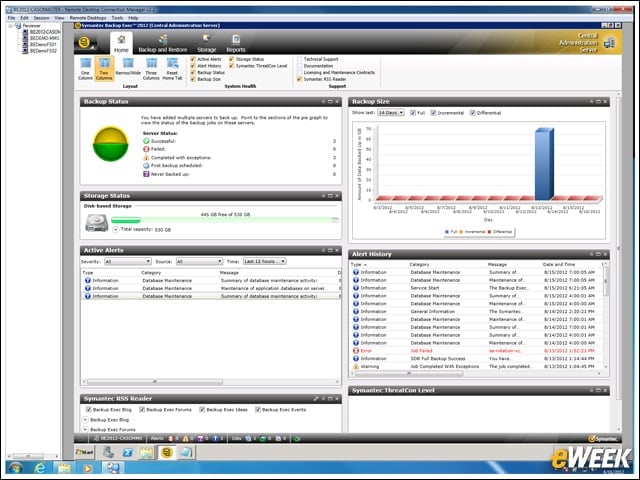
You can drag and drop or move gadgets across the home screen to further customize the interface. However, it would be nice if you could resize the gadgets. High resolution is a must to fit as much information as possible on the screen. The new home screen eliminates much of the minutia associated with dashboards in the past.
Pull-Down Menus
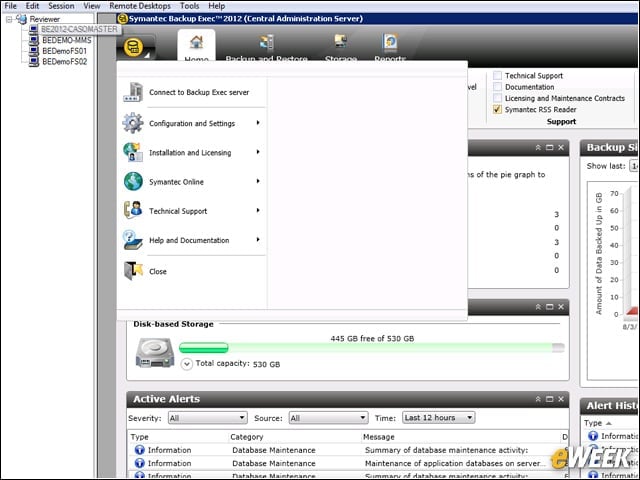
You can still access all the defaults and BE System Settings using a pull-down menu that comes from the âBE iconâ to display basic preferences. Tasks such as backup definition, updates and job processing can be found here.
Backup and Restore GUI
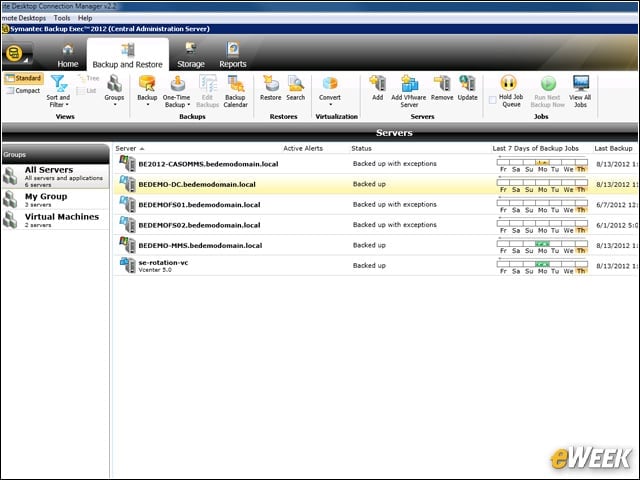
Backup and restore jobs are controlled via the backup and restore GUI. Server clients can be organized into logical groups; this helps ease management on large-scale backup environments where certain servers (such as VMware or Exchange) can be grouped together. Administrators can organize servers into multiple groups. However, groups cannot be nested.
Backup Options
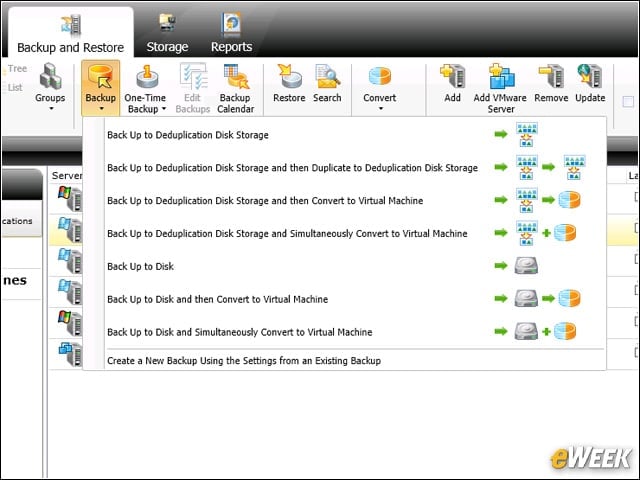
Defining a backup job no longer uses a policy paradigm, which many found overly complex. The product now uses something referred to as stages to define backup jobs. Stages are begun by selecting the type of backup job to be executed. There are several choices to work with, ranging from a basic backup to disk or tape to backing up to a deduplication system to (most importantly) a P2V backup (convert or simultaneous).
Defining a Backup
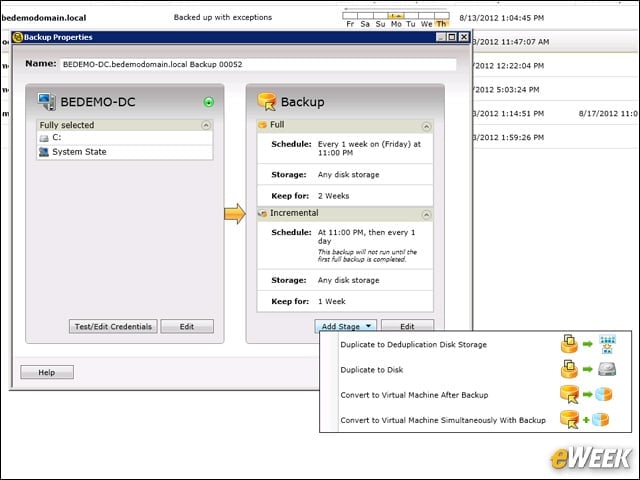
Backups are easy to define, using a wizard-like interface that allows you to pick and choose exactly what will happen. You can optionally add additional stages to the backup process, such as P2V, which will occur sequentially during the backup job. Jobs can be scheduled or manipulated in various ways to give a high level of control, all without the need to create Boolean logic policies, which can grow to be complex monsters to define and troubleshoot.
Backup Properties
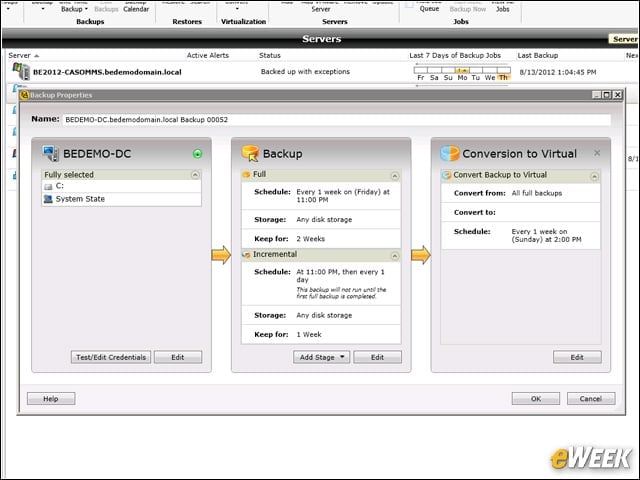
Defined backups are laid out in a clear and concise fashion, which indicates job flow, stages and schedules at a glance.
One-Time Backups
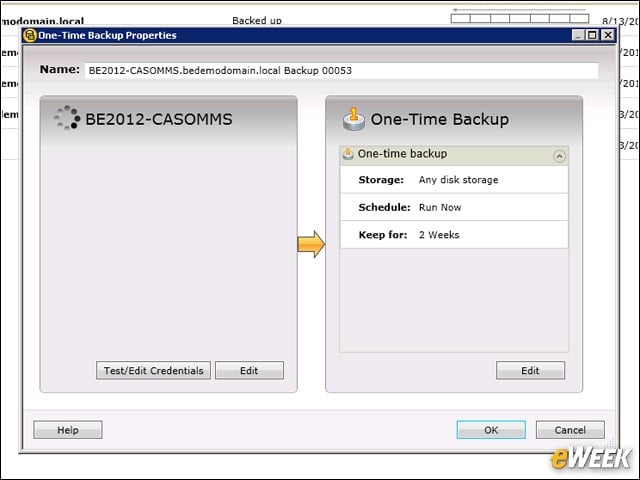
Of course, there is a capability to execute one-time backups as well, which should prove to be handy for P2V conversions.
Verification and Testing of Settings
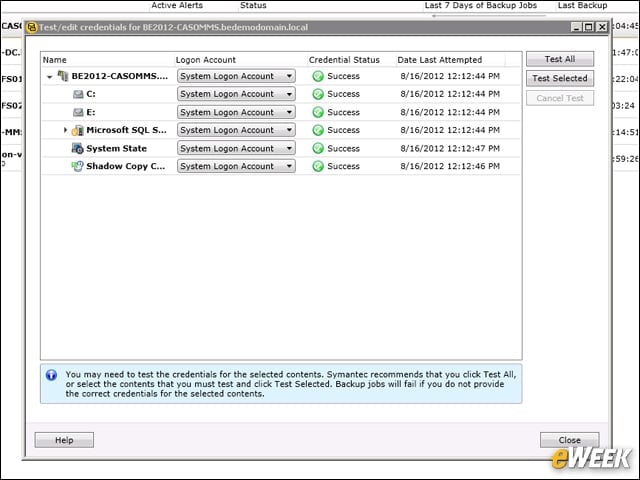
Options exist to validate settings so that backup jobs can be vetted before execution. A good example is checking for the correct credentials, which is one of the most prevalent hang-ups when executing backup jobs. To successfully back up a system, you must have the correct credentials, and BE validates those for you before allowing you to move on.
Multi-stage Backups
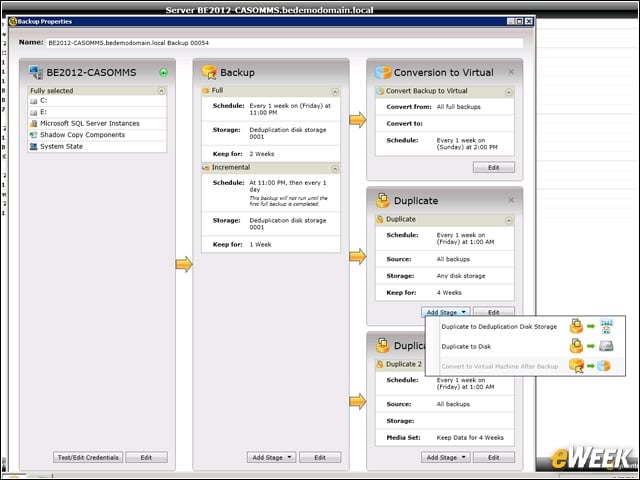
Backup jobs can be defined to include multiple stages and nested stages that are driven by the administrator using a simple GUI that visualizes the stages and the associated requirements.
Backup Processing
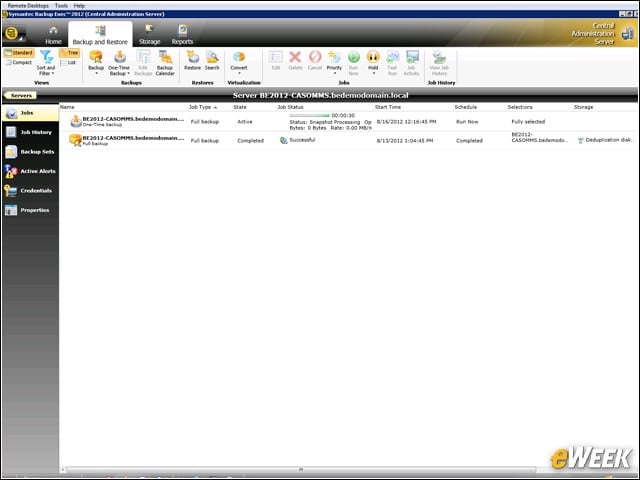
You can monitor backup processes and receive real-time information on the status of the backup. You can also drill down to individual servers to check backup status in real-time as well.
Storage Definitions
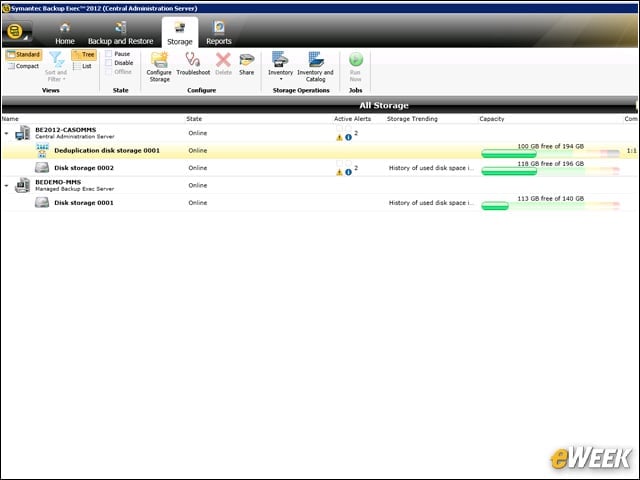
Storage definition and management is handled from the storage tab on the primary interface. Here you can readily see the status of any defined storage device as well as modify, add or delete storage elements. Each storage entry provides detailed information on the storage state, including any alerts, available space and so forth.
P2V Conversions
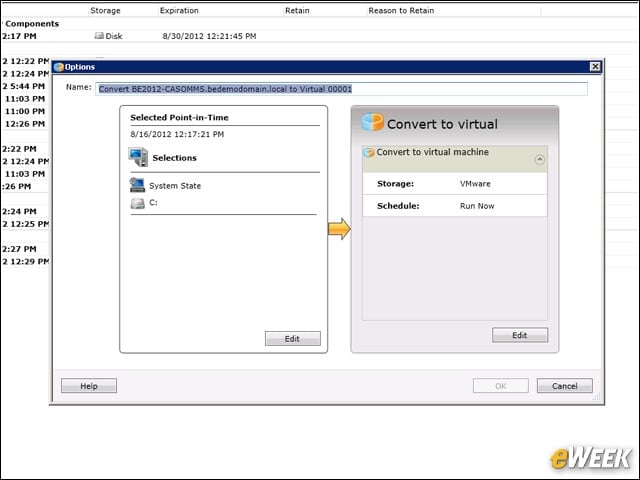
A truly nifty feature is the ability to take a backup and convert it into a virtual machine, ideal for forensics work, troubleshooting problems or recovering removed applications.
Create Virtual Machines
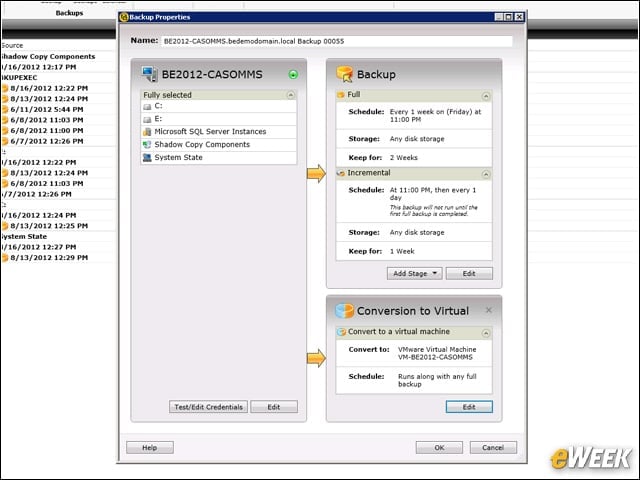
Administrators can build virtual machines during the backup process. This allows administrators to create a virtual system concurrently as part of a backup and migration strategy. The P2V process places the Virtual Hard Disk automatically on the virtual host and can use predefined settings for memory, disk space and virtual tool installation to completely automate the process.