








- eWEEK Labs’ Tests of Microsoft IE 8 Show Web Browser Is a Must-Upgrade
- Color-Coded Tabs
- Better Add-on Management
- Inline Find
- Web Slices
- Tool Bar Integration
- Suggested Site Buttons
- Compatibility Mode
- Accessing Accelerators
- Translating Text
- Setup
- Suggested Search Terms
- Multiple Options
- Content Suggestions
- Defining Search
- Delete Browsing History
- InPrivate Browsing
- InPrivate Filtering
- Bold Domain Names
- SmartScreen Filter
- Checking Websites
- Warning Users
- The Acid Test
- Developer Tools
- Diagnosing Problems
eWEEK Labs’ Tests of Microsoft IE 8 Show Web Browser Is a Must-Upgrade
Color-Coded Tabs
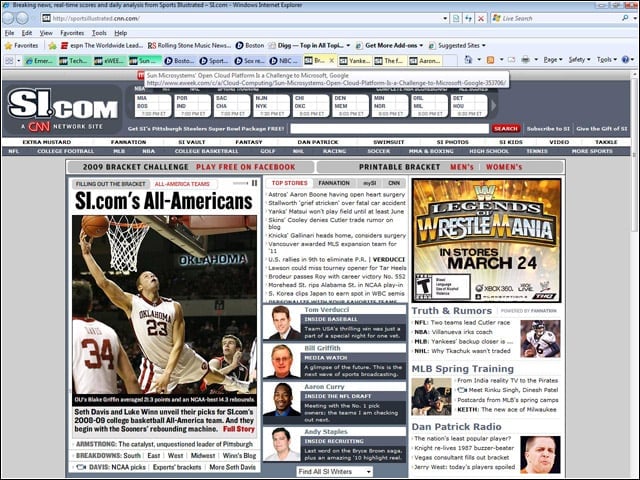
One of the better new features in IE 8 is its ability to color-code tabs launched from a Website to help users visually manage the many tabs they may have open.
Better Add-on Management
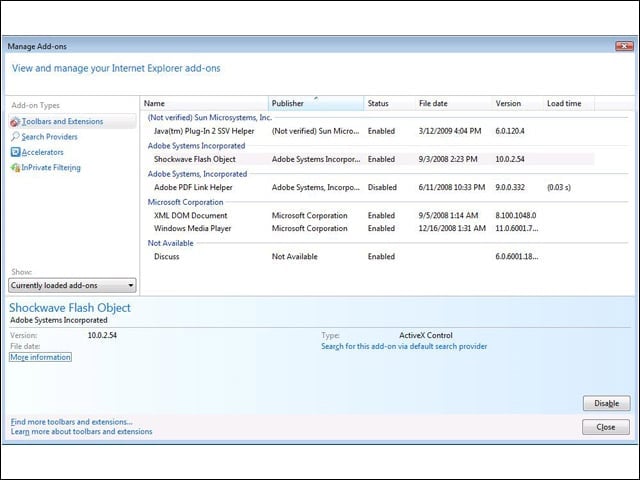
Much-improved management for add-ons, including plug-ins and the new Accelerators, is a feature of IE 8.
Inline Find
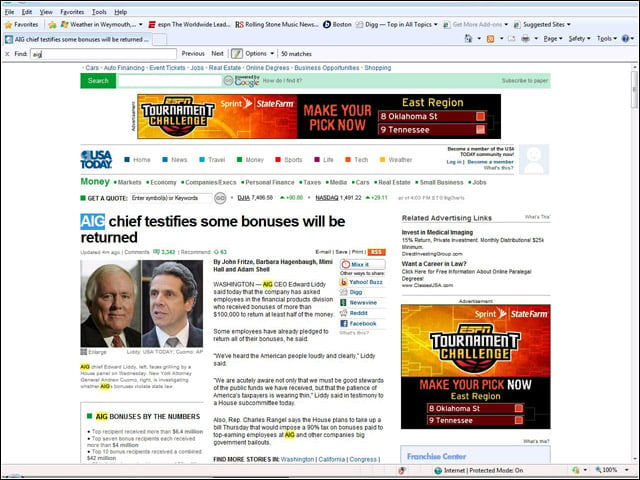
IE 8 now uses an inline “find in page” feature and highlights the terms being searched throughout the Web page.
Web Slices
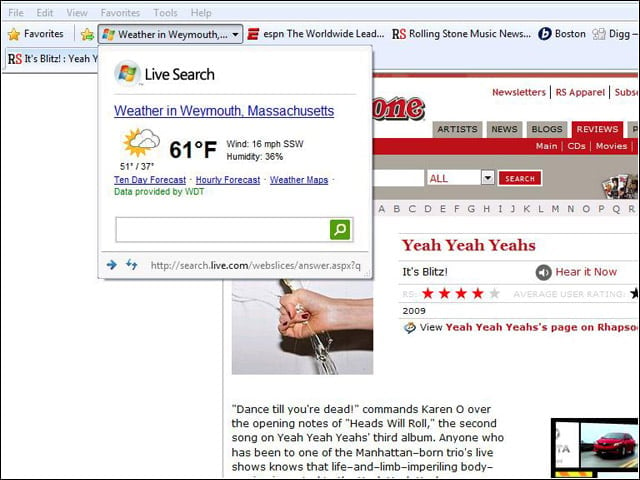
The new Web Slices feature in IE 8 makes it possible to pull content from Websites that have built Web Slices and view it from the browser’s Favorites bar.
Tool Bar Integration
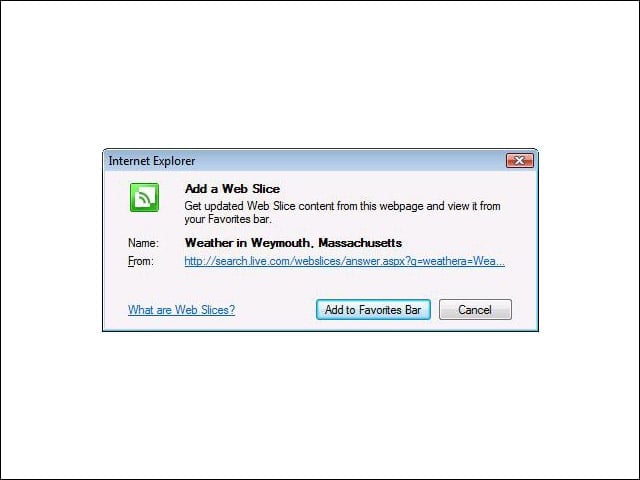
Websites can integrate with the tool bar and other areas of IE 8 by taking advantage of the new Web Slice feature and having visitors install the Web Slice on their browser.
Suggested Site Buttons
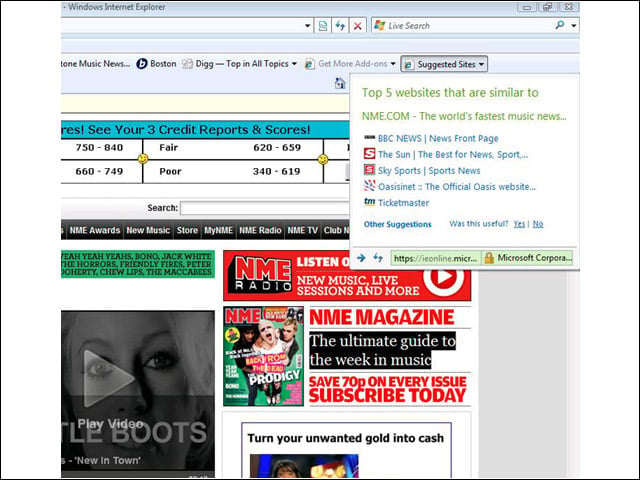
When visiting any Website, users can click IE 8’s Suggested Sites button to get a list of sites similar to the one they are viewing.
Compatibility Mode
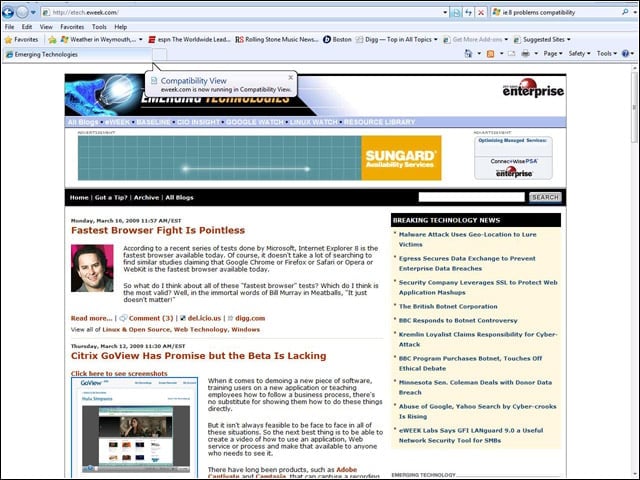
IE 8’s compatibility mode lets users run the browser using the IE 7 engine mode for those sites that don’t run well in IE 8.
Accessing Accelerators
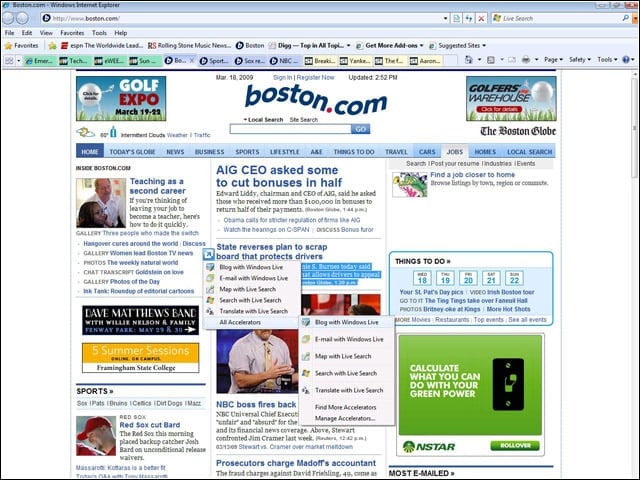
In IE 8, accelerators can be accessed by highlighting text in a Web page and clicking on the icon that IE displays.
Translating Text
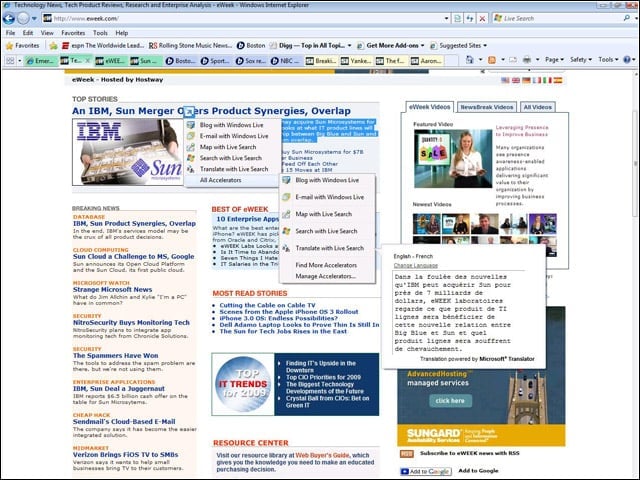
Accelerators in IE 8 provide nice inline functionality within the browser, such as the ability to quickly translate highlighted sections of text.
Setup
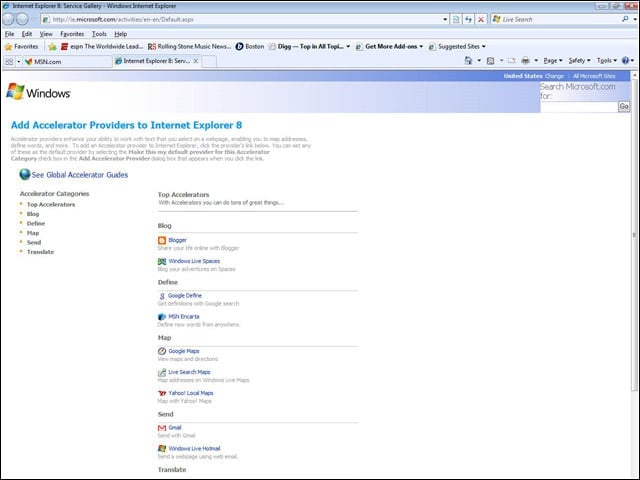
During setup of IE 8, users can choose which accelerators they want to run within their browser.
Suggested Search Terms
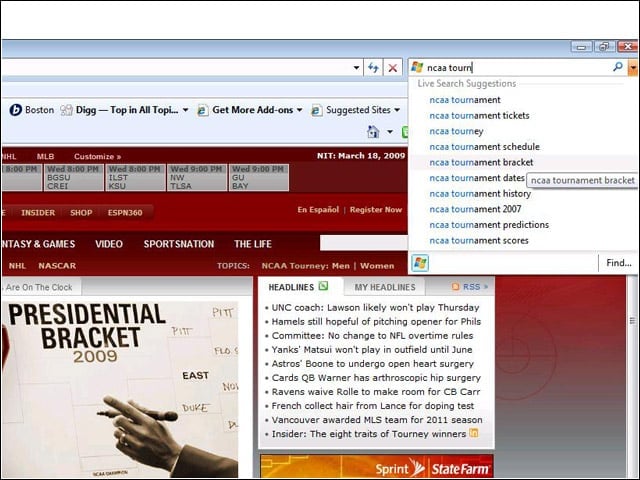
Like most newer browsers, IE 8 suggests search terms when a search is entered in the integrated browser search field.
Multiple Options
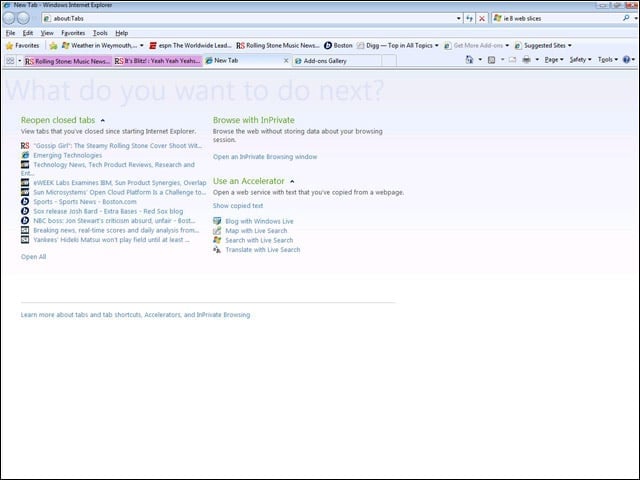
When launching a new blank tab in IE 8, users are given multiple options for launching content from Accelerators or previously visited Websites.
Content Suggestions
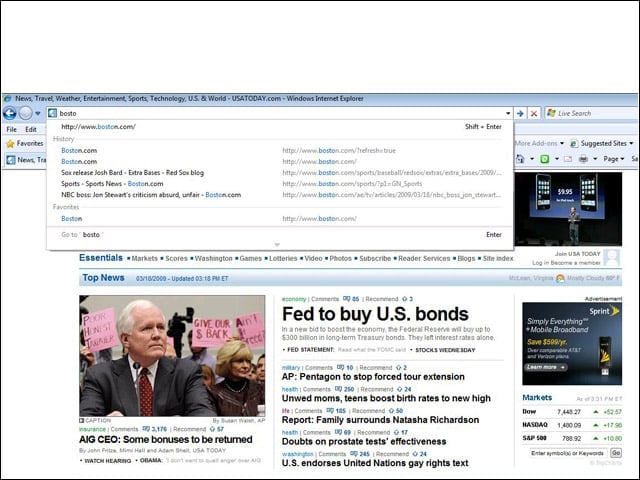
Typing in the address bar in IE 8 brings up suggestions for content pulled from sites visited in the browser history.
Defining Search
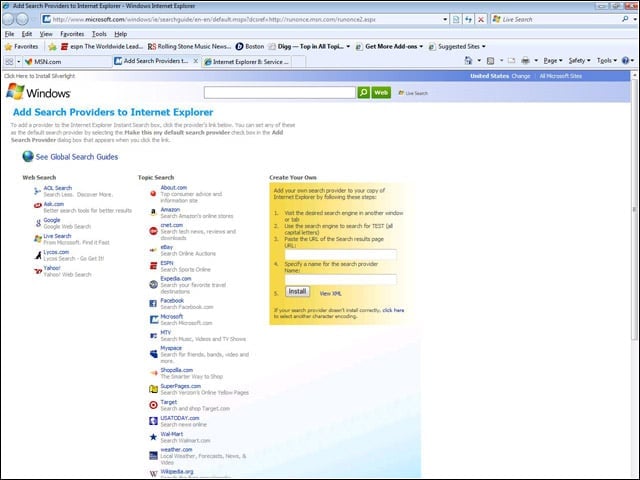
After initial setup of IE 8, users can define which search providers will be used by the browser and can also define internal search engines for use.
Delete Browsing History
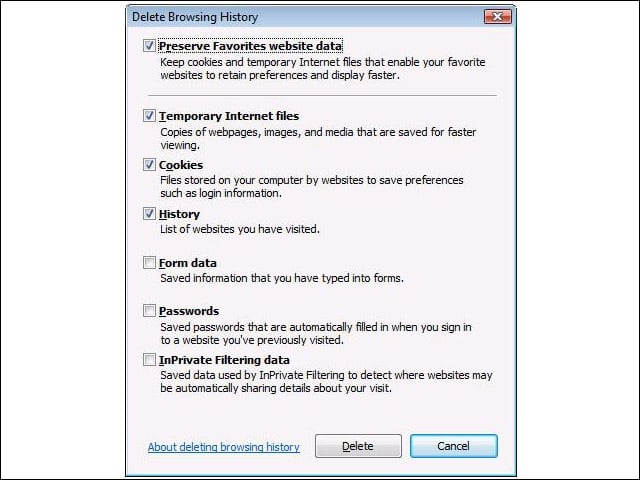
When users of IE 8 use the Delete Browsing History feature of the browser, they can choose what data they want to delete or save.
InPrivate Browsing
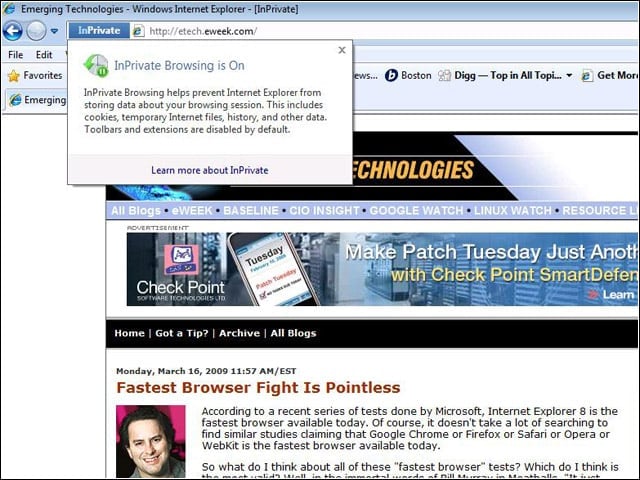
The new InPrivate Browsing feature in IE 8 lets users surf the Web without having any information about the browsing session saved.
InPrivate Filtering
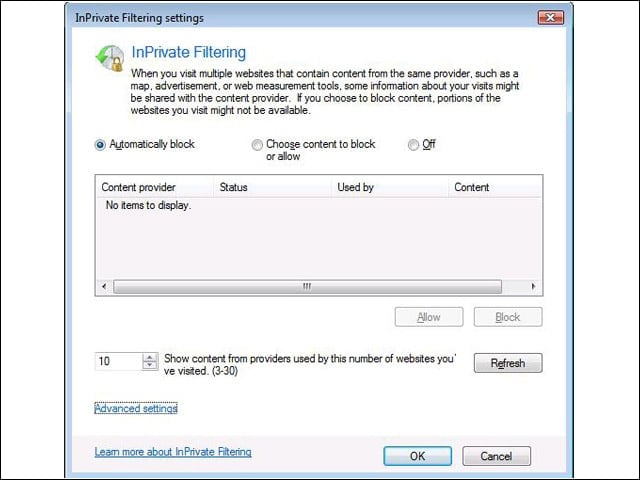
From the InPrivate Filtering settings, users can control how the private browsing feature in IE 8 works.
Bold Domain Names
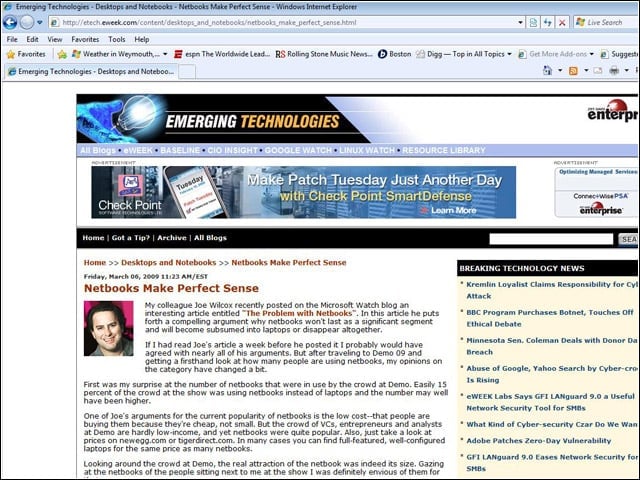
IE 8 bolds the core domain name of Websites in the address bar to help users detect fraudulent Websites with similar names.
SmartScreen Filter
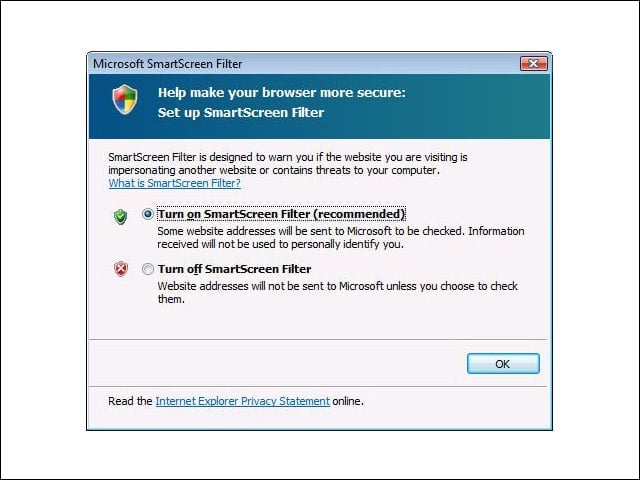
Users can choose to have the SmartScreen Filter on in order to detect potentially dangerous sites or can have the filter turned off by default.
Checking Websites
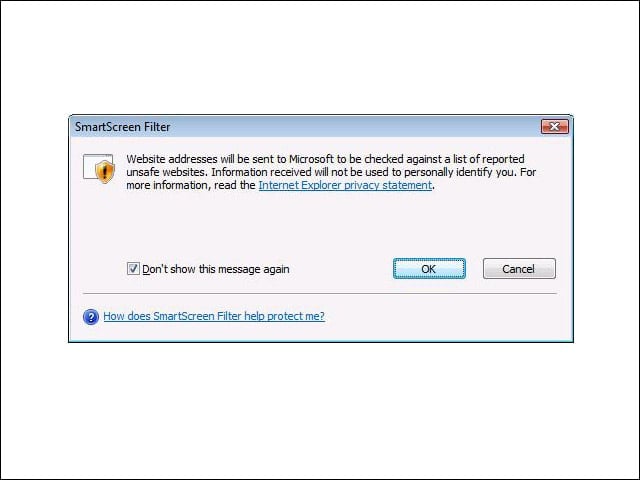
When users run across potentially malicious Websites, they can choose to have the IE 8 SmartScreen Filter check the site on demand.
Warning Users
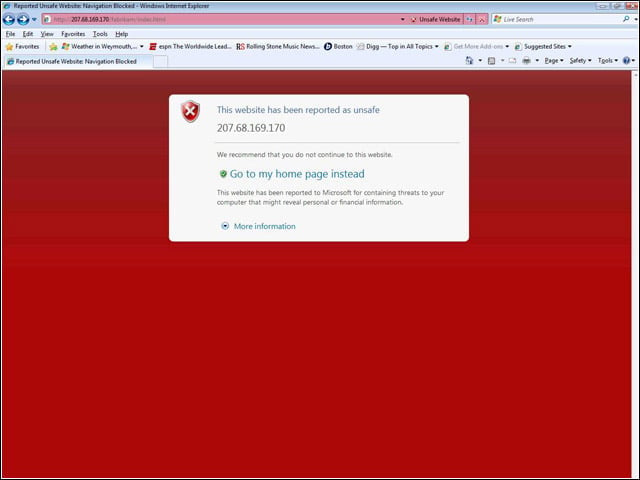
With the SmartFilter in IE 8 enabled, the browser will warn users before they surf to known phishing or malware Websites.
The Acid Test
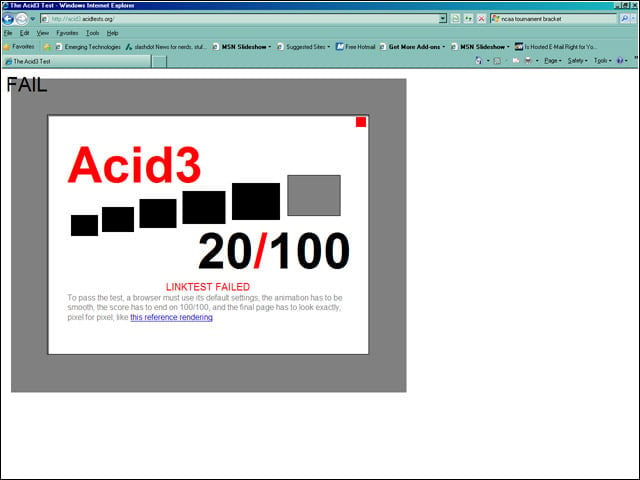
While IE 8 has better standards support than IE 7, it still scores lower on the Acid3 standards test than any other newly released Web browser.
Developer Tools
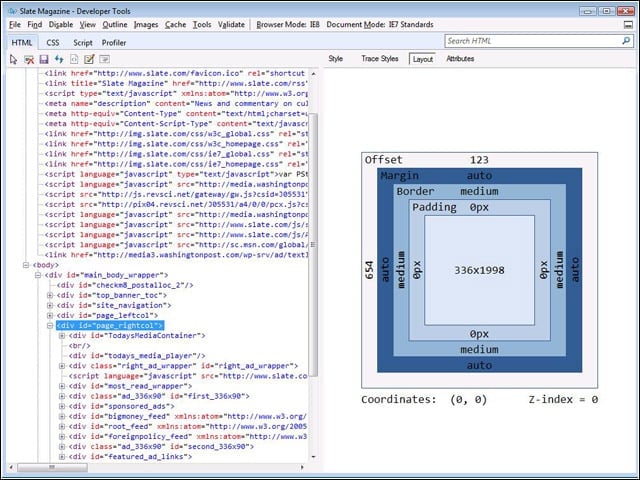
Improved developer tools for analyzing and viewing Website code are available within IE 8.
Diagnosing Problems
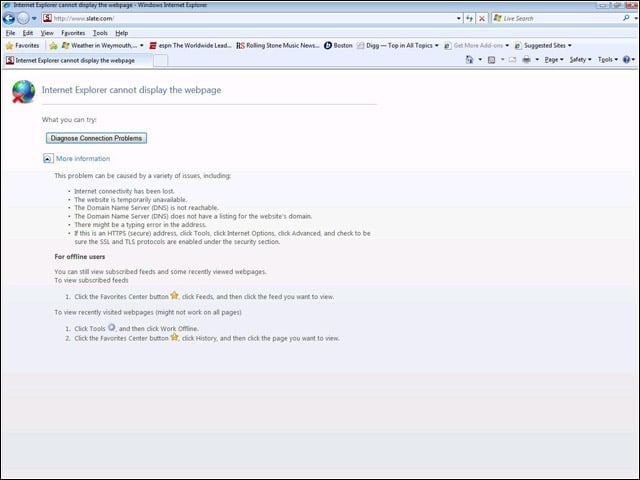
When a Website fails to load, in Vista IE 8 displays a Diagnose Connection Problems button, which launches the Vista Windows Network Diagnostics tool.