








- hopTo Work Removes Barriers to BYOD With Virtual Workspace
- Host Configuration Wizard Simplifies Installation
- Building Custom Controls and Menus
- RemoteApp Manager Handles Remote Application Access
- Mobile Device Client Only Accesses Data, Apps Remotely
- Users Login via Remote Client
- Users Launch Remote Applications via a hopTo Menu
- Cloud Services Boost Data Security
- A Simple Menu Lets Users Access Files
- Using Touch Controls for File Management
- Touch Enabling Applications for Mobile Devices
- The Client Includes a Pop-Up Touch-Enabled Keyboard
- hopTo Client Integrates Image Capture
- There’s Built-In Barcode Support
hopTo Work Removes Barriers to BYOD With Virtual Workspace

By Frank Ohlhorst
Host Configuration Wizard Simplifies Installation
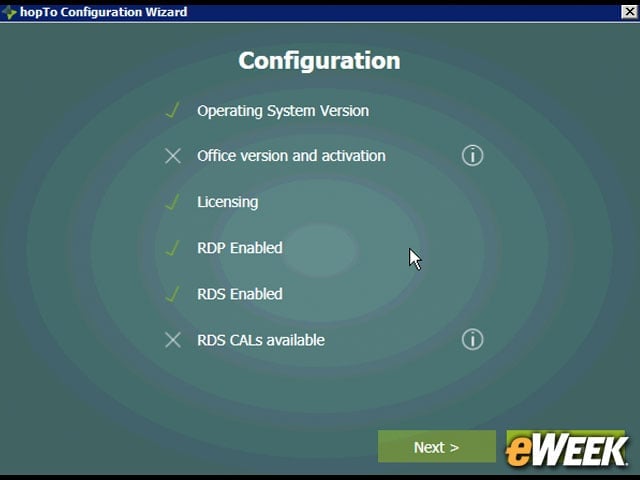
hopTo Work consists of two elements, a server-side-installed piece of software, referred to as a host agent, and a client-side installation, which enables access from a remote device. The host agent runs on a Windows Server System (2008r2 or 2012r2) and requires the installation of RDP, RemoteApp, Active Directory, target applications and a few other elements. Otherwise, the install is completely automated.
Building Custom Controls and Menus
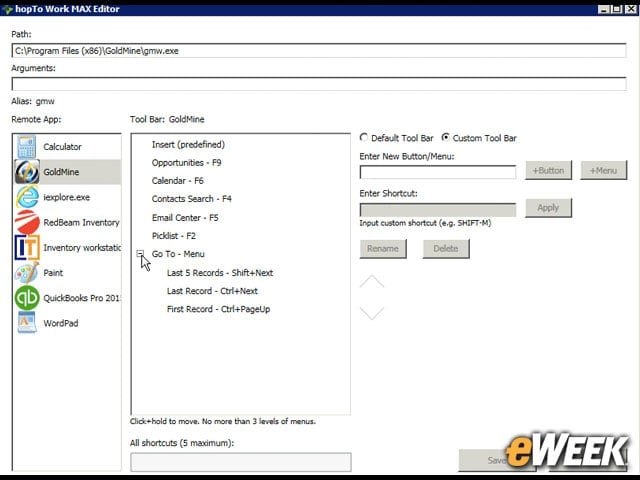
One of the more powerful features of hopTo Work is its capability to wrap new menu controls and keystroke commands around an application interface to make that application easier to use on a smartphone or tablet. Administrators can build custom commands, shortcuts and controls with the hopTo Work MAX editor.
RemoteApp Manager Handles Remote Application Access
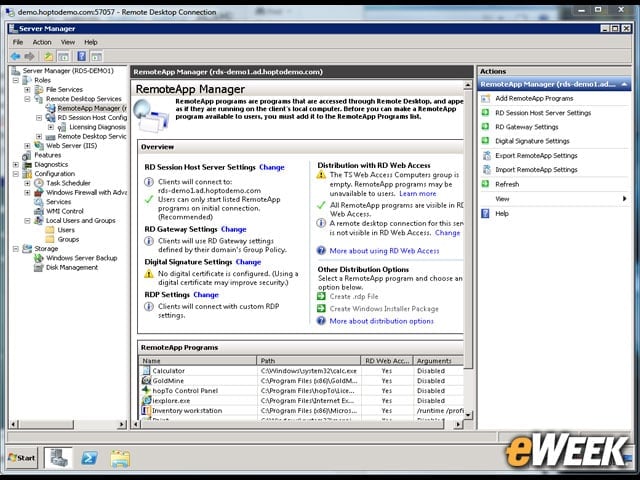
Application access, availability and security are controlled using native Windows Server Tools, such as the RemoteApp Manager, which is responsible for publishing applications for RDP access. RemoteApp Manager can be found under the Windows Server System Manager.
Mobile Device Client Only Accesses Data, Apps Remotely
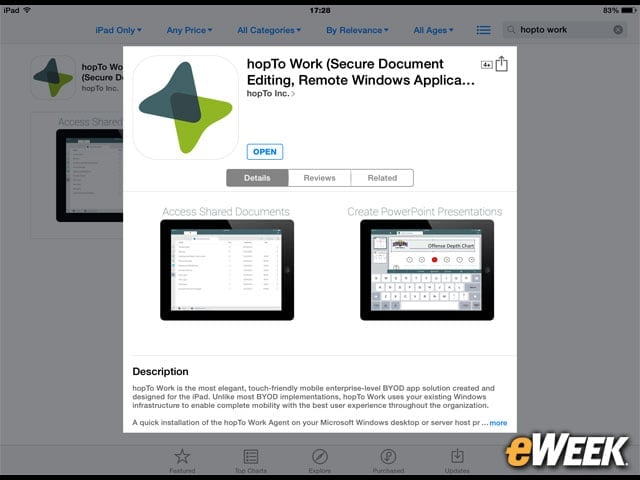
Android and IOS devices can install the remote access client application from the respective Google play store or the Apple App Store. The client application is what provides the interface and access to the hopTo Work host. The client app also adds security and provides the “wrappers” to reformat applications for use on a mobile device. No data or applications are stored on the mobile device, thanks to the use of virtualization technology on the host.
Users Login via Remote Client
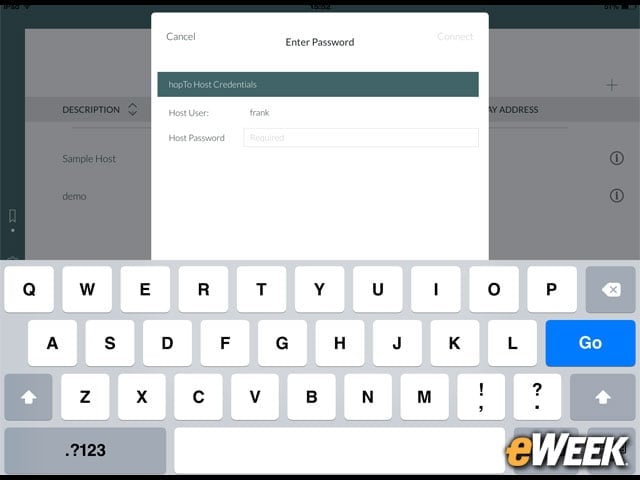
After inputting some basic information, such as the URL of the hopTo Work host and other pertinent information provided by the hopTo Work administrator, users can login to the host with their standard, Active Directory credentials. The login screen also can show multiple hopTo Work hosts, allowing the user to pick what host to access using touch.
Users Launch Remote Applications via a hopTo Menu
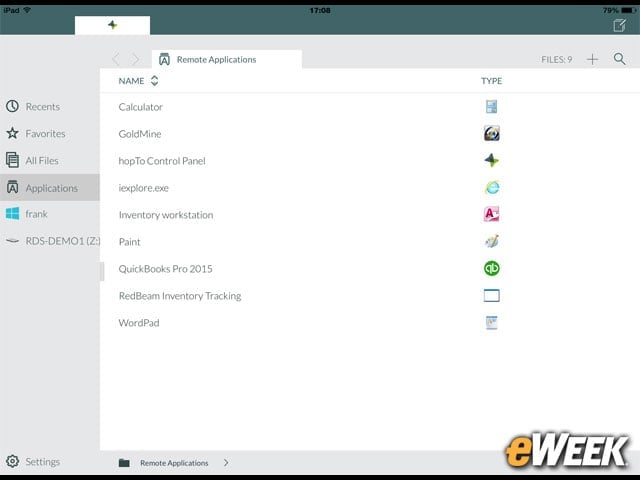
Users are presented with an easy-to-navigate touch-enabled menu. From the menu, users can choose to launch remote applications, access data files and enter settings. Remote applications run on the host system under a virtual machine.
Cloud Services Boost Data Security
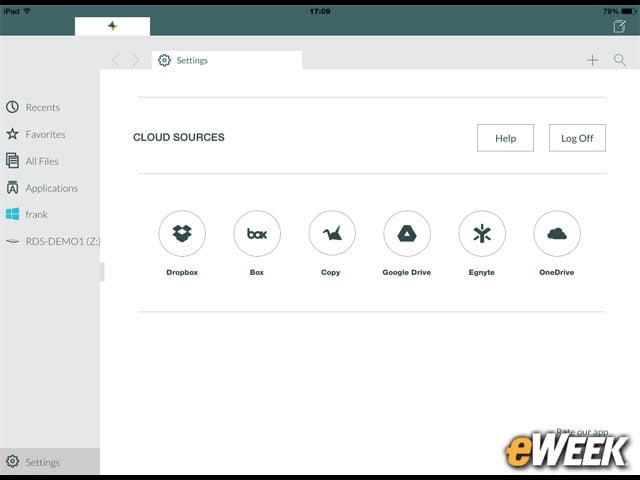
One unique feature of the hopTo Client is the ability to integrate cloud services into the remote working environment. That allows users to access files shared with others, or launch cloud-hosted file archives, such as OneDrive and Google Drive. Those files are opened on the host system rather than downloaded to the local device to help keep data secure.
A Simple Menu Lets Users Access Files
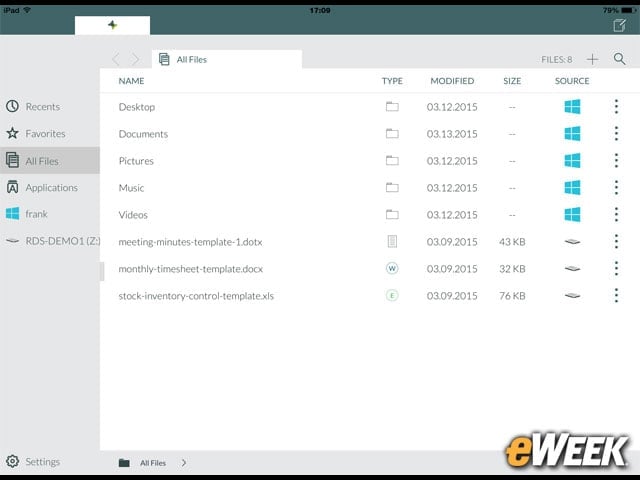
The hopTo client application provides a menu that displays all files available to the user. With this menu, users can sort or launch an associated application. Files can be stored under directories or moved across storage elements with ease.
Using Touch Controls for File Management
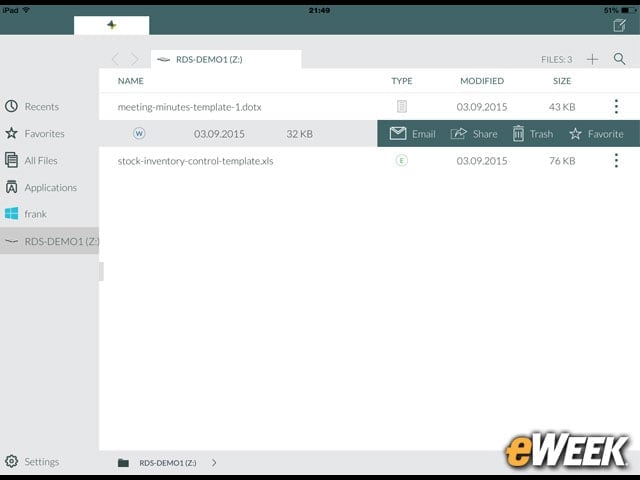
The hopTo client makes it very easy to manage files using touch controls. With a simple tap, users can choose to share files, email files or mark them as favorites.
Touch Enabling Applications for Mobile Devices
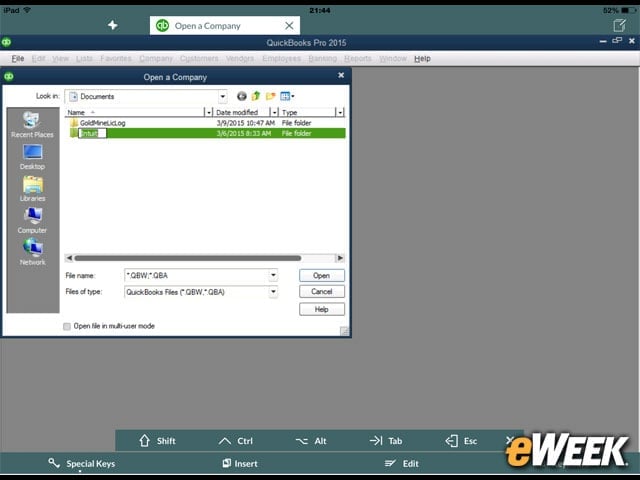
The real power of hopTo comes to light when using hosted applications. Here, a common application such as QuickBooks is touch-enabled, and the interface is modified to include additional menus and controls, all of which respond to touch.
The Client Includes a Pop-Up Touch-Enabled Keyboard
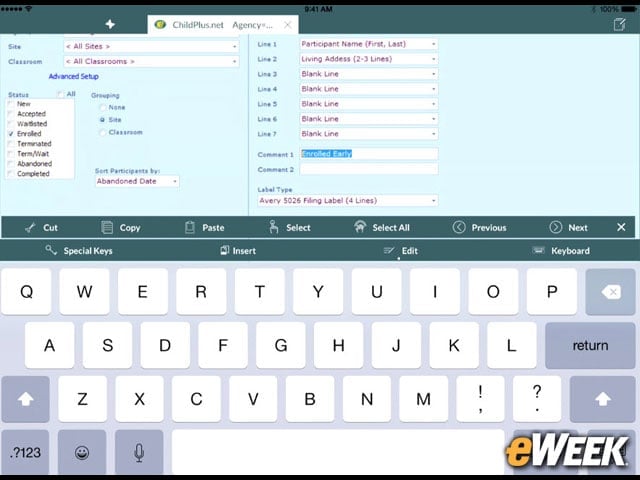
For applications requiring keyboard input, the hopTo client’s pop-up touch-enabled keyboard automatically pops up on screen, along with support for touch controls on a customizable menu bar.
hopTo Client Integrates Image Capture
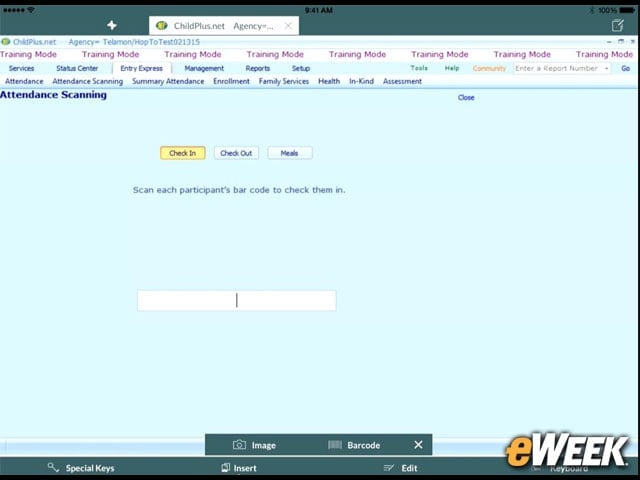
The hopTo Client supports innovative time-saving features, such as integration with a mobile device camera to capture images, barcodes and other visual items to populate related form fields automatically.
There’s Built-In Barcode Support
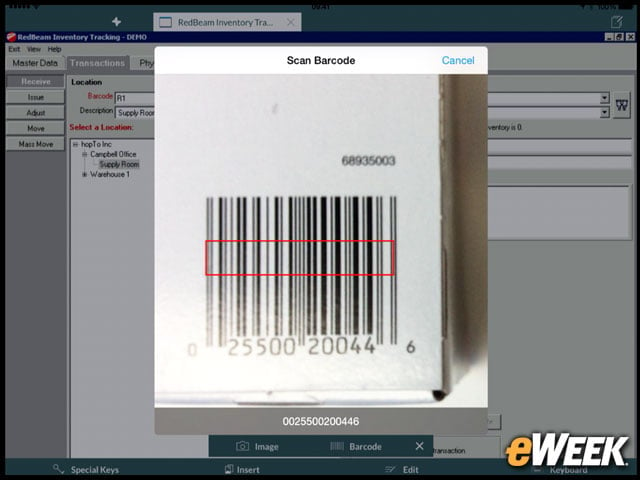
Integrated barcode identification and conversion speeds data input for applications that rely on barcoded data.