







- Installing T-Mobile’s Personal CellSpot Router: Step by Step
- T-Mobile Personal CellSpot
- Here’s What’s Inside
- Asus Builds the Router for T-Mobile
- Installing the Three Antennas
- Plug in the Power Cord
- Connect the Ethernet Cable
- Power Up and Connect to Router
- Connect your Phone to the T-Mobile WiFi Router
- Lights, Action, Then Make Your Calls
- New and Old Router Styles
Installing T-Mobile’s Personal CellSpot Router: Step by Step
by Todd R. Weiss
T-Mobile Personal CellSpot
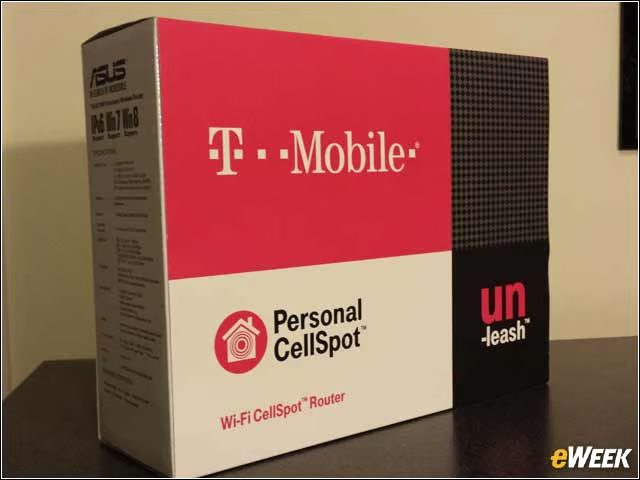
The new T-Mobile Personal CellSpot router, which the company lends to customers for a $25 one-time deposit, includes everything you need to make calls via WiFi on your smartphone in minutes.
Here’s What’s Inside
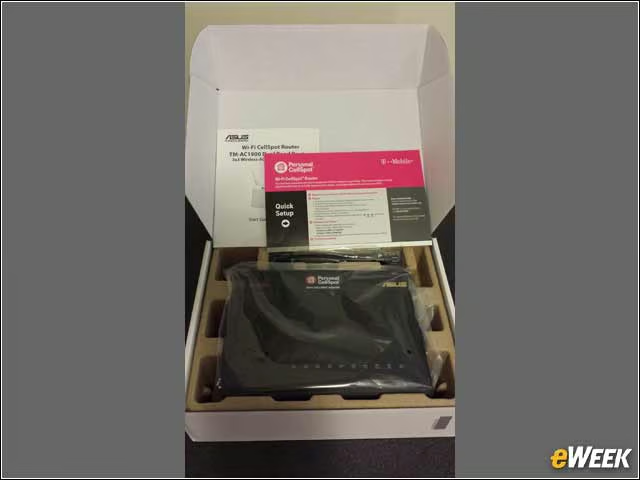
A special Asus router, a power cord, an Ethernet cable, three attachable antennas and an easy-to-follow installation guide are included in the kit from T-Mobile.
Asus Builds the Router for T-Mobile
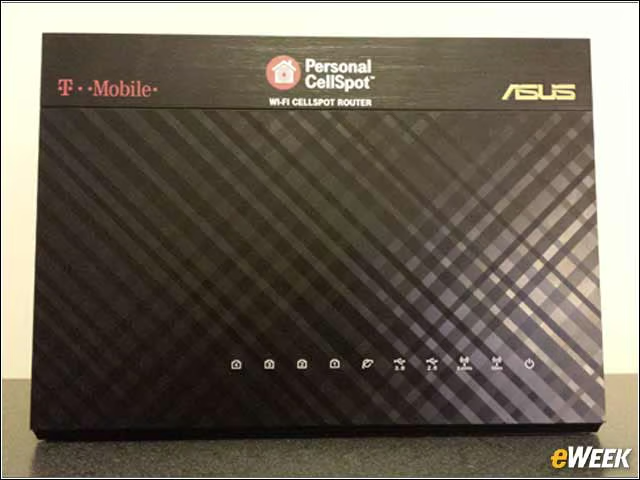
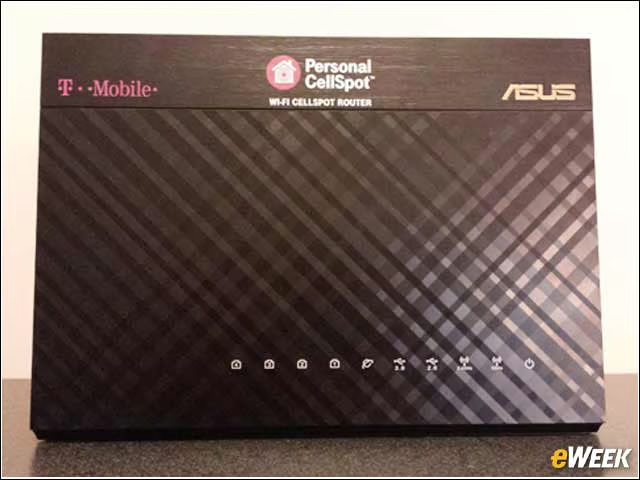
The sleek, modern-looking Personal CellSpot router stands vertically and takes up only a small amount of desk space.
Installing the Three Antennas
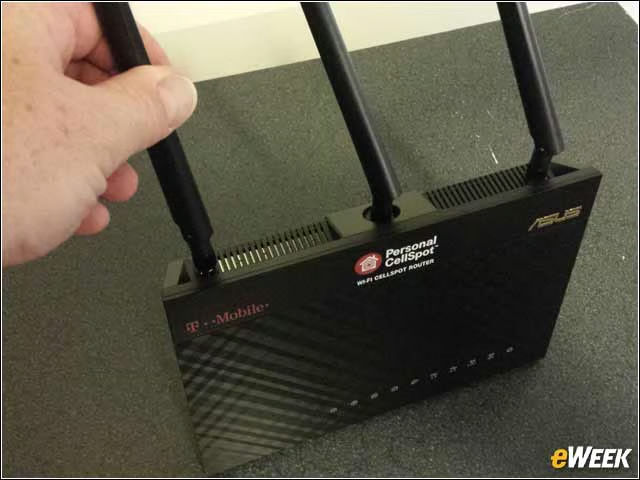
The first step in assembling the WiFi router is to attach the three screw-on antennas to their mounting threads at the top of the router’s surface. Make sure they are finger-tight, but don’t over-tighten them.
Plug in the Power Cord
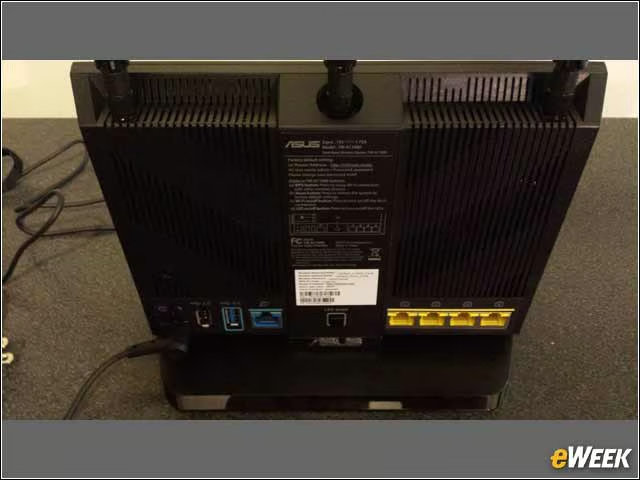
Next, go to the rear of the router and plug the round connector from the power cord into the small round hole on the bottom left of the device. Plug the two-prong plug for the power cord into a power supply.
Connect the Ethernet Cable
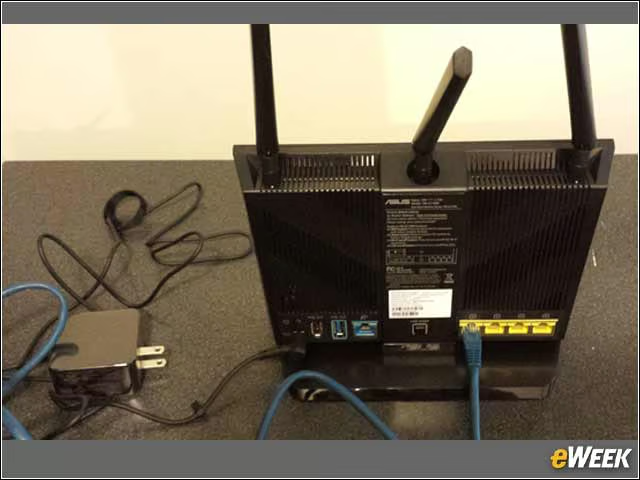
Included with the unit is a blue Ethernet cable, which can now be plugged into the rear of the router and into your cable modem or into your existing router.
Power Up and Connect to Router
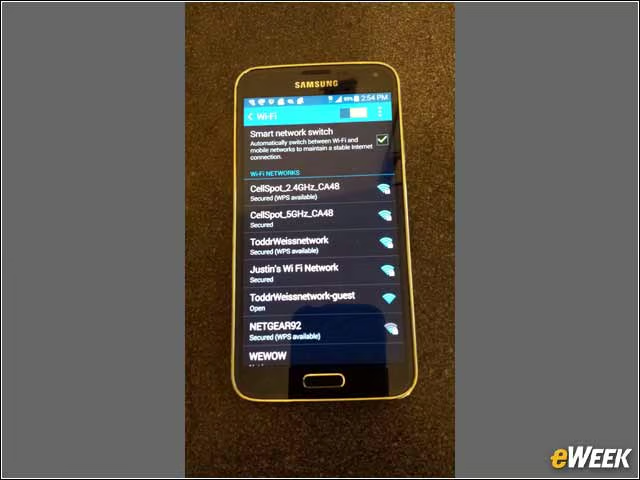
Turn the router on and then look for its WiFi connection on your WiFi-enabled smartphone. Here the proper network is found on the Samsung Galaxy S5 phone that was included in the test, ready to be connected.
Connect your Phone to the T-Mobile WiFi Router
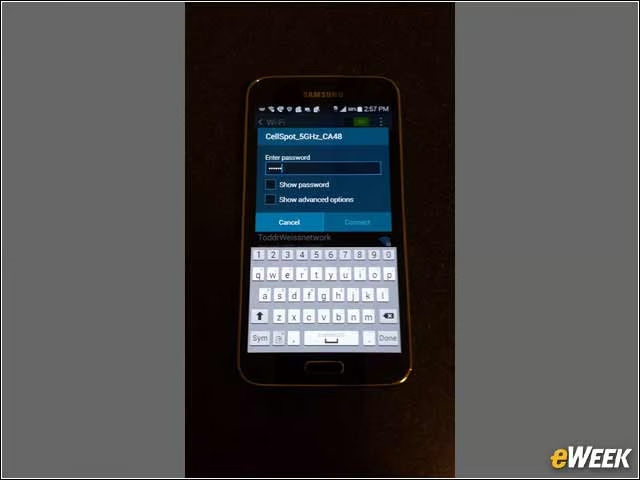
Once your network appears on your phone’s screen, enter the special password that’s printed on a label on the rear of the T-Mobile Personal CellSpot router to make the connection to your smartphone.
Lights, Action, Then Make Your Calls
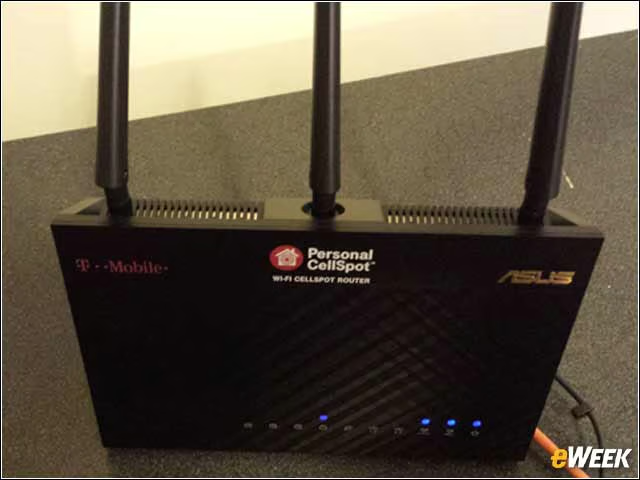
Once connected to the network, several blue lights will glow on the front of the router, showing that all systems are ready for your WiFi calls on the network.
New and Old Router Styles
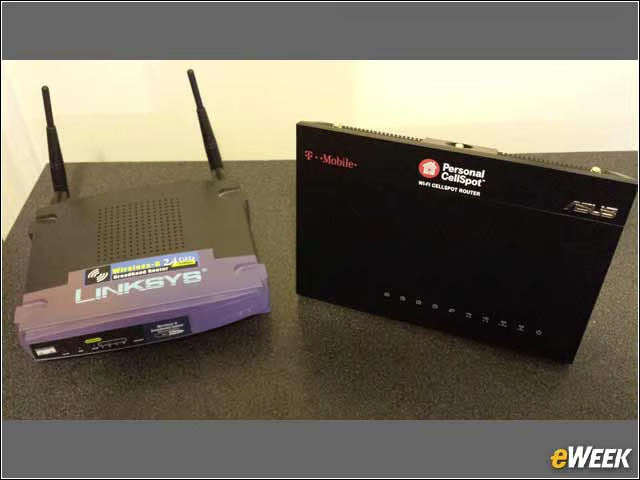
Here is the new T-Mobile Personal CellSpot router sitting next to an older Linksys WRT54G broadband router, just to compare its size and sleek profile.