








- HP Designs EliteBook 1040 G3 as a Stylish Business PC in Rugged Case
- The Case Has a Sleek Silver Finish
- HP Built the Fingerprint Reader into the Palm Rest
- You’ll Find Accessory Ports on the Left
- Communications Ports Are on the Right
- HP UltraSlim Docking Station Goes to Work at the Office
- The Docking Station’s Business End
- The EliteBook, Docked
- The Docking Station in Action
HP Designs EliteBook 1040 G3 as a Stylish Business PC in Rugged Case
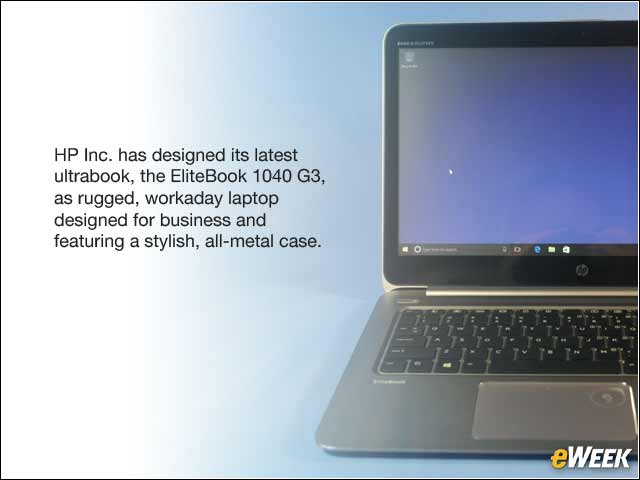
HP Inc. has designed its latest ultrabook, the EliteBook 1040 G3, as rugged, workaday laptop designed for business and featuring a stylish, all-metal case.
The Case Has a Sleek Silver Finish
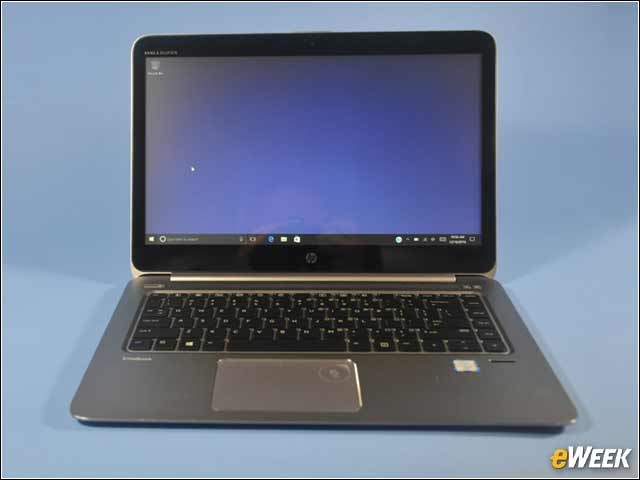
The HP EliteBook 1040 G3 looks sleek in the silver gleam of its rugged aluminum case. The case is designed to meet MILSPEC standards for ruggedness. This is a laptop with a 14-inch screen, which means it also has space for a reasonably sized keyboard. There’s also a touchpad pointing device with built-in mouse buttons built into the touchpad.
HP Built the Fingerprint Reader into the Palm Rest
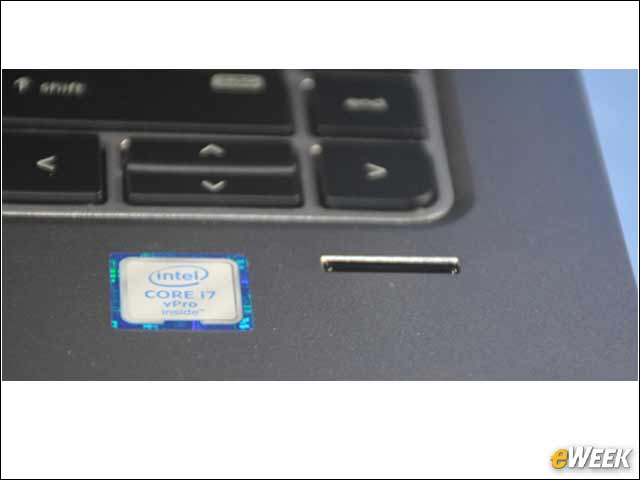
There’s a fingerprint reader on the palm rest of the HP EliteBook 1040 G3, in front of the arrow keys. The unit stores fingerprint data in an encrypted memory location.
You’ll Find Accessory Ports on the Left
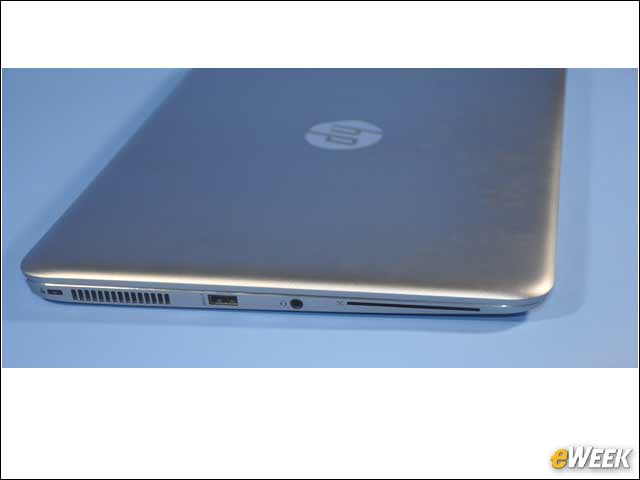
The left side of the HP EliteBook 1040 G3 includes a non-standard feature, but something that makes a lot of sense for a laptop being used in the enterprise: a card reader. In this view of the left side, you’ll see a slot for a cable lock, cooling vents, a USB 3.0 Type A port and a combo audio jack. The long slot contains a smartcard reader, which can be used for authentication.
Communications Ports Are on the Right
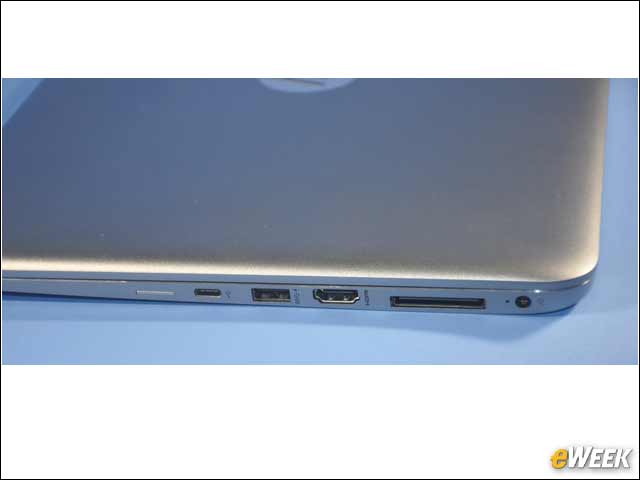
There are plenty of communications ports on the right side of the HP EliteBook 1040 G3 as well. Here you see the location of the SIM card slot for a cellular connection (which this laptop didn’t have), a USB Type C connector and a USB 3.0 Type A connector. Next to that is an HDMI port. The long slot is a docking connector for use with the docking station, and finally the power connector.
HP UltraSlim Docking Station Goes to Work at the Office
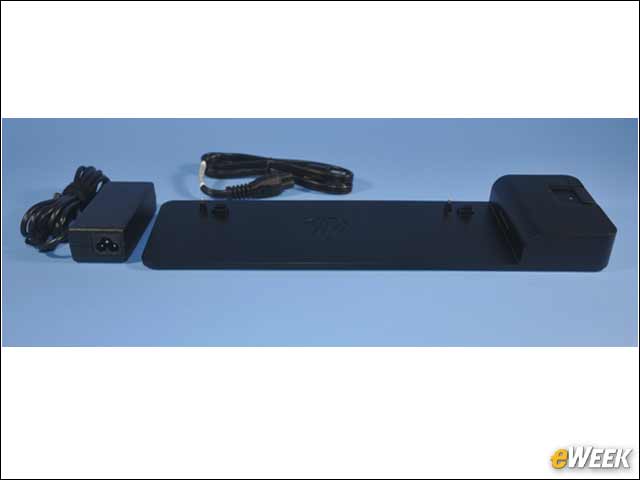
The UltrasSlim Docking Station is a normal part of the enterprise laptop environment because it gives workers a full-sized screen, keyboard and mouse when they’re in the office. This aids productivity and frequently can be a boost for morale. This is a traditional docking station in which the laptop rests on a slightly raised platform and attaches to a connector.
The Docking Station’s Business End
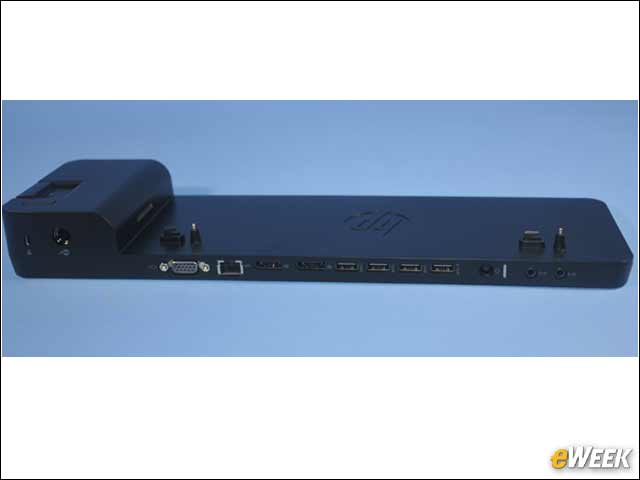
The rear of the UltraSlim Docking Station contains all the ports. Starting from the left, the raised area contains a connection button that slides to insert the docking connector into the slot on the side of the laptop. Next to that is the power button, a lock slot and a cable lock slot. Arrayed across the back are a VGA monitor connector, a Gigabit Ethernet port, two DisplayPort connectors, four USB 3.0 connectors, a power connector and two audio connectors.
The EliteBook, Docked
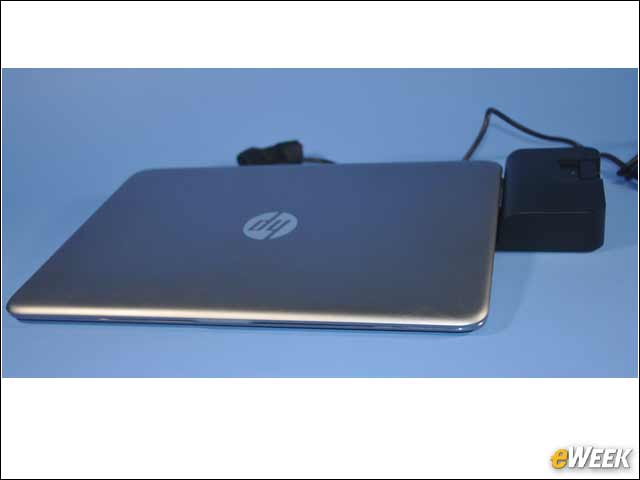
The HP EliteBook 1040 G3 ultrabook rests on top of the UltraSlim Docking Station at a slight angle, which makes typing more comfortable. The laptop is located precisely by two posts that insert into the bottom of the computer, and an electrical and data connection is completed by sliding the connection button into place.
The Docking Station in Action
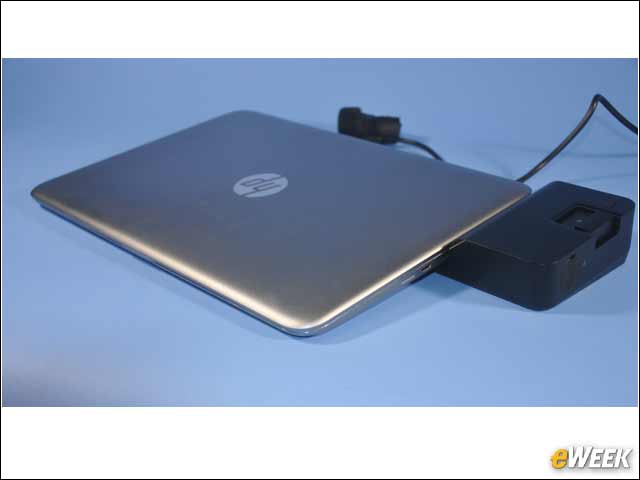
Here you see how the HP EliteBook 1040 G3 attaches to the UltraSlim docking station. Note that the connection button is depressed and moved inward toward the computer. This locks the laptop in place, and it slides the docking connecter into the matching slot on the side of the computer.