







The good news is that you can see the future of Windows 8 now. It’s available as a download from Microsoft and you can install it on your existing Windows 8 machine apparently without disturbing what’s already there. But there’s more good news.
Windows 8.1 now allows you to boot directly into the Windows Desktop instead of the much maligned Start Screen with its tiled interface. The new version also brings back the Start Button and adds some significant usefulness to Windows 8. But the Start Button isn’t exactly what you got used to in Windows 7 and earlier versions of Windows.
You have a choice of how you want to perform a Windows 8.1 upgrade. The easiest way is to use the Windows Store from an existing Windows 8 computer. The upgrade process acts like any other software update, although the download takes a while. You’ll need to sign in to your Microsoft account while you do this, and you’ll need to implement Microsoft’s two-factor authentication, so have your cell phone handy.
You can also download the ISO file from Microsoft and upgrade a machine running an earlier version of Windows. Windows 8 upgrades maintain your existing apps, settings and personal information. With earlier versions you may have to perform a clean install.
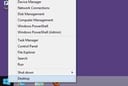
Once Windows 8.1 is up and operational, it will look like Windows 8 with one obvious exception. In the lower left corner of the screen there’s the new Windows logo, which is the Start Button. Click on that and you switch between the desktop and the Start Screen. But when you right-click on the Start Button, you get a whole new menu of choices.
The new Start Button brings some things to the Start Screen that weren’t available before, including the ability to get to the Control Panel. You can also access the shutdown and restart choices from there. Plus, you can access the networking controls and the task manager, and you can open the search function. One thing you can’t do is get direct access to recently used programs as you could with the old Windows 7 and the earlier Start Button.
Instead, you get access to the most commonly used Windows functions from the Start Button, eliminating the need to open the Control Panel if what you really want is the suite of management tools. The new Start Button is accessible on both the Desktop and the Start screens, and all of the functions are available from both views, which is a significant improvement.
Another improvement comes when you right-click on the task bar, click on Properties and choose the Navigation tab.
Windows 8.1 Preview Shows Fixes to Features Users Hated Most
There you now get the choice to boot directly to the Desktop. You can also effectively eliminate the Start screen and replace it with the Apps screen, so that you get a list of applications on the computer. You can have this list sorted in one of several ways and listed by category or not.
Windows 8.1 has a number of other tweaks and nice touches. You can run the Windows Power Shell for command-line automation instead of the Command app. You can turn off the hot corners that bring out the Charms bar when you hover the mouse pointer over the upper right corner. You can put the same background image on the desktop as the background for the Start screen. You also can customize the Start screen tiles.
The sum of these changes is important because it overcomes many of the issues people have complained about with Windows 8 since it was released.
While the touch-oriented Start screen still exists, you can set up your desktop computer so that you never have to see it. In the process you get direct access to the broad selection of mainstream Windows applications that is vast compared to the touch-oriented apps designed for the tiled interface.
The obvious question is whether the changes in Windows 8.1 are sufficiently useful to overcome the massive discontent with Windows 8. The answer to that is a firm “maybe.” For desktop users, Windows 8.1 is a dramatic improvement. You no longer have to contend with a touch-oriented interface while using a mouse and keyboard.
Instead, the new Windows Desktop is a lot like the previous version. The Charms bar is still there, but you have much less need to use it. The Start screen still exists, but you never have to see it if you don’t want to. In addition, much of the functionality of the earlier Start button is back. For users with desktop computers and with non-touch laptop computers, Windows has become dramatically more usable. What’s nice is that for users with touch-enabled devices, Windows 8.1 works as well as the previous version.
Microsoft has said that when Windows 8.1 is released later in 2013, it will be a free upgrade. This is a good thing for what is probably the majority of Windows 8 users. For those who haven’t made the change to Windows 8, the learning curve is much less steep than it was. But is it enough to swing the tide back to Windows after a year of extremely slow upgrades and outright defections? It’s too early to tell.