







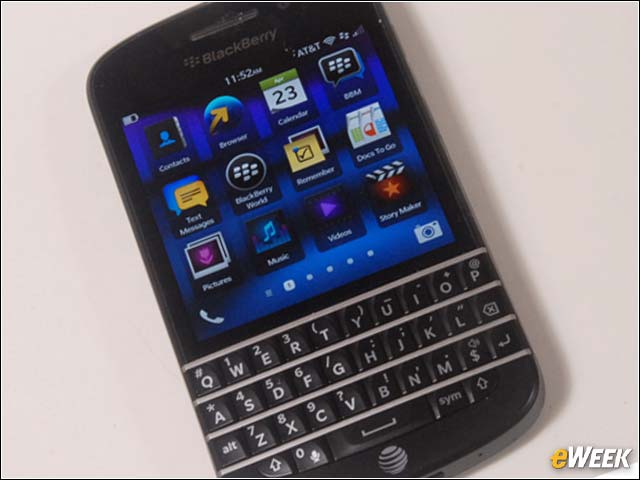
- BlackBerry Q10 Contains New and Comfortably Familiar Features
- The Bold Face of the BlackBerry Q10
- Powering Up the Summary Screen
- Here’s the BlackBerry Q10 Home Screen
- BlackBerry Hub Is Always Near
- Putting the Black Into BlackBerry
- Rear View of the BlackBerry Q10
- Speaker, Microphone Ports Are at the Bottom
- A Micro-USB Port Is on Left Side of the phone
- Familiar Power, Wake-Up Buttons Are on Top
- A Multifunction Control Is on the Right
- Here Is the Typical Removable Back Panel
- Taking a Deeper Look Inside
- The BlackBerry Bold 9900’s DNA Is Apparent in the Q10
BlackBerry Q10 Contains New and Comfortably Familiar Features
by Wayne Rash
The Bold Face of the BlackBerry Q10
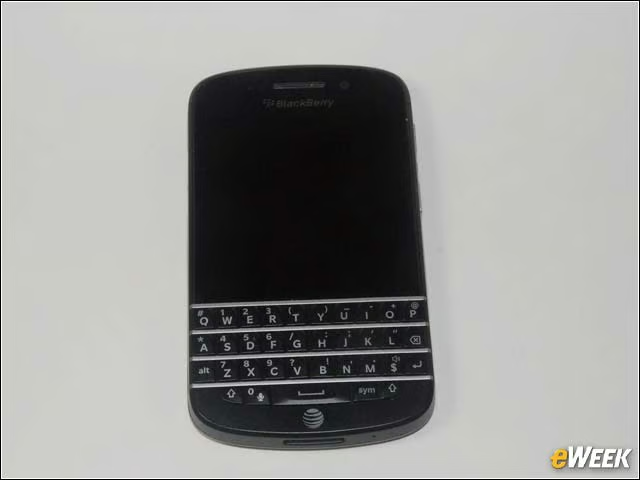
If this smartphone looks familiar to you, that’s because it closely resembles its predecessor, the BlackBerry Bold 9900. The biggest differences are that the Q10’s screen is larger, and the top row of the keyboard—which held the BlackBerry menu button, the touch-pad and the go-back button—is gone. Those functions are now handled by the touch-screen.
Powering Up the Summary Screen
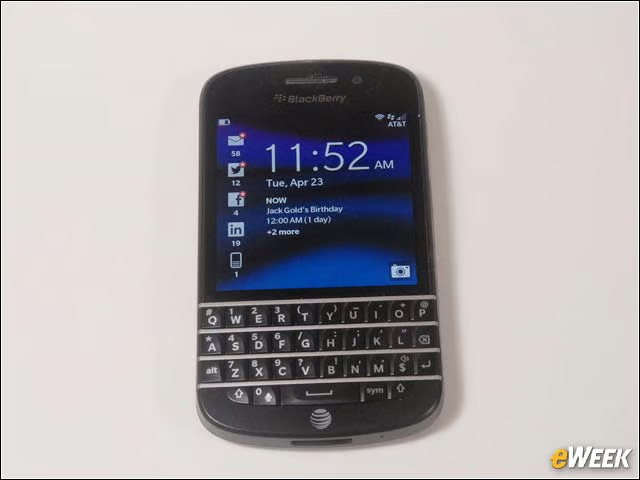
When the BlackBerry Q10 powers up, you see a summary screen that tells you the time and date, important events or appointments, and a summary of messages as well as your connection status at the top of the screen. You slide this screen toward the top of the phone to reach the home screen.
Here’s the BlackBerry Q10 Home Screen
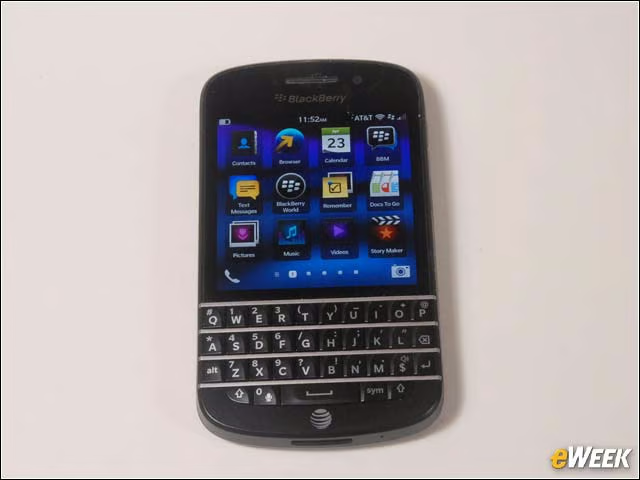
You see a dozen icons per screen, and the Q10 comes with five screens worth. You can change the order and position of the icons. The phone and camera symbols will take you to those functions. You can change screens by sliding them aside or by pressing the small dots at the bottom of the screen.
BlackBerry Hub Is Always Near
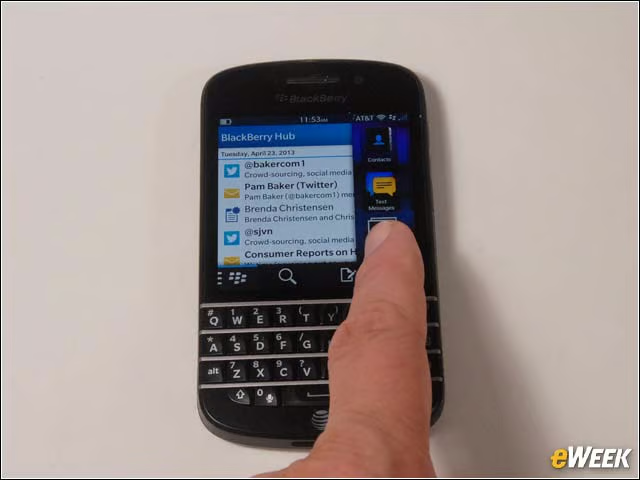
The Hub is a central feature of all BlackBerry 10 smartphones. To reach the Hub, you simply slide the screen to one side. (Here it’s the home screen, but it can be any screen.) It’s a unified messaging center that can collect everything from email to social networking in a single location. You can choose what goes into the Hub.
Putting the Black Into BlackBerry
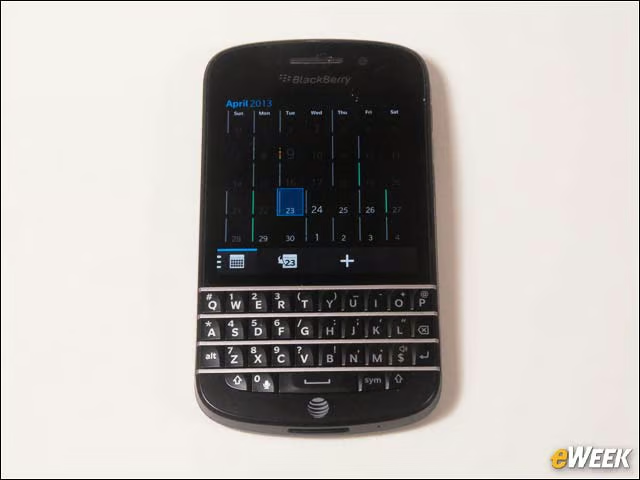
The Q10 is designed to present the screens of many apps, in this case the calendar, with black backgrounds as a power-saving measure. BlackBerry lists the standby time of the Q10 as more than 350 hours, and the talk time as 13.5 hours on 3G. Using the phone on LTE sucks up more power. Still, the Q10 easily lasted all day with power to spare.
Rear View of the BlackBerry Q10
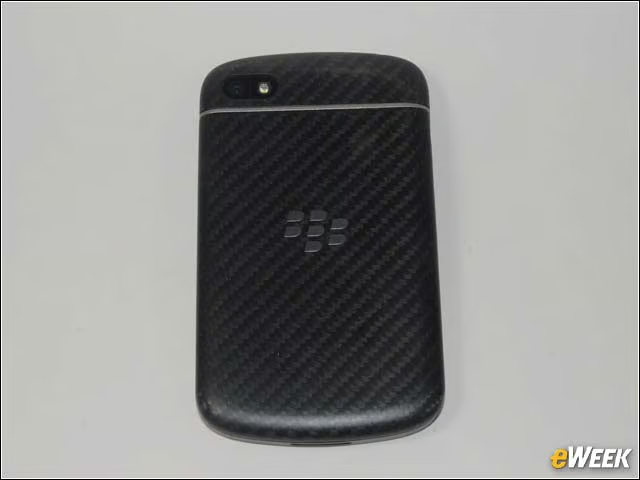
The back side of the Q10 is a soft-textured material that’s easy to hold. In the center of the back is a silver BlackBerry logo that’s also the near-field communication (NFC) antenna. The stainless steel bar above that is slightly raised to protect the NFC antenna from coming into contact with potentially damaging surfaces. In the upper corner is the 8 megapixel camera and an LED flash.
Speaker, Microphone Ports Are at the Bottom
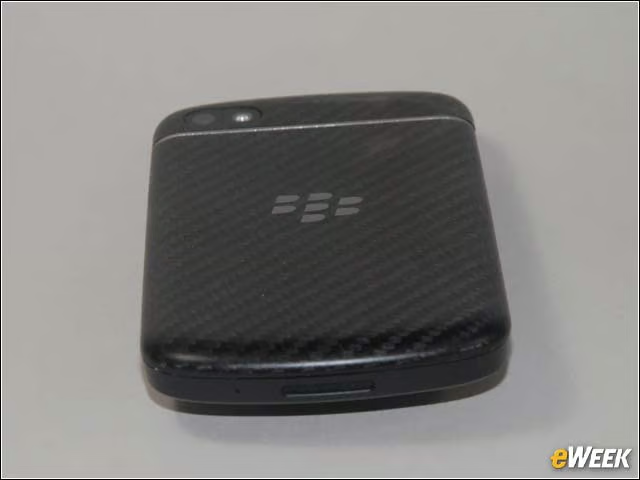
On the bottom of the Q10 is a speaker port. The tiny hole to the left of the speaker is one of three microphone ports.
A Micro-USB Port Is on Left Side of the phone
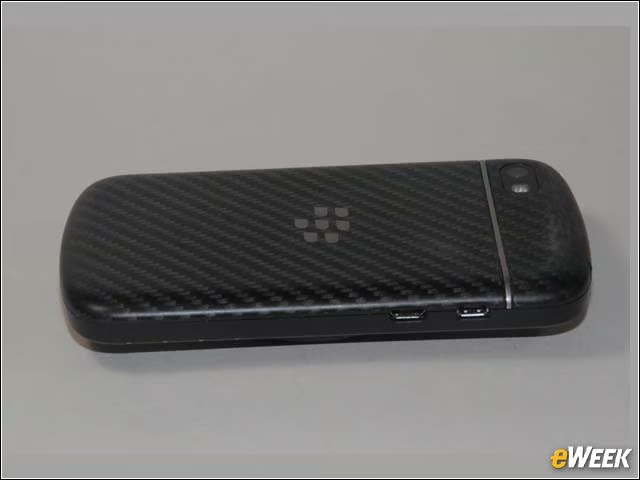
The Q10 has a micro-USB port for charging and data transfer, which is on the left and a micro-HDMI port on the right of the photo so you can watch video on a monitor or television set.
Familiar Power, Wake-Up Buttons Are on Top
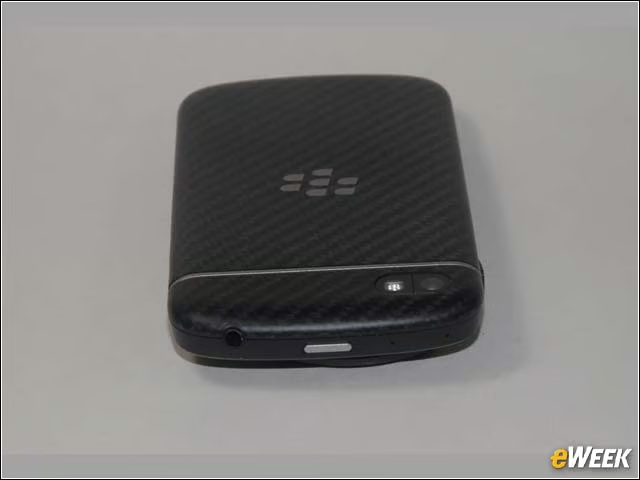
In the middle of the top of the BlackBerry Q10 is the familiar power/wake-up button. To the left is a standard headset jack. To the right of the power button is a pair of tiny holes that provide noise cancellation capability for the microphone.
A Multifunction Control Is on the Right
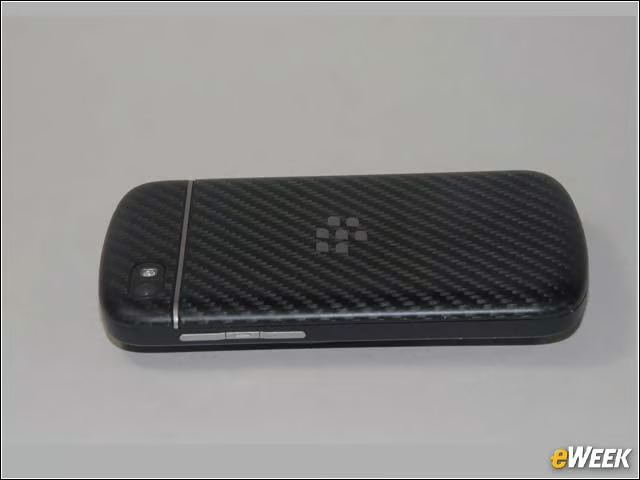
The control on the right side of the Q10 is primarily a volume control. What it controls depends on what you’re doing. It can control the ringing volume or the volume of program material. This control can also work as a fast-forward-rewind control. The smaller button in the center has a variety of uses ranging from a mute button to a hold button for the phone.
Here Is the Typical Removable Back Panel
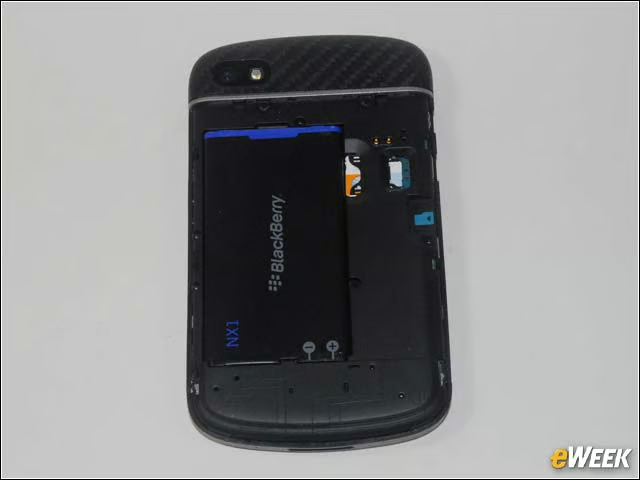
As is the case in all BlackBerry smartphones, the back is removable. You can replace the battery with a fresh one, and you can pull the battery for a quick reboot. You can also see the SIM card here. The spot to the right with a blue arrow is the SD card slot. The two copper buttons above the SIM are connectors for the NFC antenna.
Taking a Deeper Look Inside
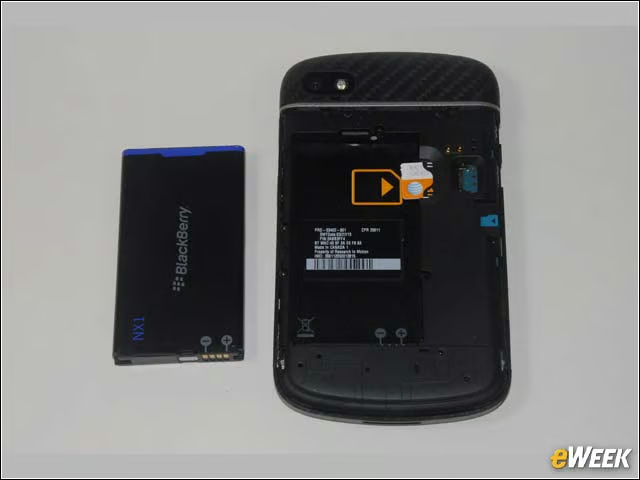
You have to remove the battery to pull the SIM, which has a fixed tray that requires that you carefully position the SIM before you try sliding it. This is a standard micro-SIM, not one of the harder-to-find nano-SIMs that the iPhone 5 requires.
The BlackBerry Bold 9900’s DNA Is Apparent in the Q10
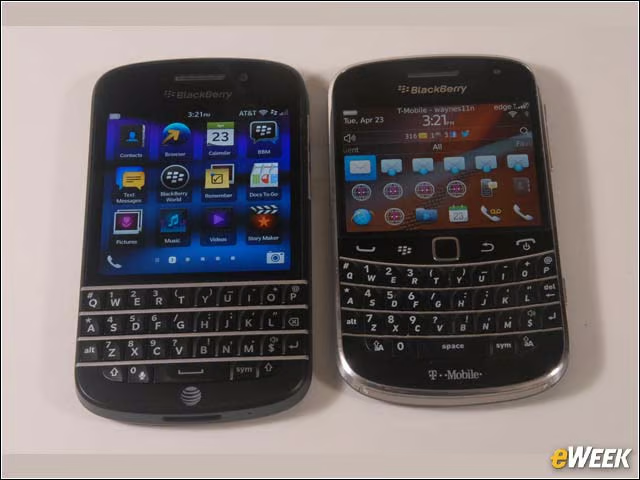
The resemblance between the BlackBerry Q10 on the left and the Bold 9900 on the right is clear. The Q10 has a larger screen, and you can see where that top row of buttons has been removed. But it’s clear that existing BlackBerry users will feel right at home.