








- Deactivating Old Mobile Devices: 8 Best Practices in a BYOD World
- Give Your Company’s IT Department a Heads-Up
- Transfer Any Corporate Data From Your Old Device to Your New One
- Don’t Forget to Remove Personal Data From the Old Device
- Erase Whatever Data Remains
- There Also Are Ways to Wipe the Data
- Don’t Forget About the SD Card
- Get the New Mobile Device Organized
- Keep Employees Up-to-Date on Corporate Device Policies
Deactivating Old Mobile Devices: 8 Best Practices in a BYOD World

by Jeffrey Burt
Give Your Company’s IT Department a Heads-Up

If you’re planning to use your new tablet or smartphone for business within your company’s BYOD program, notify your firm’s IT department that you will be swapping devices.
Transfer Any Corporate Data From Your Old Device to Your New One

Your company’s IT department can configure the new device to get any corporate data off the old one. This can be done automatically via an enterprise mobility management solution—which can automatically push corporate email, applications and documents onto the new device—or by asking the IT department to help with setting up the new device.
Don’t Forget to Remove Personal Data From the Old Device

After transferring the corporate information to the new device, save personal files from the old one, via native tools and backup services of the operating system or the manufacturer, such as Apple’s iCloud and Google Drive.
Erase Whatever Data Remains

That includes all corporate and personal data. You can fully decommission the old device by deleting all the information.
There Also Are Ways to Wipe the Data

You can use the “factory data reset” function on Android-based devices or the “reset” feature on an Apple iPhone or iPad to wipe all the data from the device before shutting it down for good or giving it to someone else. However, before making such a reset move, check with your IT department if the device is part of your company’s BYOD program.
Don’t Forget About the SD Card
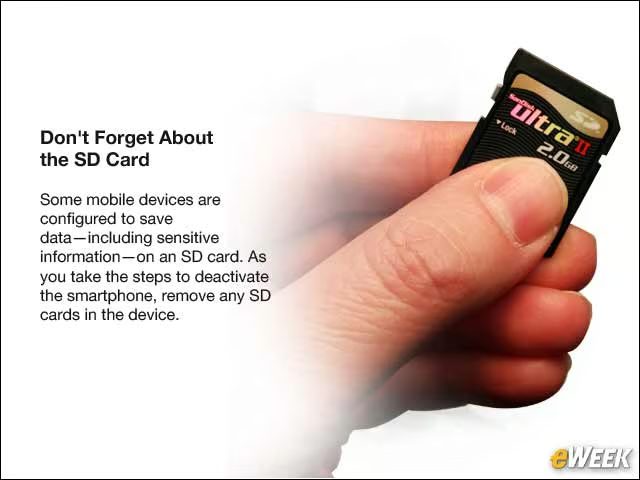
Some mobile devices are configured to save data—including sensitive information—on an SD card. As you take the steps to deactivate the smartphone, remove any SD cards in the device.
Get the New Mobile Device Organized
Once the old device is completely deactivated and the corporate and personal data has been transferred to the new device, get the new smartphone or tablet organized, keep the personal and business information separate and make sure to password-protect the data.
Keep Employees Up-to-Date on Corporate Device Policies

When employees get new devices, IT administrators should take the opportunity to educate workers on the company’s BYOD program, particularly the process for swapping out devices.