







Google Nexus One: Smartphone Setup and Start-Up
by Clint Boulton
Simple, but Elegant
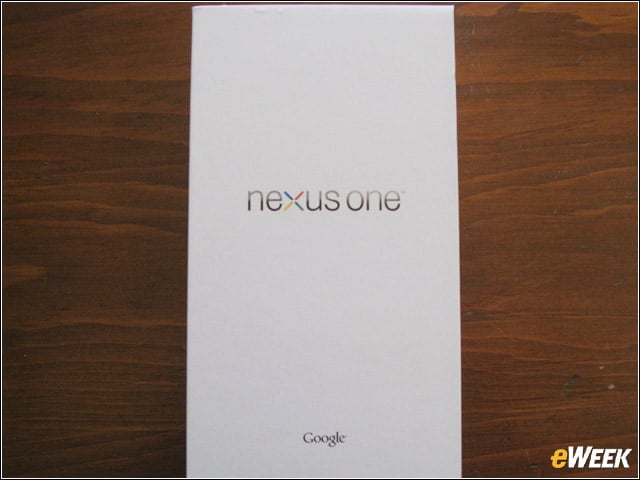
The Nexus One came nestled in this simple white box, a departure from the Droid box, which featured the Droid’s now signature red, all-seeing robotic eye.
Unboxed
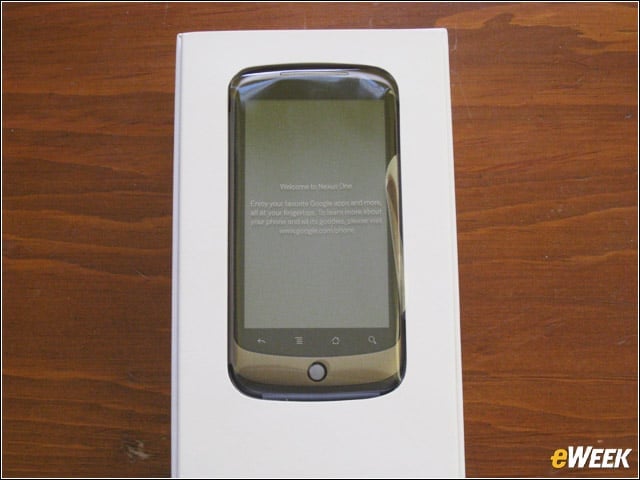
Lifting the cover reveals the phone encased in a cellophane wrapper, welcoming users to the Nexus One and providing a link to the Google Webstore.
The Nexus One Protector
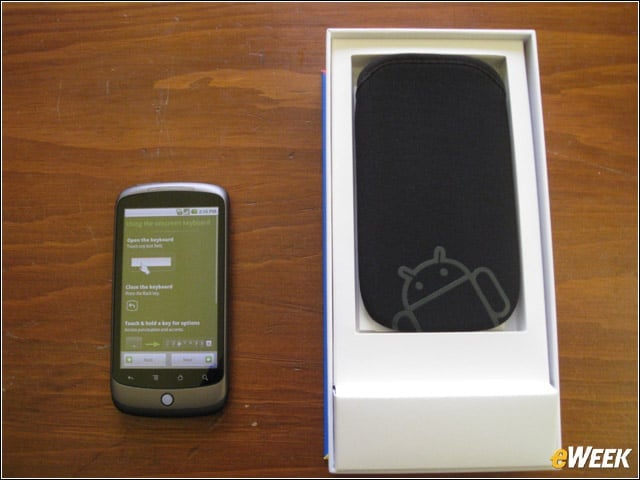
The Nexus One comes with this carrying case, complete with Android logo.
Nexus One Components
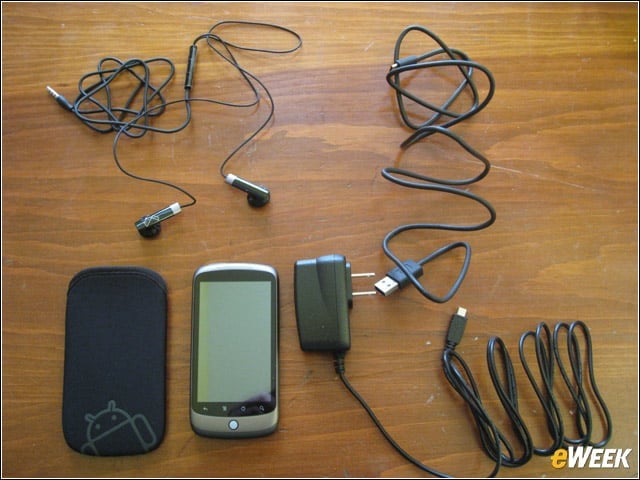
In addition to the carrying case, the device comes with the requisite power cord, plus Android logo headphones and a mini-USB cable. In fact, the components are not unlike what you’d like to get when you purchase a computer. For Google, that’s the idea with this class of so-called “superphones.”
Whats Your Location?
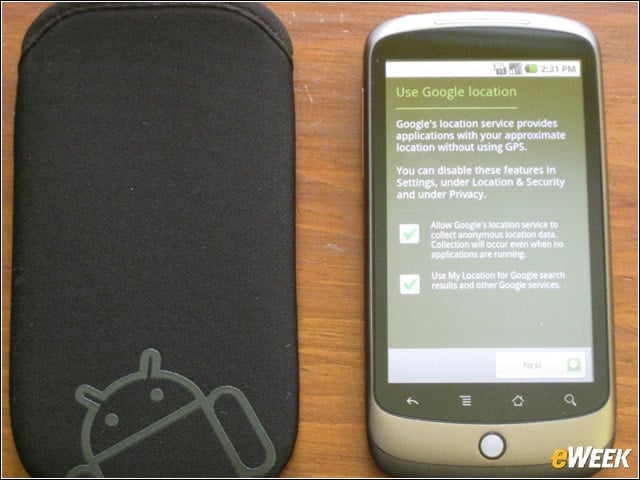
When you set up the phone, Google first asks you for your Google Account info, ostensibly to link you to your Gmail account and other Google Apps. But then the Android 2.1 software asks users if they are okay with Google homing in on their location. We said yes because we know it’s the only way to enjoy the full capabilities of Google Maps Navigation, Google Latitude and other Web services. Google also lets users disable location-based services in their settings.
Back Up the Nexus One
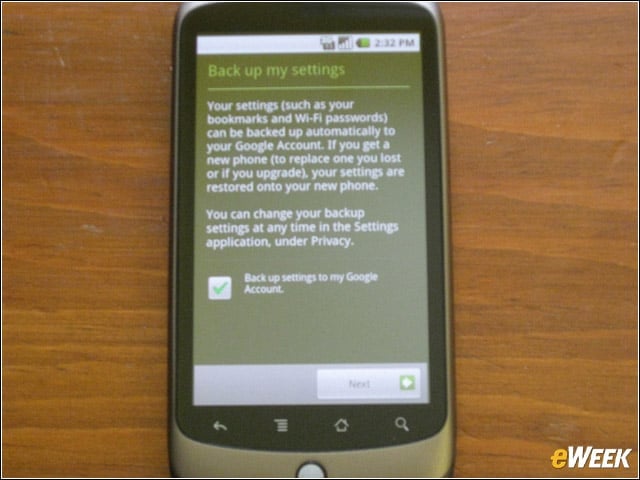
Google requests that users let it back up their application passwords and Wi-Fi passwords to their Google Accounts. That way, if you lose your phone or decide to get a new one, your settings are saved in your Google Account.
Activated on Nexus
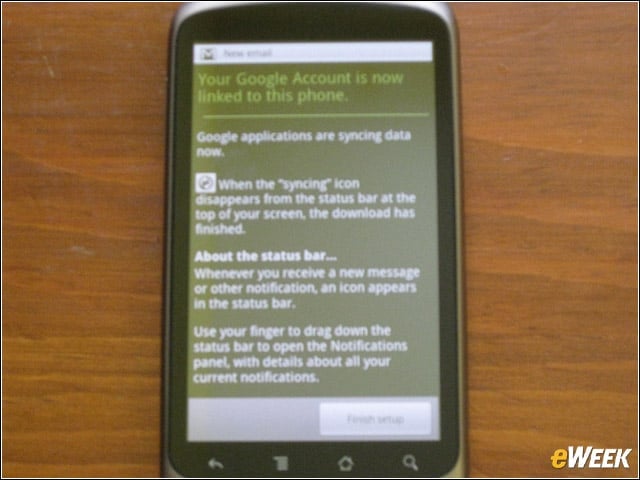
Finally! Setting up a smartphone is getting to be a chore these days—all these prompts and conditions to agree to. After finishing the backup prompt, the Nexus One informed us that it was syncing our Google Apps and data with the device.
Nexus Home Screen
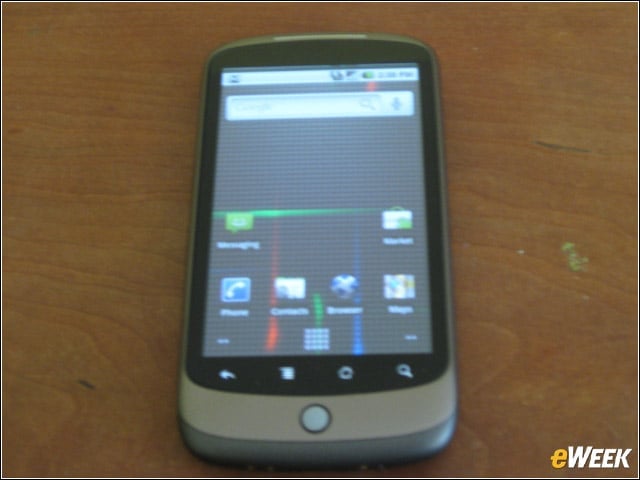
That’s when we saw this slick Nexus home screen, with options to make calls, send messages and use the Web browser along with Google Maps.
Android Market
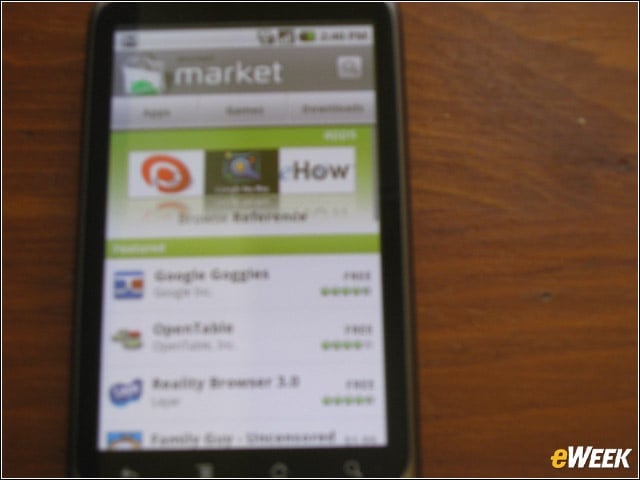
Check out the new Android Market user interface with Android 2.1 on the Nexus One. Google Goggles, the company’s new visual search app, tops the list, telling people that Google really wants them to download and use the free app.
Okay, We Bit
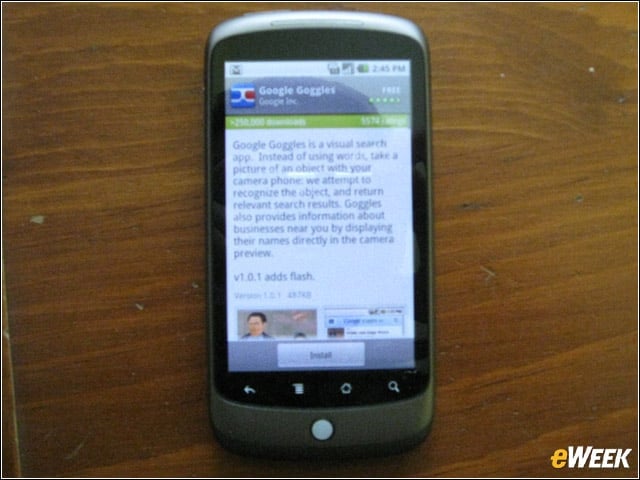
Downloading Google Goggles took 15 to 20 seconds.
Making Calls
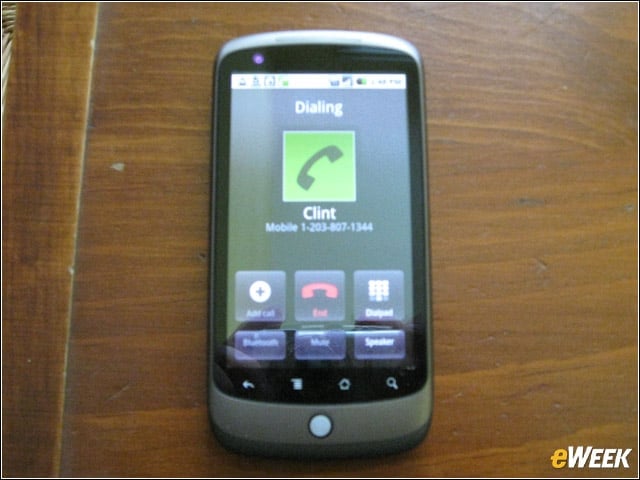
Calling contacts with the new phone was a breeze. Why? We allowed Google to sync data from our Google Account (and because we used the Droid for two months), so Android immediately recognized our contacts on the Nexus One.
Facebook Time
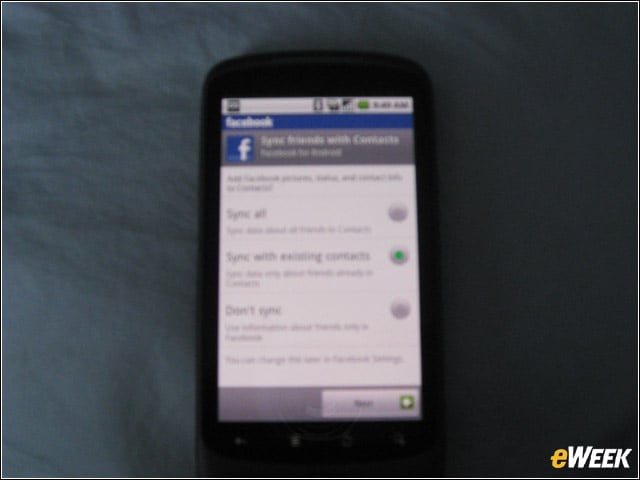
Setting up was a chore. On to fun things … like signing into our Facebook account.
