








- Here’s the Series 9 Ultrabook 13-Inch Version
- Default Screen Brightness Setting Falls Short
- Samsung Brightness Claim Is a Stretch
- Maximum Brightness Falls Short of iPad
- The Series 9 Is Unquestionably Thin
- Built-In Speakers Won’t Provide Optimal Sound
- Series 9 Flat Keyboard Works Fine–Except for Right Clicks
- Series 9 Right-Side View
- Series 9 Left-Side View
- Series 9 Rear View
- Screen Is Still Visible From Extreme Vertical Angle
- Screen Provides Broad Horizontal Viewing Angle
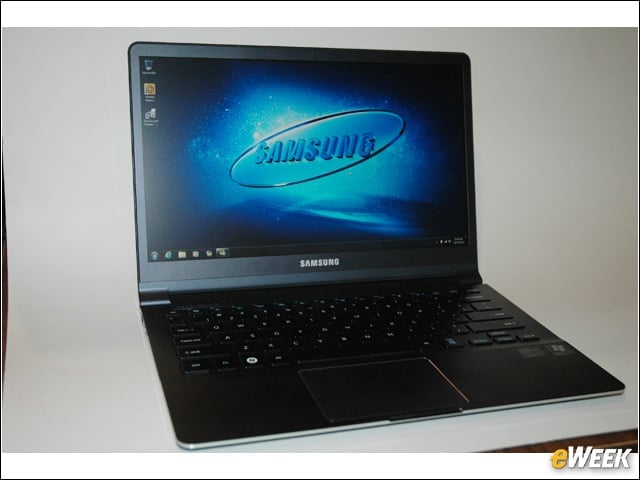
Here’s the Series 9 Ultrabook 13-Inch Version
The model I reviewed is the 13-inch version of the Samsung Series 9. There’s also a 15-inch version, which looks a lot like this, except it’s larger. Note that the touch surface is unadorned by any selection buttons.
Default Screen Brightness Setting Falls Short
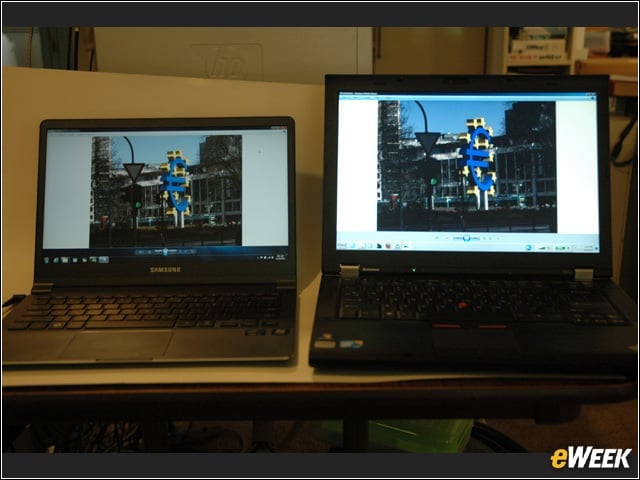
Round one of the brightness test shows that in its default configuration, the Series 9’s screen is not nearly as bright as the one on a three-year-old Lenovo T-410 notebook computer. Fortunately, this can be fixed.
Samsung Brightness Claim Is a Stretch
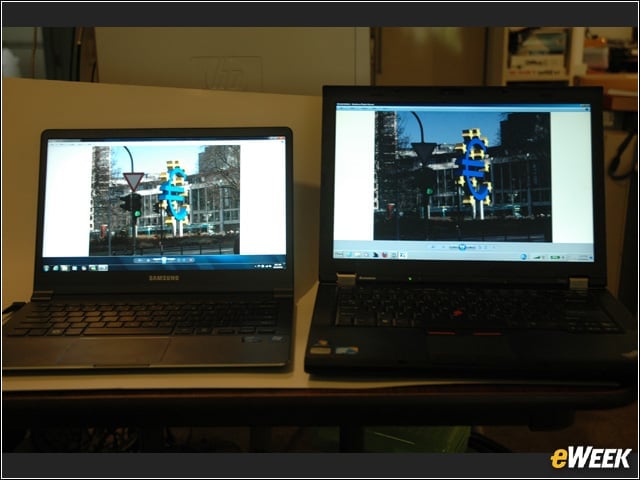
The second round brightness test shows that you can increase the brightness on the Series 9’s screen so that it’s about equal to that of the Lenovo T-410. This makes Samsung’s claim that their notebook is twice as bright as other notebook computers questionable. It may well be twice as bright as other Ultrabooks, however.
Maximum Brightness Falls Short of iPad
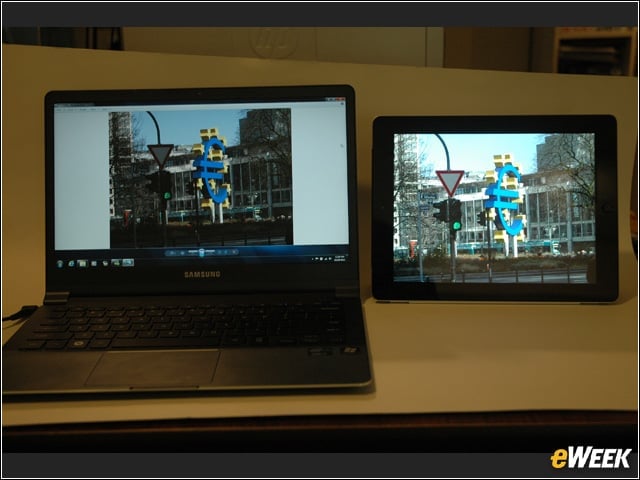
The brightness test, round three compares the Series 9 against a third-generation Apple iPad. Not only does the iPad have a screen with much higher resolution, but it’s noticeably brighter.
The Series 9 Is Unquestionably Thin
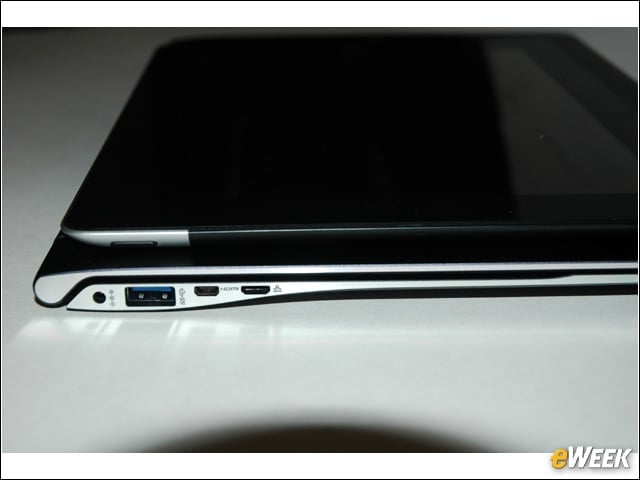
Samsung also makes a big deal about how thin the Series 9 is. And Samsung is right. This is one very thin computer. Notice here that while it’s thicker than a third-generation iPad, it’s not a lot thicker.
Built-In Speakers Won’t Provide Optimal Sound
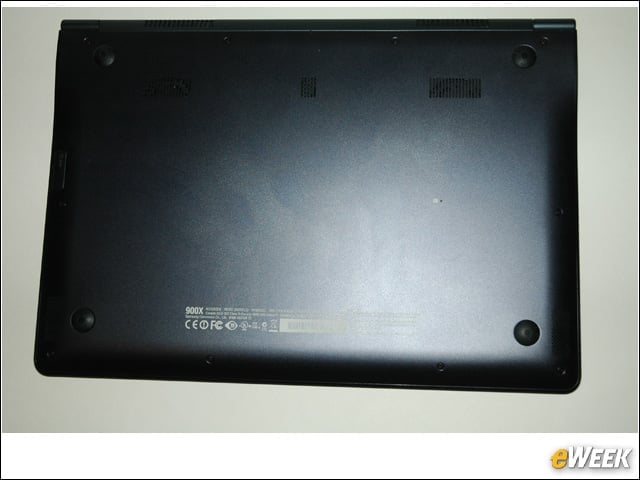
Those holes on the bottom are Dolby stereo speakers. You wouldn’t think that speakers that small would sound very good—and you’d be right. But you can attach larger speakers.
Series 9 Flat Keyboard Works Fine–Except for Right Clicks
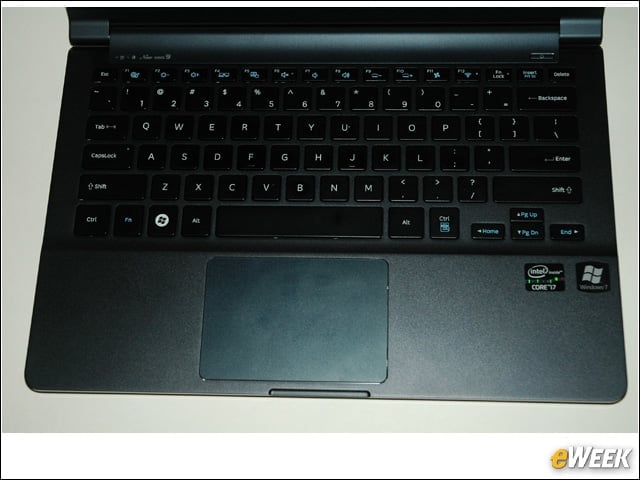
This is a close look at the Series 9’s keyboard. You’ll note that the keys are very flat. However, the flat area below the keyboard provides a very useful palm rest that makes typing easier than it might be otherwise. Note the “Fn” key on the lower left of the keyboard. To get a right click, you must press this, and also press the right “Ctrl” key, which is on the right side of the space bar. You can see the tiny menu to tell you that it does this. It’s quite inconvenient. The rectangular area is the touch surface that clicks when pressed. It provides good control and is easy to use, except when right clicks are required.
Series 9 Right-Side View
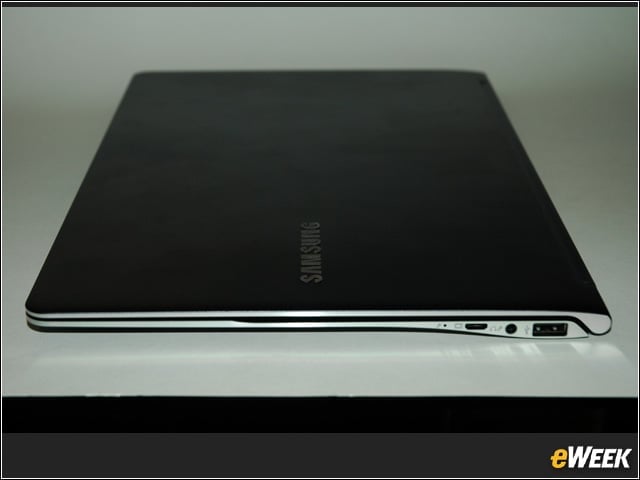
Here is the right side of the Samsung Series 9, which includes a memory card slot (that isn’t visible in this photo), a microphone jack, the monitor port (where you plug in the monitor dongle), the headset jack and one of the two USB ports.
Series 9 Left-Side View
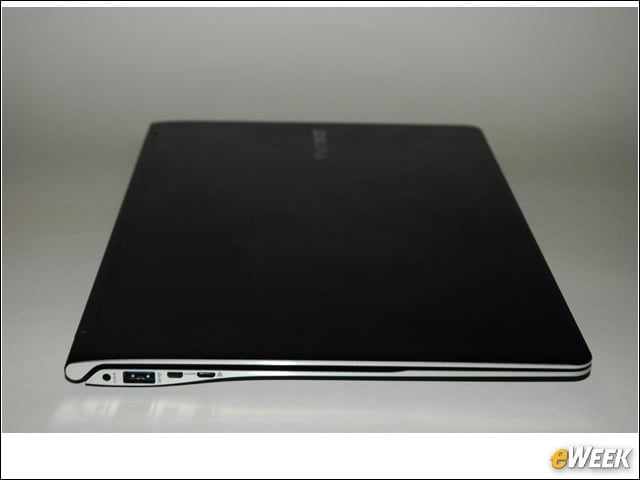
On the left side of the computer is the rest of the port complement. They are a power input, a USB 3.0 port, the High Definition Multimedia Interface (HDMI) port (you need another dongle here), and the Ethernet port (this dongle is included with the computer). The DVD drive is external, optional and connects to the USB port.
Series 9 Rear View
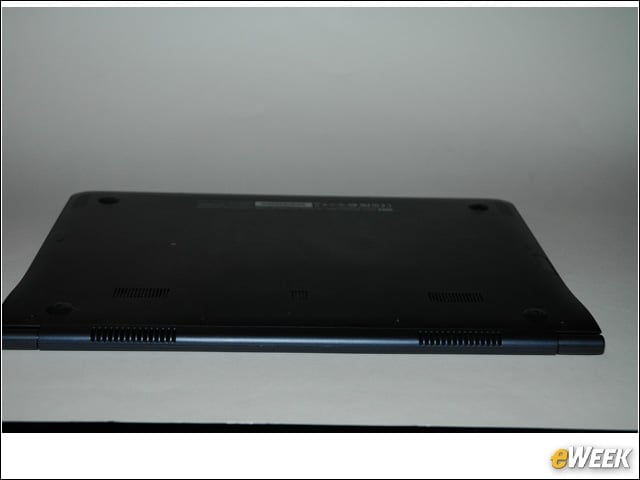
Unlike most notebooks or even netbooks, there are no ports on the rear of the Series 9. However, there are some cooling vents.
Screen Is Still Visible From Extreme Vertical Angle
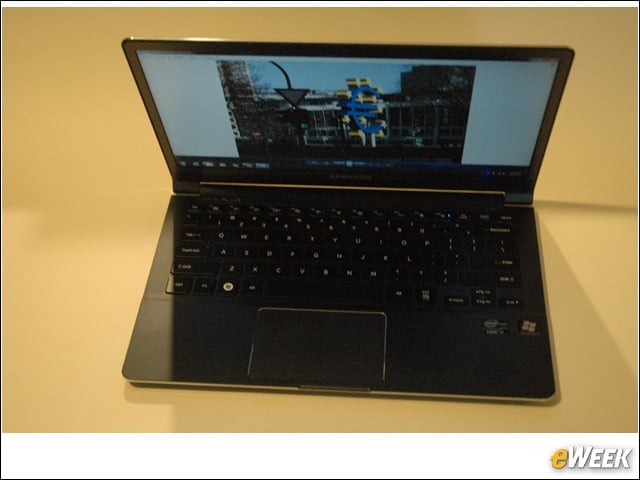
This is the screen of the Series 9 taken from an extreme angle above the computer. Note that even from this angle, the screen is still fully visible. This is a significant difference from most notebook computers where the vertical viewing angle is quite limited.
Screen Provides Broad Horizontal Viewing Angle
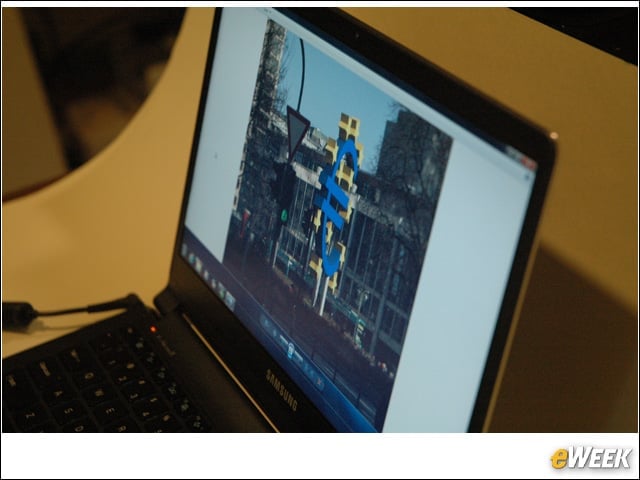
The Series 9 also allows a very wide horizontal viewing angle, as this photo taken from the side shows. Several people can view the screen at one time and still be able to see it.