







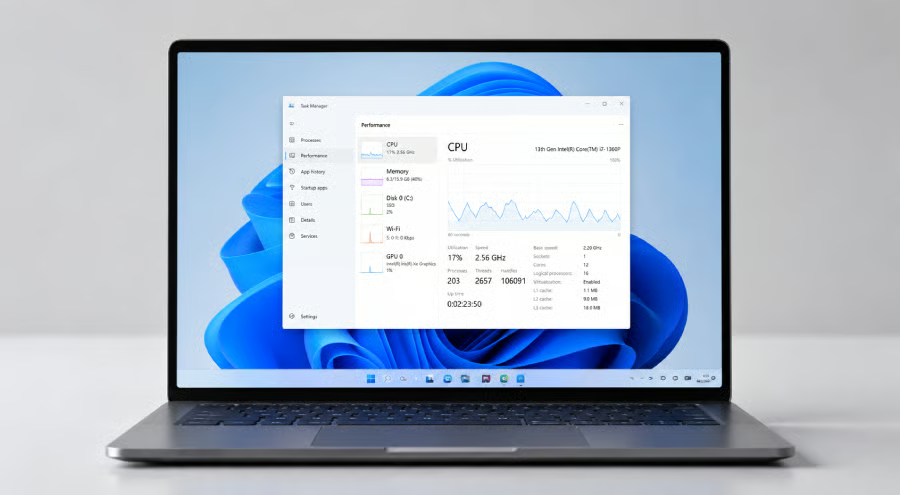
Windows 11 can feel sluggish for reasons that have little to do with the age of your processor. A crowded startup list, low storage, background apps, visual effects, and even malware can all consume resources before you open the program you actually want to use.
Microsoft maintains a lengthy list of Windows performance recommendations covering everything from updates and disk cleanup to power settings and Task Manager. The company has also recently highlighted startup apps as an easy place to look when a Windows 11 PC takes too long to get moving.
For users who would rather troubleshoot before replacing hardware, this cheat sheet breaks down Microsoft's recommendations, where to find the relevant settings, and which changes are worth trying first.
- Windows 11 performance cheat sheet
- 1. Start with Windows and driver updates
- 2. Check whether malware is eating resources
- 3. Free up storage with Storage Sense
- 4. Uninstall software you no longer use
- 5. Disable unnecessary startup apps
- 6. Stop unnecessary apps from running in the background
- 7. Cut back Windows 11's visual effects
- 8. Switch to Best performance power mode
- 9. Let Windows optimize your drives
- 10. Use Task Manager to find the real bottleneck
- 11. Trim notifications you don't need
- 12. Sometimes the old restart really does help
- Frequently asked questions (FAQs)
- Bottom line: Windows 11 performance tips work best when you start simple
Windows 11 performance cheat sheet
The table below gives you a quick view of Microsoft’s main Windows 11 performance recommendations, where to find each setting, and the type of slowdown it may help address.
What to try | Where to find it | What it can help |
Install Windows and driver updates | Settings > Windows Update | Bugs, drivers, general performance |
Run a malware scan | Windows Security > Virus & threat protection | High CPU or disk use caused by malware |
Free storage | Settings > System > Storage | Low disk space and temporary files |
Uninstall unused apps | Settings > Apps > Installed apps | Storage and background activity |
Disable startup apps | Task Manager > Startup apps | Boot time and post-login responsiveness |
Limit background apps | Settings > Apps > Installed apps | CPU and memory use |
Reduce visual effects | Search for "Adjust the appearance and performance of Windows" | Interface responsiveness |
Use Best performance power mode | Settings > System > Power & battery | CPU responsiveness |
Optimize drives | Search for "Defragment and Optimize Drives" | Drive maintenance |
Check Task Manager | Ctrl + Shift + Esc | Resource-heavy processes |
Reduce notifications | Settings > System > Notifications | Interruptions and small background overhead |
Restart the PC | Start > Power > Restart | Clears accumulated processes and memory use |
Microsoft cautions that these steps will not turn outdated hardware into a new PC. Older systems may still need an upgrade if their hardware can no longer keep up with modern software.
For a closer look at each fix, the steps below explain where to find these Windows 11 settings, what they can improve, and when the trade-offs are worth considering.
1. Start with Windows and driver updates
Performance troubleshooting does not have to begin with obscure settings. Microsoft puts Windows Update first on its list.
Open Start > Settings > Windows Update > Check for updates. Install available updates and restart if Windows asks you to.
It is also worth checking Windows Update > Advanced options > Optional updates. Microsoft notes that optional updates can include non-critical drivers that may help resolve performance or hardware issues.
Updates will not cure every slow PC, of course. They are still a sensible first step because they remove known software and driver problems before you start changing other settings.
2. Check whether malware is eating resources
A suddenly slow computer can also be a security problem.
Microsoft says malware can consume processor and disk resources, reducing overall performance. Windows 11 users can run a quick scan through Settings > Privacy & security > Windows Security > Virus & threat protection, then select Quick scan.
A malware scan becomes particularly important when a computer slows down unexpectedly, runs hot while idle, or shows unexplained resource use in Task Manager.
Avoid disabling antivirus software simply to reclaim system resources. Any small performance gain can come with a much larger security trade-off.
3. Free up storage with Storage Sense
Running short on disk space is another common source of performance problems.
Microsoft recommends Storage Sense, Windows 11's built-in cleanup feature. Go to Settings > System > Storage > Storage Sense and select Run Storage Sense now.
You can also open Temporary files from the Storage page and choose the files you want Windows to remove. The older Disk Cleanup utility remains available by searching for it from Start.
Manually deleting random folders is unnecessary and can cause problems. Built-in cleanup tools provide a safer way to reclaim space without accidentally removing system files.
4. Uninstall software you no longer use
Unused applications take up disk space, and some may also install services or background processes that keep running after you close them.
Go to Settings > Apps > Installed apps, locate programs you no longer need, select the three-dot menu, and choose Uninstall.
Focus on applications you recognize and know you no longer use. Be more cautious with hardware utilities, drivers, corporate security software, or programs installed by an IT department.
On a work PC, your organization may control application removal.
5. Disable unnecessary startup apps
Startup applications are one of the easiest places to find unnecessary resource use.
Microsoft recently highlighted the issue again, warning that having too many applications launch automatically can slow Windows down. Neowin reported on Microsoft's recommendation on Aug. 16.
The quickest route is Ctrl + Shift + Esc > Startup apps in Task Manager. Right-click an application and select Disable if it does not need to launch every time you sign in.
Task Manager is particularly useful because its Startup impact column helps identify which programs place the greatest load on the startup process. Neowin noted that Windows can classify measured apps as Low, Medium, or High impact.
High impact does not automatically mean "disable it." Security software, hardware utilities, cloud synchronization tools, and other programs may need to be available immediately.
A rarely used application with high startup impact is a much better candidate.
Disabling it also does not uninstall the program. You can turn it back on later if you change your mind.
6. Stop unnecessary apps from running in the background
Startup is only part of the picture. Some applications continue working after their windows are closed.
For supported apps, Microsoft directs users to Settings > Apps > Installed apps. Select the application's More options menu and open Advanced options. Under Background app permissions, set Let this app run in the background to Never.
Reducing unnecessary background activity can free CPU time and memory.
Use some judgment here as well. Email, messaging, security, backup, or synchronization apps may depend on background access to work as expected.
7. Cut back Windows 11's visual effects
Windows 11 uses animations and other visual effects to make menus, windows, and transitions look smoother. Those effects also use system resources.
Microsoft recommends searching Start for Adjust the appearance and performance of Windows. Open the result, select the Visual Effects tab, and choose Adjust for best performance.
The change can make Windows look more basic, so it is not necessarily the right choice for every computer.
How-To Geek also recommends disabling animations to make Windows feel more responsive. Windows 11 provides another route at Settings > Accessibility > Visual effects, where users can switch off Animation effects. The publication notes that reducing transparency may be more noticeable on older systems with weaker integrated graphics and limited RAM.
Users who prefer Windows 11's appearance can leave these settings alone. The improvement is more likely to matter on older or resource-constrained hardware than on a powerful workstation.
8. Switch to Best performance power mode
Windows normally balances speed with battery life and power consumption. If speed matters more, Microsoft recommends trying Best performance mode.
Go to Settings > System > Power & battery and select Best performance under Power mode.
The trade-off matters most on laptops. Microsoft warns that Best performance increases power consumption, can drain a battery more quickly, and may make the device run warmer.
For a desktop, the difference may also be modest depending on the processor and workload. How-To Geek similarly suggests the setting may be more noticeable on laptops, where power management can more aggressively limit CPU performance.
Use Best performance when you actually need it rather than assuming the highest setting is automatically best for everyday use.
9. Let Windows optimize your drives
Microsoft also recommends Windows' built-in drive optimization utility.
Search for Defragment and Optimize Drives, choose the drive, and select Optimize.
Windows handles different storage technologies appropriately through the built-in utility, so users should generally let Windows manage the process rather than applying old manual disk-maintenance advice intended for traditional hard drives.
If poor storage performance persists, Task Manager can help determine whether the drive is regularly reaching very high utilization.
10. Use Task Manager to find the real bottleneck
Before changing dozens of settings, check what Windows is actually doing.
Press Ctrl + Shift + Esc and open the Processes tab. Task Manager displays CPU, memory, disk, and other resource usage by process.
A process consistently consuming a large share of CPU time or memory gives you a much more useful clue than a general feeling that the PC is "slow."
Microsoft recommends closing applications you are not using and reviewing the Performance and Startup apps sections for additional clues.
Take care before ending an unfamiliar Windows process. Closing a normal application is very different from terminating a system component you do not recognize.
11. Trim notifications you don't need
Notifications are unlikely to transform a slow system by themselves, but Microsoft includes unnecessary app notifications among the items worth reviewing.
Open Settings > System > Notifications and disable notifications from applications you do not need to hear from.
The performance benefit may be small. The productivity benefit can be larger, particularly on a PC where dozens of applications compete for attention throughout the workday.
12. Sometimes the old restart really does help
Closing a laptop lid for weeks is not the same as periodically starting fresh.
Microsoft recommends closing unused applications and browser tabs and restarting Windows if performance still feels poor. Use Start > Power > Restart, then open only the applications you need after Windows returns.
Restarting clears running processes and gives Windows a cleaner operating state. It is especially useful after updates, driver installations, or a long stretch without a full reboot.
Frequently asked questions (FAQs)
What should I try first if Windows 11 feels slow?
Start with Windows Update, check available storage, and open Task Manager to see whether one app or process is using an unusual amount of CPU, memory, or disk activity.
Then review startup apps and disable programs that do not need to launch when you sign in.
Should I disable startup apps?
Unused startup apps are one of the easiest places to look for performance gains.
Use Task Manager > Startup apps to review what launches automatically. High-impact apps are worth investigating, but avoid disabling security software, hardware utilities, or business tools you still need.
Can freeing storage make Windows 11 faster?
It can help, especially if the system drive is running low on space.
Microsoft recommends using Storage Sense and Windows’ built-in temporary-file cleanup tools rather than manually deleting system folders.
Does Best performance mode make Windows 11 faster?
It can improve responsiveness in some situations, particularly on laptops where power management may limit processor performance.
The trade-off is higher power use, shorter battery life, and potentially more heat.
When are software tweaks not enough?
Performance settings have limits. Microsoft notes that older PCs may see little improvement when the underlying hardware can no longer keep up with current workloads.
If CPU, memory, or storage usage remains consistently high after basic cleanup and troubleshooting, hardware may be the limiting factor.
Bottom line: Windows 11 performance tips work best when you start simple
Start with the basics: install updates, free storage, review startup apps, check for malware, and use Task Manager to see what is consuming system resources. These Windows 11 performance tips are low-risk and can address many common causes of a slow PC without changing advanced settings.
If performance is still poor, try reducing visual effects or using Best performance mode, keeping in mind the trade-offs in appearance, battery life, power use, and heat. If CPU, memory, or disk usage stays consistently high after troubleshooting, the hardware may be the real bottleneck.
Want to get more out of Windows 11 beyond performance tweaks? Check out our guide to 7 AI Features in Windows 11 you should start using in 2026.